

Set your own encoding ladder
An encoding ladder is the set of renditions FastPix makes for a video, each at its own resolution and bitrate. With a custom ladder, you set that list once for your organization, then create media with mediaQuality set to "custom" and FastPix encodes them with exactly those renditions. Use it when you need precise control of data use, for example short videos watched on mobile networks.
Why set a custom ladder
The built-in quality levels (standard, pro, premium) choose renditions and bitrates for you. A custom ladder puts that choice in your hands:
- You pick each rendition’s resolution and bitrate, in kbps.
- The bitrate you set is the average the rendition delivers. FastPix does not raise or lower it for the content.
- The ladder is set once for your whole organization, not in each request. Every media created with
mediaQuality: "custom"uses it. - Media created with
codecTier: "plus"are also encoded in H.265, so each rendition also carries an H.265 bitrate. See Deliver H.265 alongside H.264.
Each media keeps the ladder it was created with, so changing the ladder later only affects new media.
Set your organization’s ladder
Your organization has one custom ladder. Set it in the FastPix dashboard.
Under Manage, open Media Quality. The page shows the quality options for your organization: Standard, Pro, Premium, and Custom.
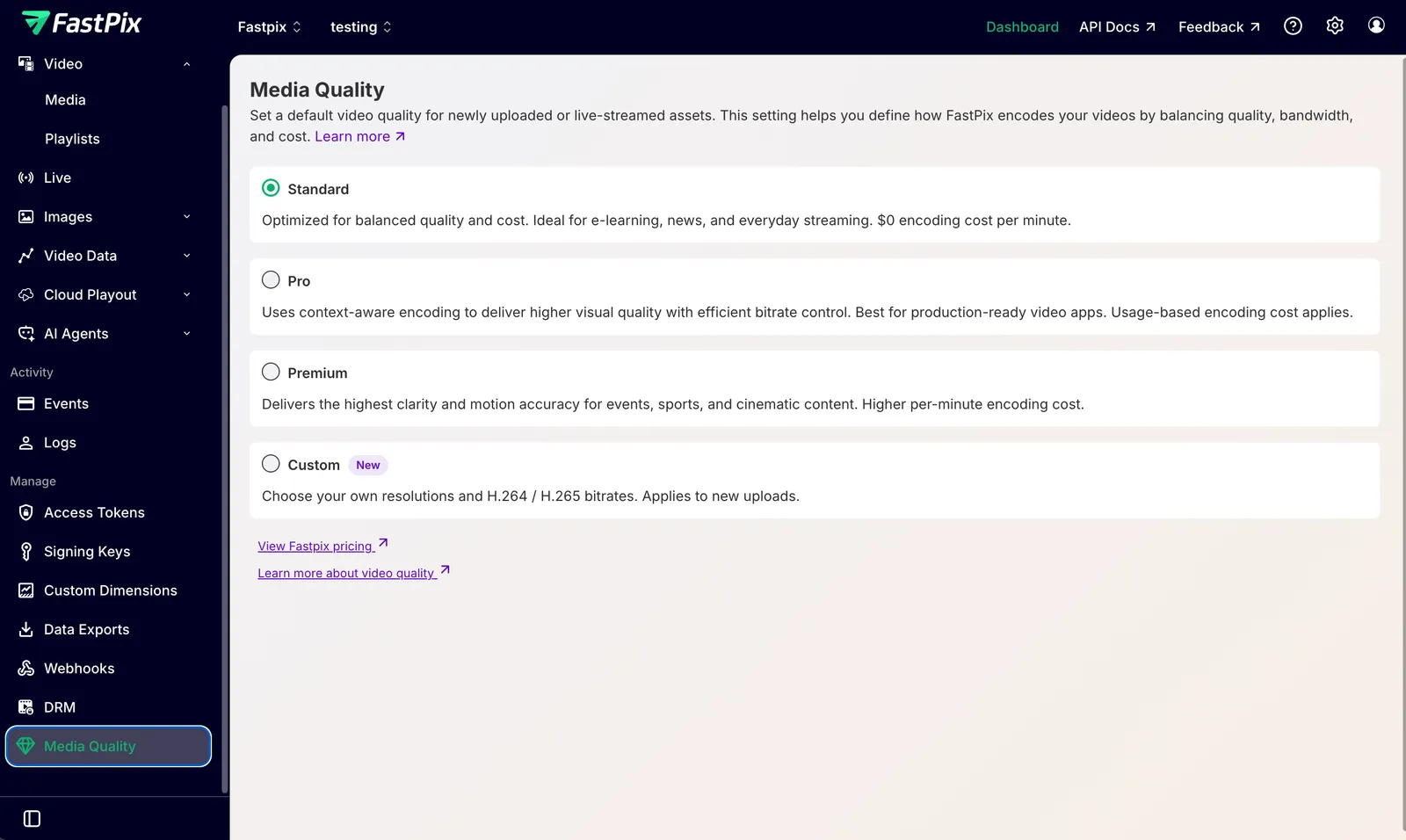
Select Custom to open the ladder table. It has a row for each resolution, with 480p, 720p, and 1080p required and 270p included by default. Enter an H.264 bitrate in kbps for each row, and an H.265 bitrate in the H.265 column for the renditions you also want in H.265. Each field shows its allowed range. Use Add resolution to add 144p, 360p, 540p, 1440p, 2160p, or a second 1080p rendition.
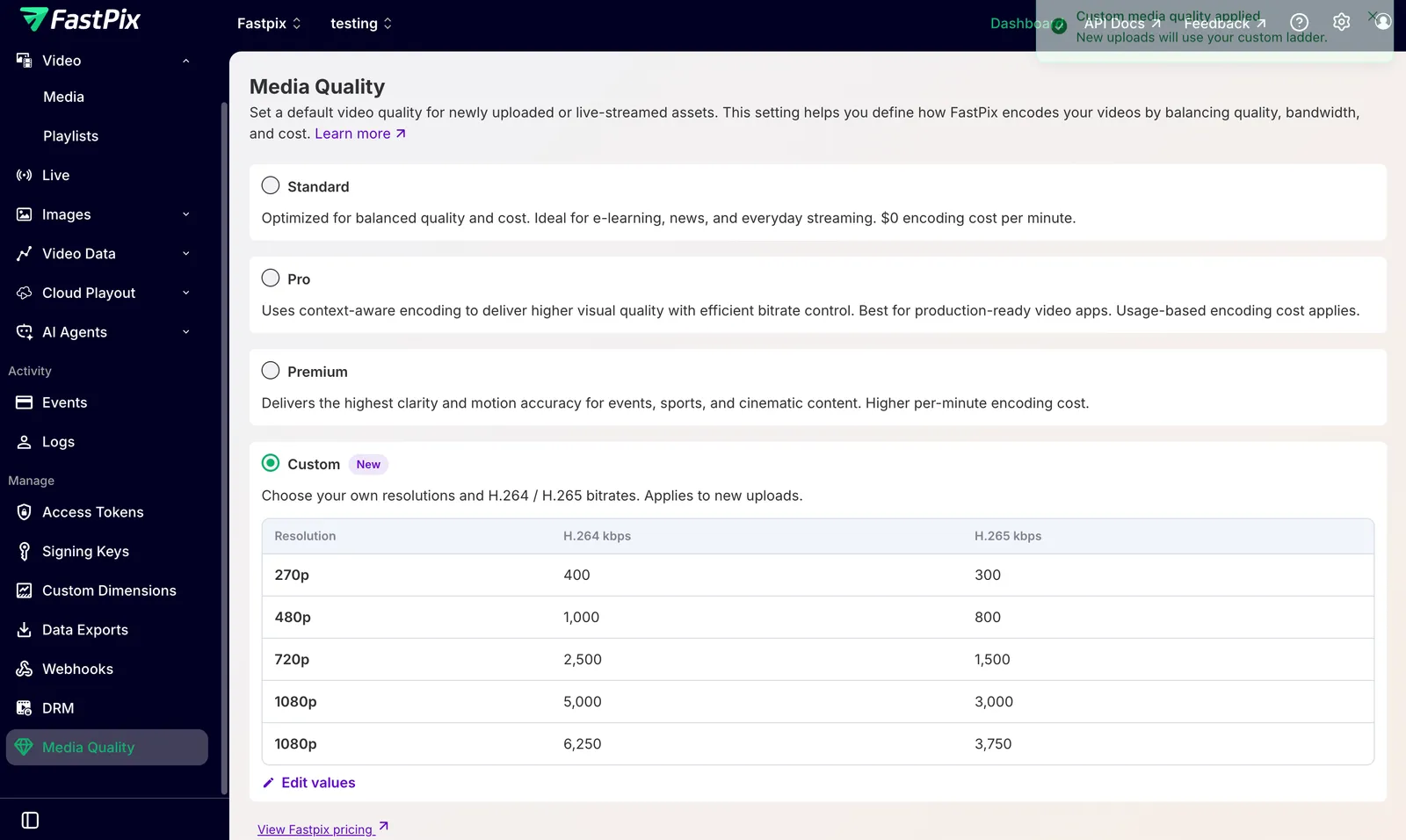
Select Save and apply. From now on, media you create with mediaQuality: "custom" use this ladder. To change it later, select Edit values.
The custom ladder stays saved even when you select another quality, such as Pro, as your organization’s default on this page. It then shows as Saved but not in use. You can still choose Custom for an individual upload, and that upload uses the saved ladder.
The fields, the allowed bitrates, and the ladder rules are below.
Ladder fields
Each entry in your ladder has these fields:
Allowed bitrates
Set each rendition’s bitrate within the range for its resolution. These ranges double as a guide to the recommended video bitrate for each resolution, from 4K (2160p) down to 144p.
Ladder rules
Your ladder must follow these rules. If it breaks one, media created with mediaQuality: "custom" fail with a message that names the rule.
- Include
480p,720p, and1080p. If you leave out270p, FastPix adds it at 100 kbps or half your480pbitrate, whichever is lower, in each codec. - List each resolution once.
1080pmay appear twice, as a lower and a higher rendition that are at least 1.25 times apart. - Bitrates must rise with resolution, in each codec.
Create a media with the custom ladder
Set mediaQuality to "custom". The request does not carry the ladder: FastPix applies your organization’s ladder to the media.
Upload a video from a URL:
Upload a video from a device:
From the dashboard
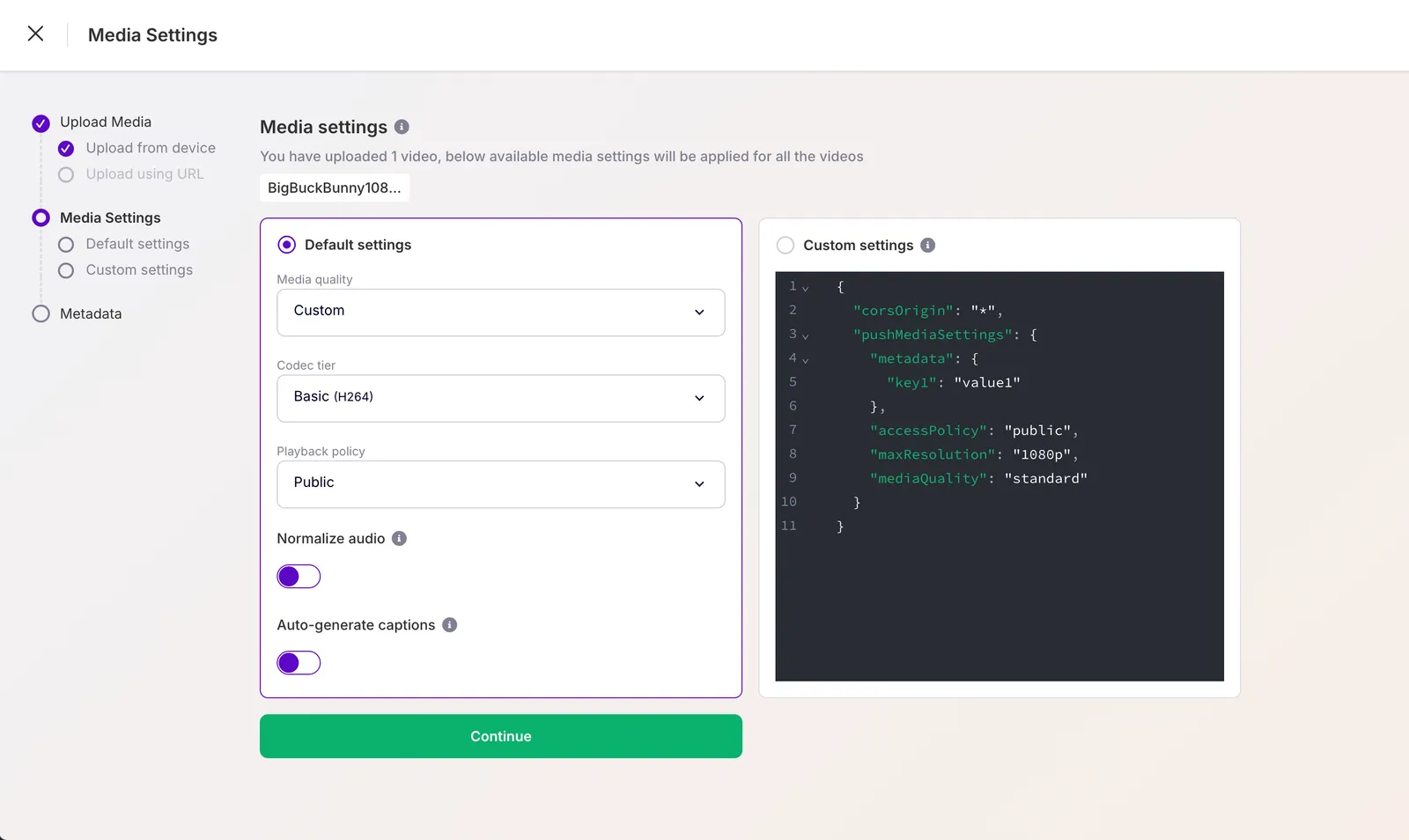
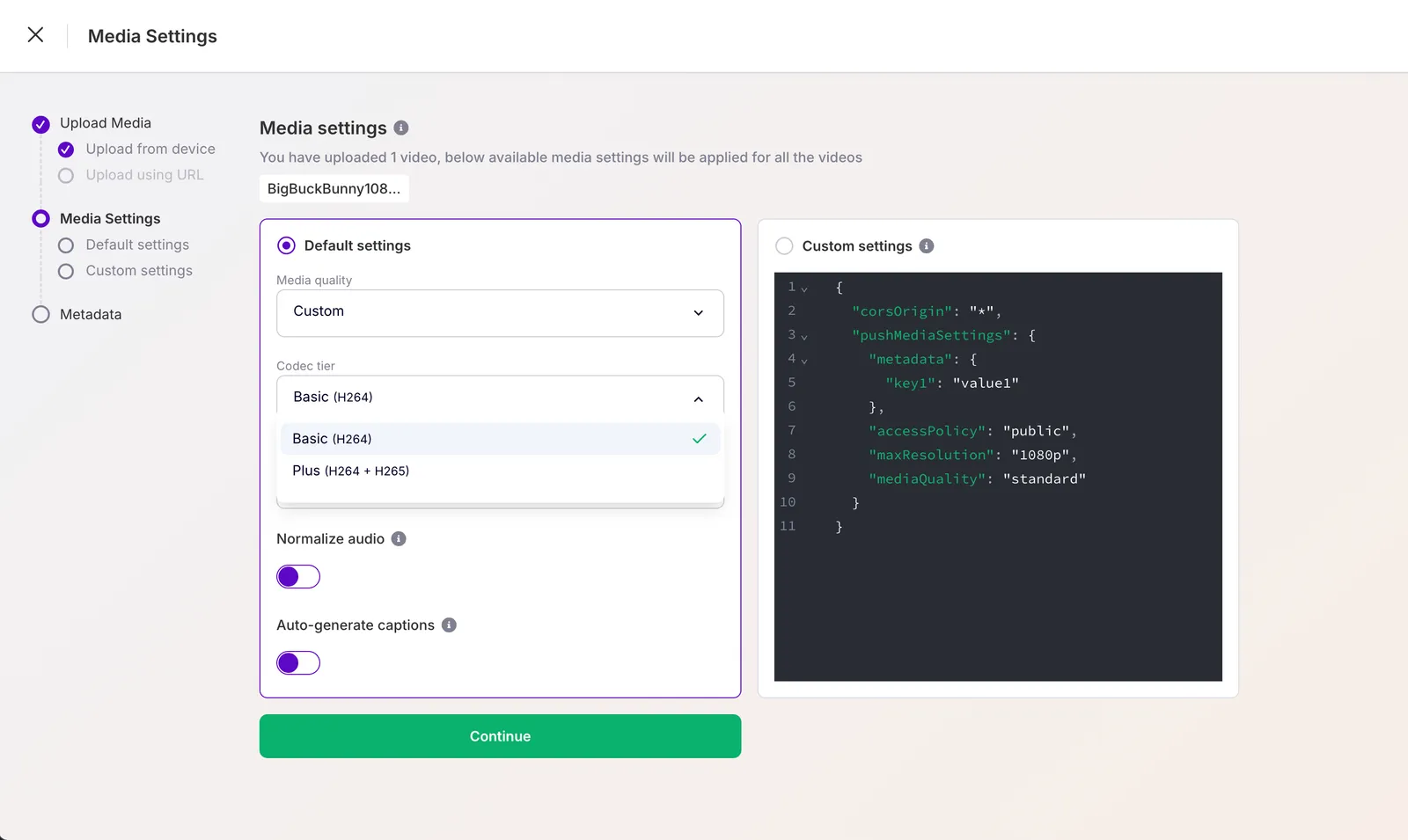
When you upload a video, open Media settings. The Media quality dropdown shows your organization’s default quality. Open it and choose Custom to use your custom ladder for this upload.
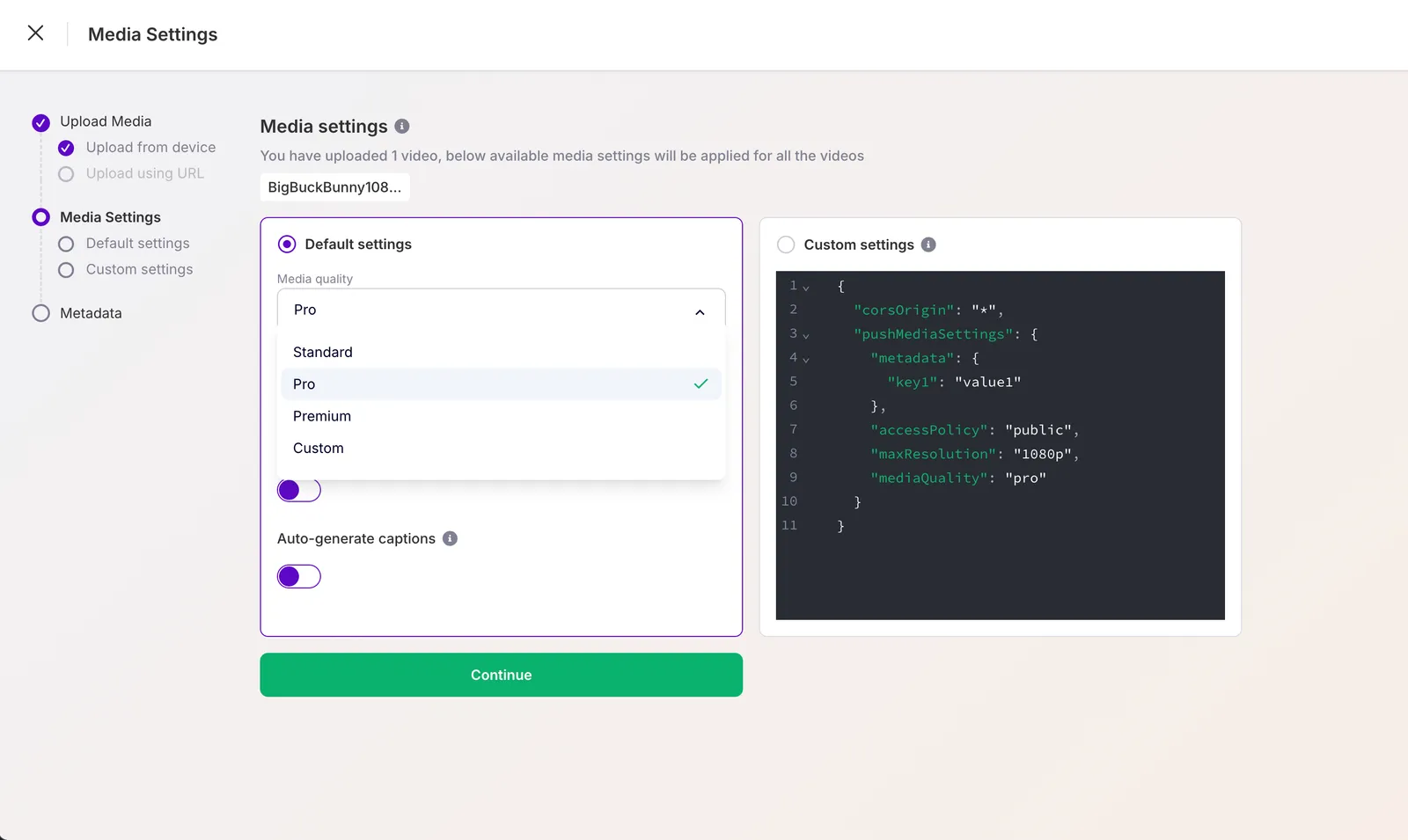
Custom appears in this dropdown only after you set up a ladder on the Media Quality page. Until then it is disabled and labeled set up in Media Quality settings. You can still choose Standard, Pro, or Premium for the upload.
To also encode H.265, set Codec tier to Plus (H264 + H265). The Codec tier dropdown is available when Media quality is Pro, Premium, or Custom. On Standard it stays fixed at Basic (H264), because Standard is H.264 only.
Billing:
codecTiersets which codecs FastPix encodes and bills.basicencodes H.264 only.plusencodes both H.264 and H.265, and both are billed.
How FastPix fits your ladder to the video
Your ladder is a template. FastPix adapts it to each source video:
- No upscaling. A resolution larger than the source, or above
maxResolution, is skipped in both codecs. If every entry is larger than the source, FastPix makes one rendition at the source’s size and your lowest bitrate. - Shape. Every rendition keeps the source’s aspect ratio.
- Above your top rendition. When the source and
maxResolutionallow 1440p or 2160p and your ladder stops below them, FastPix adds them. Each added rendition is 1.875 times the bitrate of the one below it for 1440p, and 2 times for 2160p, in each codec. It never exceeds the source’s own bitrate or the maximum for that resolution. The defaultmaxResolutionof 1080p adds nothing. An added rendition that would not be at least 1.25 times the one below it is left out, along with any above it.
To cap the media at your own top rendition, set maxResolution to it.
Examples
A ladder for mobile viewers. 480p at 200 kbps, 720p at 700, and 1080p at 1800, with H.265 at 100, 500, and 800. FastPix adds 270p at 100 kbps (H.264) and 50 kbps (H.265), so viewers get four renditions in each codec.
A 4K video with a ladder that ends at 1080p. With maxResolution: "2160p", a 1080p entry at 5000 / 3000 (H.264 / H.265) gains 1440p at 9375 / 5625 and 2160p at 18750 / 11250. With the default maxResolution, the top rendition stays 1080p.
Frequently asked questions
What is an encoding ladder (bitrate ladder)?
An encoding ladder, also called a bitrate ladder or ABR ladder, is the set of renditions a video is encoded into, each at its own resolution and bitrate. Players switch between them as the viewer’s network changes, which is how adaptive bitrate streaming works.
What bitrate should I use for 1080p, 720p, or 4K?
Set each rendition within the range for its resolution in the Allowed bitrates table above, for example 800 to 10000 kbps for 1080p in H.264. Lower values save bandwidth; higher values hold more detail. Pick for the content and audience you serve.
Is a custom ladder the same as per-title encoding?
No. A custom ladder uses the same fixed bitrates for every media created with it. Per-title encoding changes bitrates per video. A custom ladder gives you exact, predictable control, which is useful when you need to cap data use.
Can I change a media's ladder later?
No. A media keeps the ladder it was created with. To use a new ladder, change your organization’s ladder, then create a new media from the same source file with mediaQuality: "custom".
Can one media use a different ladder?
No. Every media created with mediaQuality: "custom" uses your organization’s ladder. A request cannot carry its own.
What if my video is smaller than my ladder?
FastPix skips the entries larger than the source, in both codecs, so it never upscales.
Does my ladder need H.265 bitrates?
Only for media created with codecTier: "plus". Media created with basic ignore the H.265 bitrates and are H.264 only.
What’s next
- Deliver H.265 alongside H.264: add an H.265 rendition to each step of your ladder.
- Configure media quality levels: compare standard, pro, and premium.
- Play your videos: deliver playback to any device.