

Embed a video in your app
Learn how to embed videos from FastPix using the built-in player or stream them through a custom player.
After uploading a video, FastPix lets you play an uploaded video in two ways: drop in a hosted iframe that handles HLS playback for you, or stream the .m3u8 playback URL into a custom player you control. Both paths use the same playbackId FastPix returns after transcoding completes.
Watch this Video Tutorial for a better understanding.
Prerequisites
- A FastPix account with an active workspace (Activate your account)
- A video already uploaded to FastPix with status
ready(Upload videos from a URL) - The
playbackIdfor that video (available in the Dashboard → Media > Manage media > Overview) - An HTML page or a web, mobile, or OTT app where you can paste the embed code
Key terms
mediaIdis the unique identifier FastPix assigns to every uploaded asset.playbackIdis a separate, access-controlled identifier used to construct the HLS playback URL:https://stream.fastpix.com/{playbackId}.m3u8. FastPix keeps these identifiers separate so you can rotate or revoke playback access without touching the source asset.
Get your playbackId
Every video has a unique playbackId used for embedding and playback.
To find it:
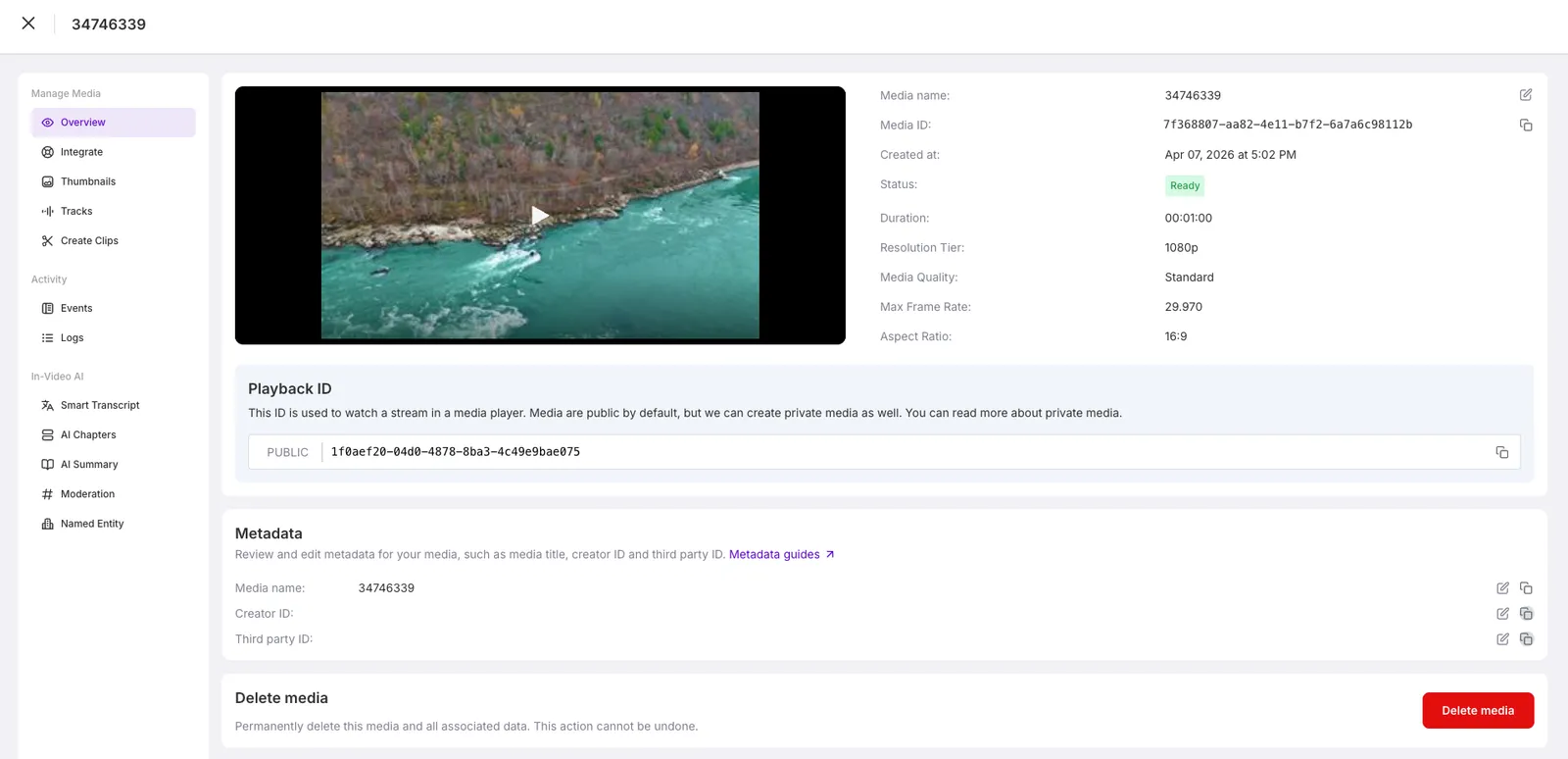
- Open the FastPix Dashboard and go to Video > Media.
- Click on your video to open the Media Details page.
- Under the Playback ID section, copy the playback ID displayed.
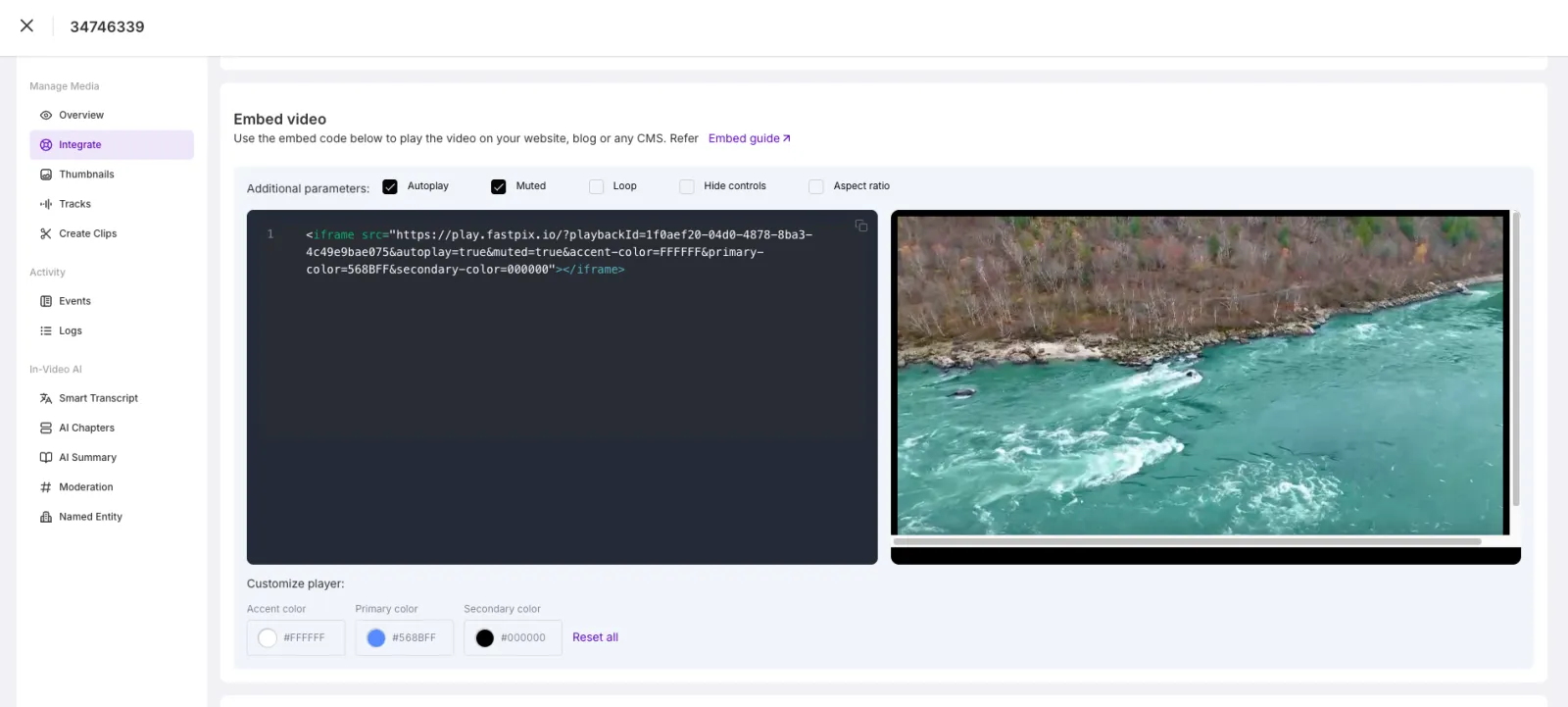
- In the left navigation, click Integrate to open the Embed video panel.
You’ll see:
- A copyable iframe embed code
- The direct
.m3u8streaming URL - The raw
playbackId
If the asset uses an accessPolicy of private, generate a signed playbackId before embedding. See Secure playback with signed URLs.
Choose your method
FastPix supports both playback workflows:
Use the iframe embed code if:
- You want to add a video player to a webpage without writing player code
- You do not need to customize the playback experience or build your own controls
Use the streaming URL if:
- You are building a web, mobile, or OTT app that uses a custom video player
- You need full control over playback, analytics, or UI design
Embed with an iframe
The iframe method renders the FastPix-hosted player inside your page. FastPix handles HLS playback, buffering, and adaptive bitrate streaming automatically.
Paste the following code into your HTML page and replace the playbackId value with yours:
Playback options
Control the behavior and appearance of the embedded player using URL parameters:
Make the iframe responsive
To render a responsive video embed that scales on all screen sizes, wrap the iframe in a container that enforces a 16:9 aspect ratio with a padding-top technique:
The 56.25% padding corresponds to a 9/16 ratio. Use 75% for 4:3 or 42.86% for 21:9.
Stream through a custom player
Use this method when you are building a custom player in a web, mobile, or OTT app. FastPix exposes an HLS .m3u8 manifest for each video.
Streaming URL format
Replace {playback_Id} with your video’s playbackId.
Compatible m3u8 players:
- HLS.js or Shaka Player (web)
- AVPlayer (iOS and macOS)
- ExoPlayer (Android)
- Native players on smart TVs and OTT devices
The stream uses adaptive bitrate streaming, so rendition quality adjusts to the viewer’s bandwidth automatically.
📘 NOTE
- Autoplay requires
muted=trueto work reliably across browsers- Use the correct aspect ratio or fixed dimensions to avoid black bars
- Test playback on different browsers and devices before shipping
Best practices
To deliver a smooth playback experience for your users, follow these recommended practices after embedding your FastPix video.
-
Test across environments: Check playback on major browsers (Chrome, Safari, Firefox, Edge) and on both desktop and mobile devices to catch compatibility issues early.
-
Keep it responsive: Wrap the iframe in a CSS container that maintains aspect ratio across screen sizes. This avoids layout shifts and black bars.
-
Respect autoplay rules: Most browsers block autoplay unless the video is muted. Always set
muted=truewhen you also setautoplay=true. -
Support accessibility: If your video includes speech, add captions or a transcript to improve accessibility and SEO performance.
Common use cases for embedded videos
FastPix delivers high-quality playback for a wide range of business and creative needs. Common scenarios where embedding video adds real value:
- Product demos on landing pages: Let users see your product in action without clicking away.
- Customer testimonial showcases: Build trust with real user feedback presented through short video clips.
- Tutorials and how-to content: Help users onboard faster with visual walkthroughs in your docs or support center.
- Creative portfolios: Showcase animations, short films, or reels without relying on third-party platforms.
- Event highlights and webinar replays: Let visitors watch missed sessions directly on your site.
- Background or hero section videos: Use autoplaying, muted, looping videos to enhance landing page visuals.
Frequently asked questions
Why is my embedded video not playing?
Confirm the playbackId in the iframe src matches an asset with status ready in your FastPix workspace. If the asset uses an accessPolicy of private, you must pass a signed playbackId; an unsigned one returns a 403.
Why does autoplay fail in Chrome or Safari?
Most browsers block autoplay for videos with sound. Add muted=true to the iframe URL alongside autoplay=true. The hosted FastPix player honors the browser’s autoplay policy and falls back to a play button when autoplay is blocked.
How do I embed a private video?
Generate a signed playbackId using your signing key, then pass it into the iframe src or the .m3u8 URL. See Secure playback with signed URLs for the full flow.
Which player should I use for the `.m3u8` URL?
On the web, HLS.js covers browsers that do not play HLS natively; Safari plays HLS natively through the <video> element. On mobile, use AVPlayer on iOS and ExoPlayer on Android. The FastPix-hosted iframe player already bundles HLS support.
Can I change the aspect ratio of the embedded player?
Yes. Pass aspect-ratio=16/9, aspect-ratio=4/3, or aspect-ratio=21/9 in the iframe src, or set the container’s padding-top ratio when you use the responsive wrapper.