

Secure media access with JWTs
See also: Generate JWTs for secure media — for the prerequisite steps of creating a signing key and producing the JWT itself.
FastPix uses JSON Web Tokens (JWTs) to provide secure, authenticated access to your media assets. This guide explains how to implement JWT-based authentication for both on-demand videos and live streams.
What is JWT-based authentication?
JWT-based authentication uses cryptographically signed tokens to verify that a request comes from an authorized source. Each token contains claims about the resource being accessed and includes a signature that FastPix validates before granting access.
How FastPix uses tokens
FastPix validates JWTs to authorize access to protected media resources. The validation process works as follows:
- Your application generates a JWT using your private signing key
- The client includes the JWT as a query parameter when requesting media
- FastPix validates the signature using your stored public key
- FastPix checks the token claims (expiration, audience, and permissions)
- If valid, FastPix serves the requested media
This approach ensures that only authorized requests can access your content, while keeping your signing keys secure on your backend.
Token usage for different resource types
Tokens provide authenticated access to multiple types of media assets. For on-demand content, you can use tokens to secure playback streams, thumbnail images, and spritesheet files.
Secure on-demand streams
For on-demand streaming, tokens play a key role in securing access to various assets. The token passed to playback-id for on-demand streams can be used for playback, thumbnail, and spritesheet.
Playback token: This token provides authenticated access to the main video content. It kicks off the playback, ensuring the video is streamed securely in the FastPix Player.
Example playback URL:
For an alternative token-based approach using JSON Web Tokens, see Generate JWTs for secure media.
Thumbnail token: Used to securely access thumbnail images tied to the video. Allows fetching of thumbnail previews to improve the visual experience in the player interface.
Example thumbnail URL:
Spritesheet token: Grants access to spritesheets for animations and interactive elements like timeline hover previews.
Example spritesheet URL:
Create Private Media from the Dashboard
Use private media to control access to sensitive or restricted videos. A private media can only be played with a signed JWT token, so no one can watch it from the URL alone.
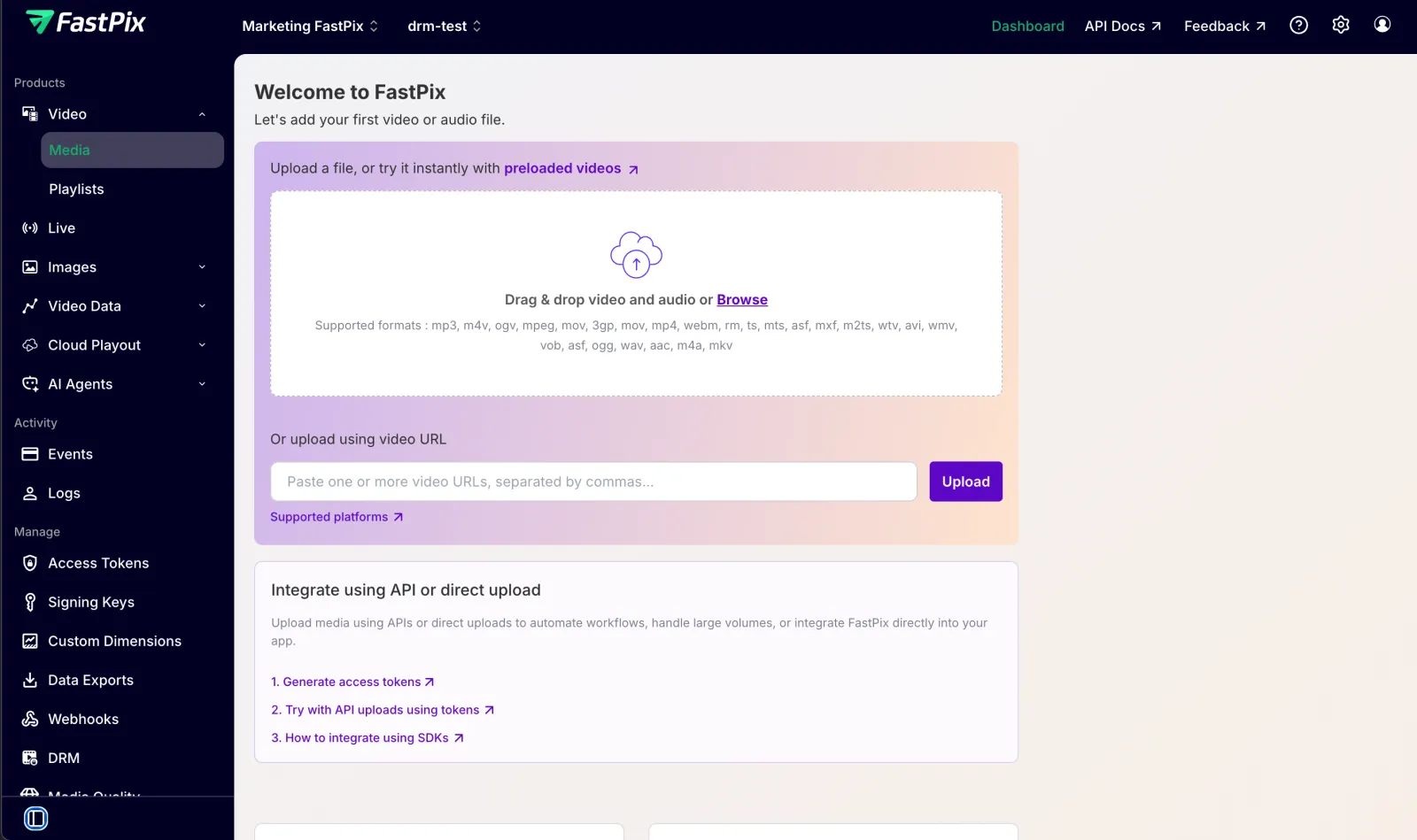
- Upload a video. In the dashboard, open Video > Media, then drag and drop a file, click Browse, or paste one or more video URLs and click Upload.
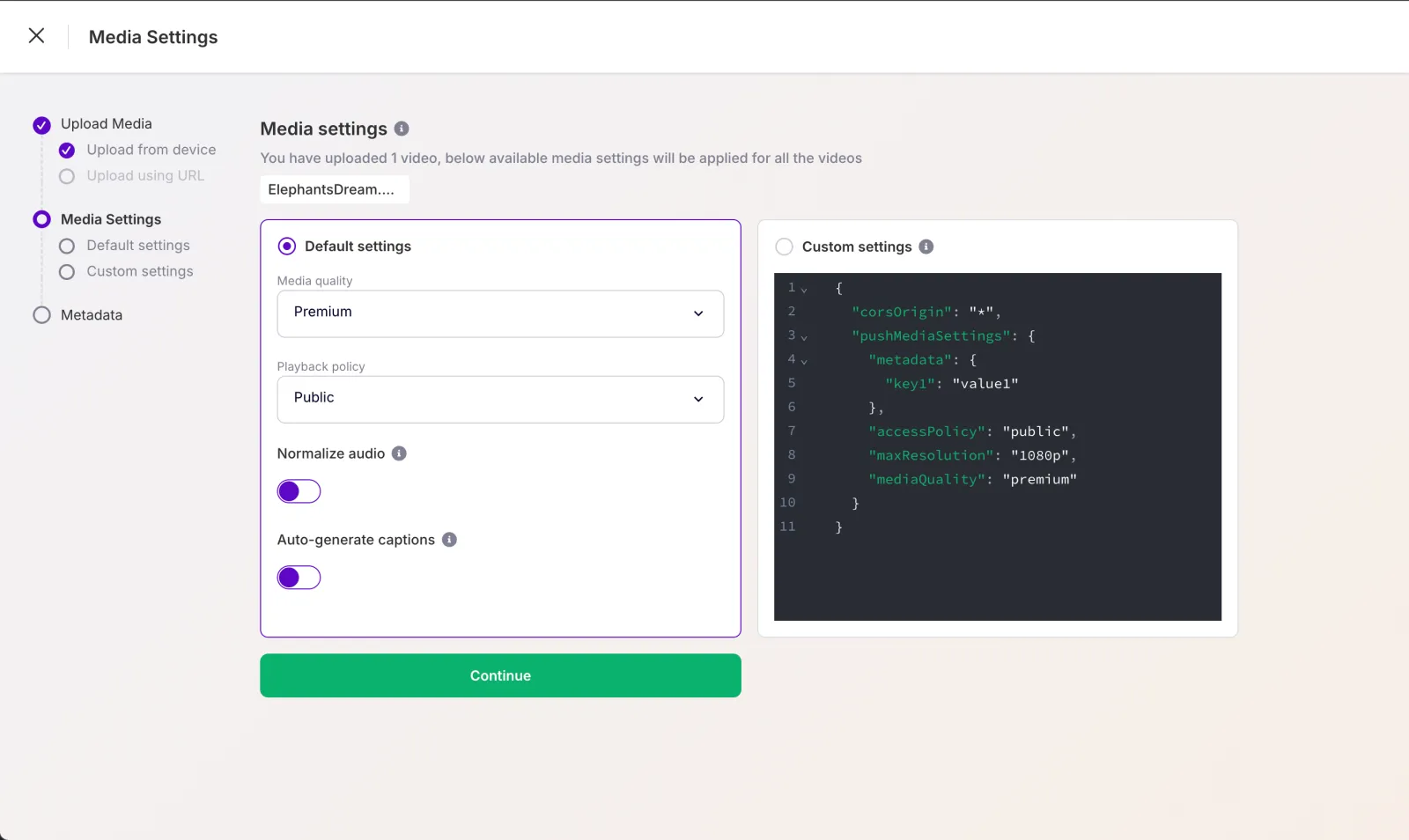
- Open Media settings. After the file is added, the Media settings step opens. By default, the Playback policy is set to Public.
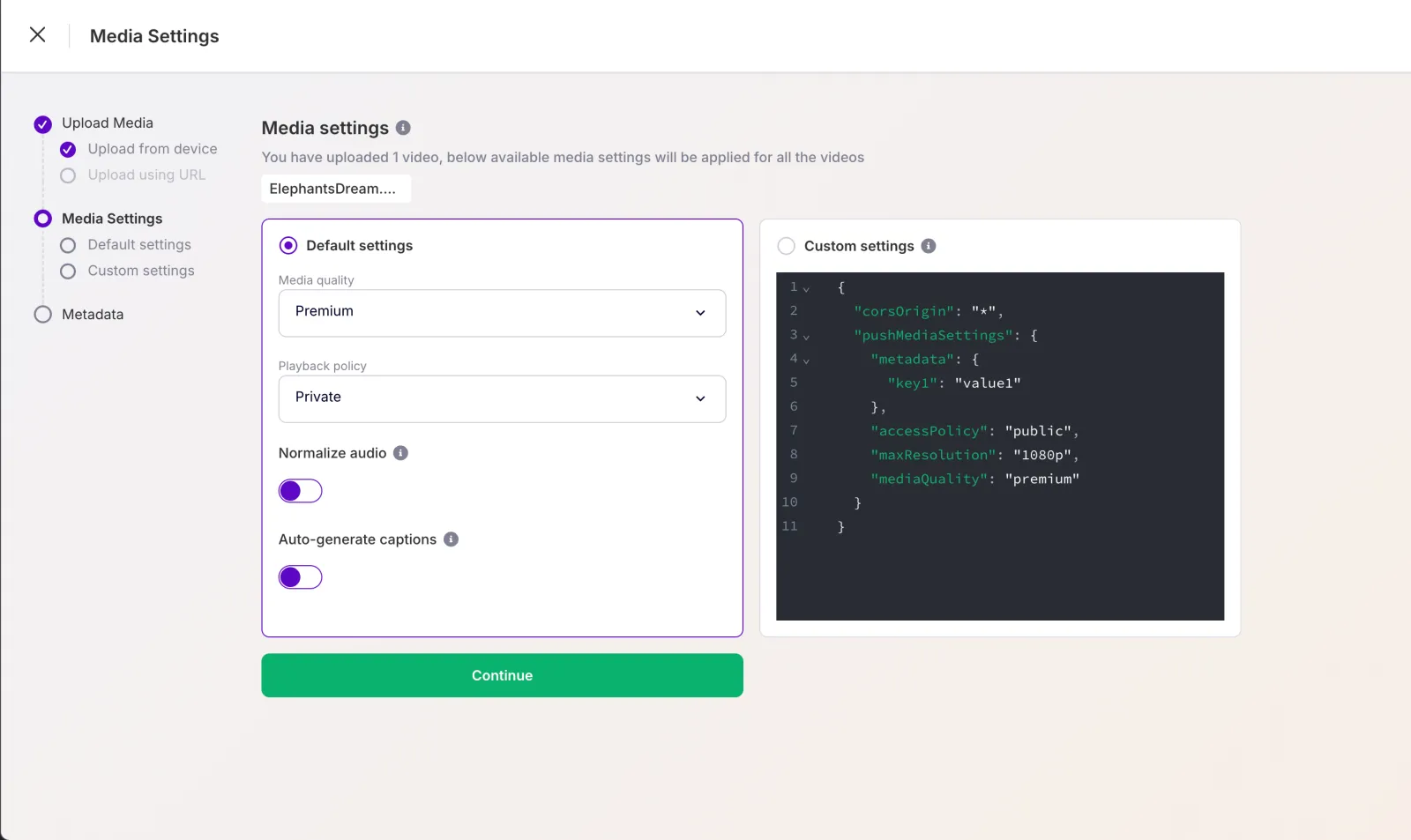
- Set the playback policy to Private. Change Playback policy to Private, then click Continue. You can set media quality and other options here too, or switch to Custom settings to paste the equivalent API request.
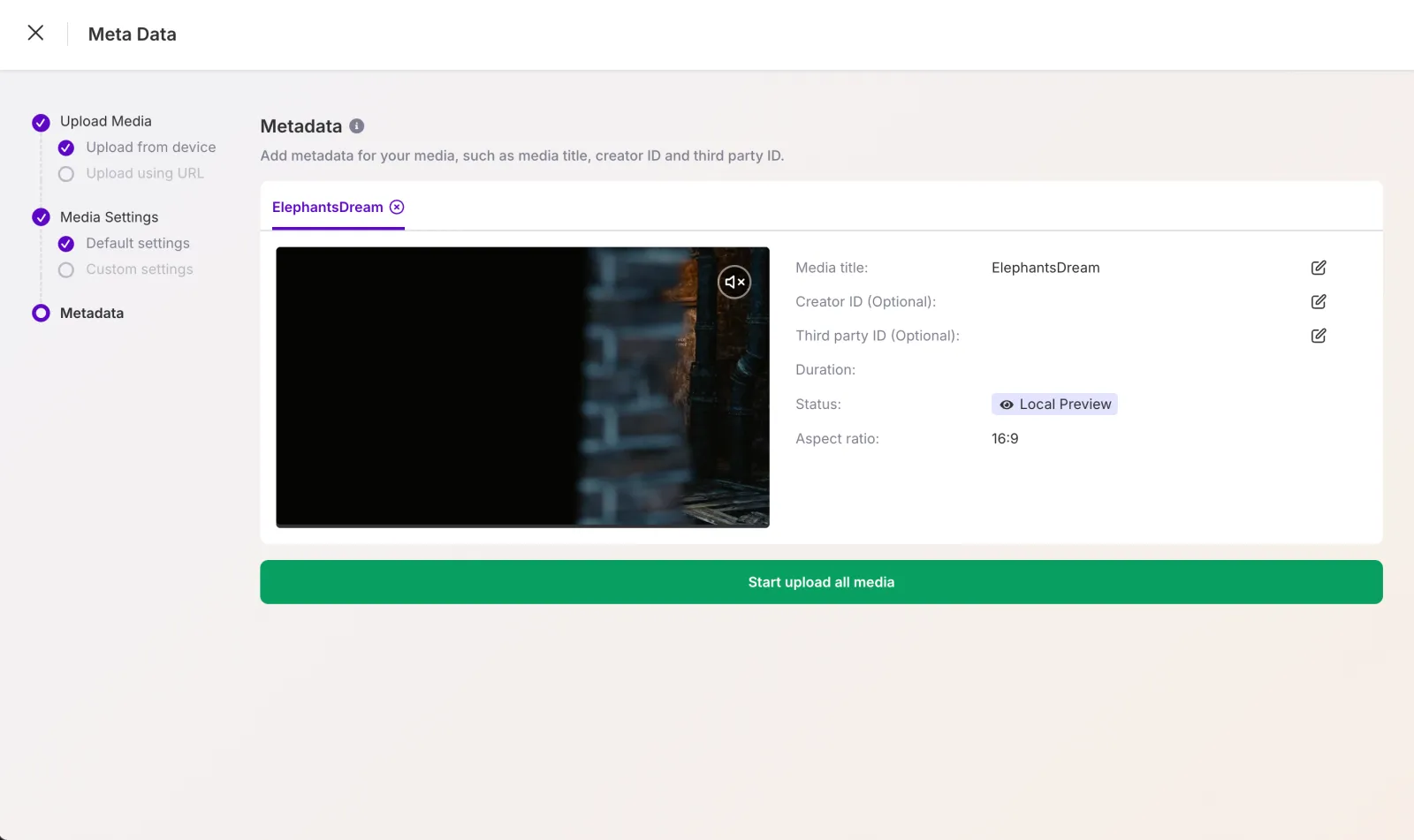
- Add metadata and upload. On the Metadata step, add a media title and any optional details (creator ID, third party ID), then click Start upload all media.
- Confirm the media is private. Once processing finishes and the status is Ready, open the media. The preview shows No public playback ID for previewing, and the Playback ID section lists a single PRIVATE playback ID, confirming the media is private.
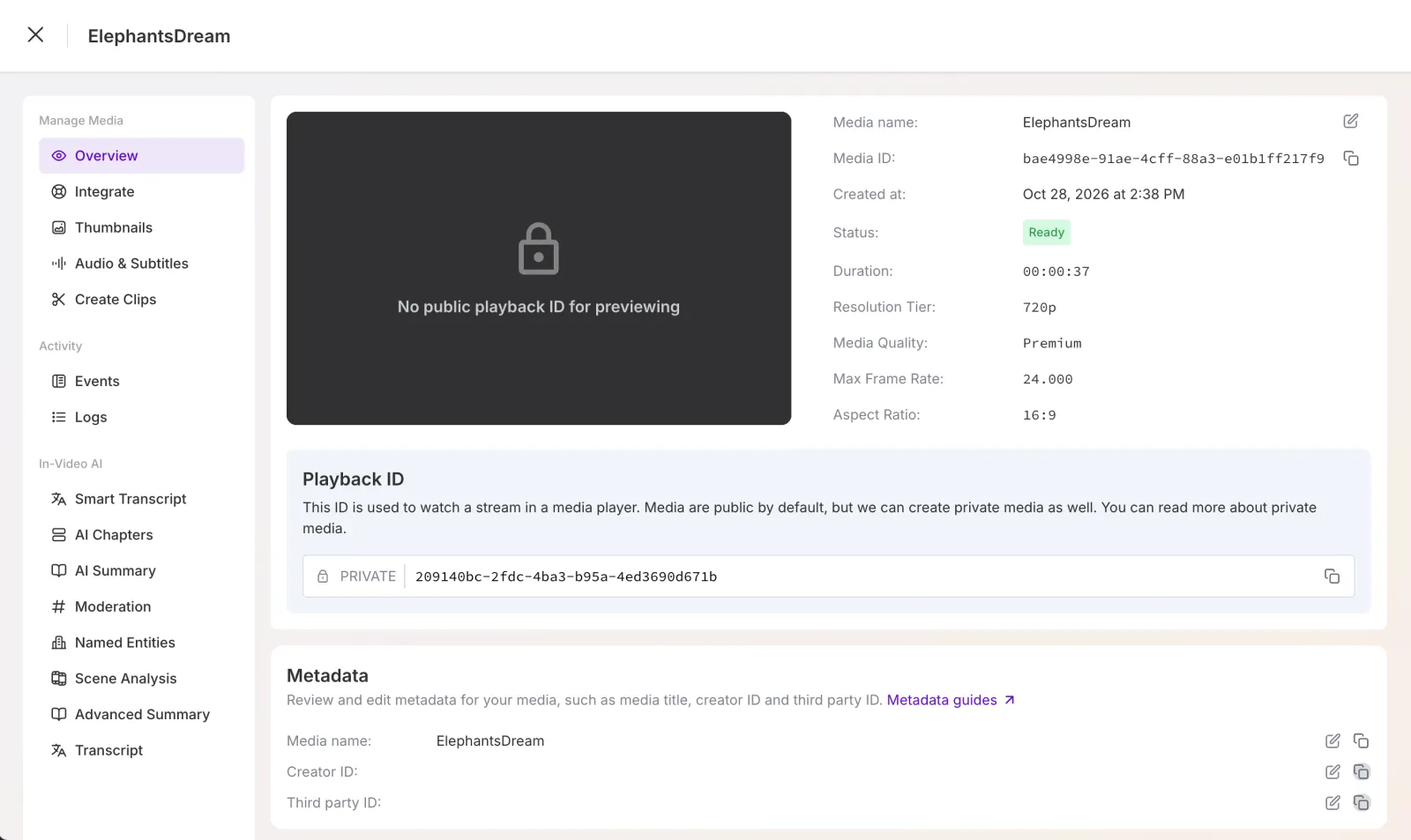
NOTE:
Changing a media item to private does not revoke public playback URLs that were already issued. To cut those off, regenerate the playback ID.
Passing a token to FastPix Player for on-demand streams
To play private videos in FastPix player, integrate a token with the fastpix-player component for on-demand streams. You can include it in the player setup like this:
Replace playback-id with the actual playback ID of your video and JWT with your generated JSON Web Token.
Secure live streams
For live streaming, playback tokens secure real-time content delivery with authenticated access.
Example signed playback stream URL:
Tips on dynamic token management
Managing your tokens effectively is crucial for smooth media access and maintaining security. Here are some tips:
- Handle token expiration: Implement mechanisms to handle expired tokens gracefully, so your stream isn’t interrupted.
- Renew tokens automatically: Set up an automated process to renew tokens when needed or prompt users to refresh them as required.
- Control permissions: Assign permissions based on user roles or subscription levels to limit unauthorized access and uphold your security policies.
Security best practices
Protecting your tokens and ensuring secure streaming involves following some essential practices:
- Secure transmission: Always use HTTPS to encrypt your token data during transmission. This prevents interception and ensures that your data stays safe.
- Limit token scope: Be precise about what a token can do. Limit the scope to specific functionalities, like playback or thumbnails, to minimize risk and stick to the principle of least privilege.
Playback signed URLs with custom domains
FastPix Player supports using signed URLs with custom domains, which allows you to personalize your media delivery while keeping security tight. This part explains how to combine signed URLs and custom domains for optimal streaming.
Custom domain signed URL examples
Playback stream:
Thumbnail:
Spritesheet:
Configure the FastPix Player: To set up the player with a custom domain, specify the custom-domain attribute:
Benefits of using signed URLs with custom domains
Enhanced branding: Display media assets from your own domain (for example, media.example.com), this builds trust and reinforces your brand identity.
Improved performance: You can utilize CDNs linked with your custom domain for faster, more reliable media delivery.
Secure access: Continue to ensure that only authorized users can view your content using signed URLs.