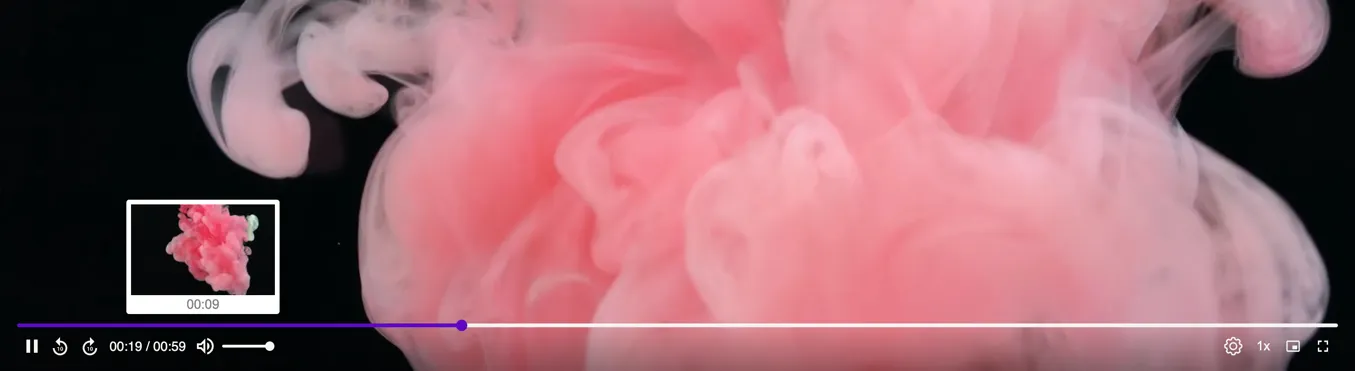
Add seek preview thumbnails
Add interactive timeline hover previews to FastPix Player using spritesheets for better navigation.
Timeline hover previews are a standout feature of the FastPix Player, that can improve the viewer’s experience by offering visual context as they navigate the video timeline. With these previews, users can hover their cursor over the timeline and see a small thumbnail of the video content at specific timestamps. This helps viewers locate specific scenes or moments quickly, without having to scrub through the entire video.
When you play a video hosted on FastPix using the FastPix Player, timeline hover previews are built-in and ready to use. These previews are powered by spritesheets, an efficient way to manage multiple thumbnail images in a single file. This method significantly reduces HTTP requests, resulting in faster loading times and improved overall performance.
How timeline hover previews work
Spritesheets: A spritesheet is a single image file containing a series of smaller thumbnails, each representing a different timestamp of the video.
FastPix automatically generates these spritesheets during the video encoding process and associates them with the video file. For a deeper dive into how to structure and generate spritesheets, refer to our guide on adding timeline hovers using spritesheets.

When a viewer hovers over the timeline or progress bar, the FastPix Player calculates the corresponding timestamp based on the cursor’s position. The player then identifies the appropriate thumbnail from the spritesheet and displays it as a hover preview.
Implementation
The FastPix Player automatically integrates these spritesheets, so you don’t need to worry about manual configuration. Timeline hover previews are enabled by default, providing a seamless experience right out of the box.
While the default setup is intuitive and effective, advanced users can customize the appearance and behavior of hover previews. This flexibility allows you to tweak the feature according to specific project requirements if needed.
Example usage
Here’s an example of how the FastPix Player with timeline hover previews looks in action: