

Adjust player layout and UI
FastPix lets you adjust player layout UI—move controls, change overlays, toggle logo placement, and customize look.
FastPix Player adapts its user interface (UI) to deliver the best possible experience based on stream type, available features, and container size. This guide will help you understand how the Player achieves responsiveness and adapts its controls based on different scenarios.
Responsiveness overview
The responsiveness of FastPix Player is guided by the dimensions of its container, rather than the size of the entire viewport. This design principle means that within a large viewport, each player adapts its layout and controls based on its specific container size. Consequently, the user experience is tailored and optimized for each individual player, no matter how many players are present on the screen.
What is a View Port?
The viewport is the area of a web page that a user can see. The size of the viewport depends on the device being used and can change when the user resizes the browser window. For example, on a desktop, the viewport is the same size as the browser window, excluding the toolbar and other elements. On a mobile device, the viewport is typically the same size as the device’s screen.
Key factors affecting UI adaptation
Stream type
- On-Demand: When playing on-demand content, FastPix Player will display controls optimized for user interaction, such as play/pause, seek bar, volume control, and more.
- Live: For live streams, the controls will focus on real-time interaction, featuring elements such as live indicators, minimal seek functionality, picture-in-picture control, full-screen/exit-full-screen options, and a quality selector and Live tag.
Feature set
Depending on the enabled features (e.g., quality selection, speed control, forward-skip and backward-skip, audioControls - if audioTracks are present, and subtitleControls - if subtitles are present in that specific stream), the player UI will adjust to include the necessary controls. For example, disabling subtitles will hide the subtitles button from the control bar if subtitles are present in the stream.
Player size
The player UI adapts to the size of its container to ensure optimal usability:
- Large containers: Feature-rich experience with a full set of controls.
- Medium containers: Balanced control layout ensuring only essential functions are accessible.
- Small containers: Prioritizes only the core functionality to fit within the limited space.
Single player in a large container
When FastPix Player is embedded in a large container, it displays the full set of controls to enhance the viewer’s interaction and experience. This ensures all necessary features are readily available.
Example controls:
- Play/Pause button
- Seek bar with thumbnails
- Volume control
- Subtitles button (if present)
- Fullscreen toggle
- Playback speed control
- Picture-in-picture mode
- Forward-seek offset
- Backward-seek offset
- Audio track switching (if audio tracks are present)
- Live indicator (for live streams)
On-demand: For on-demand content, the player provides access to all standard controls if stream-type attribute is specified as on-demand. This enables users to navigate and interact with the video as needed.
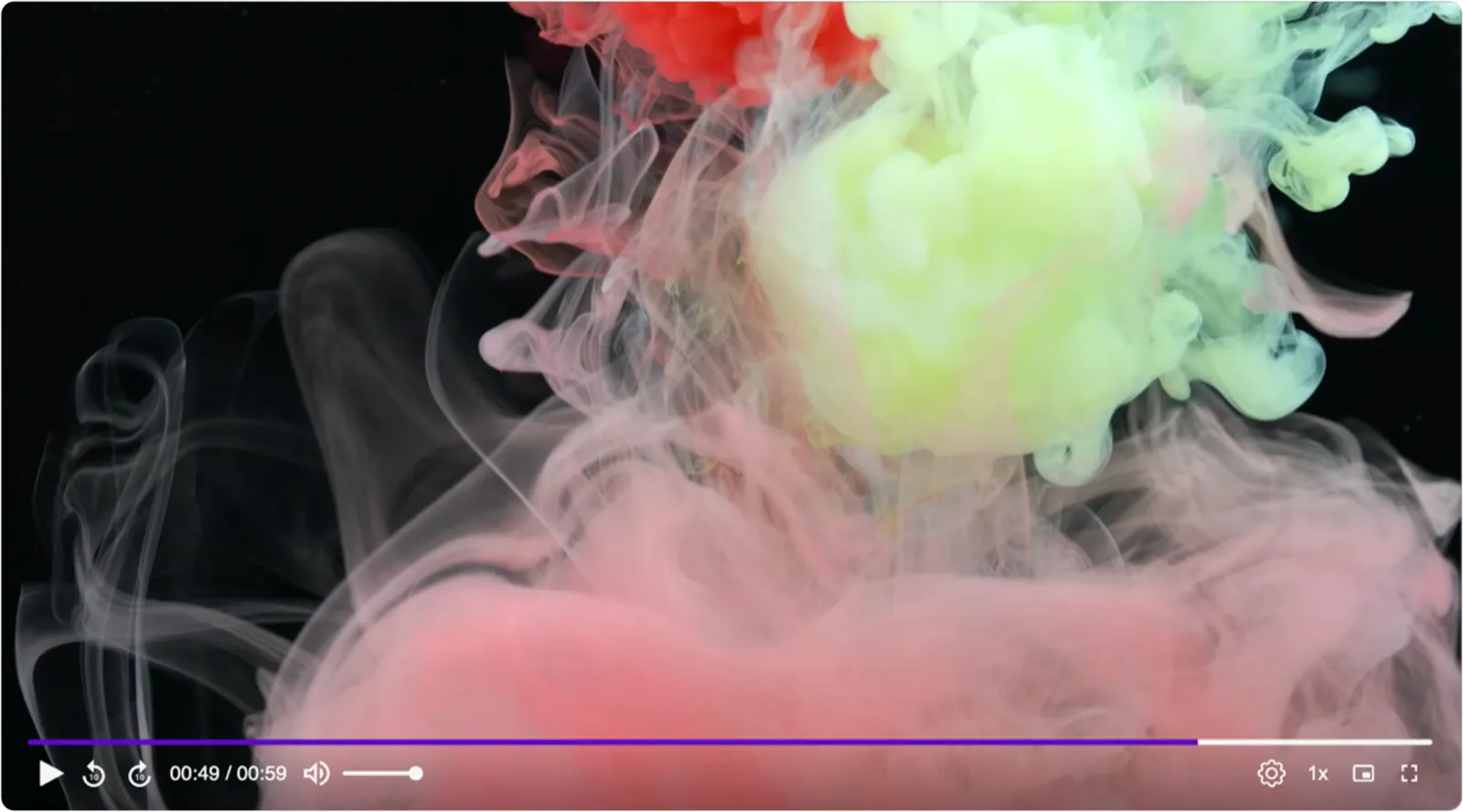
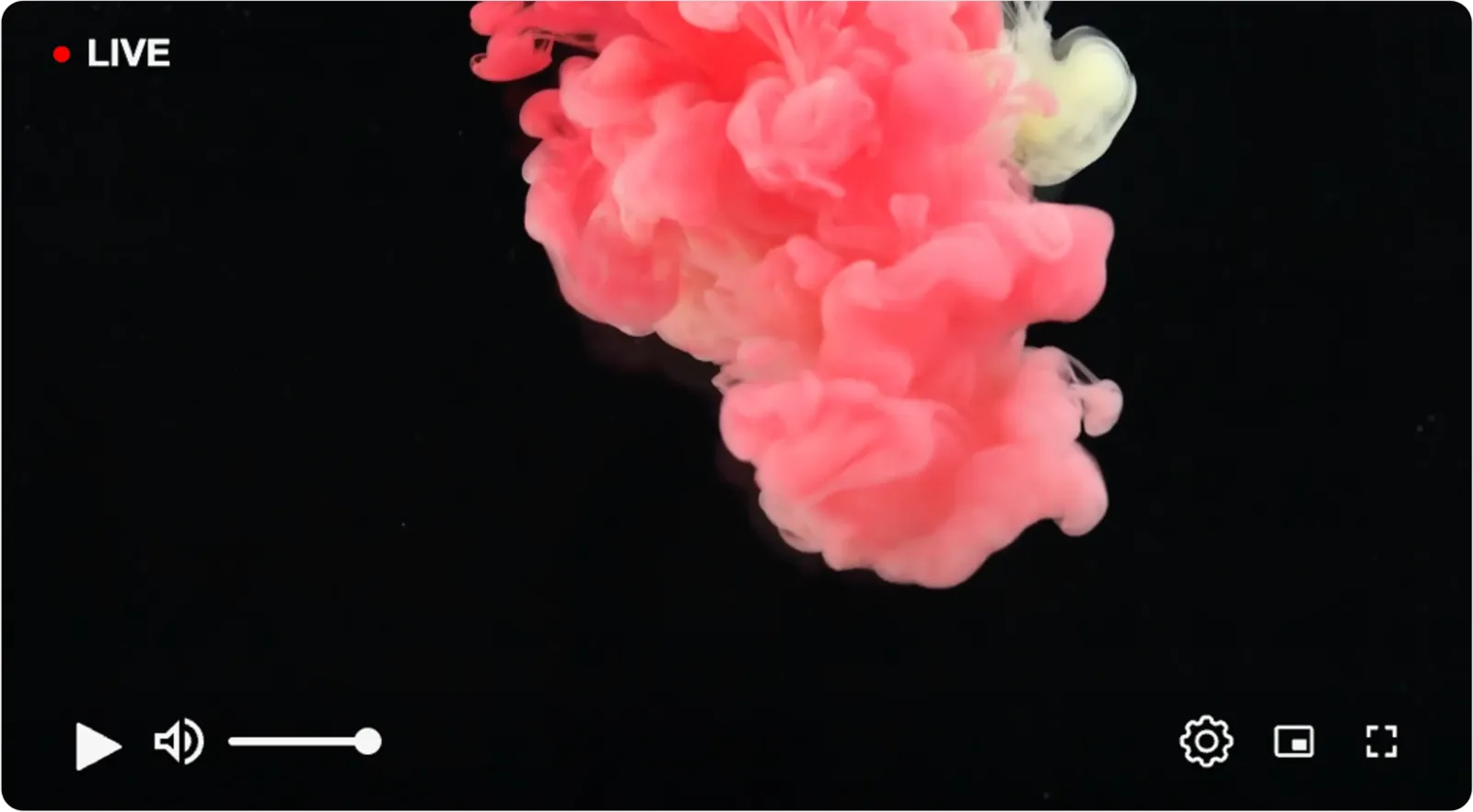
Live stream: For live streams, the player includes live-specific elements such as the live indicator, minimal seek functionality, and real-time interaction controls if stream-type attribute is specified as live-stream.

Single player in a medium container
In a medium-sized container, FastPix Player condenses its control bar to maintain a balanced layout. Essential functions remain accessible, while the UI avoids overcrowding.
Example controls:
- Play/Pause button
- Simplified seek bar
- Volume control
- Subtitles button (if enabled)
- Fullscreen toggle
- Live indicator (for live streams)
On-demand: The player displays a refined control set that supports basic navigation while prioritizing usability.
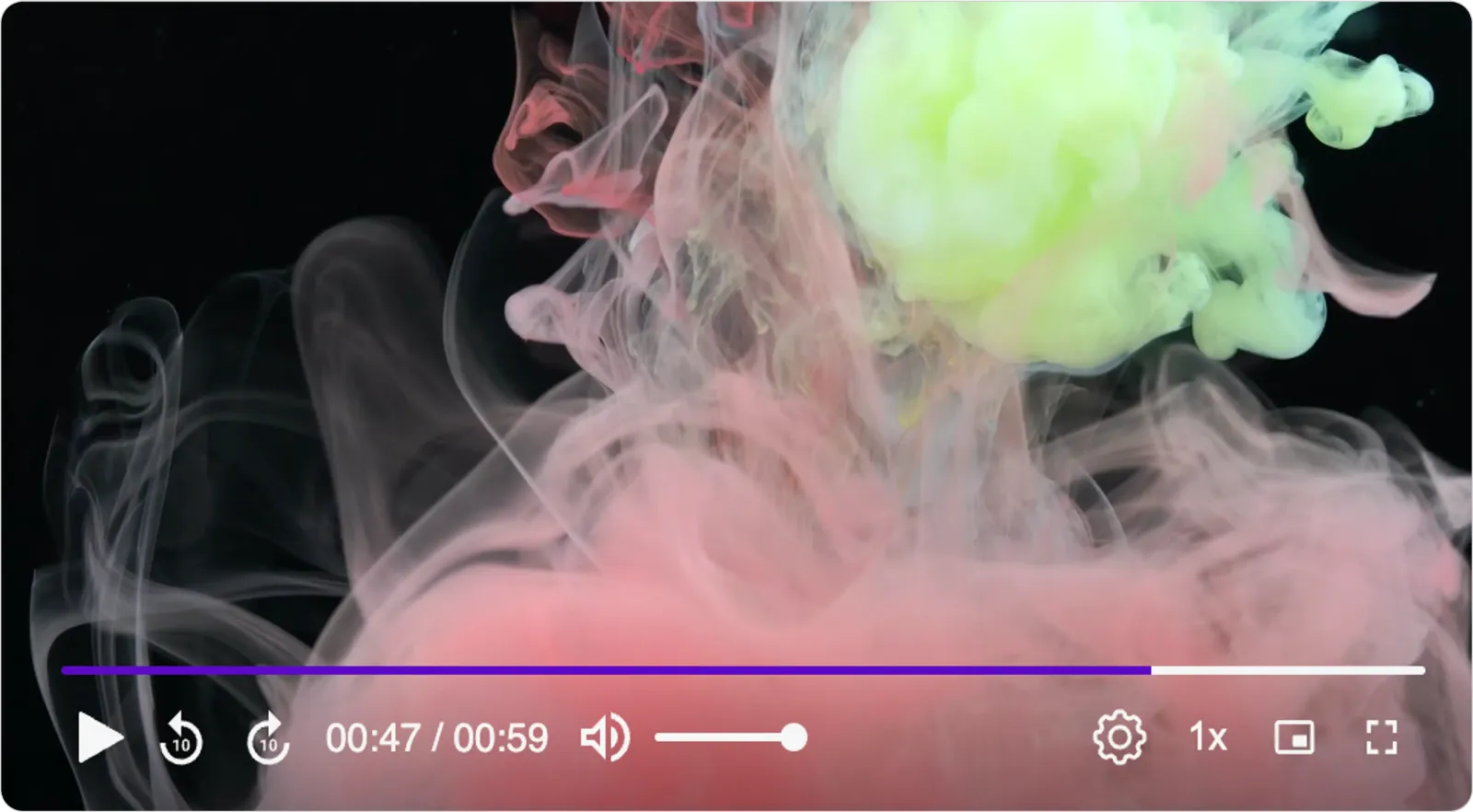
Live stream: The player maintains essential live streaming controls such as the live indicator but may limit some secondary features for simplicity.
If audio tracks are present: The player includes an option to switch audio tracks if applicable.

If only subtitles are present: The subtitles button will appear, enabling subtitle control.

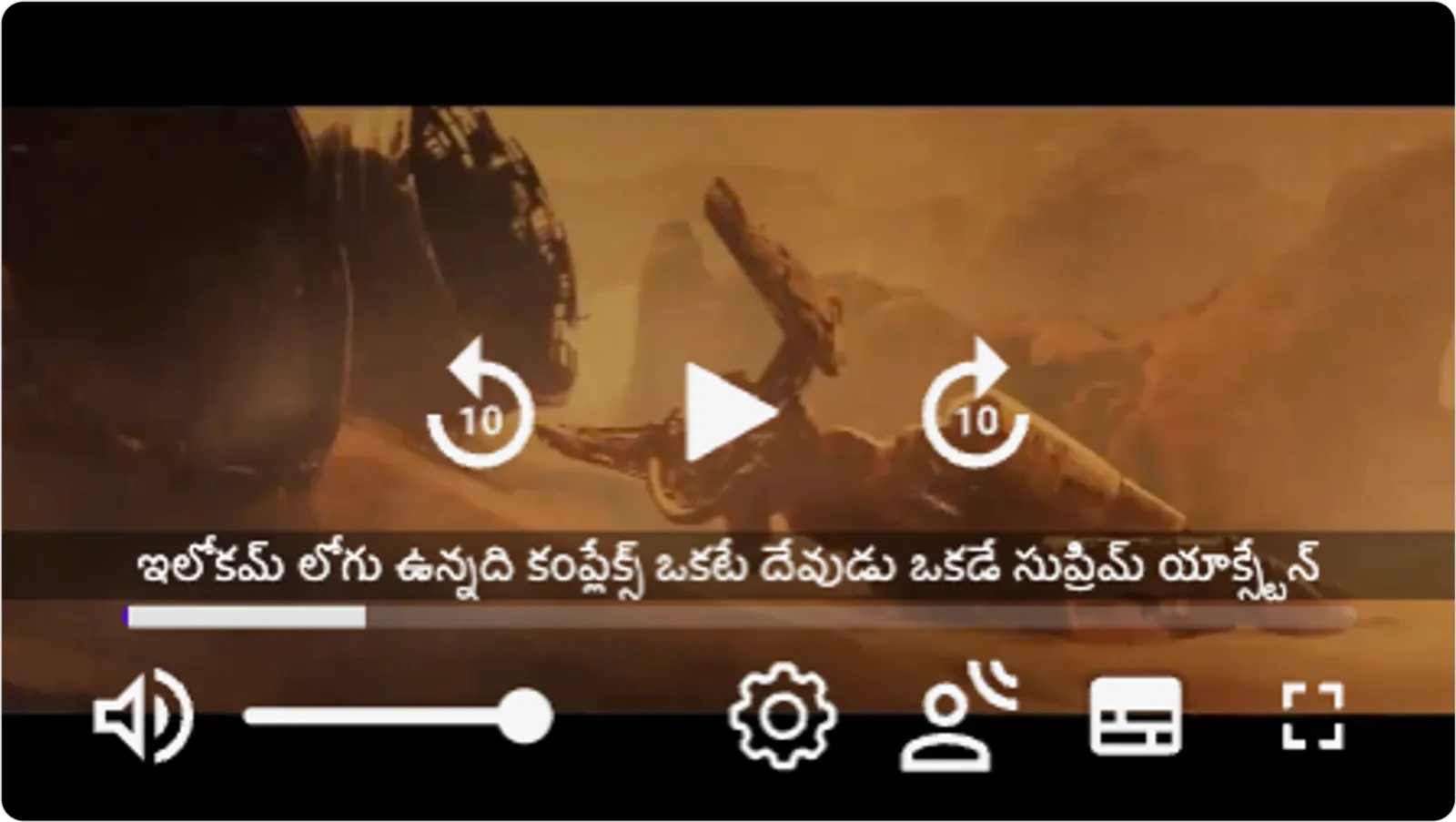
If both audio and subtitle tracks are present: The UI will adapt to include both audio switching and subtitle options as needed.

Single player in a small container
For small containers, FastPix Player prioritizes core functionality to fit within limited space. The control bar is simplified to essential features for efficient operation.
Example controls:
- Play/Pause button
- Basic seek functionality
- Volume control (icon-based)
- Fullscreen toggle
- Live indicator (for live streams)
On-demand player in a small viewport: The control bar will feature only the most necessary functions to maintain a smooth user experience.
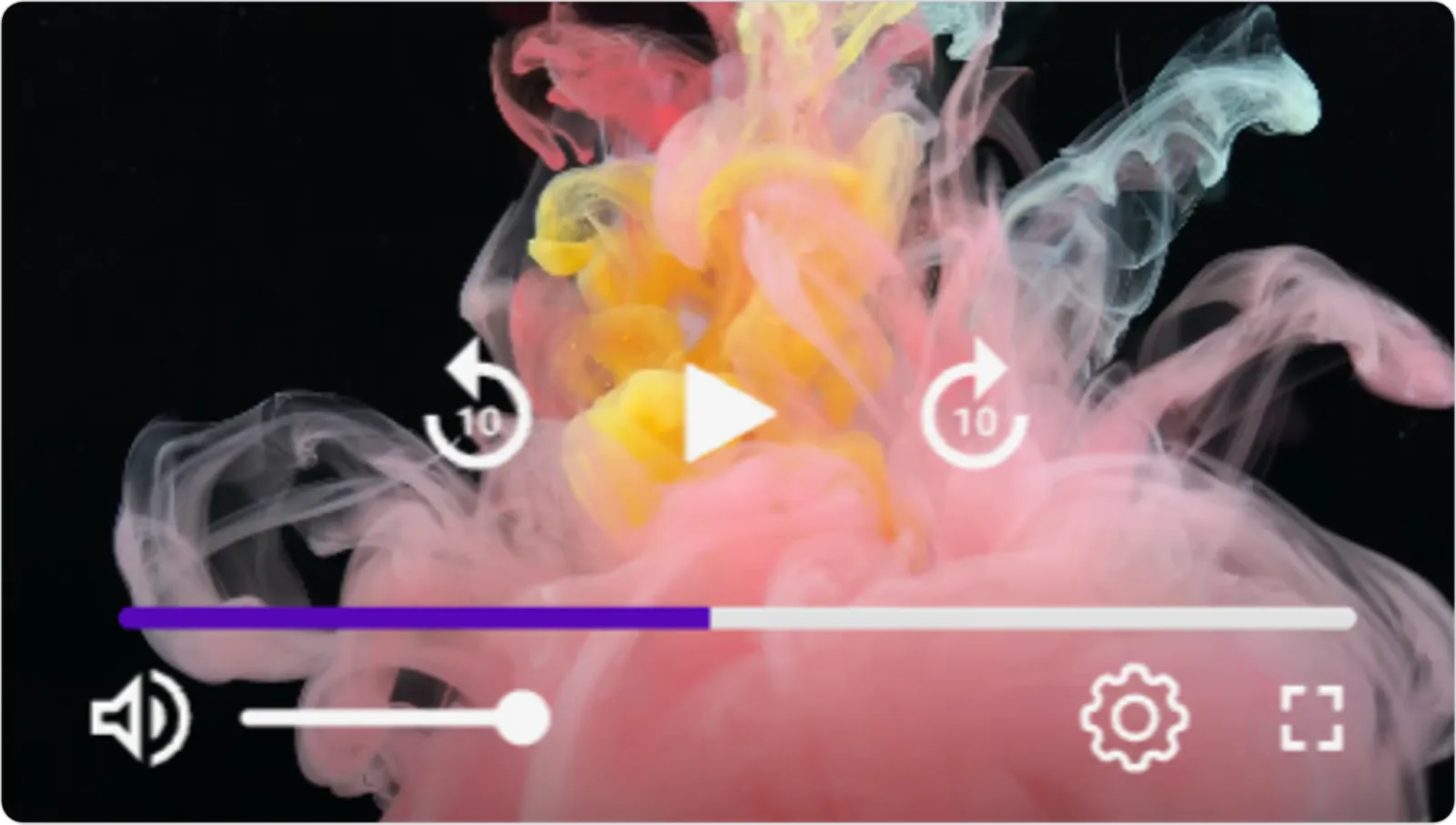
Live stream player in a small viewport: The player adapts to include basic live stream controls, ensuring real-time playback with minimal controls.
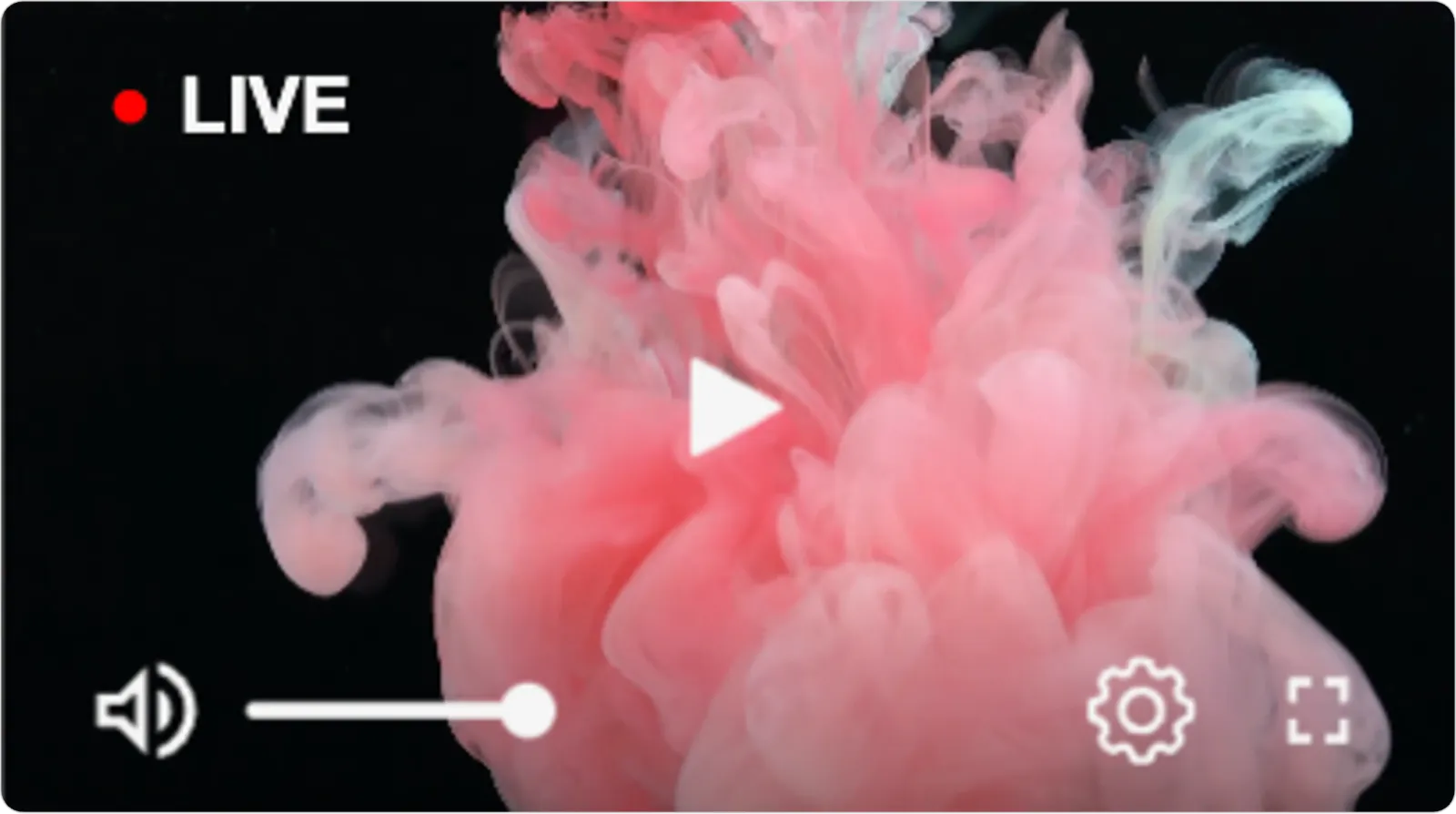
If audio tracks are present: A compact control for audio switching may be included if space allows.
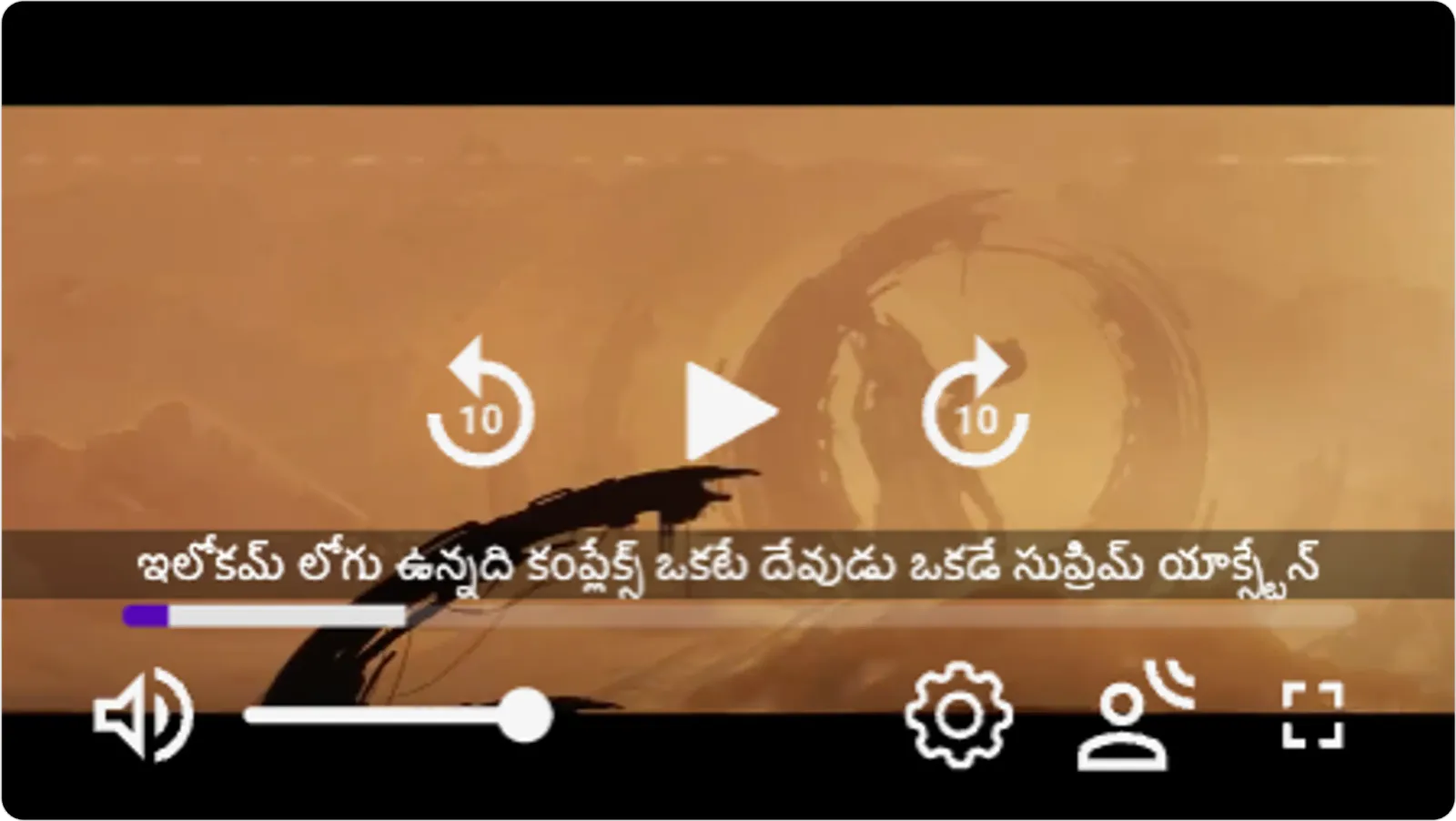
If only subtitles are present: The subtitles button will appear, enabling users to toggle subtitles.
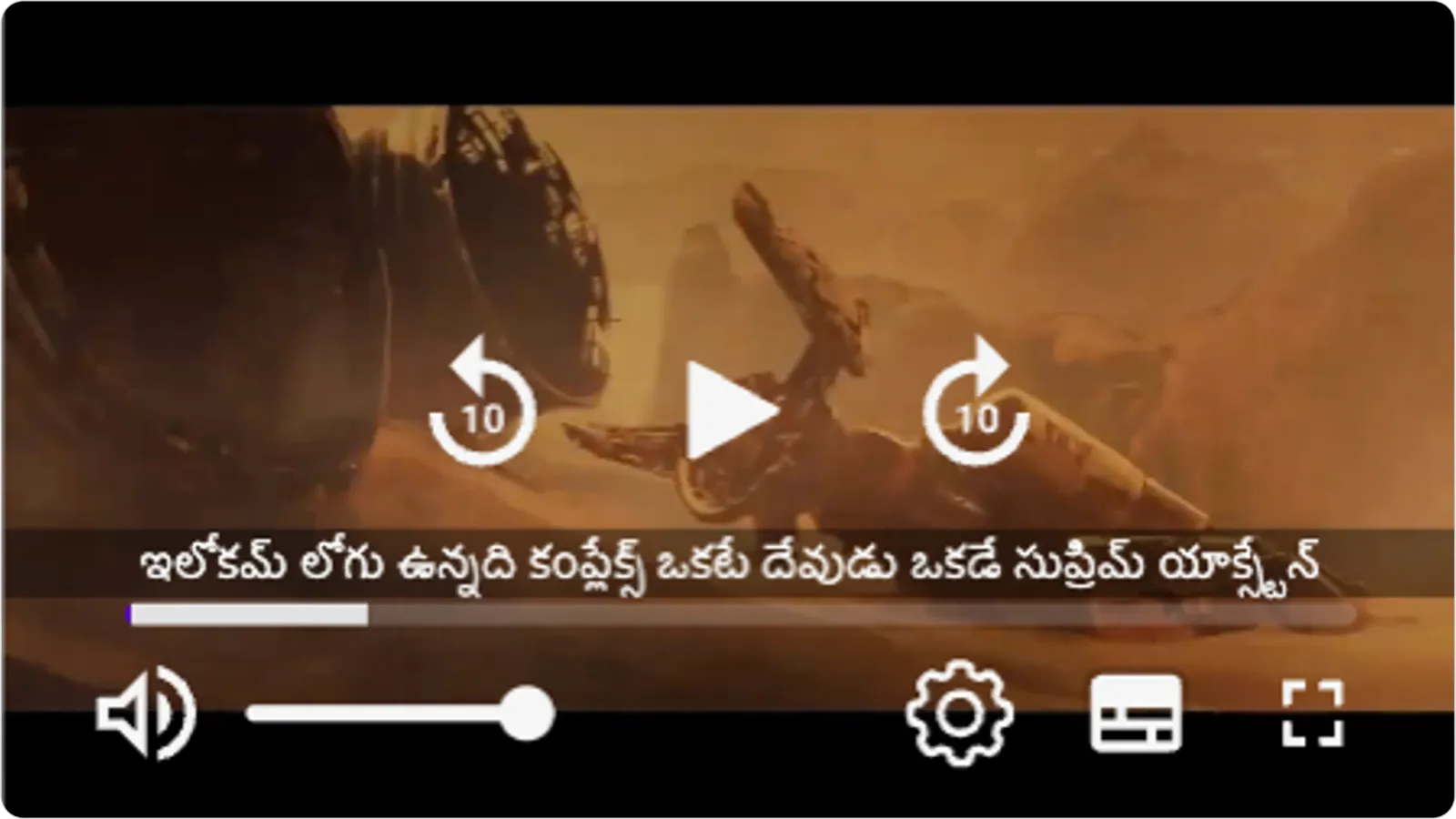
If both audio and subtitle tracks are present: The UI will adjust to accommodate these options within the available space.
Multiple players in a large viewport
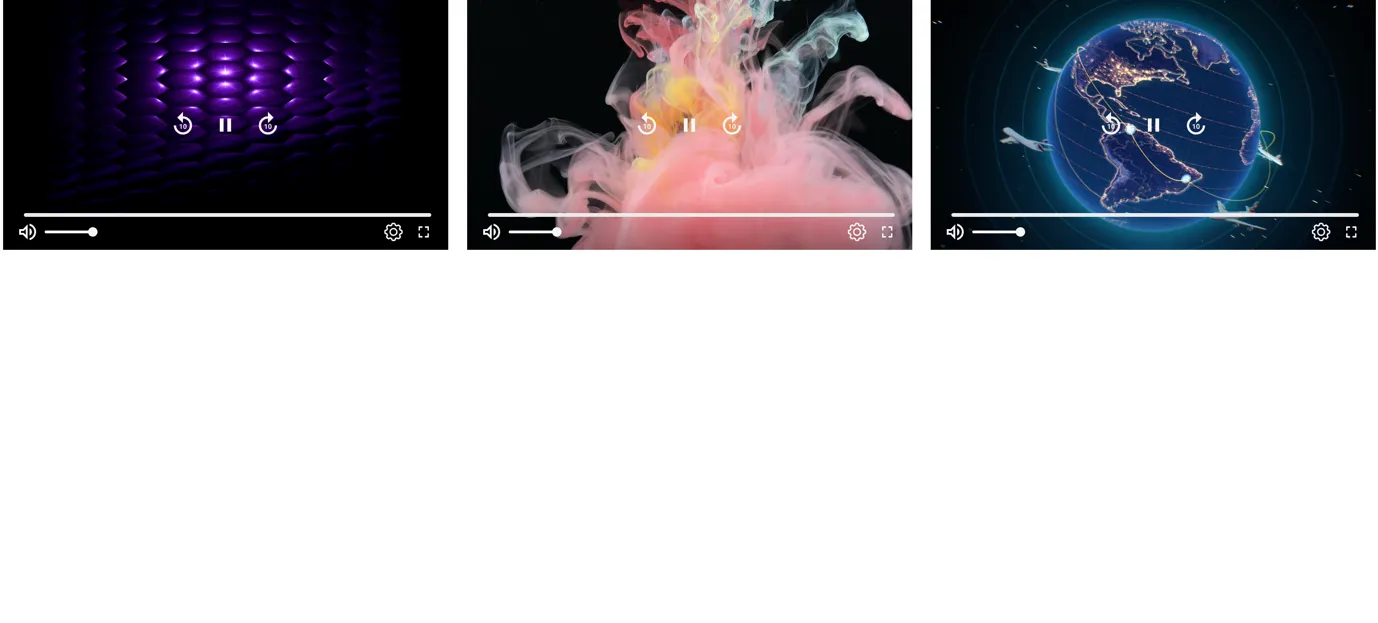
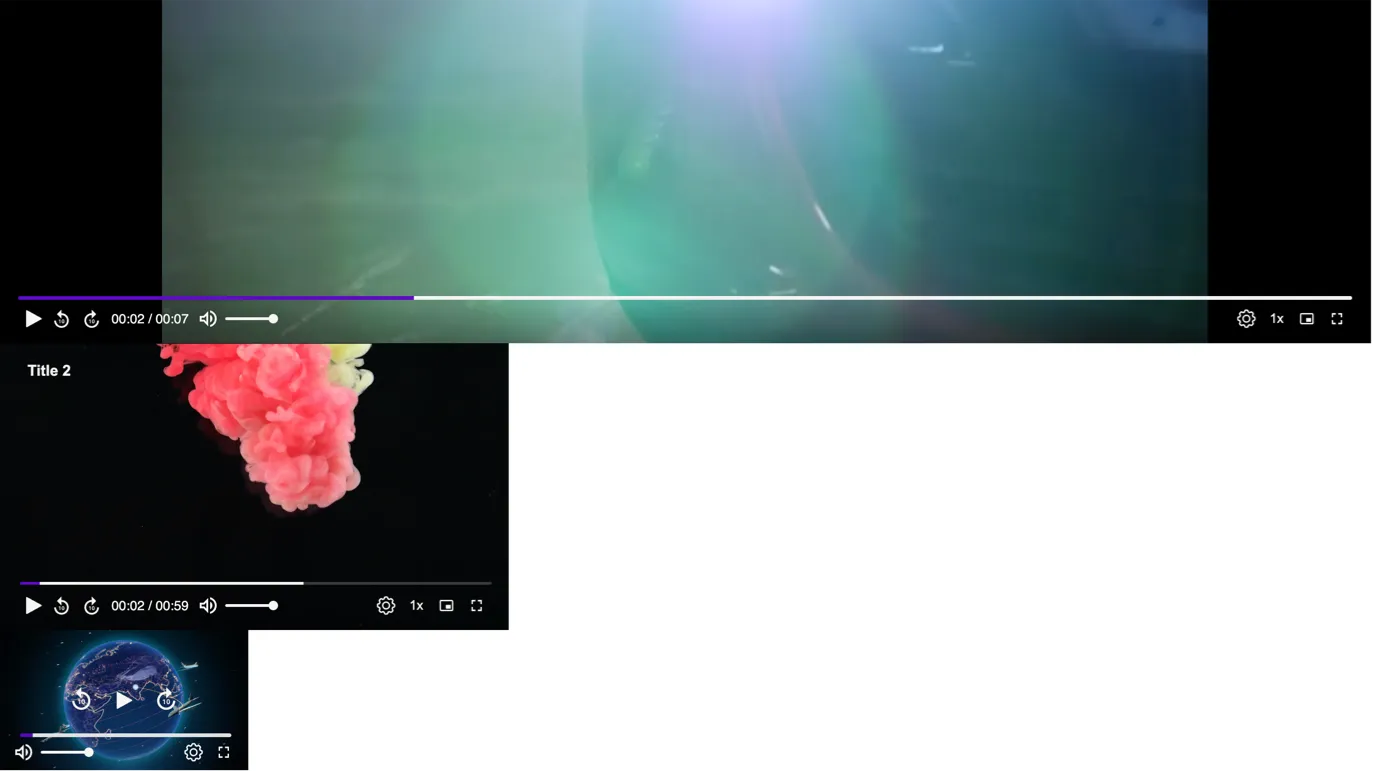
When multiple FastPix Players are embedded within a large viewport, each player will adjust its UI based on its container size maintaining usability and functionality without being influenced by the overall viewport size.
The responsiveness of each player is independent, meaning smaller players within a large viewport will maintain a minimalist control bar, while larger players will display a more comprehensive set of controls.
FastPix Player’s responsive design ensures that regardless of the stream type, enabled features, or container size, the UI remains intuitive and functional. By understanding how these factors influence the player’s UI adaptation, you can design and implement FastPix Player in various scenarios to provide the best possible viewing experience.