

Review moderated media
After a moderation job runs, review what it flagged and compare the moderated copy with your original. You track jobs and open their results in the dashboard under AI Agents > Moderation Agent > Jobs.
Track job progress
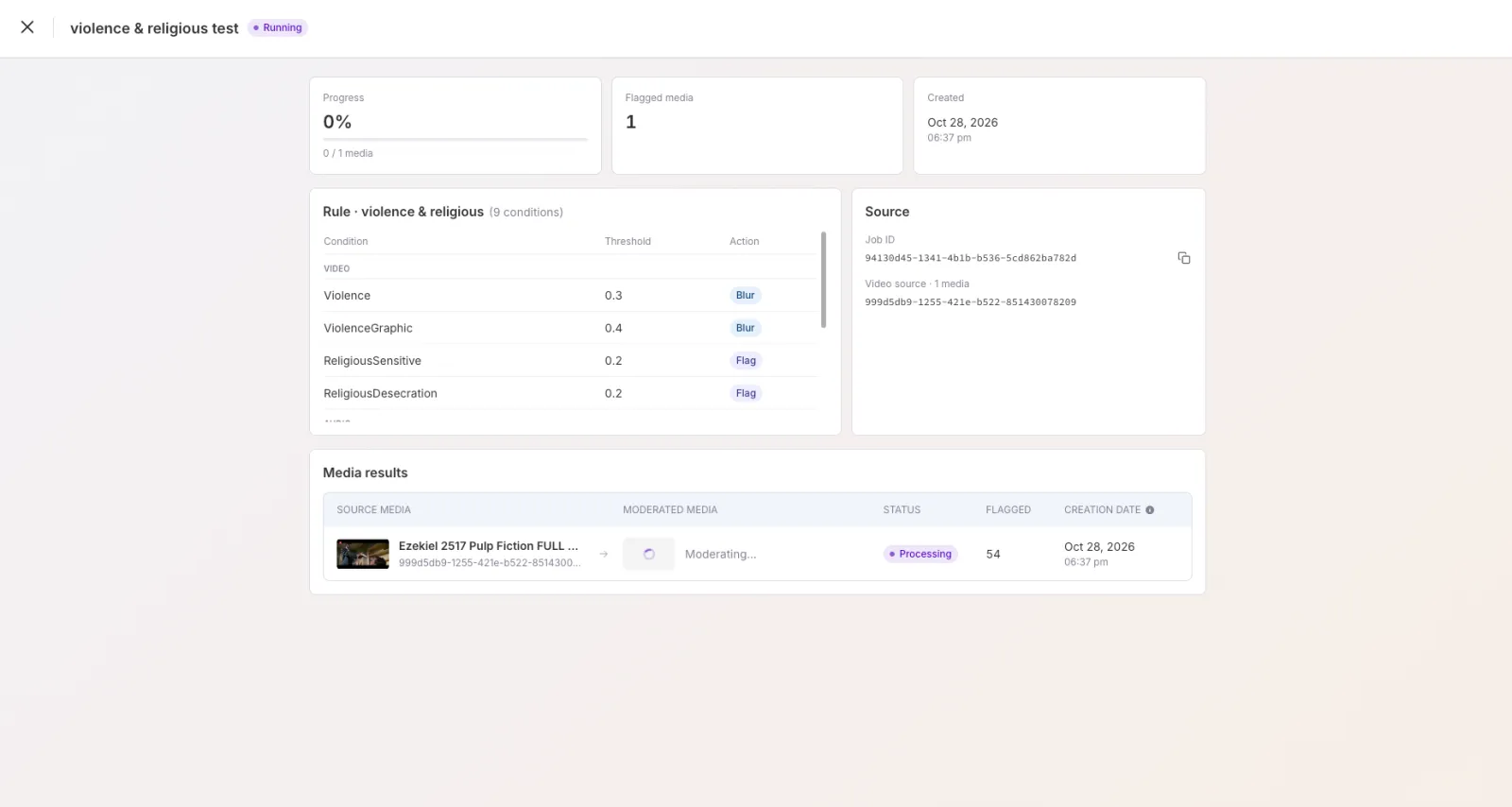
Open the job from the Jobs list. The job page shows:
- Progress and how many videos have been scanned.
- Flagged media, the number of videos with at least one flagged moment.
- Created, when the job started.
- Rule, the rule this job uses, with each condition’s threshold and action.
- Source, the job ID and the media being checked.
While the job runs, the Media results table shows each video as Moderating or Processing with a running flagged count.
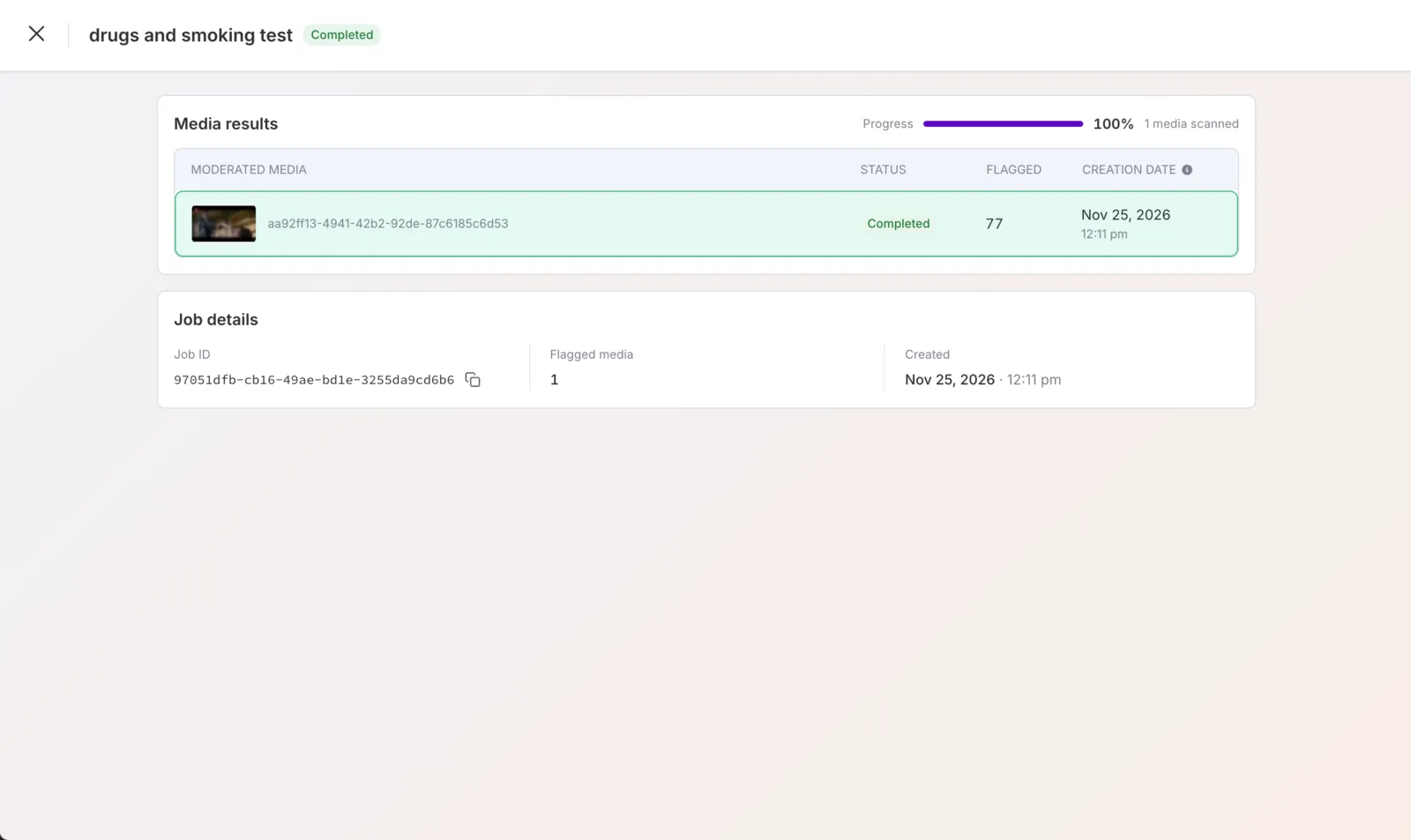
When the job finishes, its status is Completed and a moderated copy of each video is produced. The Media results table lists the Moderated media, the Status, the number of Flagged moments, and the Creation date. The Job details below show the Job ID, the number of Flagged media, and when the job was Created.
A new media asset is created
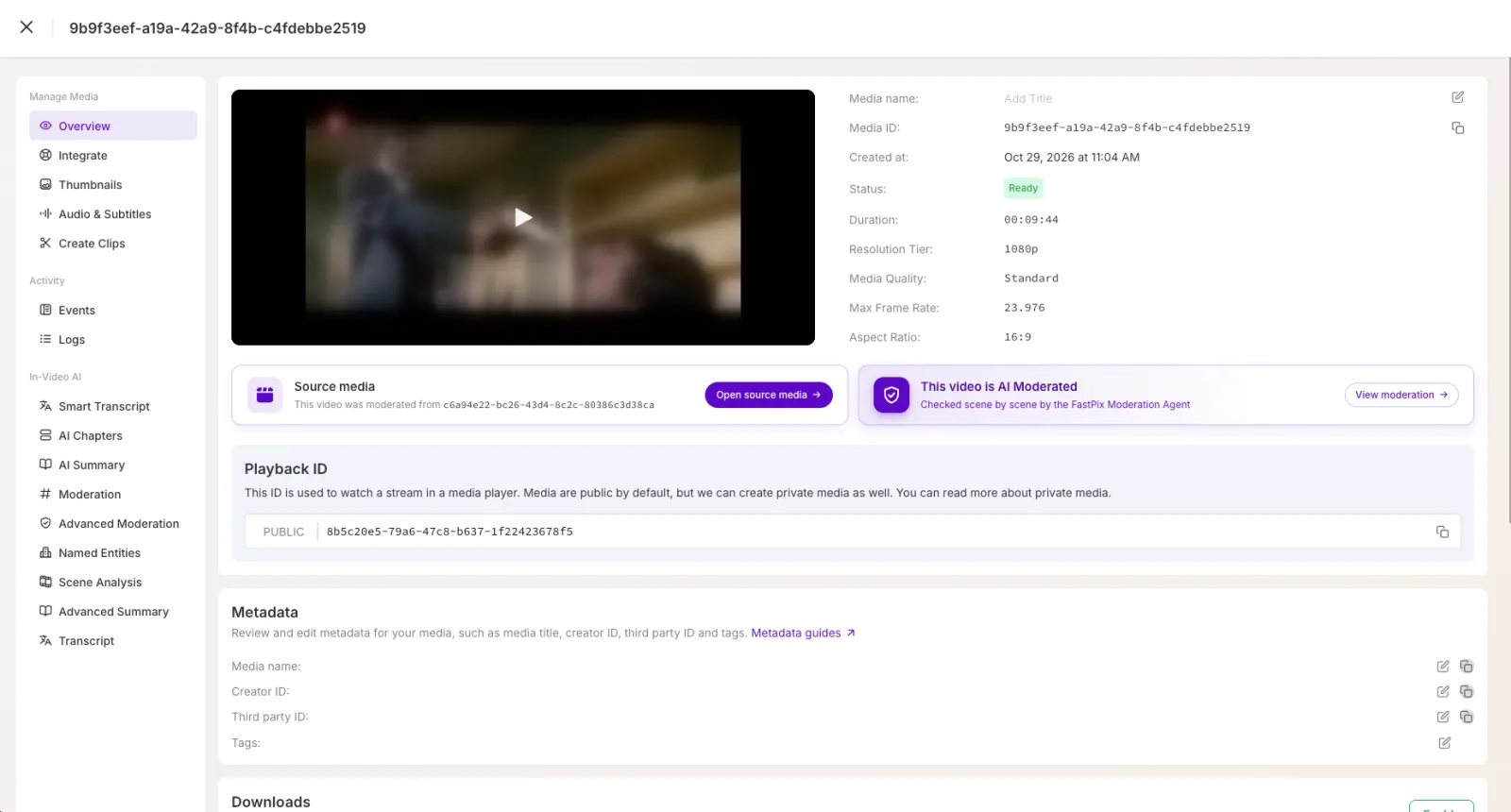
Each moderated video is saved as a new media asset in your library, separate from the original. You can find it under Video > Media and play, share, or manage it like any other media. Open it to see its Overview, where it is marked This video is AI Moderated and links back to the original:
- Open source media takes you to the original, unmoderated video.
- View moderation opens the scene-by-scene review described below.
Review the moderated media
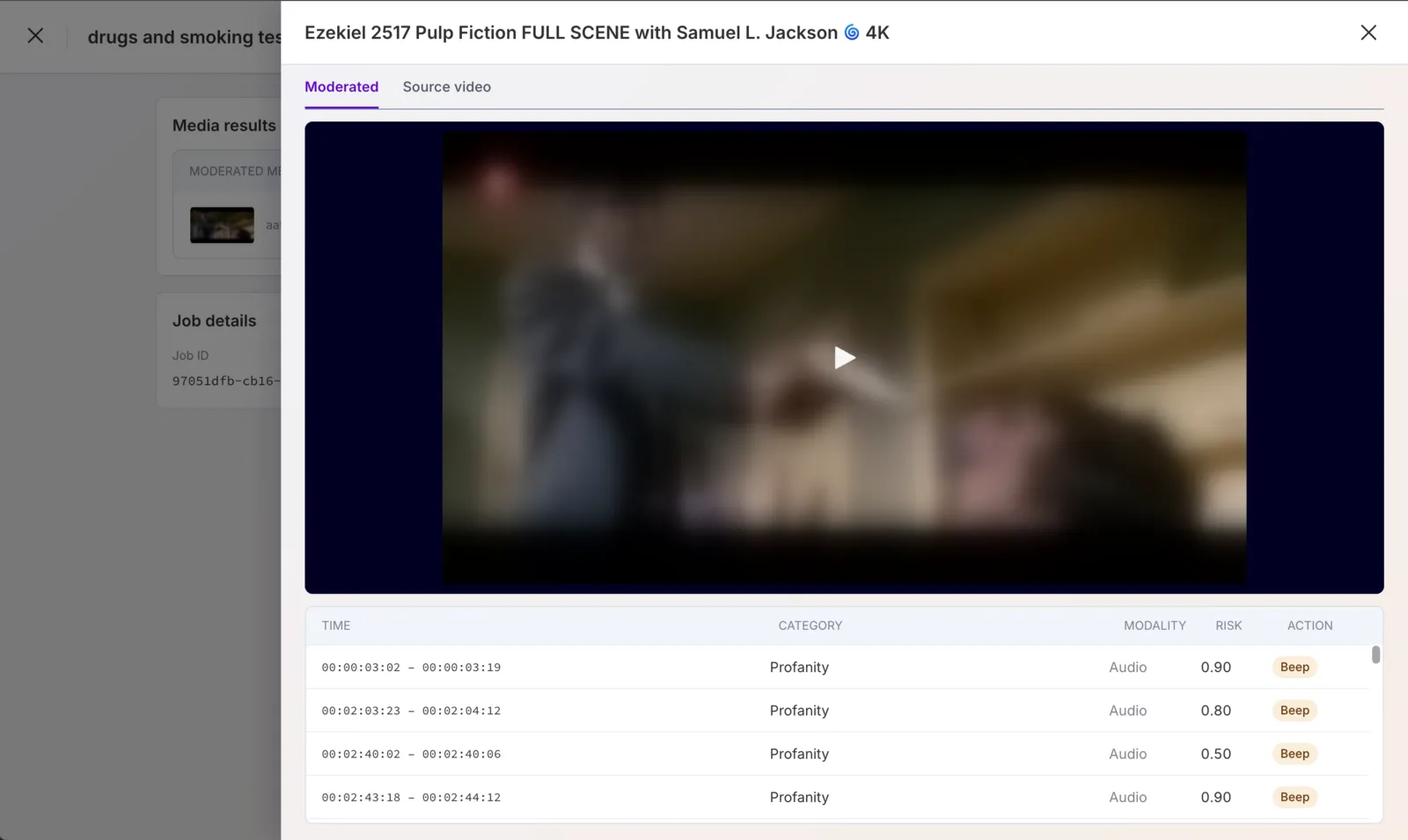
Open the moderated media from the job’s Media results table, or from Video > Media, then select View moderation. A sheet slides in with two tabs, Moderated and Source video.
Every flagged moment is listed in a table on both tabs:
- Time: the start and end of the flagged moment.
- Category: what was detected, for example Violence or Profanity.
- Modality: whether it was found in the Video or the Audio.
- Risk: the detected risk score for that moment.
- Action: what FastPix did, based on your rule.
The Moderated tab
The Moderated tab plays the moderated copy. Where a rule applies a visual action such as Blur, you see the effect in the player. The detections table is below.
The Source video tab
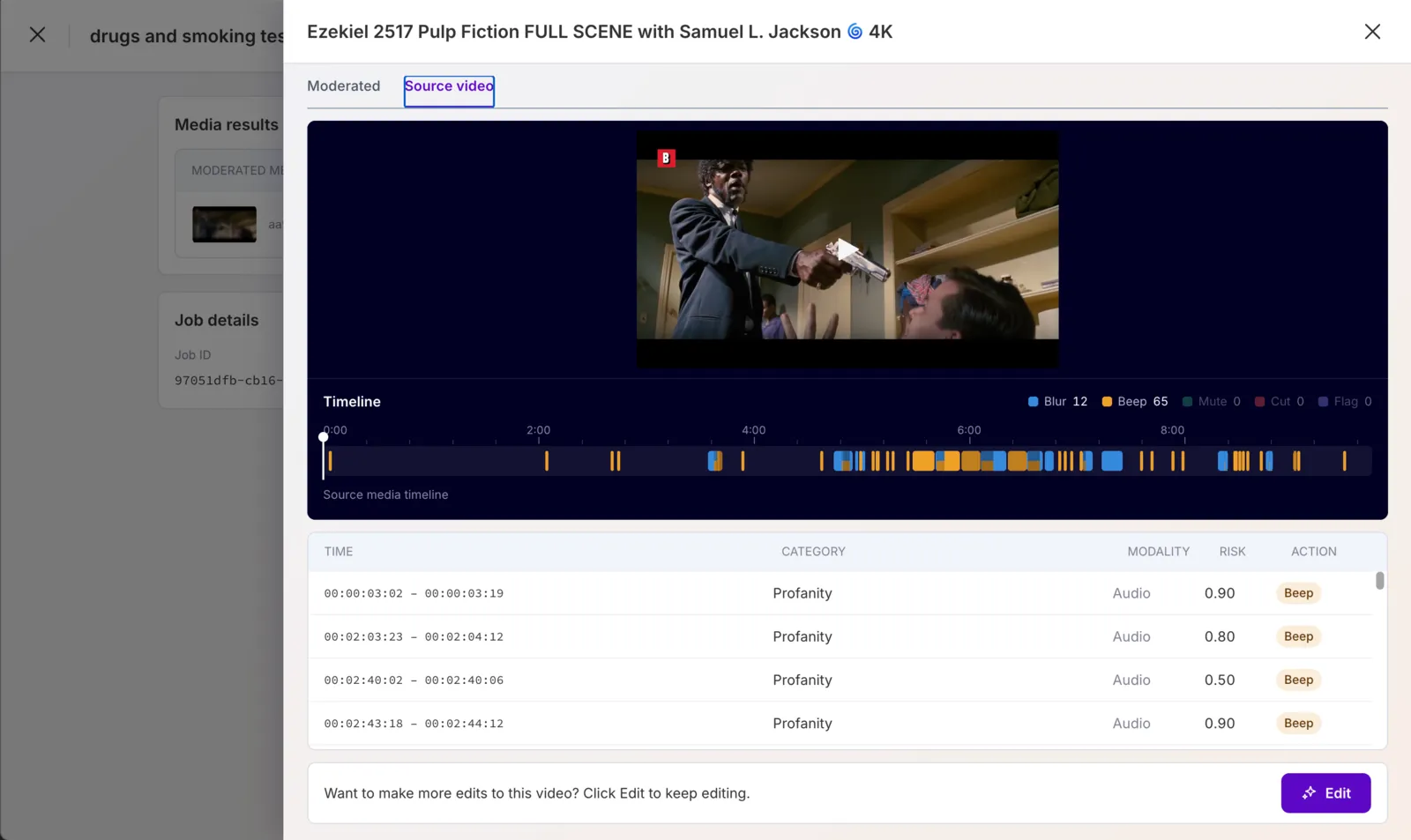
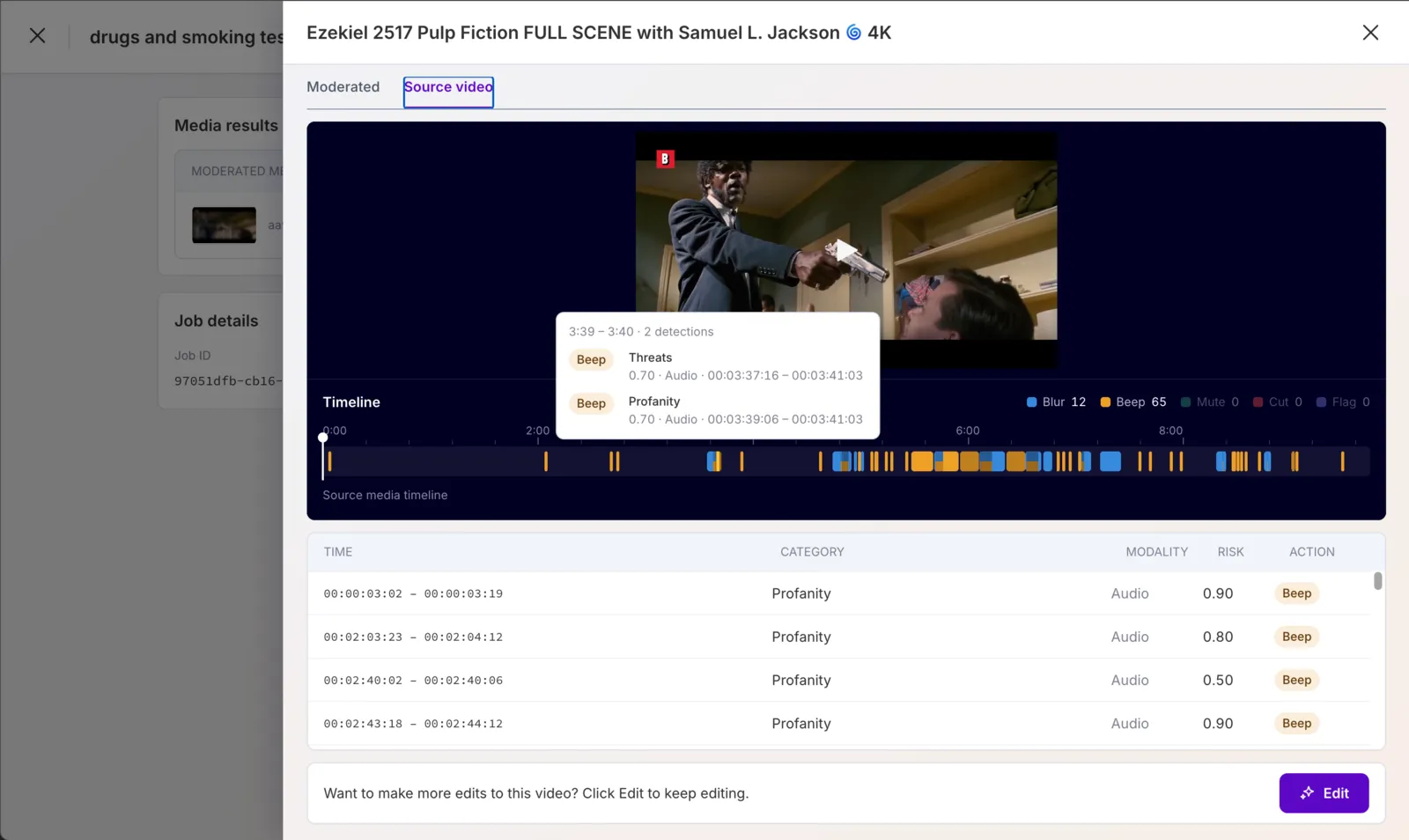
The Source video tab plays your original, untouched video and adds a Timeline and an Edit bar.
The Timeline marks every flagged moment on the seek bar, color-coded by action, with a count for each action (Blur, Beep, Mute, Cut, Flag). Hover a marker to see the detection, its category, modality, risk score, and time range.
NOTE: A visual action such as Blur only appears on the moderated video if you set it in the rule. If a condition’s action is Flag, the moment is marked in the results but the video is left unchanged.
Review the detections in the AI video editor. On the Source video tab, the Edit bar reads “Want to make more edits to this video? Click Edit to keep editing.” Select Edit to open the video in the AI video editor with every detection waiting for your decision, so you can apply or dismiss each one, add your own moderation, and export a new version. See Edit a moderated video.
Edit the flags in Adobe Premiere Pro. To act on the flagged moments by hand, open the video in Adobe Premiere Pro, where Advanced Moderation marks the sensitive moments on your timeline. Trim, cut, or adjust them yourself and keep the final video moderated without leaving your editing workflow.
What’s next
- Edit a moderated video to review each detection yourself and export your own version.
- Create a moderation rule to adjust what you detect and how you act on it.
- Run a moderation job to moderate more videos.