

Moderate video and audio
The editor’s Moderation tool in the AI video editor beeps or mutes the sound and blurs the picture over any part of a clip. Use it to cover a word, a face, or a logo before you publish.
NOTE: This is the Moderation tool inside the editor, which you place by hand on one clip. It’s separate from the Moderation agent, which scans media automatically against your rules.
Add a beep, mute, or blur
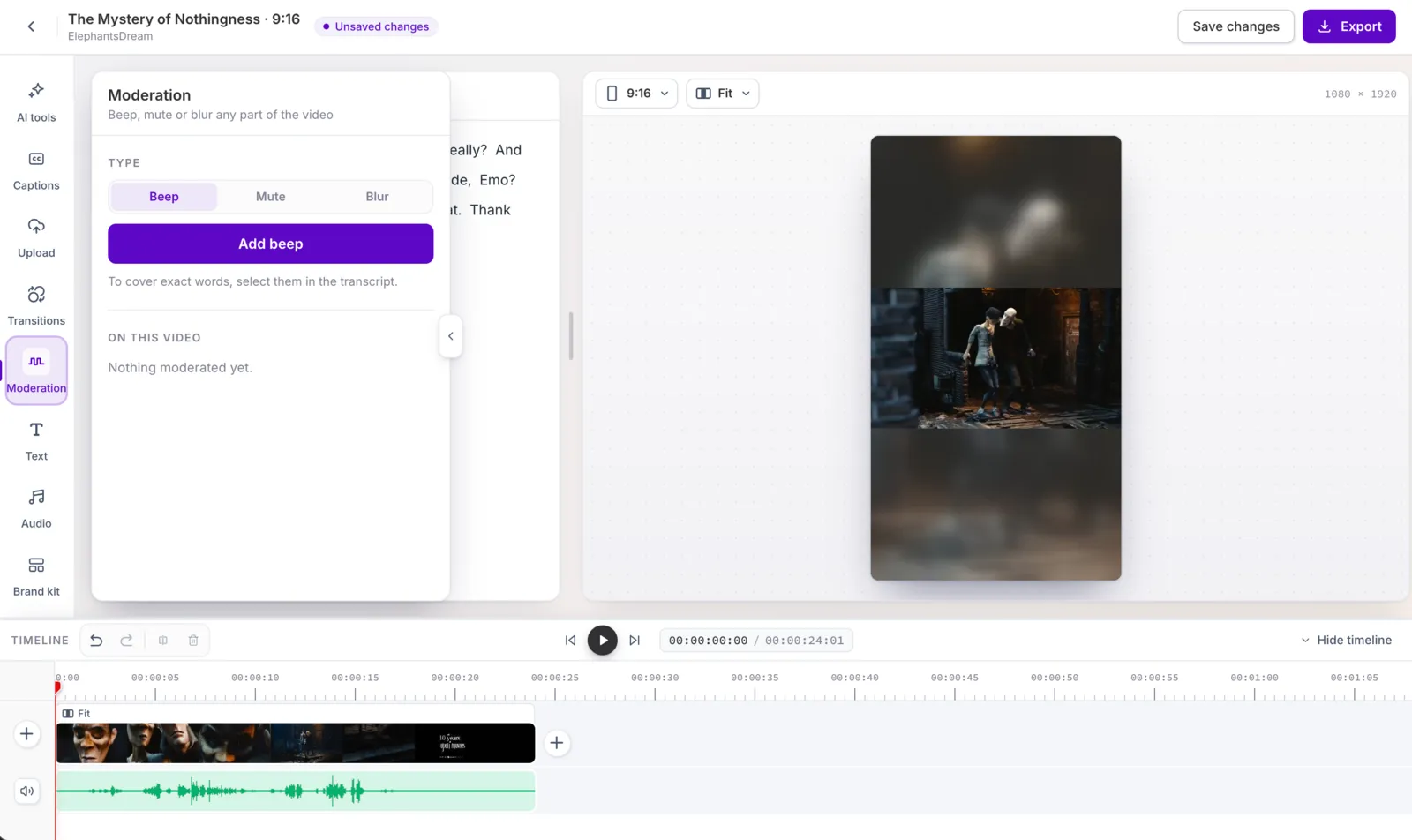
- Move the playhead to where it should start.
- Select Moderation.
- Under Type, select Beep, Mute, or Blur.
- Select Add beep, Add mute, or Add blur.
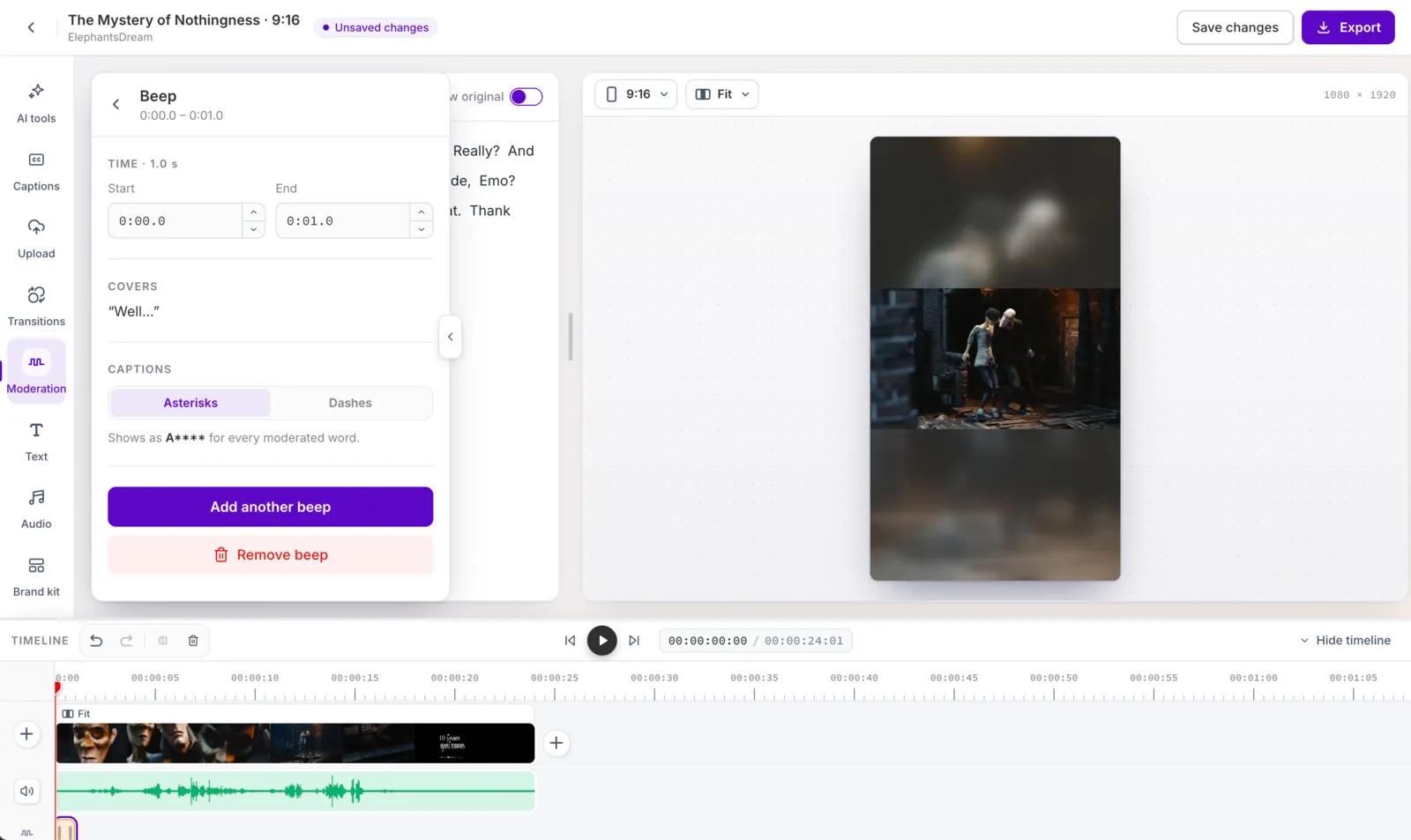
Result: A block appears at the playhead, selected, with its options open. A beep or mute starts at 1 second long, and a blur at 2 seconds. A message reads “Beep added at 0:12”.
Moderate exact words
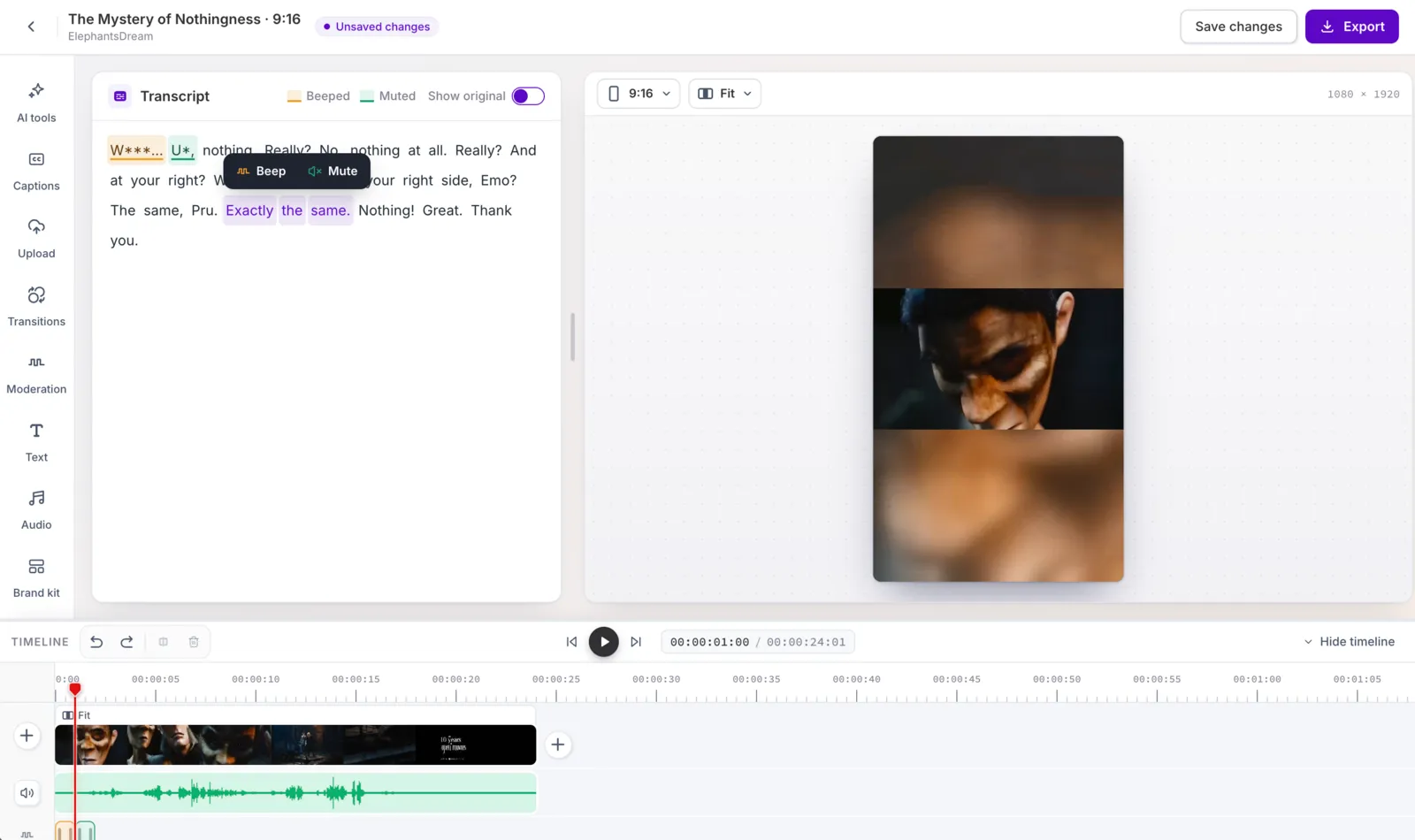
- In the transcript, drag across the words (or a whole sentence), Shift+click, or double-click one word.
- In the small bar that appears, select Beep or Mute.
Result: A block covers exactly those words. The words read masked in the transcript and in the captions, for example “A****”. The transcript header then shows a Beeped / Muted key and a Show original switch that reveals the words in the transcript panel only, never in the captions or the export.
Blur one area
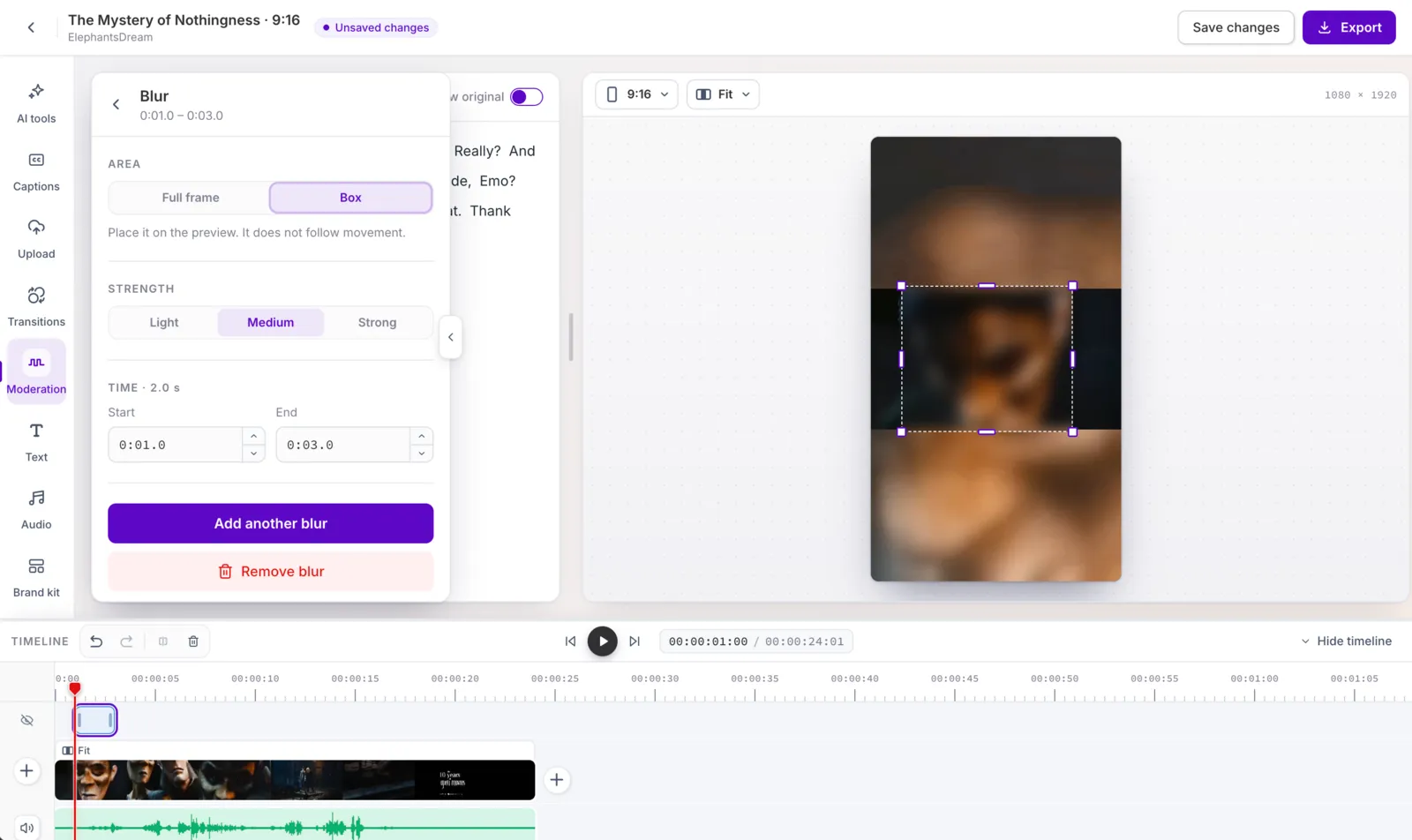
- In a blur’s options, set Area to Box.
- On the preview, drag the dashed box to move it, and drag a handle to resize it.
Result: Only the box is blurred. The panel says “Place it on the preview. It does not follow movement.”
Things to know
- Blurs sit on the Video moderation row. Beeps and mutes sit on the Audio moderation row. Drag a block to move it, or its edges to trim it.
- A beep and a mute can’t overlap each other. A blur can overlap anything. The shortest block is 0.2 seconds.
- A beep or mute silences the clip’s own sound. Audio you added keeps playing.
- A word under a beep or mute reads masked in the captions, as “A****” (Asterisks) or “A----” (Dashes). One style applies to the whole video.
- The blur box doesn’t follow movement. To cover something that moves, add another blur for the next stretch.
- To remove a block, select Remove beep (or Remove mute, Remove blur) or press Delete.
NOTE: To catch profanity across the whole clip in one step instead of placing blocks by hand, use Auto moderation in AI tools.
Frequently asked questions
Can I beep out a word?
Yes. Select the word in the transcript and choose Beep or Mute. To catch profanity across the whole clip at once, turn on Auto moderation in AI tools.
Can I blur a face or a logo?
Yes. Add a Blur, set Area to Box, and place the box on the preview. The box doesn’t follow movement, so add another blur for each stretch where the subject moves.
Does a beep silence my music too?
No. A beep or mute silences the clip’s own sound only. Audio you added keeps playing.
How does a moderated word look in the captions?
It reads masked, as “A****” with Asterisks or “A----” with Dashes. One style applies to the whole video.