

Add captions
Caption a clip in the AI video editor with a ready-made preset. Captions are drawn from the transcript, follow every cut, and stay in sync.
Captions in the AI video editor are drawn from the clip’s transcript in the style of a caption preset. This release offers presets only.
Add captions with a preset
- Select Captions in the tool sidebar. The Presets tab is open.
- Select a preset.
Result: Captions appear on the preview at once, in that preset’s style. The word being spoken is highlighted.
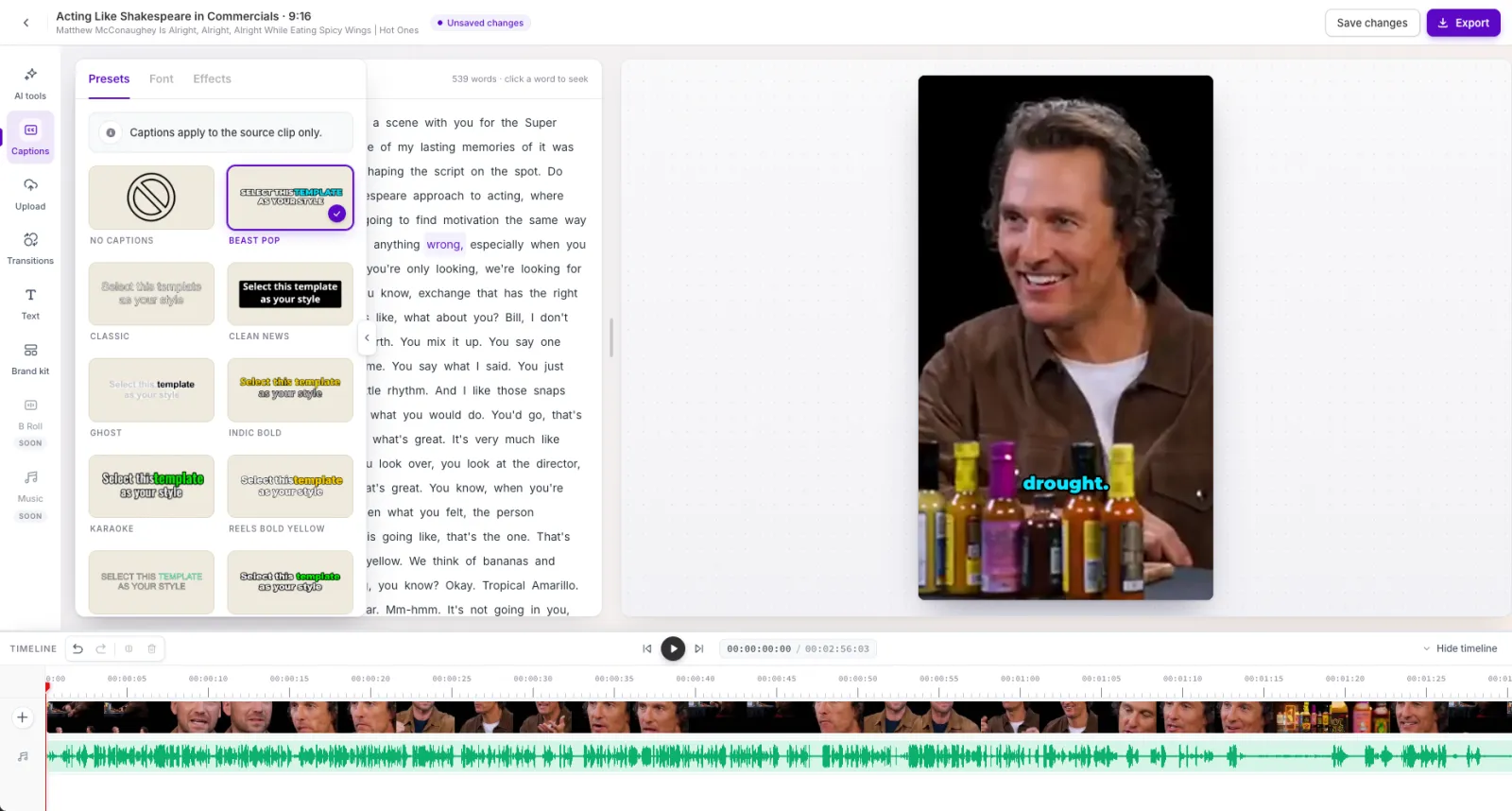
To turn captions off, select the selected preset again, or select No captions.
About the presets
- The presets are the same catalogue used when generating clips. Current presets include Reels Bold Yellow, Beast Pop, Clean News, Indic Bold, Karaoke, Ghost, Teal Shift, Titan, and Classic.
- Captions follow every cut, so they stay in sync after you delete, trim, or remove pauses.
- Caption position comes from the preset.
- To use your own colors, apply a brand kit. It recolors the preset.
NOTE: Captions show over the original clip only, not over intros, outros, or uploaded video. The panel reads “Captions apply to the source clip only.”
Things to know
- Captions can’t be moved, and their text can’t be edited.
- The Font and Effects tabs show Coming soon.
- Captions need a word-level transcript. Clips without one show “Captions aren’t available for audio-only videos.”
Frequently asked questions
Why don't captions show over my intro or uploaded video?
Captions come from the original clip’s transcript. Uploaded videos, intros, and outros aren’t transcribed, so captions show over the original clip only.
Why are captions unavailable for my clip?
Captions need a word-level transcript. A clip without one, such as an audio-only clip, can’t be captioned in the editor.
Can I change the caption colors?
Yes, with a brand kit. A brand kit recolors the preset with your caption text, highlight, and outline colors. See Apply a brand kit.