

AI video editor
Edit a clip generated by AI video clipping in your browser: cut it on the timeline, add captions, text, images, video, and transitions, clean it up with AI tools, apply a brand kit, and export it as a new clip.
AI video editor is a browser-based video editor for clips generated by AI video clipping. You open a clip, cut it on the timeline, pick its aspect ratio, add captions, text, images, video, audio, and transitions, beep or blur anything that shouldn’t be shown, clean it up with AI tools, and export the result as a new clip. The original clip stays unchanged.
It’s for creators, marketing teams, and media teams who use AI video clipping and want to polish a clip before they publish it. Everything happens in the dashboard, so there’s no download, re-upload, or separate editing tool.
Key concepts
Before you begin
Make sure you have the following:
- An AI video clipping project with at least one ready clip. A clip is ready when Download HD is available for it. See AI video clipping.
- A desktop browser. Chrome is recommended. Edge, Safari, and Firefox also work. Mobile browsers aren’t supported.
- Optional: a brand kit, if you want to apply your branding in one step.
How the AI video editor works
Editing a clip follows five stages:
- Open a clip: start from a ready clip in an AI video clipping project.
- Edit: cut on the timeline, then add captions, text, images, video, transitions, and AI clean-up.
- Save a draft: store your edit so you can come back to it.
- Export: render the edit as a new clip.
- Publish: publish or download the new clip like any other clip.
The original clip is never changed, saved edits are a draft, and every export is a new clip, so you can experiment freely.
Open a clip in the editor
You always start from a clip. There’s no editor link in the dashboard navigation.
- Open your Clips project.
- Hover over a ready clip and select the Edit clip icon. You can also open the clip and select Edit Clip.
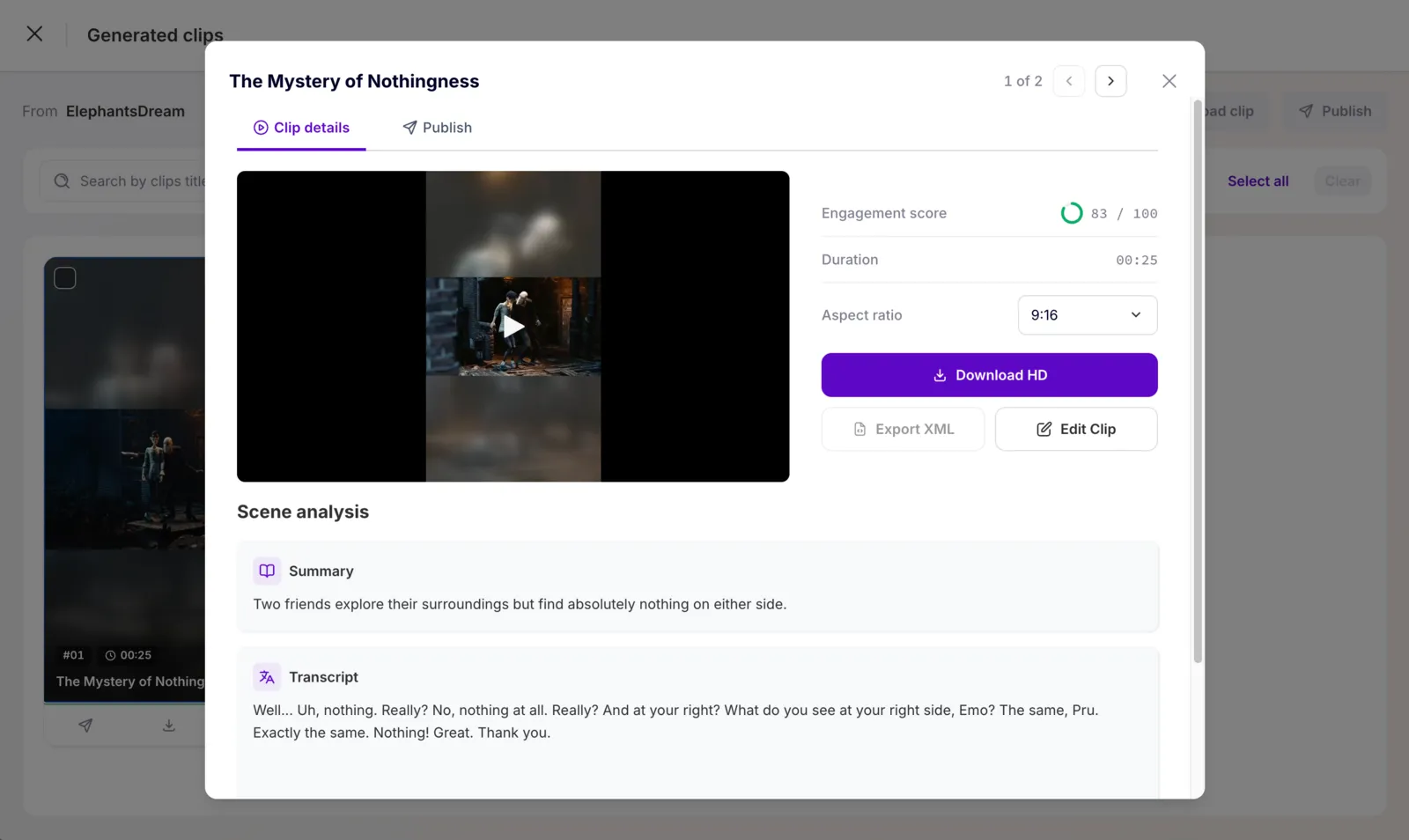
Result: The editor opens full screen. The header shows the clip title and aspect ratio, for example “My clip · 9:16”.
If the clip already has saved edits at this aspect ratio, the button reads Continue editing.
NOTE: Edit clip is available once the clip is ready. Until then, the tooltip reads “Available once the clip is ready”. If generation failed, it reads “Edit clip unavailable — processing failed”.
NOTE: The editor opens the clip in the aspect ratio selected in the clip window, and saved edits are kept under that ratio. You can then change the output aspect ratio inside the editor. See Aspect ratio and layout.
NOTE: Edited clips (exports) can’t be opened in the editor.
To leave, select the back arrow in the header. If you have unsaved changes, an Unsaved changes dialog asks you to choose Leave anyway or Stay.
The editor at a glance
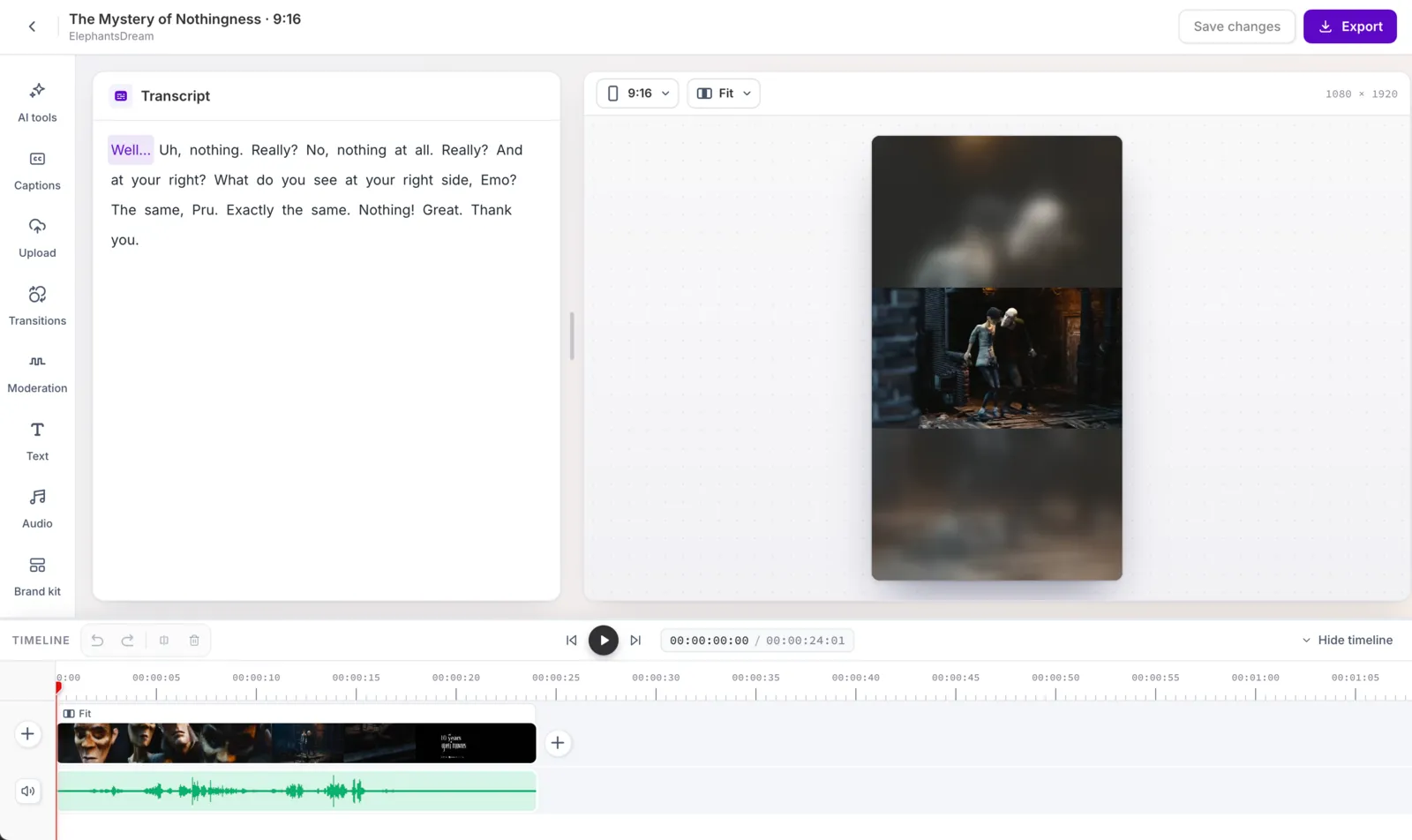
Both dividers can be dragged: the one between the left panel and the preview, and the one above the timeline.
What you can do
Each task has its own page:
- Aspect ratio and layout: set the output frame and fit or fill each section.
- Edit video on the timeline: play, split, delete, trim, add from the timeline, and use the transcript to navigate.
- Add captions: caption the clip with a preset, then set the font, colors, and position.
- Add text, images, and video: overlay text and images, insert or replace video, and add transitions.
- Add audio: add music, a voiceover, or sound effects, with volume, speed, and fades.
- Moderate video and audio: beep, mute, or blur any part of the clip.
- Clean up with AI tools: remove pauses and filler words, and auto-moderate profanity, in one step.
- Apply a brand kit: apply your aspect ratio, caption style, colors, logo, intro, outro, and clean-up settings at once.
- Save and export: save a draft and export the edit as a new clip.
Things to know
The editor also opens videos processed by the Moderation agent, with every detection waiting for your decision. See Edit a moderated video.
The following features appear in the editor with a Coming soon or Soon label and can’t be used yet:
These are current limits of the editor:
- The timeline has no zoom.
- The transcript can’t be edited, and you can’t cut video by deleting words.
- Caption text can’t be edited, and captions don’t show over intros, outros, or uploaded video.
- Text has no alignment setting. It’s always centered in its box.
- A blur box doesn’t follow movement.
- Auto moderation finds strong English profanity only.
- You can add up to 10 audio tracks.
- Export has no settings other than the aspect ratio chosen in the editor: 9:16 is 1080 × 1920, 16:9 is 1920 × 1080, 1:1 is 1080 × 1080, and 4:5 is 1080 × 1350.
- There’s no autosave and no version history.
- Edited clips can’t be opened in the editor again.
- Uploaded files stay in the Upload library only until you reload.
- Brand kits can’t be renamed or deleted.
- Desktop browsers only.
Frequently asked questions
Does editing change my original clip?
No. The original clip is never changed. Saved edits are a draft, and every export is a new clip.
What's the difference between Save changes and Export?
Save changes stores a draft so you can keep editing later. Export renders the edit as a new clip you can publish or download. Export doesn’t save the draft. See Save and export.
Can I edit an exported clip?
No. Open the original clip again, where the button reads Continue editing, change it, and export again.
Can I change the aspect ratio in the editor?
Yes. Select Aspect ratio above the preview and pick 9:16, 16:9, 1:1, or 4:5. Use Layout to set each section to Fit or Fill. See Aspect ratio and layout.
Can I add music or a voiceover?
Yes. Select Audio, then Add audio. MP3, M4A, AAC, WAV, and OGG files are supported. Set each piece’s volume, speed, and fades. See Add audio.
Can I beep a word or blur a face?
Yes. Use the Moderation tool to beep or mute the sound and blur the picture over any part of a clip, or turn on Auto moderation in AI tools to catch profanity in one step. See Moderate video and audio.
What resolution is the export?
It matches the aspect ratio chosen in the editor: 1080 × 1920 for 9:16, 1920 × 1080 for 16:9, 1080 × 1080 for 1:1, and 1080 × 1350 for 4:5.