

Add text, images, and video
Add elements on top of the clip in the AI video editor. Overlay text and images, insert or replace video, and add transitions. Place each item on the preview, and set how long it shows on the timeline.
Add text
- Select Text, then Add text overlay. A layer reading “Your text” appears at the playhead.
- Type your text and style it in the panel.
- Drag the text on the preview to place it.
- On the Text row, drag the block to move it, or drag its edges to change how long it shows.
Result: The text shows on the preview exactly as it will in the export.
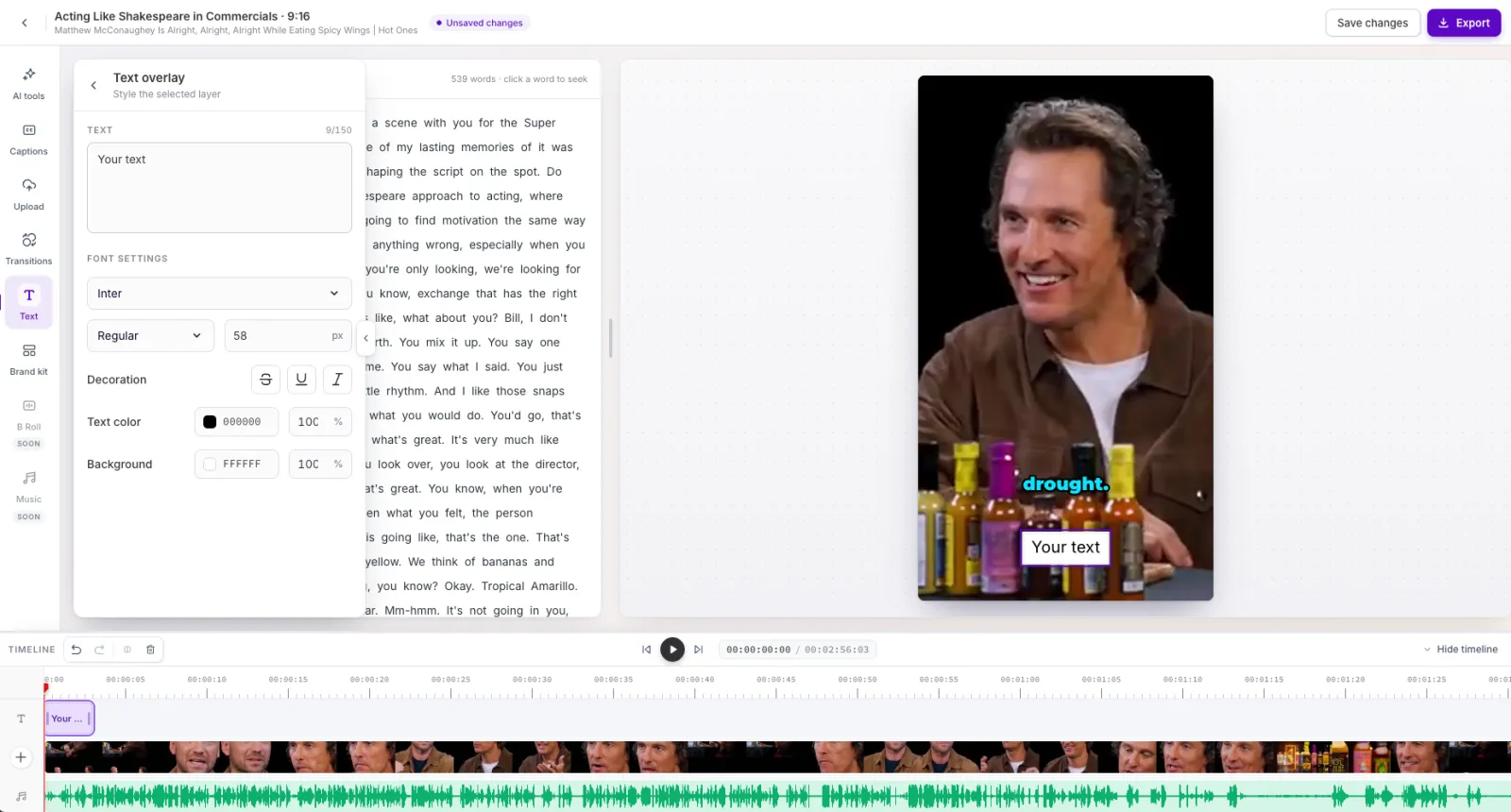
The defaults are Inter Regular, 58 px, black text on a white box, bottom center, for 3 seconds.
- Long text wraps automatically and shrinks if needed, so it always fits the frame.
- Text snaps to the center of the frame while you drag it, and can’t leave the frame.
- Only one text layer shows at a time. A new layer goes to the next free spot on the Text row.
- A text layer shows for at least 1 second.
Add images
- Select Upload, then drag in an image or select browse.
- Click the image in the library.
- Drag it on the preview to move it. Drag a corner to resize, or an edge to stretch one side.
- On the Images row, drag the block to move it, or its edges to change how long it shows.
Result: The image appears at the playhead, centered, for 3 seconds.
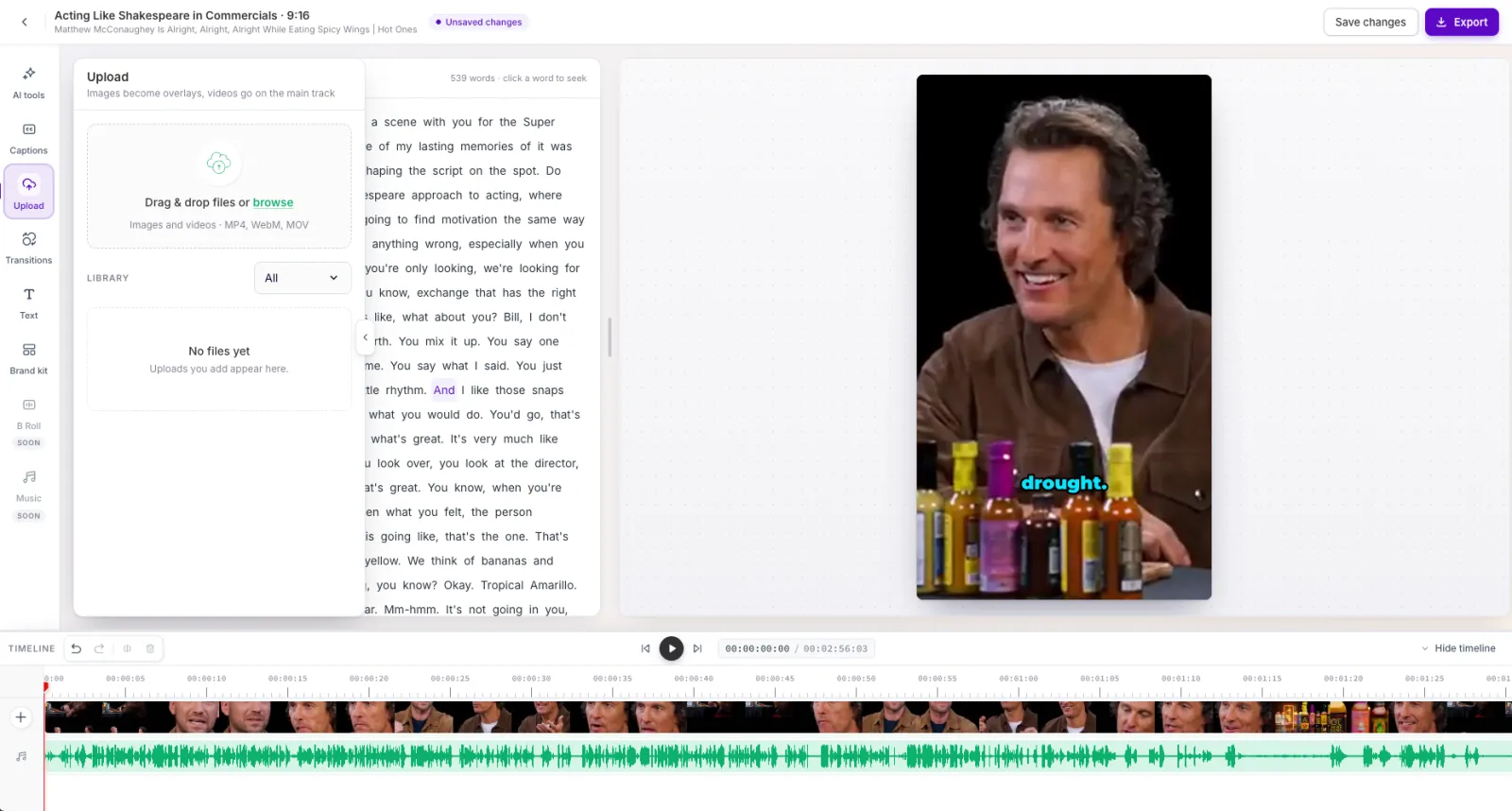
- Corner handles keep the image’s proportions. Hold Shift to resize freely.
- Several images can show at the same time. A later one sits on top.
- Use images for logos, stickers, lower-thirds, or product shots.
Add or replace video
- Select Upload, then drag in a video or select browse. MP4, WebM, and MOV are supported.
- Move the playhead to where the video should go.
- Click the video in the library and choose one of the following:
- Add to timeline inserts the video at the playhead. The timeline gets longer.
- Replace existing plays the video instead of the footage from the playhead on. The length stays the same unless the new video runs past the end.
Result: The video plays with its own sound. The “Clip inserted at” or “Replaced” message confirms the time.
- The insert point moves up to 0.35 seconds to the nearest word edge, so a word is never cut in half.
- A video with a different shape is shown whole, with black bars.
- Uploaded video has no captions.
- Files upload in the background. The library tile shows “Uploading N%”. If it fails, select Failed · Retry.
- The library is cleared when you reload. Videos already on the timeline stay.
NOTE: Some files, such as iPhone HEVC videos in Chrome, can’t play in the browser. The message reads “This video can’t be previewed in the browser. Use an MP4 (H.264), WebM or MOV file.”
Add transitions
- Move the playhead to where the transition should start.
- Select Transitions, then select an effect.
Result: The effect is placed at the playhead for 1 second and plays in the preview.
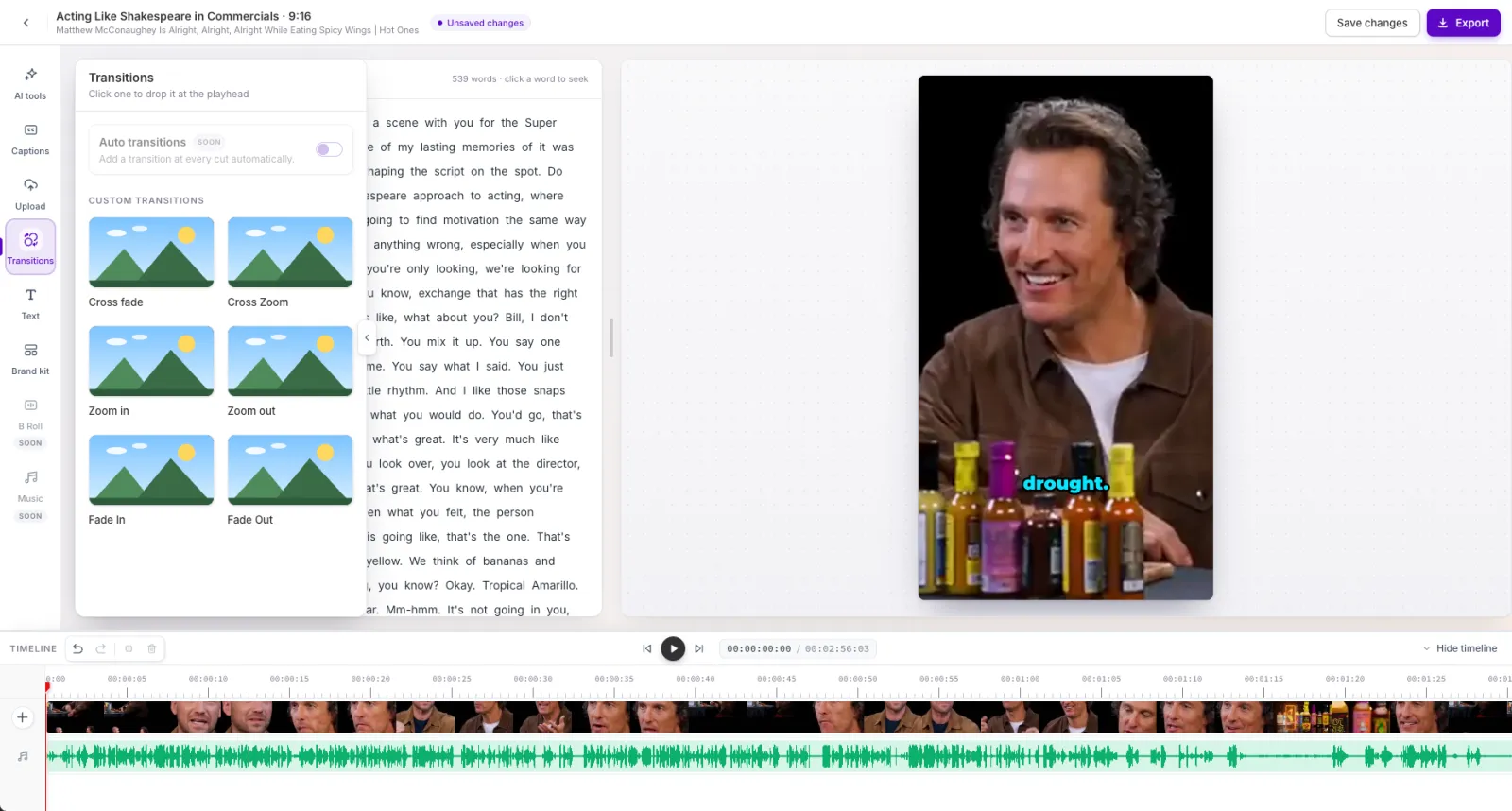
The effects are Cross fade, Cross Zoom, Zoom in, Zoom out, Fade In, and Fade Out.
- Drag the block on the Transitions row to move it. Drag its edges to set a length from 0.5 to 3 seconds.
- Transitions can’t overlap. A new one moves to the next free spot.
- Auto transitions shows Coming soon.
Things to know
- Text has no alignment setting and no resize handles. Change its size with Size.
- Uploaded files stay in the Upload library only until you reload. Items already on the timeline are saved with your edits.
- Uploaded video, intros, and outros aren’t captioned.
Frequently asked questions
Which files can I upload?
Images: JPG, PNG, or WebP, up to 20 MB and 8000 × 8000 px. Videos: MP4, WebM, or MOV. MP4 (H.264) works in every supported browser.
Why is my upload library empty after a reload?
The library lasts for one editing session. Files already placed on the timeline stay, and they’re saved with your edits.
What's the difference between Add to timeline and Replace existing?
Add to timeline inserts the video at the playhead and makes the clip longer. Replace existing plays the video instead of the footage from the playhead on, keeping the length the same unless the new video runs past the end.