

Edit video on the timeline
Cut a clip on the AI video editor timeline: play and navigate, split and delete a section, trim with grips, add an intro or outro, and undo your changes.
Cut the clip on the timeline in the AI video editor. Play it, split and delete the parts you don’t want, trim a section with its grips, and add an intro or outro. Use the transcript to move around while you work.
Play and move around
- Press Space or select Play to play and pause.
- Click or drag on the ruler above the rows to jump or scrub.
- Press the left and right arrow keys to step one frame.
- Click a word in the transcript to jump to it.
Navigate with the transcript
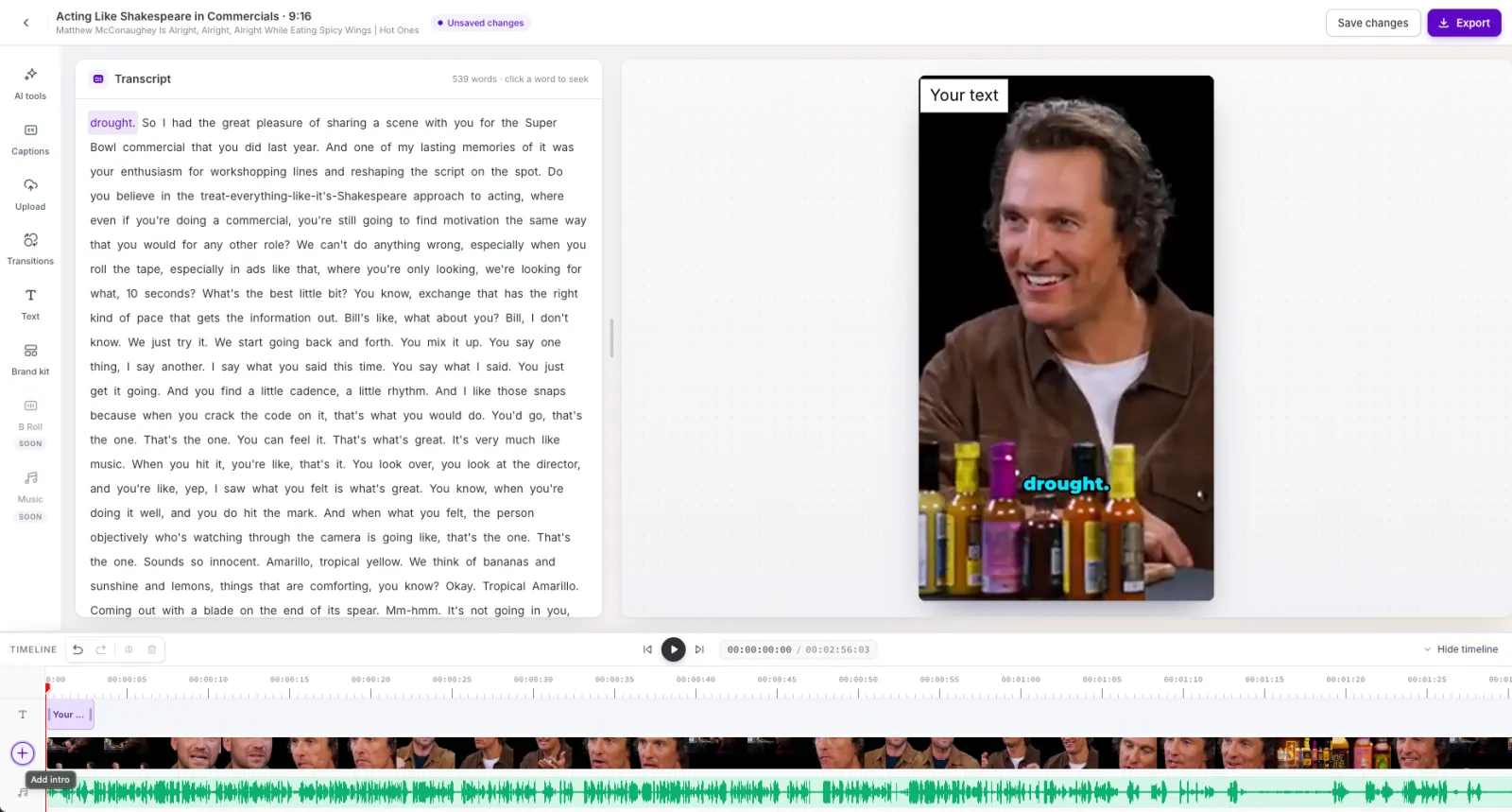
The transcript lists every word in the clip. Its header reads “N words · click a word to seek”.
- The word being spoken is highlighted during playback, and the list scrolls to keep it in view.
- Click a word to move the playhead to it.
- The transcript follows your edits. Words you cut disappear, and come back if you undo.
NOTE: In this release, the transcript is for reading and navigating. You can’t edit the text or cut video by deleting words.
If a clip has no word-level transcript, the panel reads “Audio-only videos don’t have a transcript.” Captions and the AI tools aren’t available for those clips.
Cut out a part of the video
- Move the playhead to where the part starts and select Split (or press S).
- Move the playhead to where the part ends and select Split again.
- Click the section between the two splits on the Video row.
- Select Delete (or press Delete).
Result: The section is removed and everything after it moves back. Captions for the removed words disappear. Text, images, or transitions inside the removed part are removed, and ones that cross it are shortened.
NOTE: A video with no splits is one section, and you can’t delete it. The message reads “This is the only section — split the video first to delete a part of it”.
Trim a section
- Click a section on the Video row to select it. Grips appear on its edges.
- Drag a grip inward to trim, or outward to bring back footage you cut earlier.
Result: A tag shows how much you trimmed or restored, for example “−1.4s”, and the rest of the timeline moves to close the gap.
- Edges snap to the playhead and to where words and pauses start and end. Hold Alt (Option on Mac) to drag without snapping.
- Press Q to trim from the section’s start to the playhead. Press W to trim from the playhead to the section’s end.
- Dragging outward only restores footage from the original clip. It never repeats footage.
- Press Escape during a drag to cancel it.
Add an intro or outro
- To add an intro, select + on the Video row label. To add an outro, select + after the end of the video.
- Choose a video file.
Result: The video plays before or after the clip with its own sound. An intro moves everything else later by its length.
To insert a video in the middle of the clip, hover over a split on the Video row and select + (“Insert video here”). To add or replace footage from an uploaded file, see Add text, images, and video.
Undo, redo, and hide the timeline
- Select Undo or Redo, or press Cmd/Ctrl+Z and Shift+Cmd/Ctrl+Z. The editor keeps the last 50 steps. Applying an AI tool or a brand kit counts as one step.
- Select Hide timeline for more preview space. The playback controls stay visible.
Keyboard shortcuts
Shortcuts don’t work while you’re typing in a text field.
Frequently asked questions
Why can't I delete the whole video?
A video with no splits is a single section, and the editor won’t delete the only section. Split the video first, then delete the part you don’t want.
Can I edit the transcript text or cut video by deleting words?
Not in this release. The transcript is for reading and navigating. To cut video, use Split and Delete on the timeline.
Can I zoom the timeline?
Not in this release. The timeline has no zoom.