

Add audio
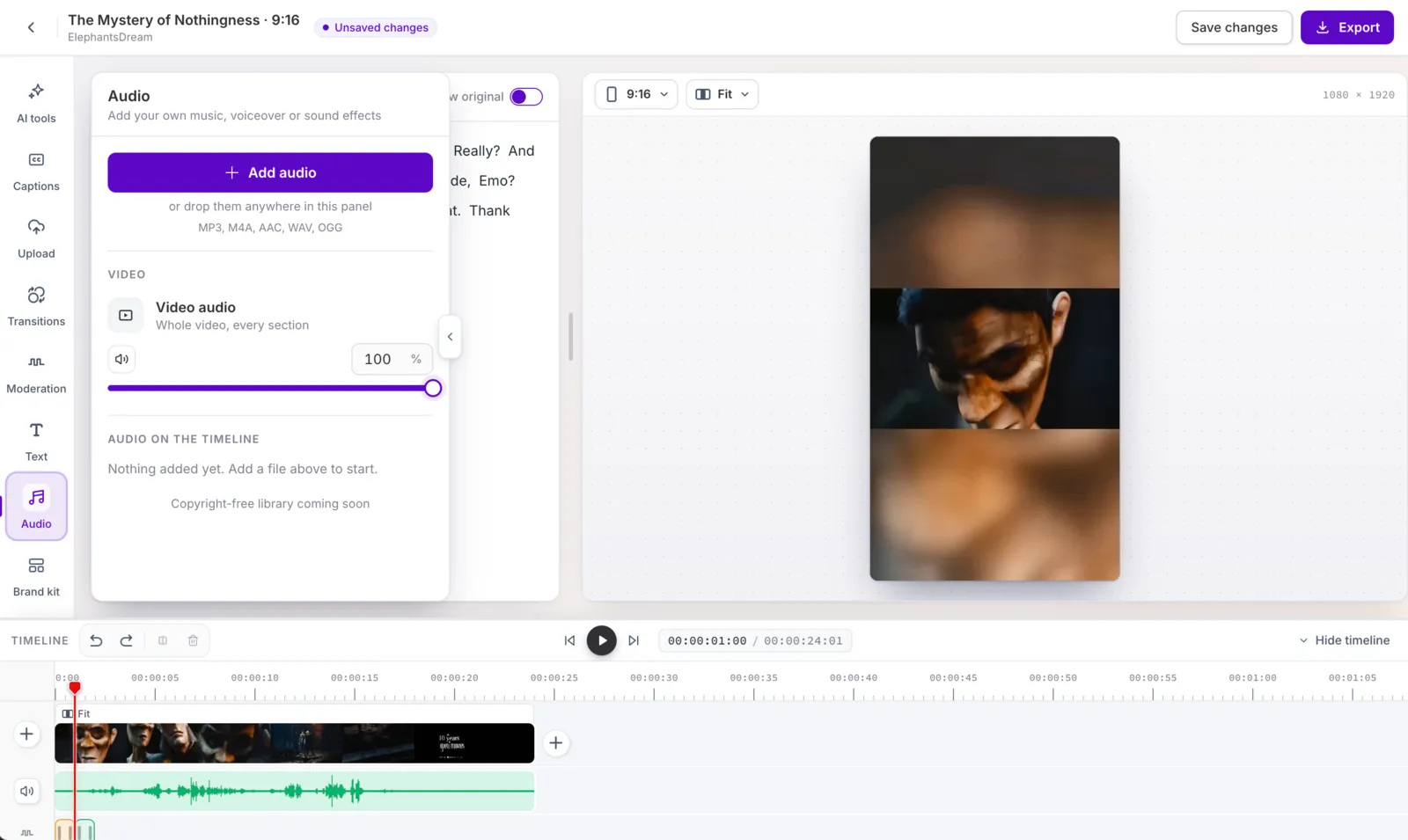
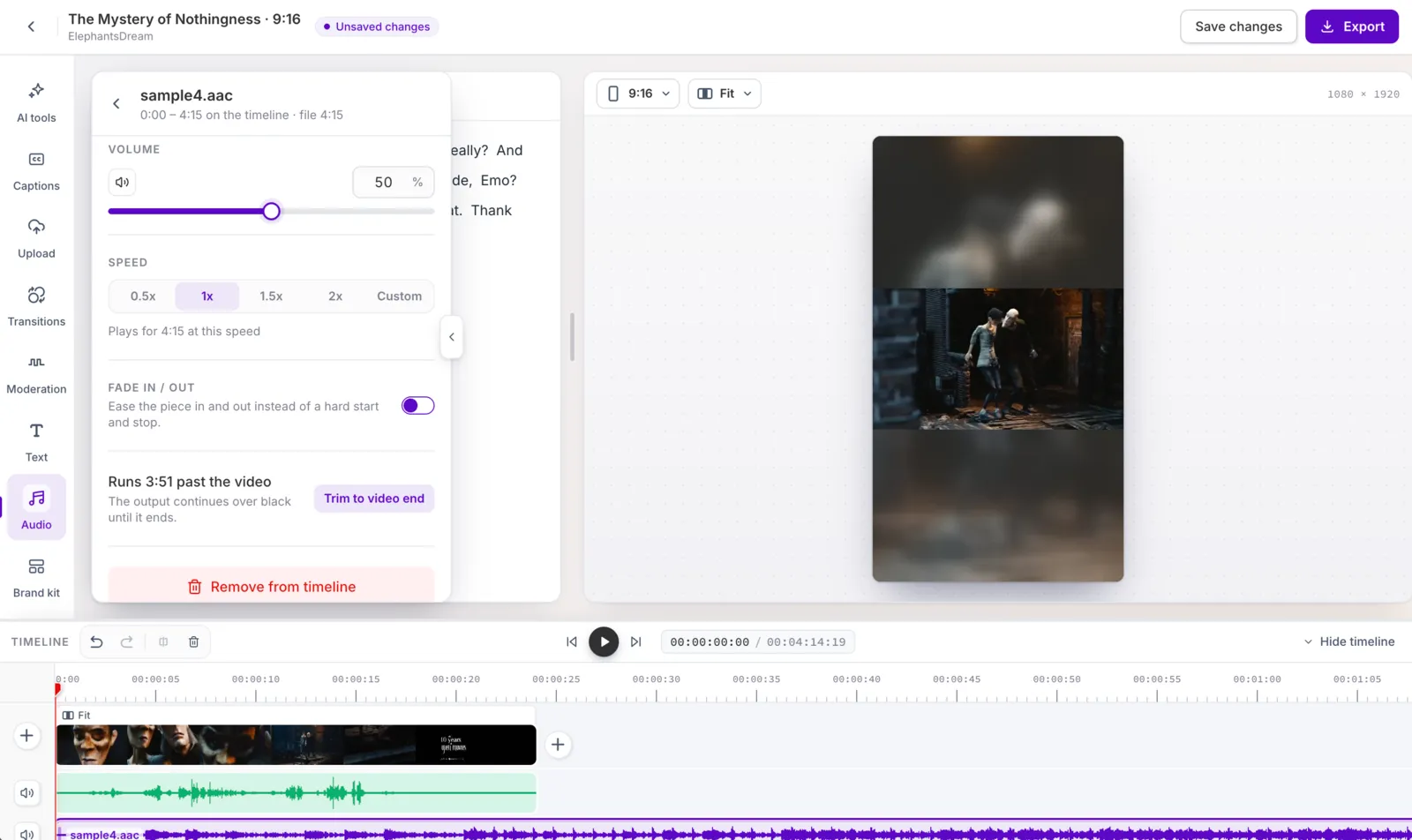
The Audio tool in the AI video editor adds music, a voiceover, or sound effects under the video. Each file gets its own row on the timeline, and you set its volume, speed, and fades.
Add an audio file
- Move the playhead to where the audio should start.
- Select Audio, then Add audio, or drop files anywhere in the panel. MP3, M4A, AAC, WAV, and OGG are supported. You can add several files at once.
- Select the piece in the panel or on the timeline to set its options.
Result: Each file gets its own Audio row, starting at the playhead, at 50% volume. A message reads “Audio added at 0:12”.
Balance the video’s own sound
The panel’s Video audio row sets the level of the video’s own sound, from 0 to 100%, for the whole video. Use it to lower the original audio under a music track or a voiceover.
Things to know
- On the timeline, drag a piece to move it and drag its edges to trim it. Select it and press S to split it, or Delete to remove it.
- Audio you add doesn’t move when you cut, trim, or clean up the video.
- If a piece runs past the end of the video, the panel says “The output continues over black until it ends.” Select Trim to video end to stop it with the video.
- A muted piece isn’t exported.
- You can add up to 10 audio tracks. The message reads “You can add up to 10 audio tracks — remove one to add another”.
- The panel shows “Copyright-free library coming soon”. For now, add your own files.
NOTE: Audio files go in the Audio tool. If you drop one in the Upload tool, the message reads “Add audio from the Audio tool”.
Frequently asked questions
Can I add music or a voiceover?
Yes. Select Audio, then Add audio. MP3, M4A, AAC, WAV, and OGG files are supported. Set each piece’s volume, speed, and fades.
How do I lower the video's own sound under my music?
Use the Video audio row in the Audio panel. It sets the level of the video’s original sound for the whole video.
How many audio tracks can I add?
Up to 10. Remove one to add another.
Does my audio shift when I cut the video?
No. Audio you add stays where you placed it when you cut, trim, or clean up the video.