

Apply a brand kit
Save your look once as a brand kit, then apply your caption style and colors, logo, intro, outro, and clean-up settings to any clip in one step.
A brand kit saves your look once and applies it to any clip in the AI video editor in one step. A kit holds your caption style and colors, logo, intro, outro, and clean-up settings for the workspace.
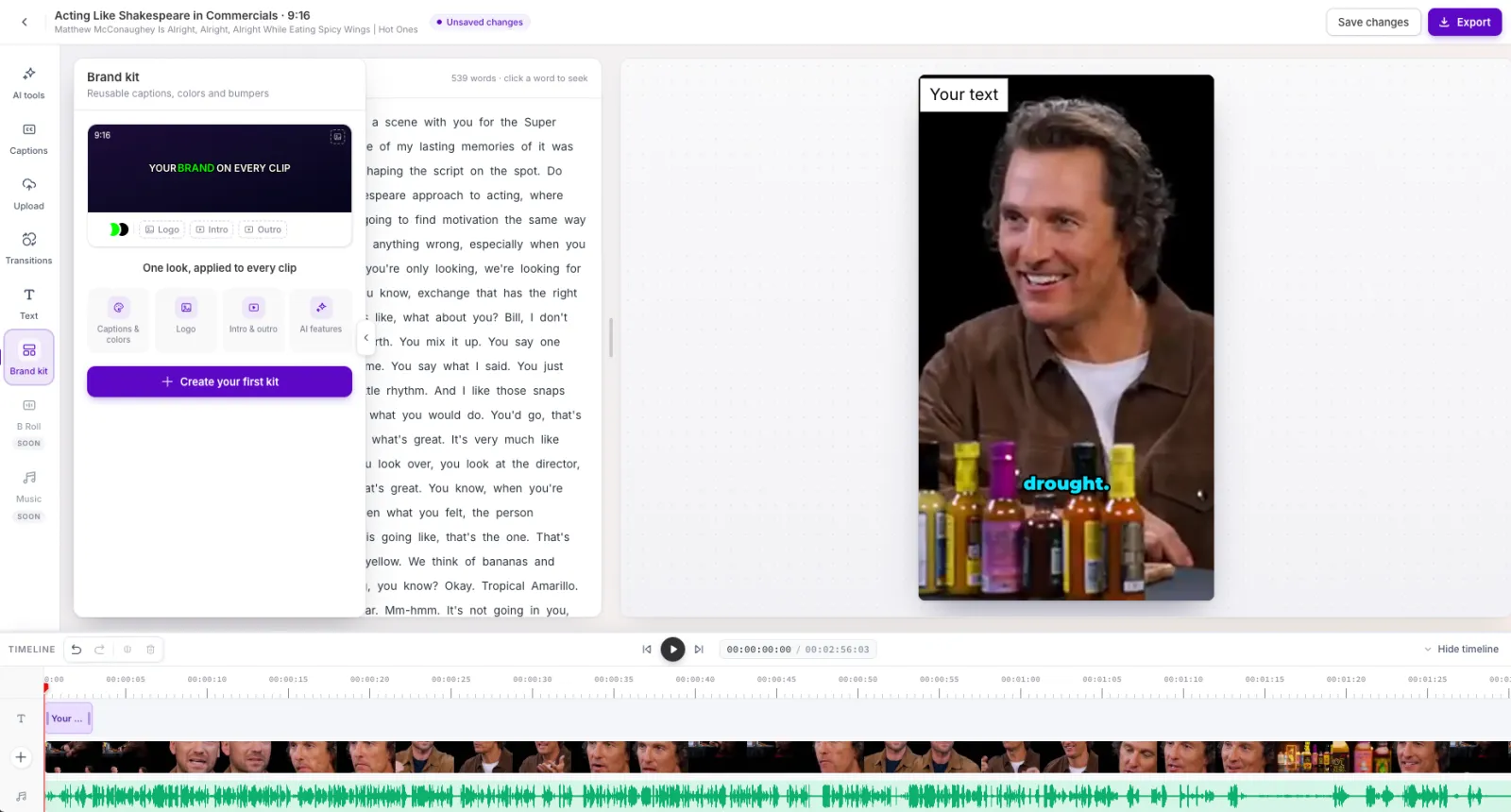
Create a brand kit
- Select Brand kit, then Create your first kit (or New kit if you already have one). The Brand kit page opens in a new tab.
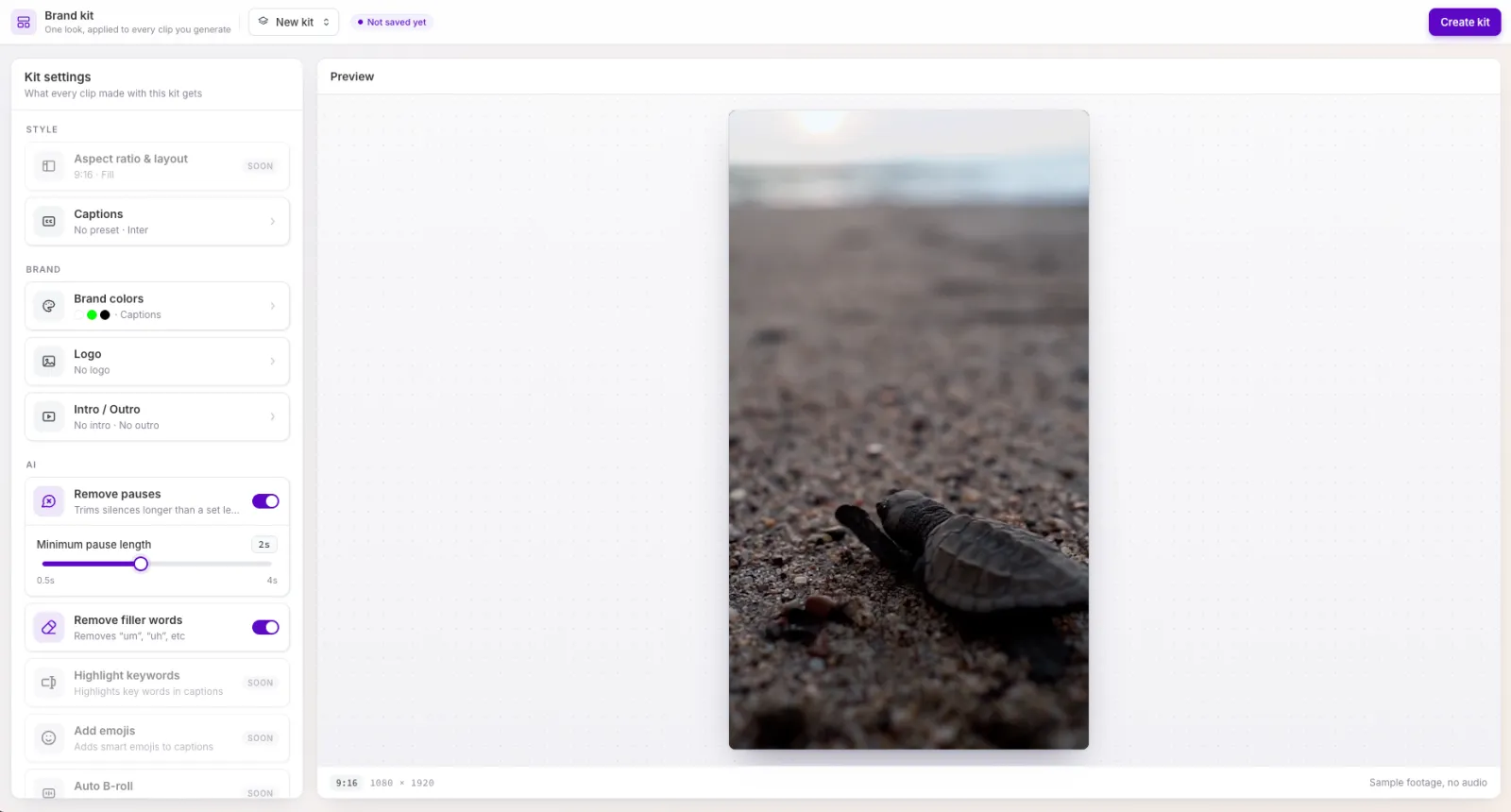
- Set up the kit:
- Captions: choose a caption preset.
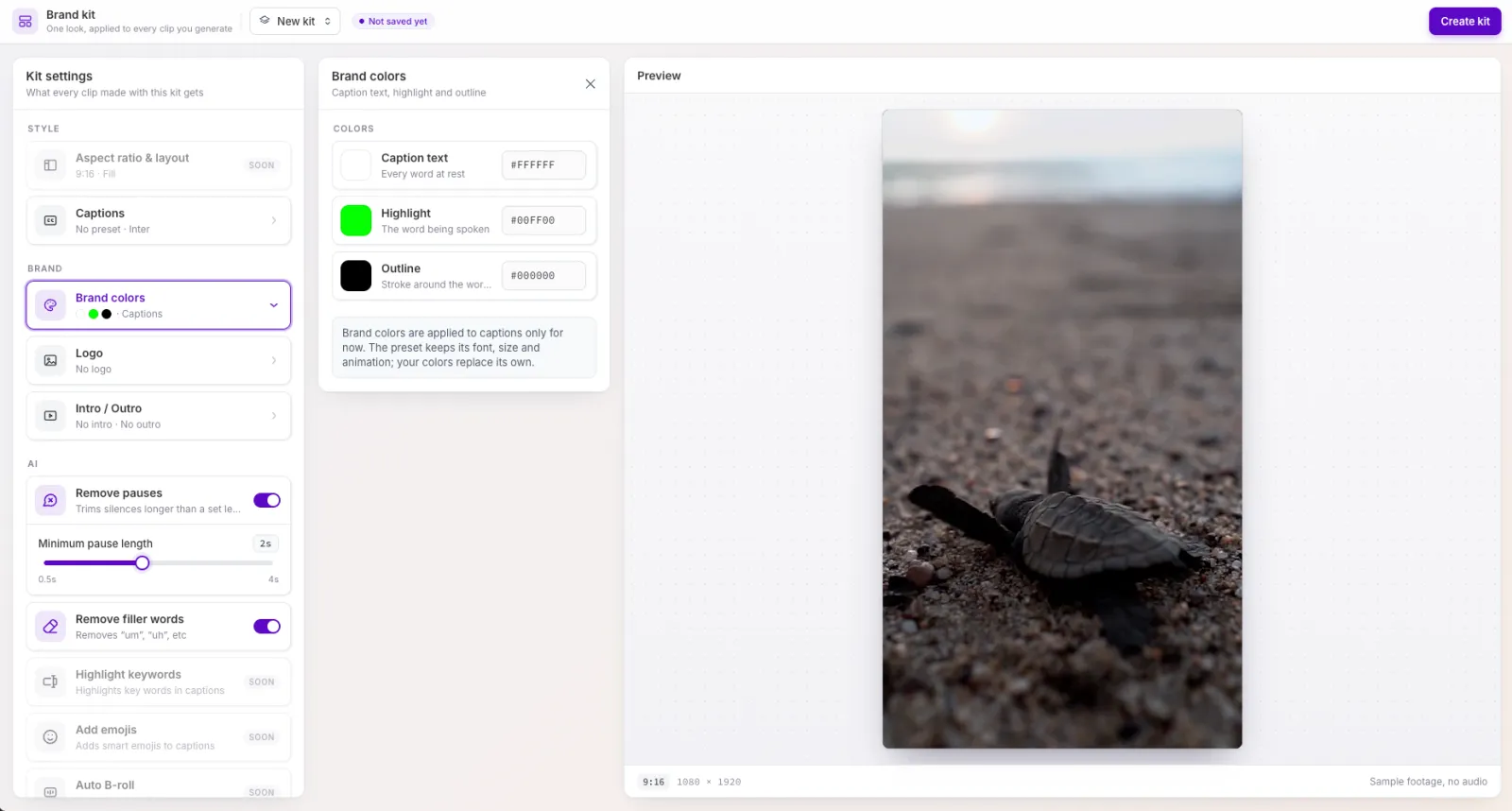
- Brand colors: set Caption text (every word at rest), Highlight (the word being spoken), and Outline (the stroke or box behind the words).
- Logo: PNG, JPG, or WebP up to 1.5 MB. Use Quick place for a corner and Size to scale it, or drag it on the preview.
- Intro / Outro: MP4, WebM, or MOV. Your intro plays before every clip, and your outro plays after it.
- Remove pauses (with a minimum pause length) and Remove filler words. Both are on by default.
- Select Create kit.
Result: A “Kit created” message appears. Back in the editor, the kit is listed in the Brand kit tool.
Apply a brand kit to a clip
- Select Brand kit in the editor.
- Select Apply on a kit.
Result: A “[kit name] applied” message appears, and the panel reads “[kit name] is applied to this clip”. In one step, the kit:
- Removes pauses and filler words, if the kit has them on.
- Turns on its caption preset in the kit’s colors.
- Adds the intro at the start and the outro at the end.
- Places the logo over the whole video.
Behavior and limits
- Undo reverts the whole kit in one step. Remove takes the kit’s intro, outro, and logo off, and leaves the caption preset and AI cuts.
- After you apply a kit, the intro, outro, and logo are normal timeline items. You can move, trim, or delete them.
- Applying a different kit asks “Switch kit?” and replaces what the first kit added.
- If you change a kit’s colors, clips with that kit applied update to the new colors.
- If a kit’s intro, outro, or logo is still uploading, it’s skipped, and the message names it.
- To change a kit, select its edit icon. The Brand kit page opens in a new tab.
- A kit doesn’t change the clip’s aspect ratio.
- Brand kits can’t be renamed or deleted in this release.
Frequently asked questions
Can I undo a brand kit?
Yes. A brand kit is a single undo step, so one undo reverts everything it applied.
What's the difference between Undo and Remove?
Undo reverts the whole kit in one step. Remove takes off the kit’s intro, outro, and logo but keeps the caption preset and the AI cuts.
If I update a kit's colors, do my edited clips change?
Clips that still have the kit applied update to the new colors. Exported clips don’t change, since an export is a finished clip.