

Enable MP4 support for offline viewing
HLS adaptive bitrate streaming requires an active internet connection, which excludes offline viewers, legacy devices, and social media embeds that need a single downloadable file. FastPix bridges this gap by generating a static MP4 rendition alongside the HLS manifest when you set the mp4Support field at creation time. Serve the file at https://stream.fastpix.com/<playbackId>/capped-4k.mp4 or .../audio.m4a, it keeps a fixed resolution and bitrate so it plays anywhere.
Prerequisites
- A FastPix account with an active workspace (Activate your account)
- Your Access Token ID and Secret Key from the FastPix dashboard
- A video media to upload, or an existing
mediaIdto update - Familiarity with uploading from a URL or uploading directly
Key terms
mediaId- The unique identifier FastPix assigns to every uploaded media. Use it to update, query, or delete the media.playbackId- A separate, access-controlled identifier FastPix generates for playback. The MP4 download URL is built from theplaybackId.accessPolicy- Controls whether the media ispublicorprivate. Aprivatemedia requires a signed URL for both HLS and MP4 access.mp4Support- The field you set to tell FastPix which static renditions to generate.
Benefits of enabling MP4 support
-
Offline viewing
Viewers download MP4 files and watch them without an active internet connection, which matters for regions with limited connectivity and for mobile apps that cache content.
-
Legacy device compatibility
MP4 files play on older devices, including Android versions below 4.0, where HLS adaptive bitrate streaming is not supported.
-
Short-form clips
For clips under 10 seconds, a single MP4 file reduces startup latency compared with loading an HLS manifest and its segments.
-
Social media embedding
MP4 files embed in Open Graph cards on Facebook, X, and LinkedIn, so shared links render an inline video preview instead of a still thumbnail.
-
Audio-only use cases
mp4Supportcan generate an.m4aaudio rendition for podcasts, transcription pipelines, and audio-only streaming, extending its use beyond video.
Choose an mp4Support value
Pick the option that matches the renditions you need:
capped_4k- Generates a single MP4 file capped at 1080p.audioOnly- Generates an.m4aaudio rendition only.audioOnly,capped_4k- Generates both the MP4 and the.m4arendition for medias with audio and video.
NOTE
The value you pick determines which static rendition URLs FastPix exposes. You can change it later with the update endpoint covered in Update MP4 support on an existing media.
Create a media media with MP4 support
Set mp4Support in the request body when calling either upload endpoint:
- Create media from URL - pull the source from a URL.
- Upload media from device - push the source from local storage.
Subscribe to the video.media.mp4Support.ready webhook to be notified when the static rendition finishes transcoding.
Upload video from URL
NOTE
Replace
urlwith the source URL of your video. This request generates an MP4 rendition capped at 1080p.
Upload video from device
For a direct upload from local storage, use this configuration:
NOTE
Set
mp4Supporttocapped_4k,audioOnly, oraudioOnly,capped_4kdepending on the renditions you need.
Create media with MP4 support from the dashboard
To create media with MP4 support from the dashboard, you need to:
- Add your media.
- Enable MP4 support in media settings.
- Review metadata and start the upload.
- Verify the upload.
Add your media
- In the left navigation, go to Video > Media.
- On the Upload media page, add your video using one of the following methods:
- Upload from device: Drag and drop your file into the upload area, or click Browse to open your device’s file picker. Navigate to the video you want to upload, select it, and click Open.
- Upload using video URL: Paste a public video URL into the Upload using video URL field and click Submit URL.

Enable MP4 support in media settings
-
In the Media Settings panel, select Custom settings.
-
Set
"mp4Support": "capped_4k"in the JSON configuration. For example: -
Configure any other settings as needed, then click Continue.

Review metadata and start the upload
- In the Metadata panel, review the preview of your video along with the auto-populated fields.
- Optionally, edit the Media title, Creator ID, or Third party ID.
- When ready, click Start upload all media.

Verify the upload
- After the upload completes, open the Media Details page.
- Confirm the status is Ready and the playback ID is available.
- Use the media for offline viewing with MP4 support enabled.

Update MP4 support on an existing media
FastPix also lets you enable or change MP4 support after a media is created with the update mp4 support endpoint.
Method: PATCH
URL: https://api.fastpix.com/v1/on-demand/{mediaId}/update-mp4Support
Subscribe to the video.media.mp4Support.updated webhook to track when the new rendition finishes transcoding.
Access the MP4 download URL
Once the static rendition is ready, build the download URL from the playbackId and the rendition filename:
Video
Audio
TIP: Use these URLs directly in a
<video>or<audio>element, or expose them as a download link for offline viewing.
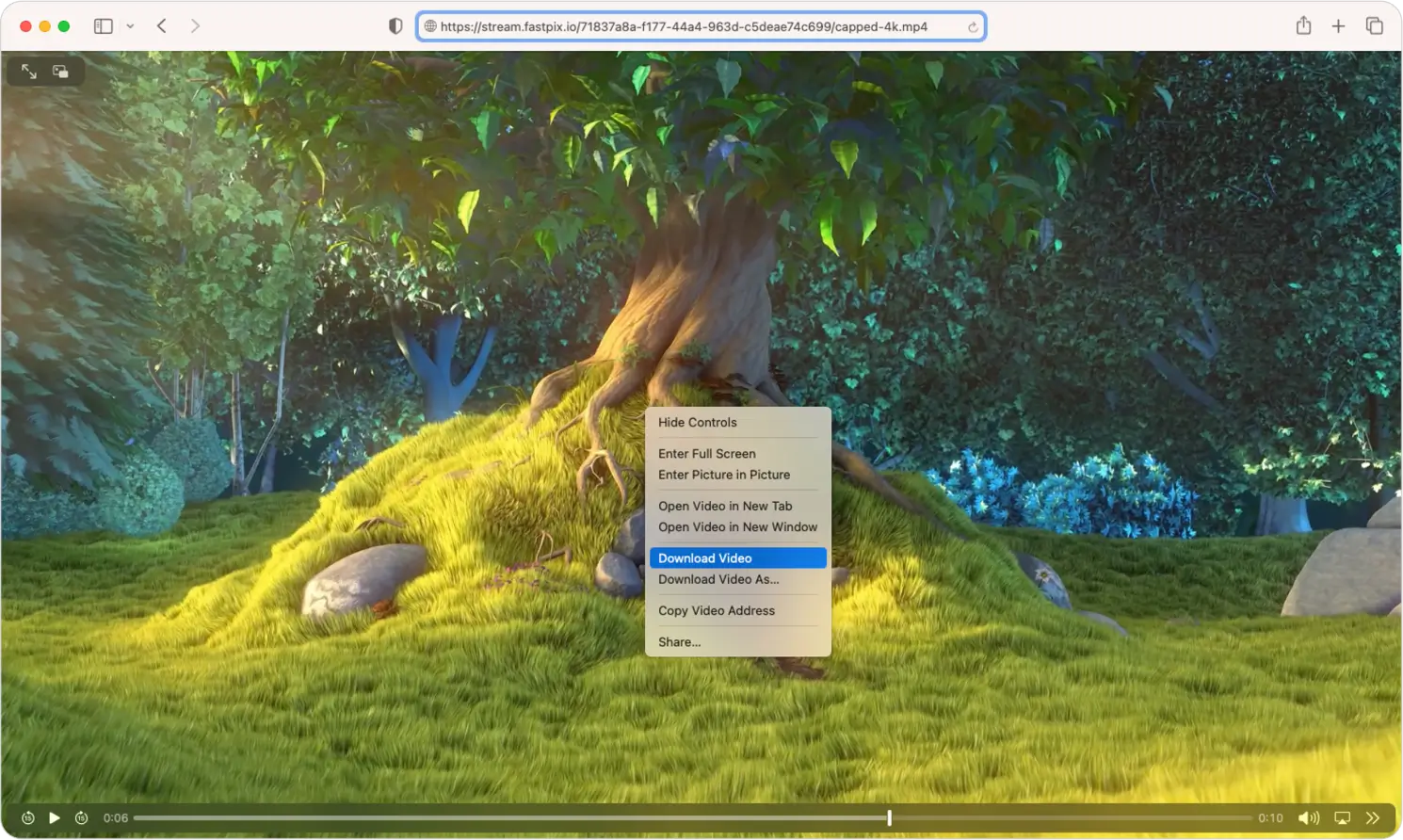
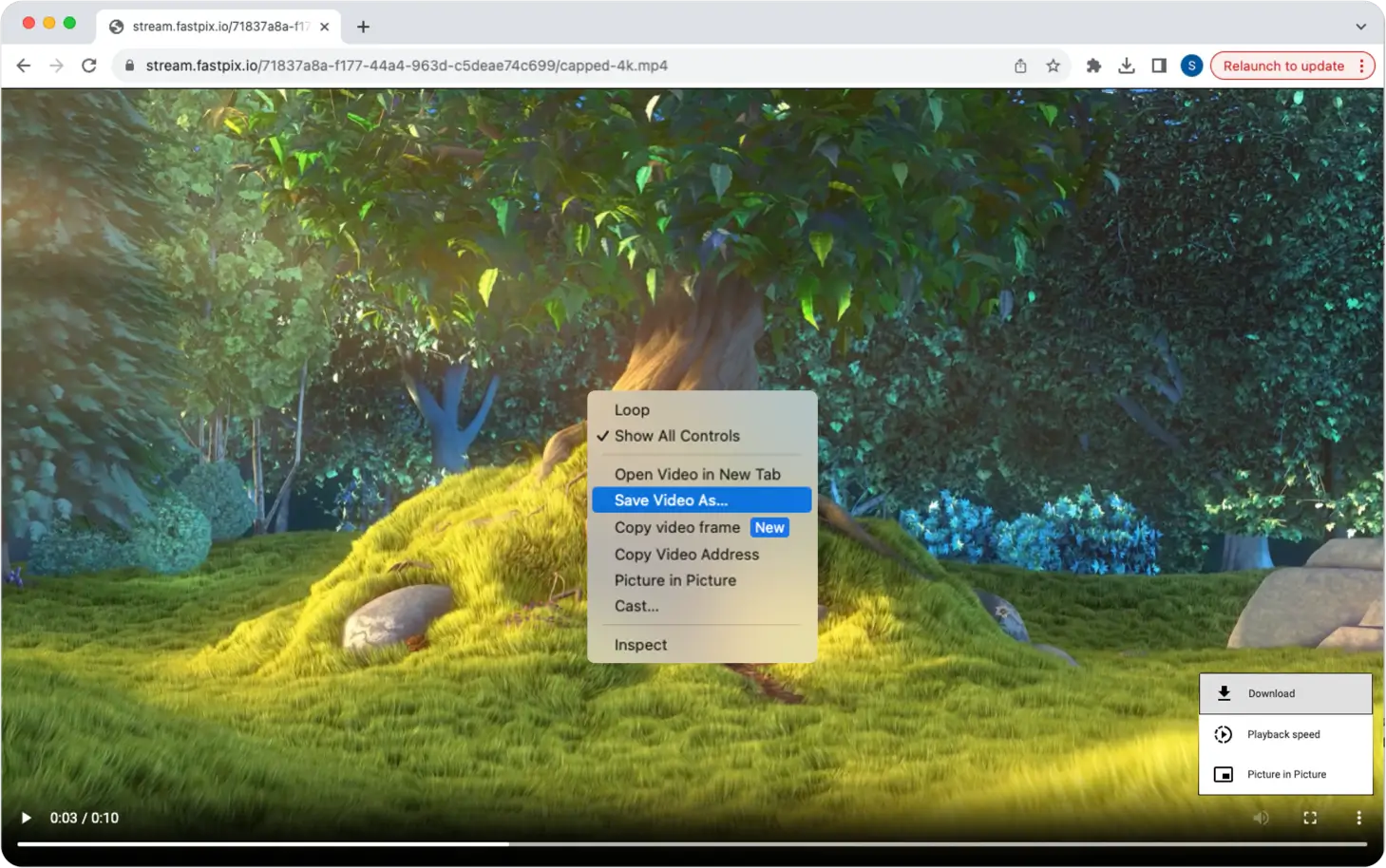
Opening the URL in a browser starts the download automatically. If it does not, trigger the download manually as shown in the browser instructions that follow.
Download an MP4 video in Safari
Download an MP4 video in Chrome
Frequently asked questions
What is the difference between `capped_4k` and `audioOnly`?
capped_4k generates a single MP4 file capped at 1080p resolution. audioOnly generates an .m4a audio rendition with no video track. Use audioOnly,capped_4k to generate both from a single source.
Can I enable MP4 support on a media that is already uploaded?
Yes. Send a PATCH request to https://api.fastpix.com/v1/on-demand/{mediaId}/update-mp4Support with the new mp4Support value. FastPix transcodes the static rendition and fires the video.media.mp4Support.updated webhook when it is ready.
Does MP4 download work with signed URLs or DRM-protected medias?
Static MP4 renditions follow the same accessPolicy as the media. A public media is downloadable at the static URL. A private media requires a signed JWT on the MP4 URL, see Secure media access with JWTs. DRM-protected renditions are not downloadable as static MP4 files; DRM applies to HLS playback only.
How do I cache MP4 files for offline playback in a mobile app?
Download the MP4 from the static rendition URL, store it in the app’s local filesystem, and point your native player at the local file path. On iOS use AVmedia with a file URL; on Android use ExoPlayer with a FileDataSource.
How do I download a video from the API?
Enable mp4Support on the media media (set it to capped_4k at creation or via PATCH), wait for the video.media.mp4Support.ready webhook, then fetch the file at https://stream.fastpix.com/{playbackId}/capped-4k.mp4. Opening that URL in a browser triggers a download; in application code, issue a standard HTTP GET and write the response body to disk.
When is the MP4 rendition ready after upload?
FastPix transcodes the static rendition in parallel with the HLS renditions. Listen for the video.media.mp4Support.ready webhook rather than polling, it triggers as soon as the MP4 file is available at the static URL.