

Set a media storage region
Each FastPix workspace has a jurisdiction that sets the region where its media is stored. Choose it when you create the workspace; it can’t be changed later.
Each FastPix workspace has a jurisdiction: the region where media you upload to that workspace is stored and handled. The jurisdiction applies across the media’s entire lifecycle, including encoding, transcoding, processing, and storage, so your media stays in that region at every stage. You choose a jurisdiction when the workspace is created, so you can keep your media in a specific region.
Caution: A workspace’s jurisdiction can’t be changed after the workspace is created. To store media in a different region, create a new workspace and choose that region.
Where you choose a jurisdiction
You choose a jurisdiction when a workspace is created. When you sign up, your workspaces start with their jurisdiction set to Default. For the full workspace creation steps, see Set up a workspace.
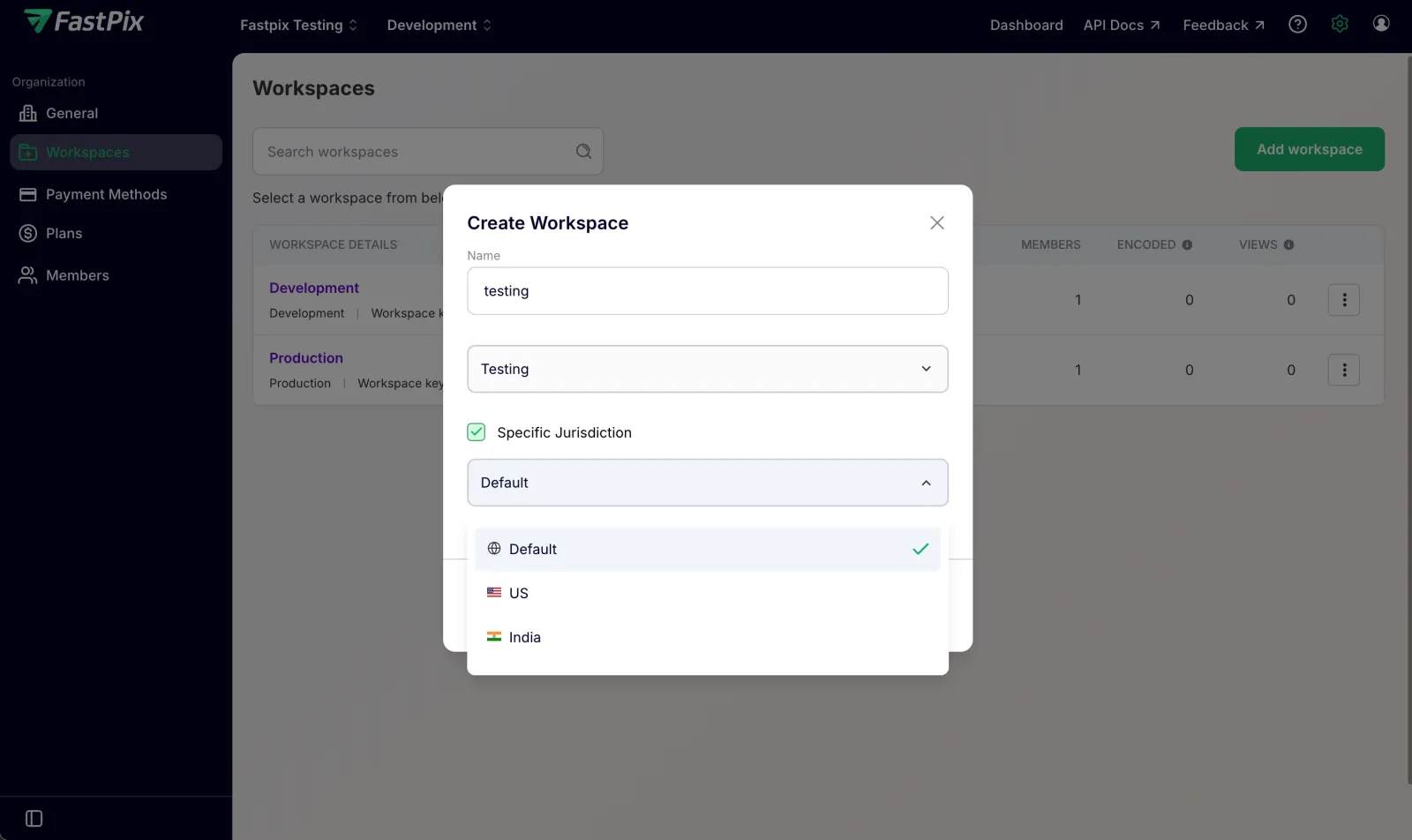
The jurisdiction dropdown always has one option selected and starts on Default, where FastPix automatically selects the best optimized region. To store media in a specific region, change it to US or IN before you finish creating the workspace.
Create a workspace with a specific region
Follow these steps to create a workspace in a specific region from the dashboard:
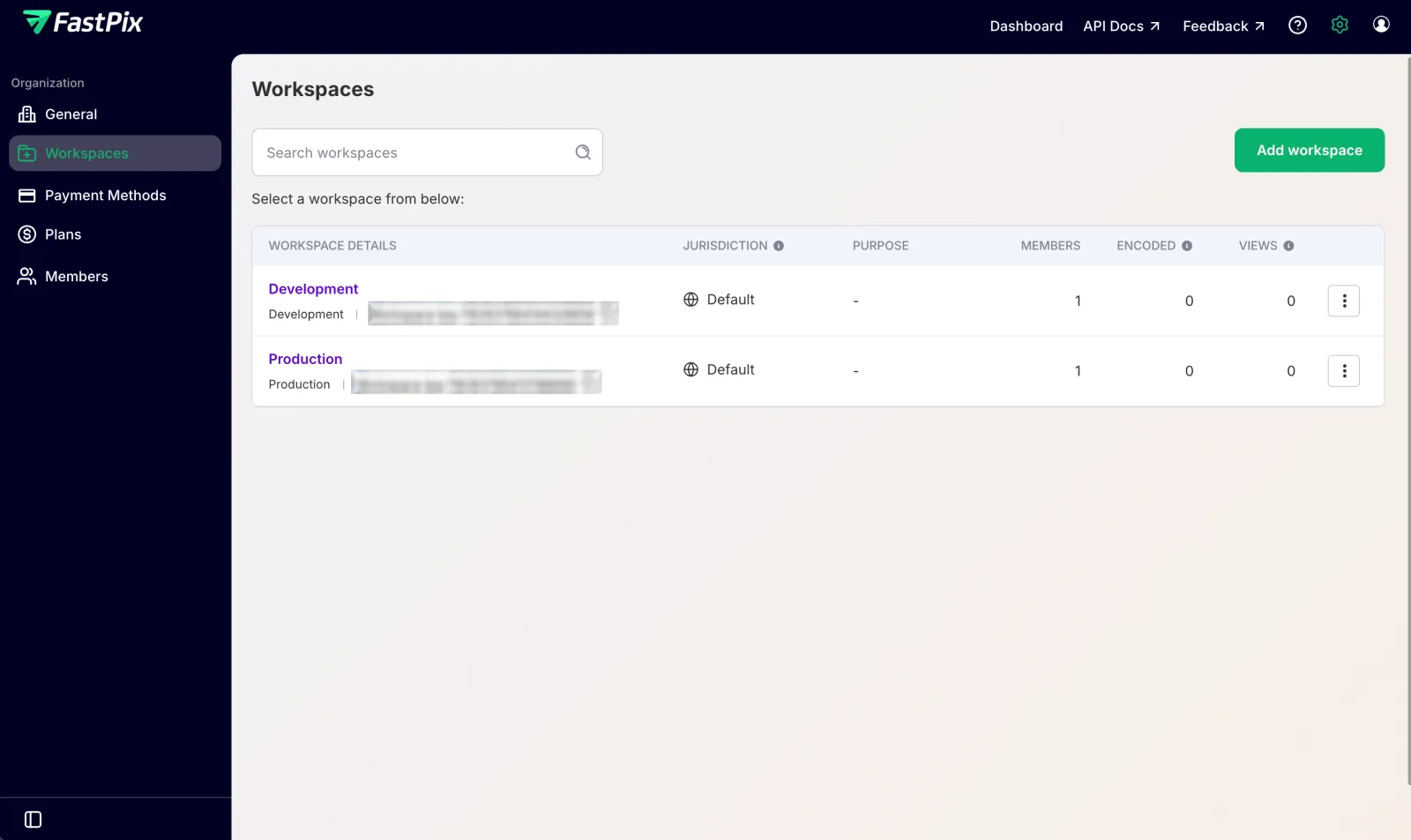
- In Organization settings, select Workspaces, then click Add workspace.
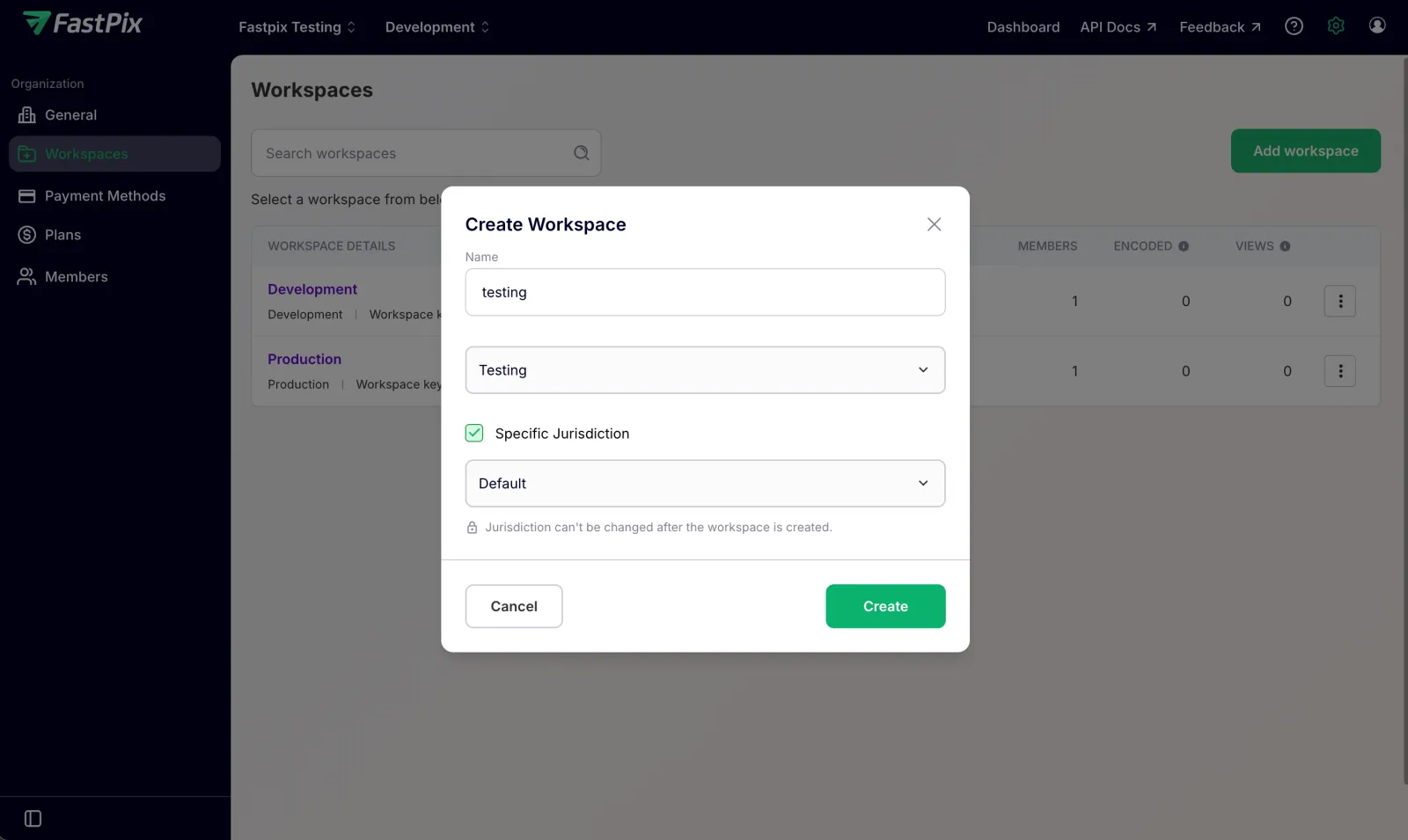
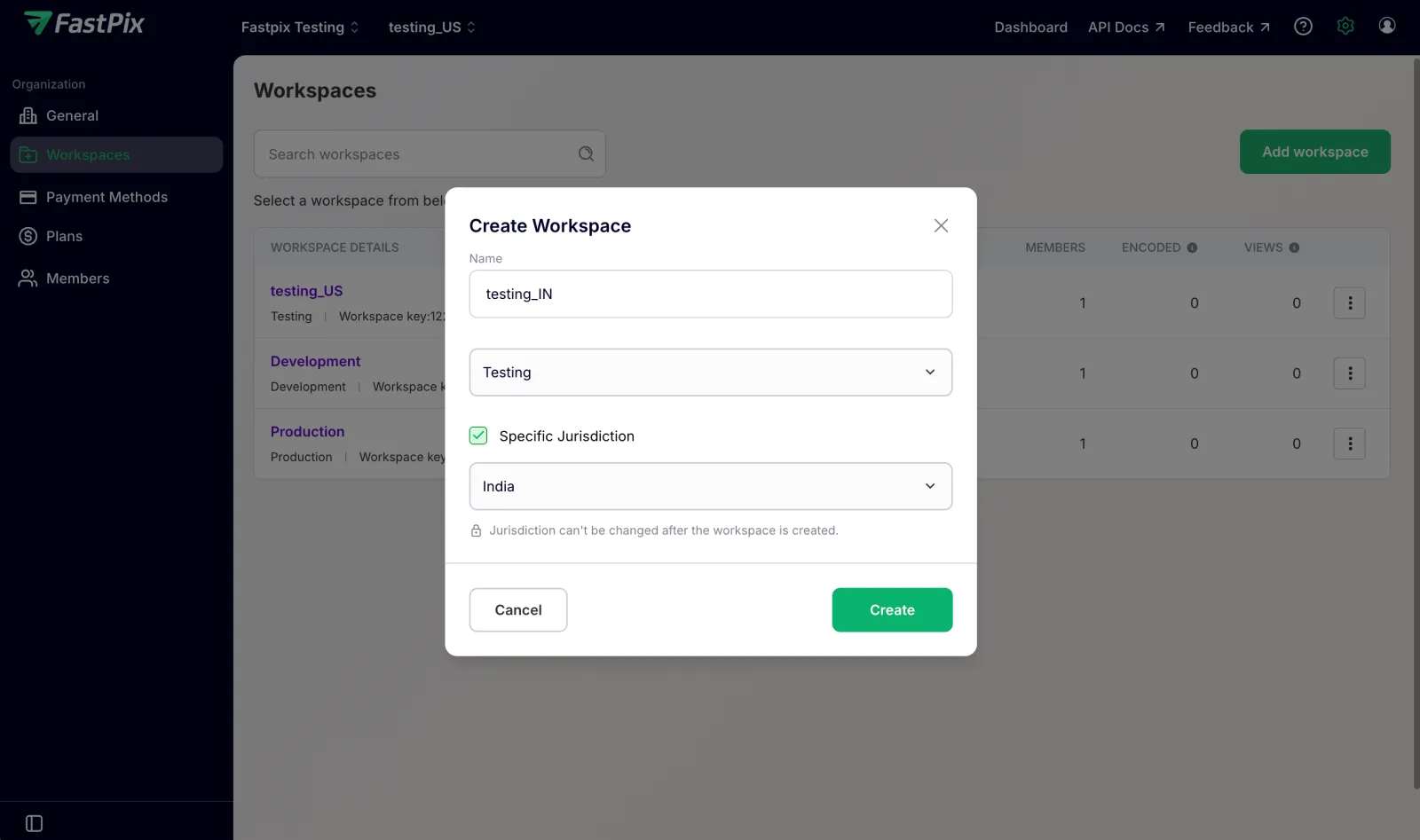
- In the Create Workspace dialog, enter a Name and choose the workspace type, such as Testing.
-
Select the Specific Jurisdiction checkbox. If you leave it cleared, the workspace uses Default, and FastPix automatically selects the best optimized region.
-
Open the jurisdiction dropdown and choose Default, US, or India.
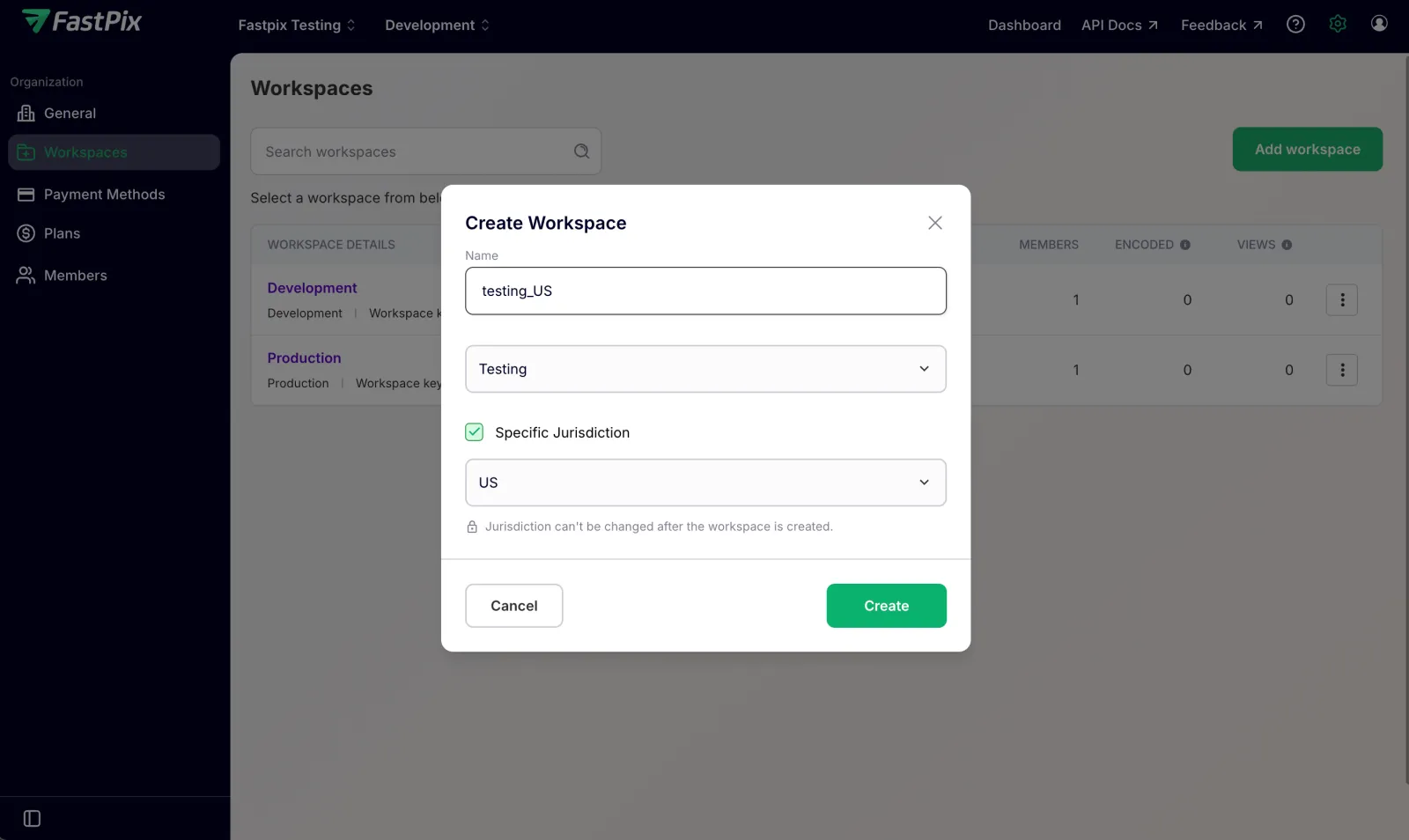
- Click Create. The example below creates a workspace in the US.
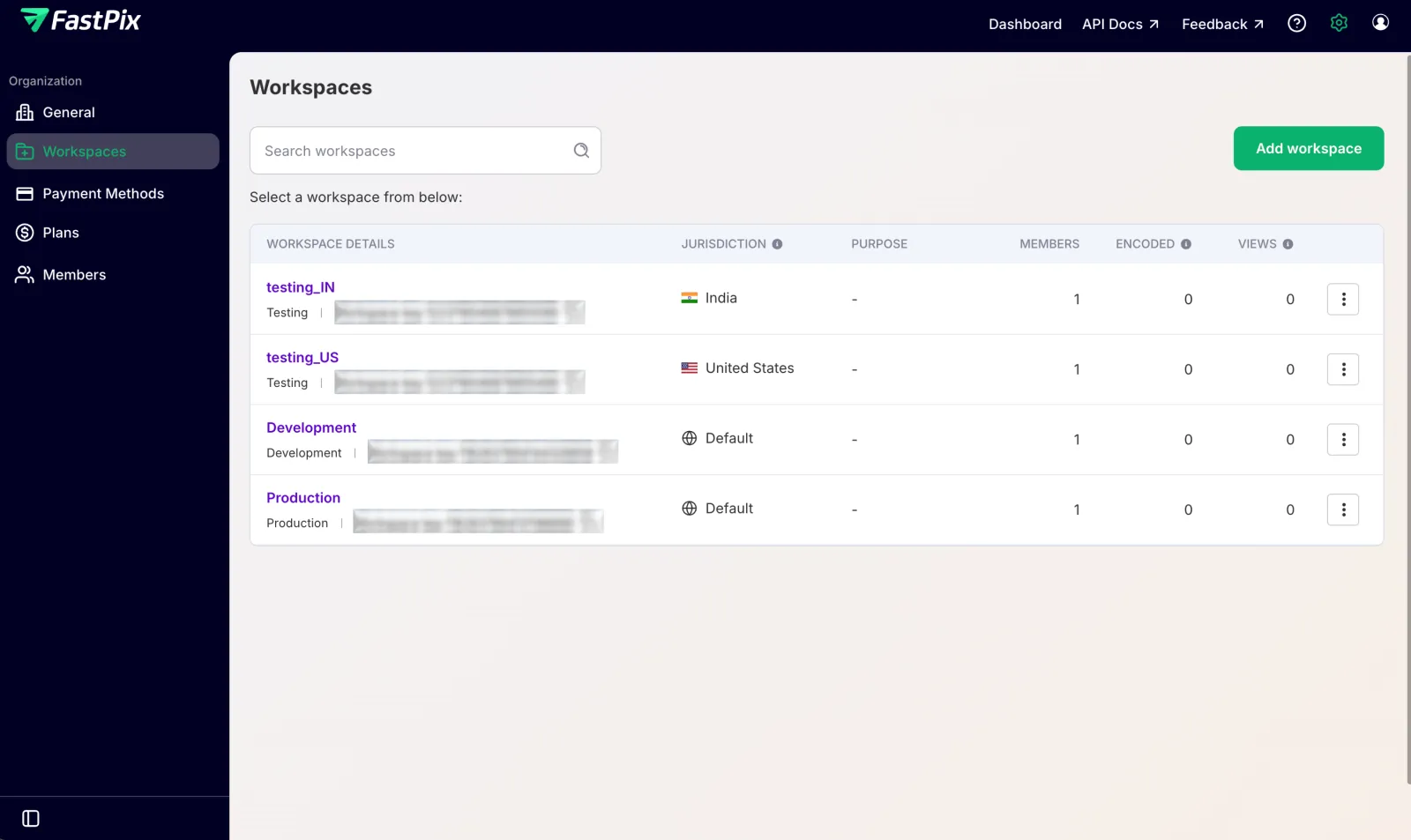
- The new workspace appears in your workspace list, with its region shown in the Jurisdiction column.
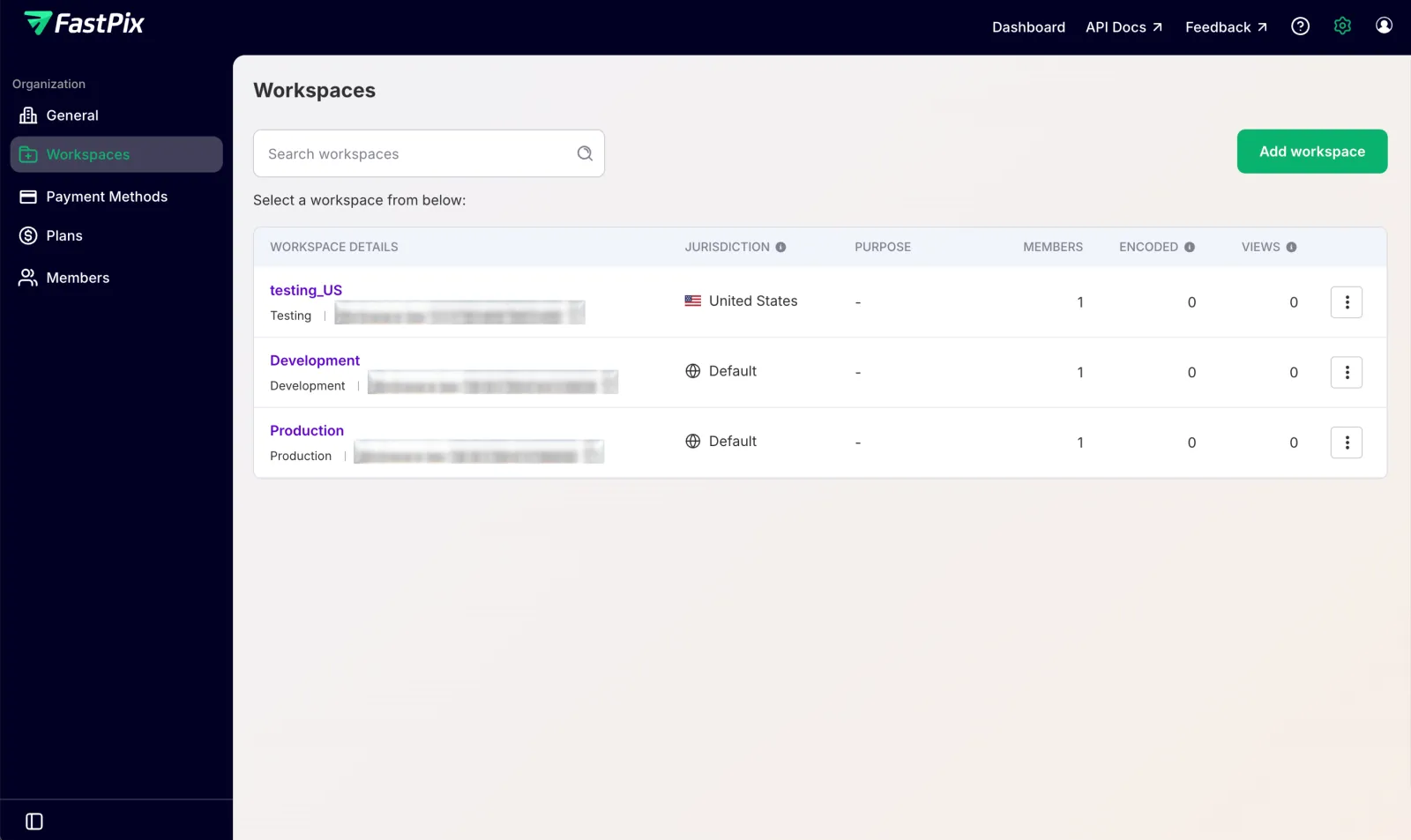
Repeat these steps to create workspaces in other regions. For example, create one in India:
Where you see a jurisdiction
A workspace’s jurisdiction appears in the workspace details and in your workspace list, so you can confirm where each workspace stores its media. Workspaces created before jurisdictions were available show Default.