

Integrate FastPix with WordPress
The FastPix plugin connects your WordPress site to FastPix so you can upload, manage, embed, protect, and measure video without leaving the WordPress dashboard. Install the plugin (version 2.0.0), connect your FastPix account, and turn on webhooks to get started.
Once you’re connected, the rest of the plugin’s features are covered in two companion guides:
- Upload, embed, and manage WordPress video for uploads, migration, the Gutenberg block and shortcode, private and DRM playback, analytics, course features, and live streaming.
- WordPress plugin settings and reference for settings, roles and capabilities, WP-CLI, developer hooks, and uninstall behavior.
Common use cases
Teams use the FastPix WordPress plugin to host and stream video across many kinds of sites:
- Online courses and LMS video: Host lesson videos for LearnDash, TutorLMS, LifterLMS, or LearnPress, with skip-proof completion tracking and per-course analytics.
- Membership and gated content: Sell or restrict access with private, signed playback and DRM so paid video can’t be shared or downloaded.
- Marketing and landing pages: Embed fast, adaptive-bitrate video with a Gutenberg block and emit
VideoObjectstructured data so public videos are eligible for video rich results in search. - News, media, and publishers: Publish large video libraries with transcript and chapter search, AI-generated summaries, and automatic subtitles for accessibility and SEO.
- Creators and agencies: Replace slow self-hosted uploads with resumable uploads, migrate an existing Media Library to FastPix, and manage everything for clients from one dashboard.
- Live streaming: Run RTMPS or SRT live streams from WordPress and keep the recording in your library automatically.
What you’ll build
After setup, your WordPress admin has a FastPix menu with the following screens:
- Connection runs the three-step setup wizard and shows the connection state.
- Videos is your library: search across titles, transcripts, and chapters, plus filters, bulk actions, subtitles, AI enrichment, and the migration tool.
- Add media uploads files from the browser or ingests a video from a public URL.
- Analytics shows views, watch time, quality of experience, and playback errors from a local daily rollup.
- Settings holds the workspace key, webhook, playback, and privacy options.
The plugin keeps a local registry of your videos and keeps it current through webhooks, with a periodic sweep as a fallback.
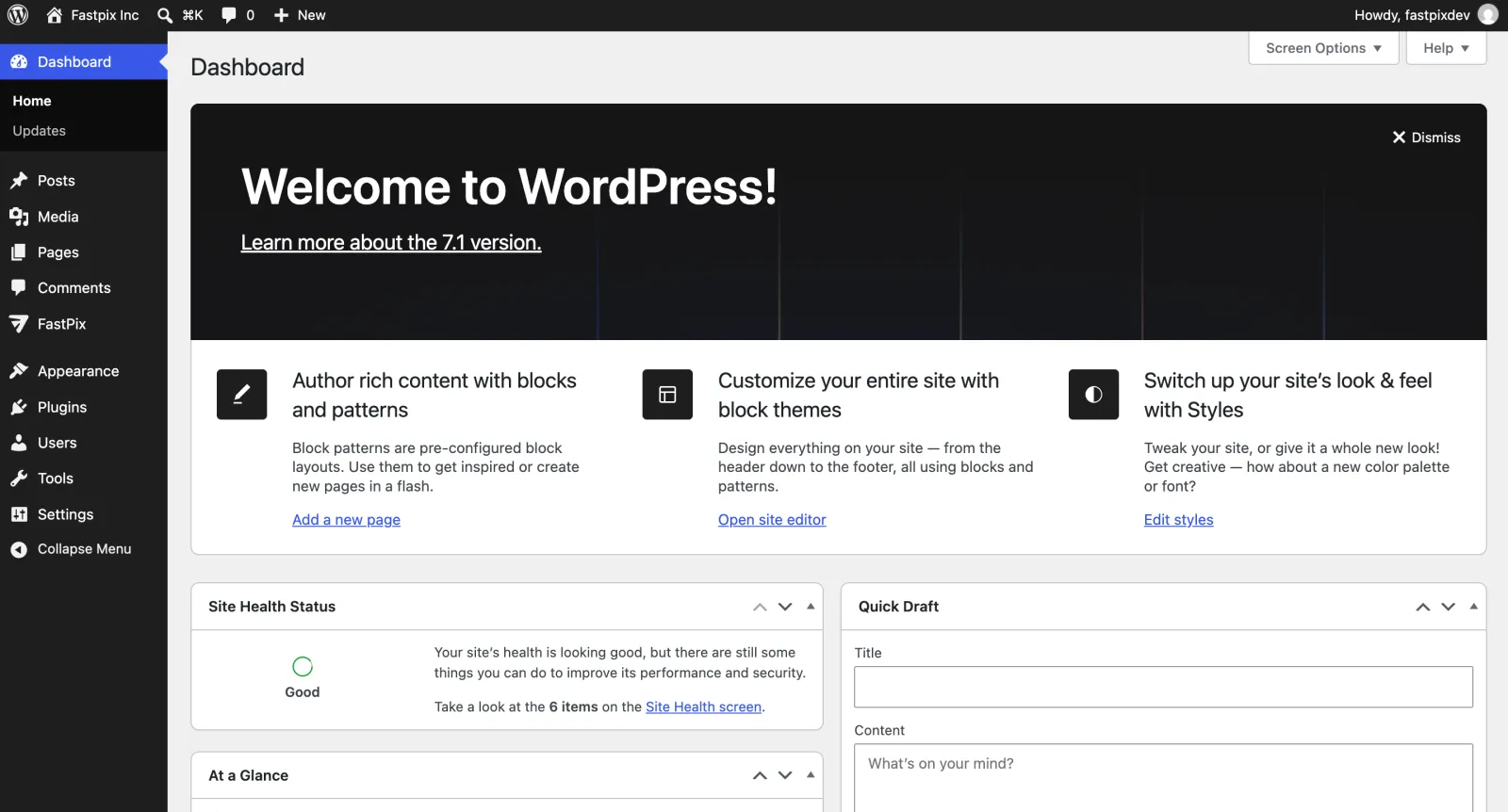
How the integration works
FastPix delivers video and analytics, and your WordPress site stays in sync through webhooks and background jobs. Visitors stream directly from the FastPix network, so an admin-side outage never interrupts playback.
Before you begin
Make sure you have the following:
- A WordPress site running WordPress 6.8 or later and PHP 8.3 or later.
- Admin access to your WordPress dashboard.
- A FastPix account with an access token ID and secret key. To generate them, see Activate your account.
- Your workspace key from the FastPix dashboard.
- A site served over HTTPS. Activation checks for it, and private playback tokens are only issued on secure pages.
- MySQL 5.7 / MariaDB 10.3 or newer with InnoDB and FULLTEXT support, for transcript search.
NOTE: If you use WordPress.com, you need a Business plan or higher to install plugins. Self-hosted WordPress installations don’t have this restriction.
NOTE: The plugin runs on a Multisite network, but per site. Activate it on each site individually. Network-wide activation is refused because each site keeps its own connection, library, and capabilities.
Supported formats
The Add media drop zone accepts video and audio:
- Video formats: MP4, MOV, AVI, MKV, WMV, FLV, F4V, M4V, MPEG, WebM, OGV, 3GP, ASF, DivX, DV, TS, MTS, M2TS, MXF, VOB
- Audio formats: MP3, WAV, AAC, M4A, OGG
- Maximum duration: 8 hours
- Chunk size: 5 MB, resumable
Install the FastPix plugin
You can install the FastPix plugin from the WordPress plugin directory or from a ZIP file.
Install from the WordPress plugin directory (recommended)
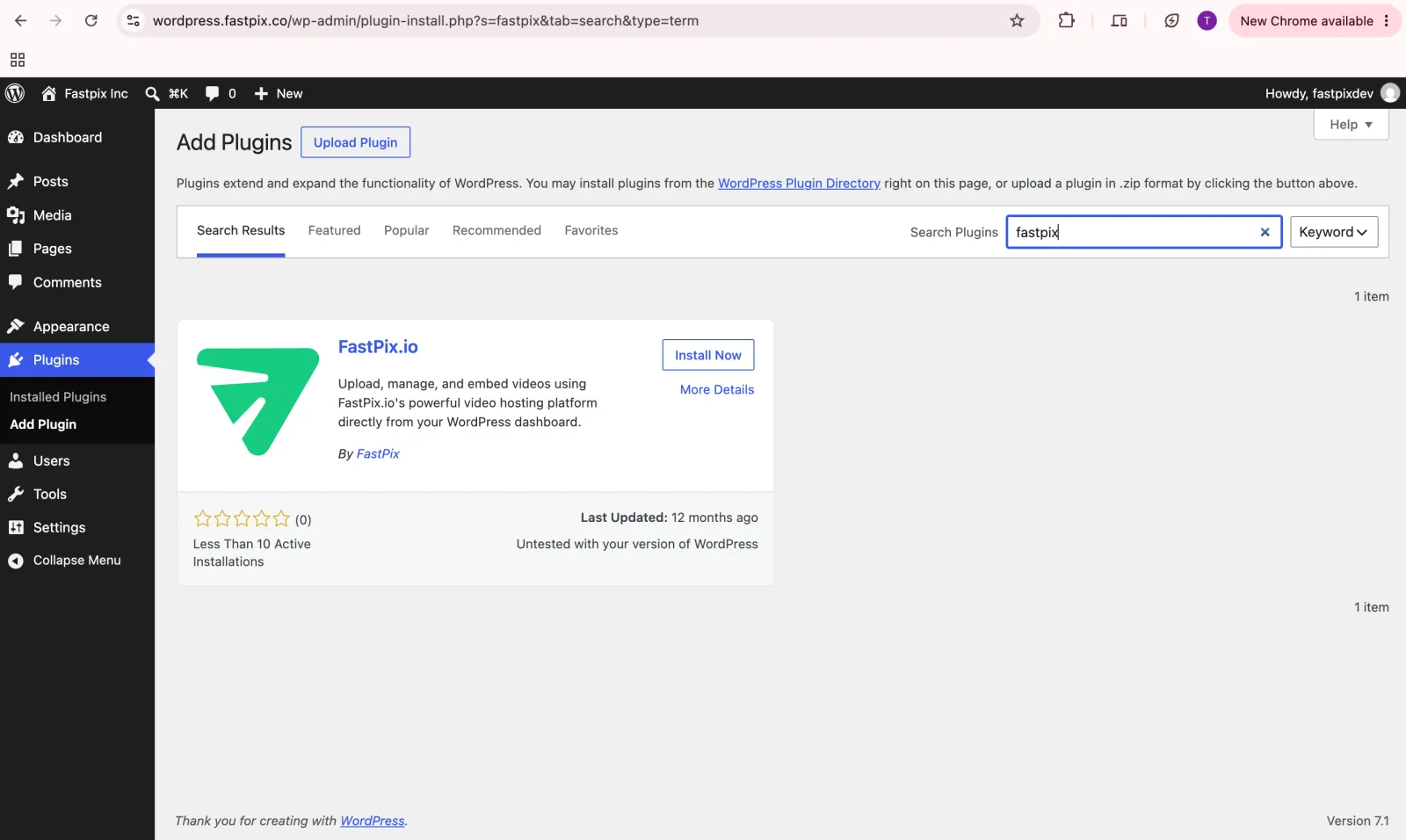
- In your WordPress admin panel, go to Plugins > Add New.
- Search for FastPix.
- On the FastPix plugin, click Install Now.
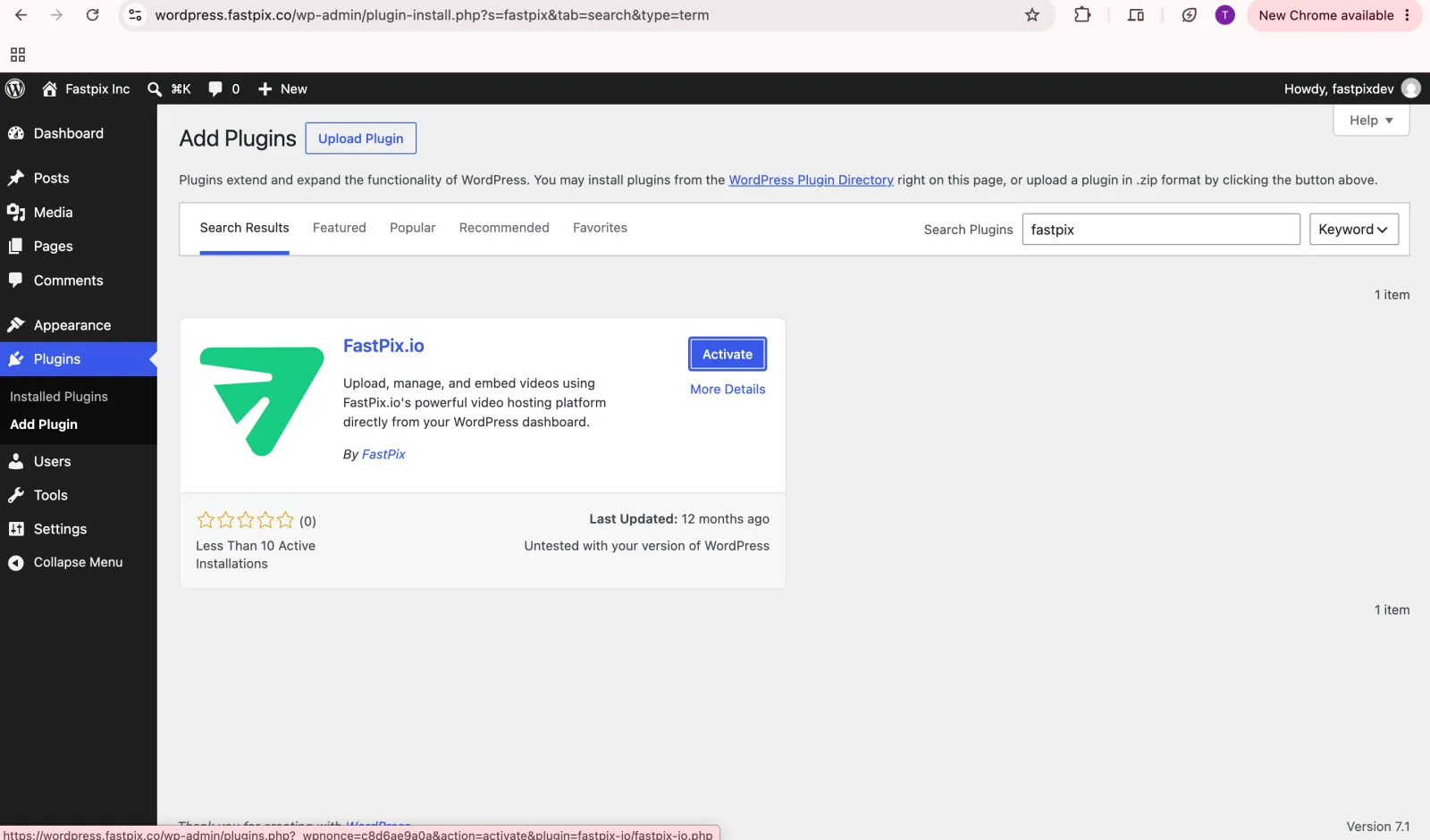
- After installation completes, click Activate.
Install from a ZIP file
- Download the FastPix plugin from the WordPress plugin directory.
- In your WordPress admin panel, go to Plugins > Add New > Upload Plugin.
- Click Choose File and select the downloaded ZIP file.
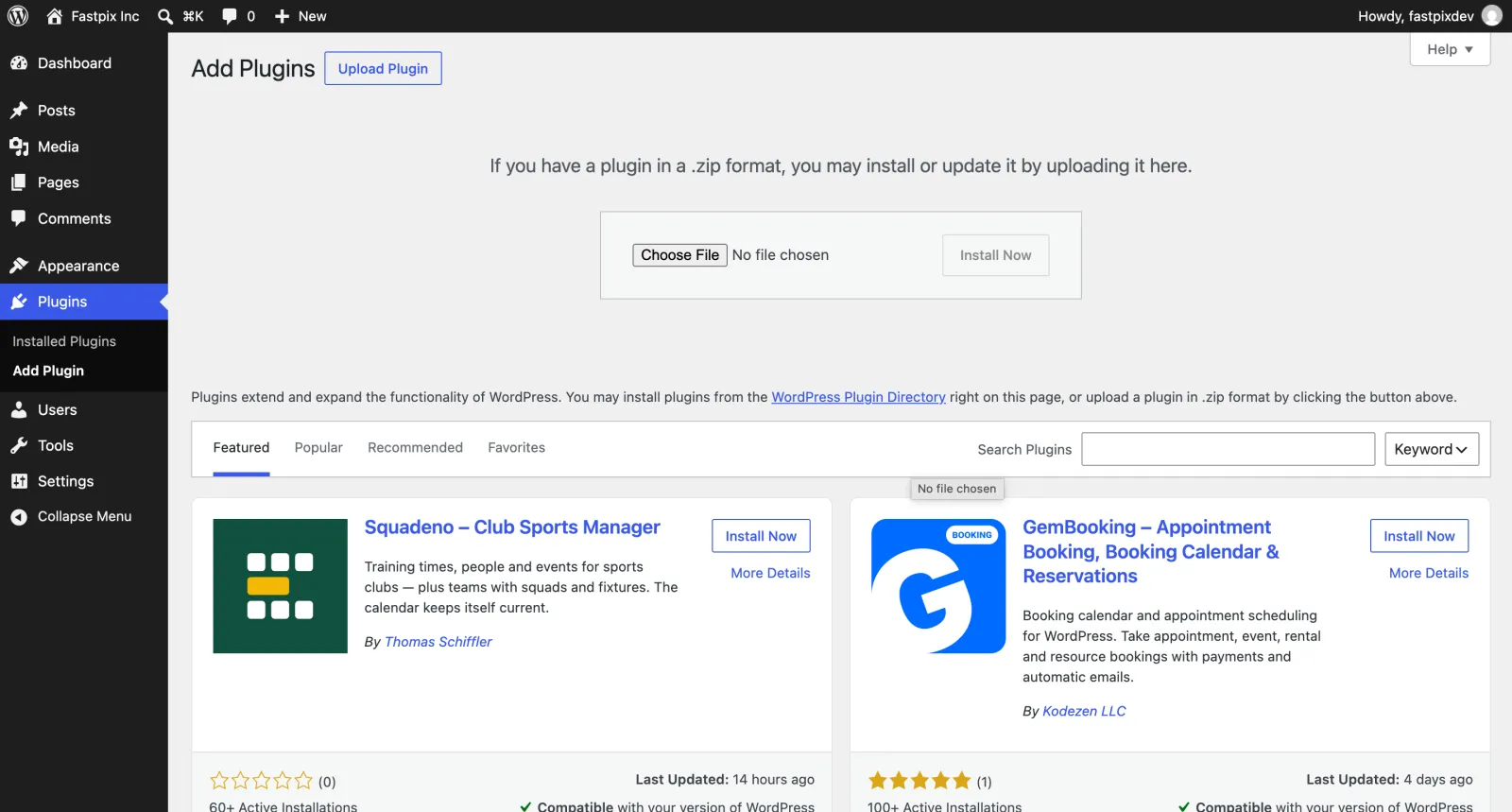
- Click Install Now.
- After installation completes, click Activate.
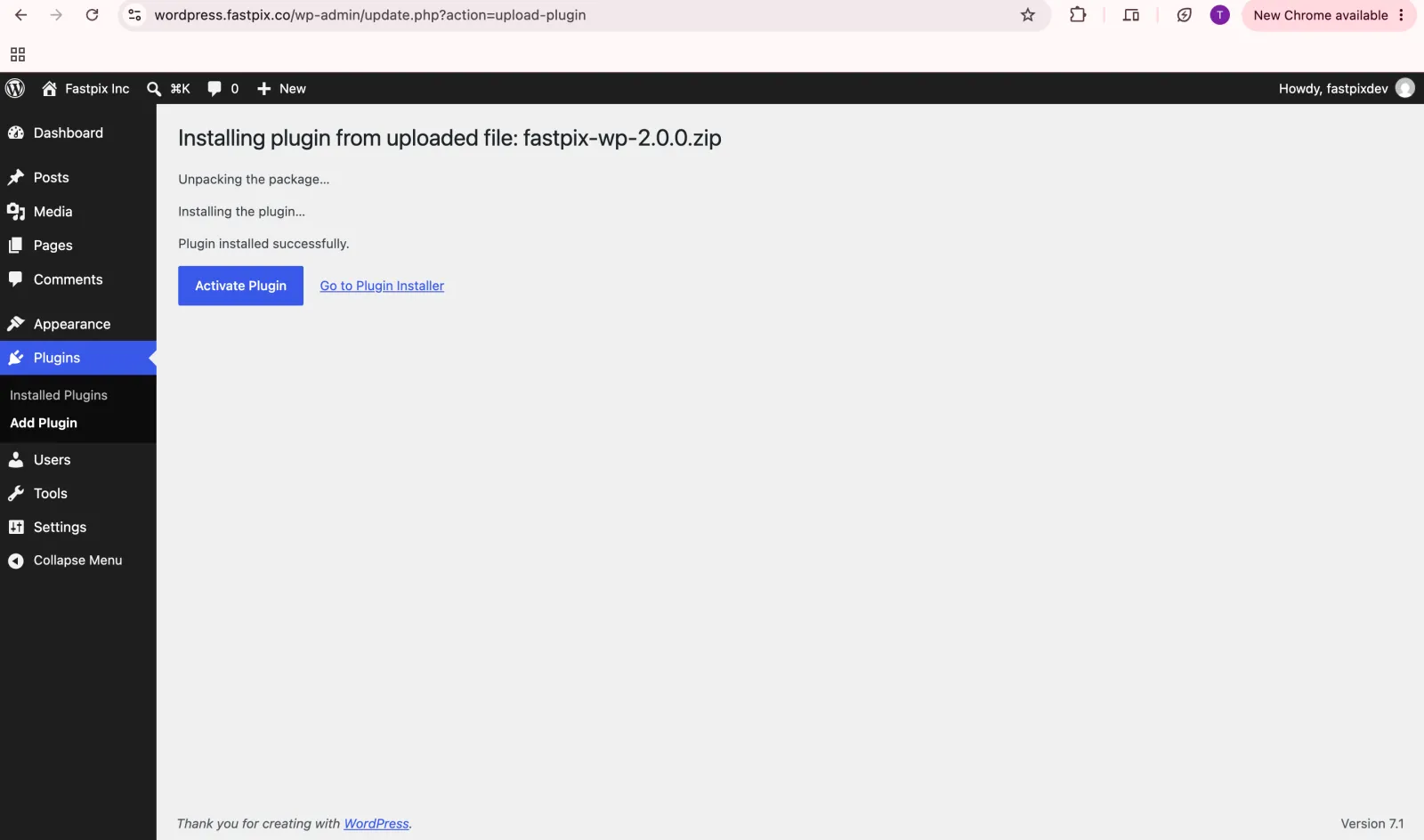
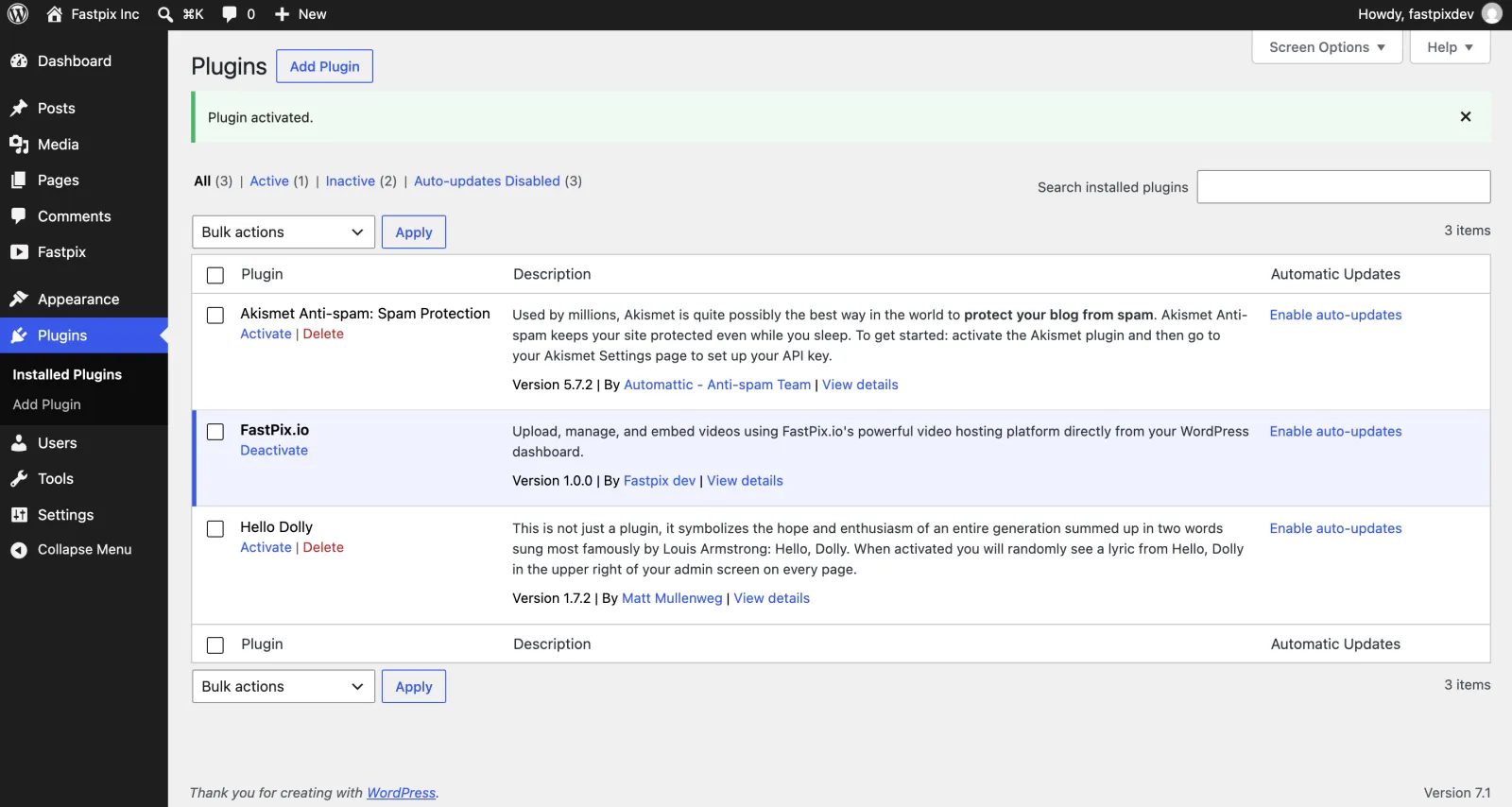
After activation, the plugin runs its environment checks and opens the setup wizard. If a check fails, activation is refused and the notice names the requirement that was not met. Once activated, FastPix appears in your Installed Plugins list.
Get your FastPix API credentials
To connect WordPress to your FastPix account:
- Sign in to the FastPix dashboard.
- Go to Manage > Access Tokens.
- Generate a token and copy the Access token ID and Secret key.
- Copy your Workspace key from the workspace settings. See Set up a workspace.
IMPORTANT: These credentials authenticate all video operations from WordPress, including uploads, playback signing, AI enrichment, and analytics reads. Make sure the token has Video: Read + Write, Data: Read, and System permissions enabled.
Connect the plugin to FastPix
The setup wizard opens after activation. You can reopen it at any time from FastPix > Connection.
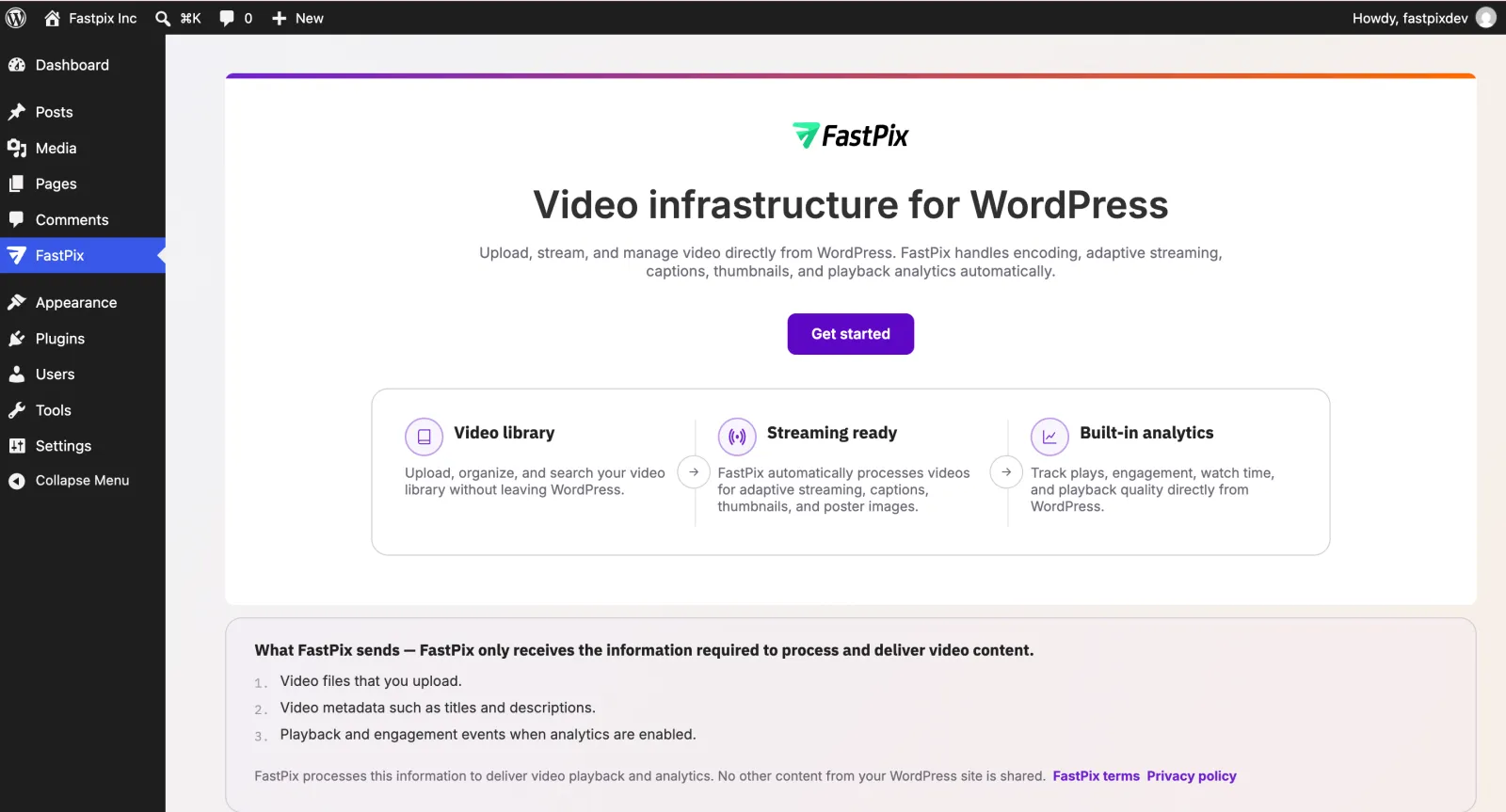
Welcome
Read what the plugin sends to FastPix, then click Get started. The plugin sends only the video files you upload, the metadata you edit, and playback events from the embedded player. Nothing else from your site is shared.
Connect your FastPix account
- Paste your Access token ID.
- Paste your Secret key.
- Click Connect.
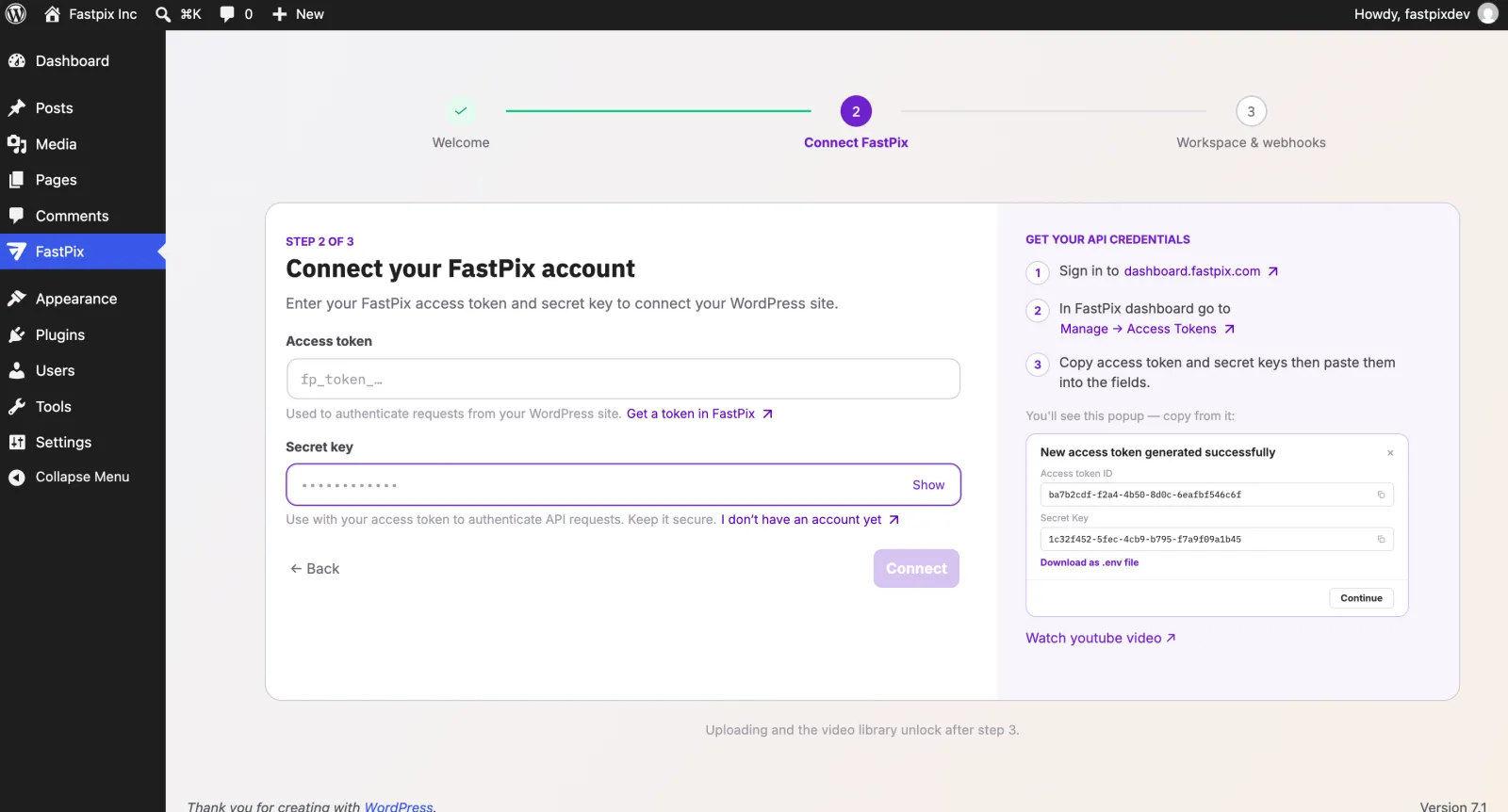
The plugin validates the pair against FastPix and records which workspace it belongs to. Every screen is scoped to that workspace, so connecting a different pair later never shows the previous workspace’s media, streams, or analytics.
Link your workspace
- Paste your Workspace key and click Save workspace. This makes sure views from this site show up under the right workspace in FastPix Data.
- Optionally, set up Instant updates (webhooks). See Set up webhooks. You can click Skip webhook setup and do this later from Settings.
After you finish, the Connection screen shows Connected and the full FastPix menu appears.
NOTE: Only a role with the settings capability can see or change the credentials. Authors and editors can upload and manage video without ever reaching the workspace credentials. For the full capability map, see Roles and capabilities.
Set up webhooks
Webhooks let FastPix tell your site the moment a video finishes processing, a subtitle track is ready, or a live stream changes state. Without them, the plugin polls FastPix every few minutes, so new videos take a little longer to appear in your library.
-
In your WordPress admin panel, go to FastPix > Settings > Video setup.
-
Next to Webhook URL, click Copy. The address has the form:
-
In the FastPix dashboard, go to Org Settings > Webhooks > Create new webhook, and paste the URL. For more information, see Set up webhooks.
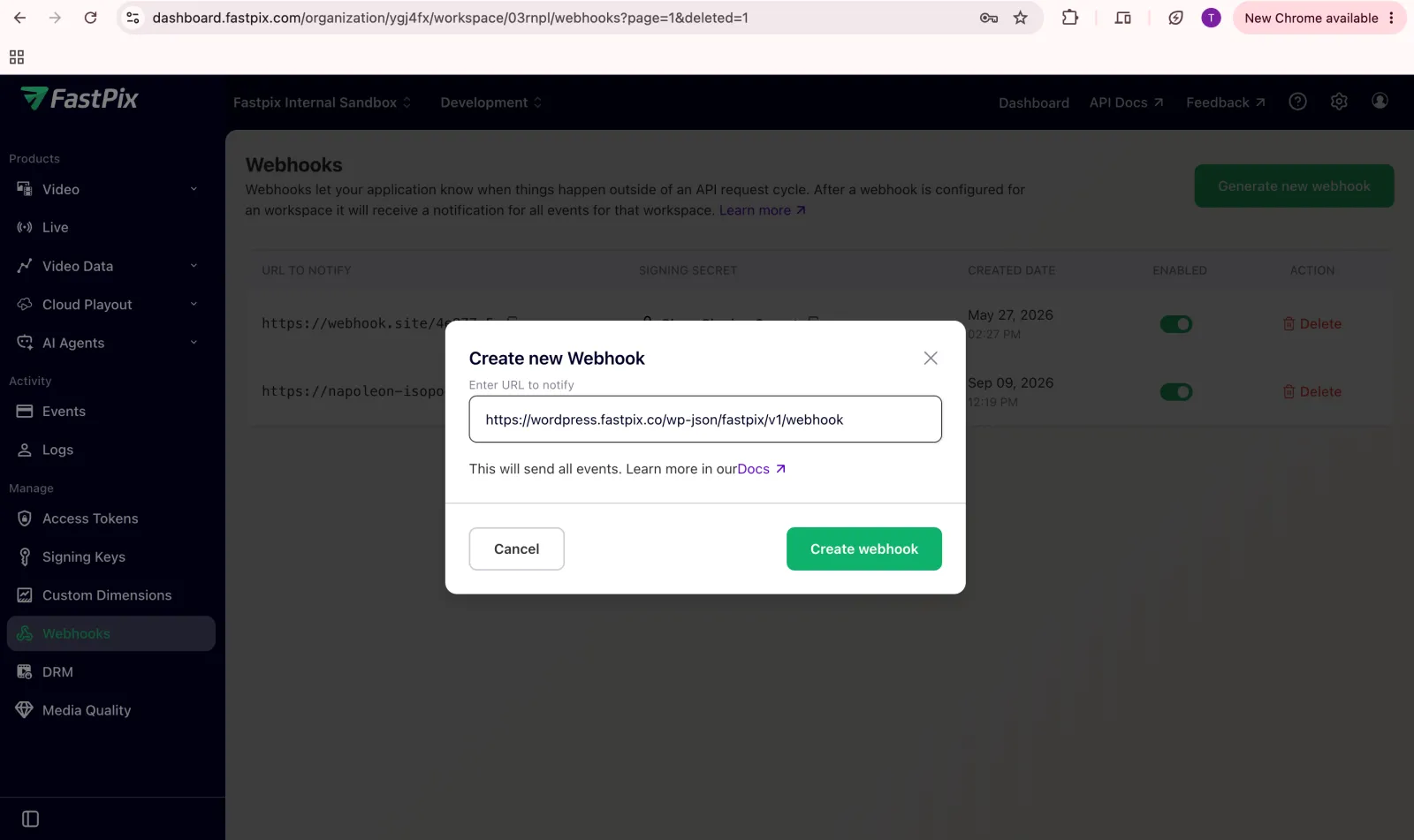
- Copy the signing secret that FastPix shows you.
- Back in WordPress, paste it into Signing secret and click Save & verify.
- Click Send test event. The Last event line updates to
plugin self-test, verifiedwhen the round trip works.
WARNING: Copy the secret exactly as the dashboard shows it. The plugin verifies every event with a base64 HMAC-SHA256 signature over the raw body in the
FastPix-Signatureheader. A re-typed or truncated secret makes every event fail with401and nothing syncs.
The receiver answers 200 immediately and processes the event in a background job. Duplicate event IDs are ignored, and the last hundred events are kept for diagnostics. Events the plugin acts on include upload, media ready, playback ID, subtitle track, AI enrichment, MP4 support, and live stream state changes.
Frequently asked questions
Which WordPress and PHP versions does the FastPix plugin require?
The plugin requires WordPress 6.8 or later and PHP 8.3 or later, on a site served over HTTPS. For transcript search, you also need MySQL 5.7 / MariaDB 10.3 or newer with InnoDB and FULLTEXT support.
Do I have to set up webhooks?
No. Webhooks are optional but recommended. With webhooks, new videos and status changes appear instantly. Without them, the plugin polls FastPix every few minutes, so updates take a little longer.
Can authors upload video without seeing the API credentials?
Yes. Only a role with the settings capability can view or change credentials. Authors and editors can upload and manage video without ever reaching the workspace credentials.
Does the plugin work on WordPress Multisite?
Yes, but per site. Activate it on each site individually. Network-wide activation is refused because each site keeps its own connection, library, and capabilities.
Troubleshoot setup
The plugin refuses to activate. The notice names the failed requirement: WordPress 6.8, PHP 8.3, HTTPS, a reachable REST API, outbound connectivity to FastPix, or a conflicting video plugin. Fix it and activate again, or run wp fastpix doctor.
The menu shows only Connection. The site is not connected. Finish the wizard, or check Settings > Account and click Verify.
Webhooks show unverified or no event. The signing secret does not match the one FastPix shows for this endpoint. Paste it again, click Save & verify, then Send test event. A 401 in the FastPix dashboard means the signature failed.
For upload, playback, analytics, and live stream issues, see the troubleshooting section in Upload, embed, and manage WordPress video. For anything else, copy the support report from Settings > Copy support report and send it to FastPix support.
What’s next
- Upload, embed, and manage WordPress video to add your first video and embed it.
- WordPress plugin settings and reference for settings, roles, WP-CLI, and developer hooks.
- Set up webhooks
- FastPix API reference
- FastPix Terms and Privacy Policy