

Monitor Video.js

Get detailed error metrics and quality data from Video.js using the FastPix SDK for better playback insights.

The FastPix Data SDK for Video.js monitors and analyzes key Video.js player metrics, providing actionable insights to optimize video streaming performance and deliver a smoother viewing experience.

Key features:

  • See how users interact with your videos.
  • Track real-time metrics like bitrate, buffering, startup, render quality, and failures.
  • Get detailed error reports to quickly identify and fix playback issues.
  • Customize tracking attributes to suit your business needs.
  • View and compare metrics in one place to support data-driven decisions.

Step 1

Installation and setup

Step 2

Import the SDK

Step 3

Basic integration

Step 4

Enhance your tracking

Step 5

Advanced configuration

Step 6

Emit custom events


Prerequisites

To track and analyze video performance, initialize the FastPix Data SDK with your Workspace key.

  1. Log into your FastPix dashboard and go to the Workspaces section.

  2. Copy the Workspace Key for client-side monitoring. Include this key in your JavaScript code on every page where you want to track video performance.

Understand what is a Workspace.
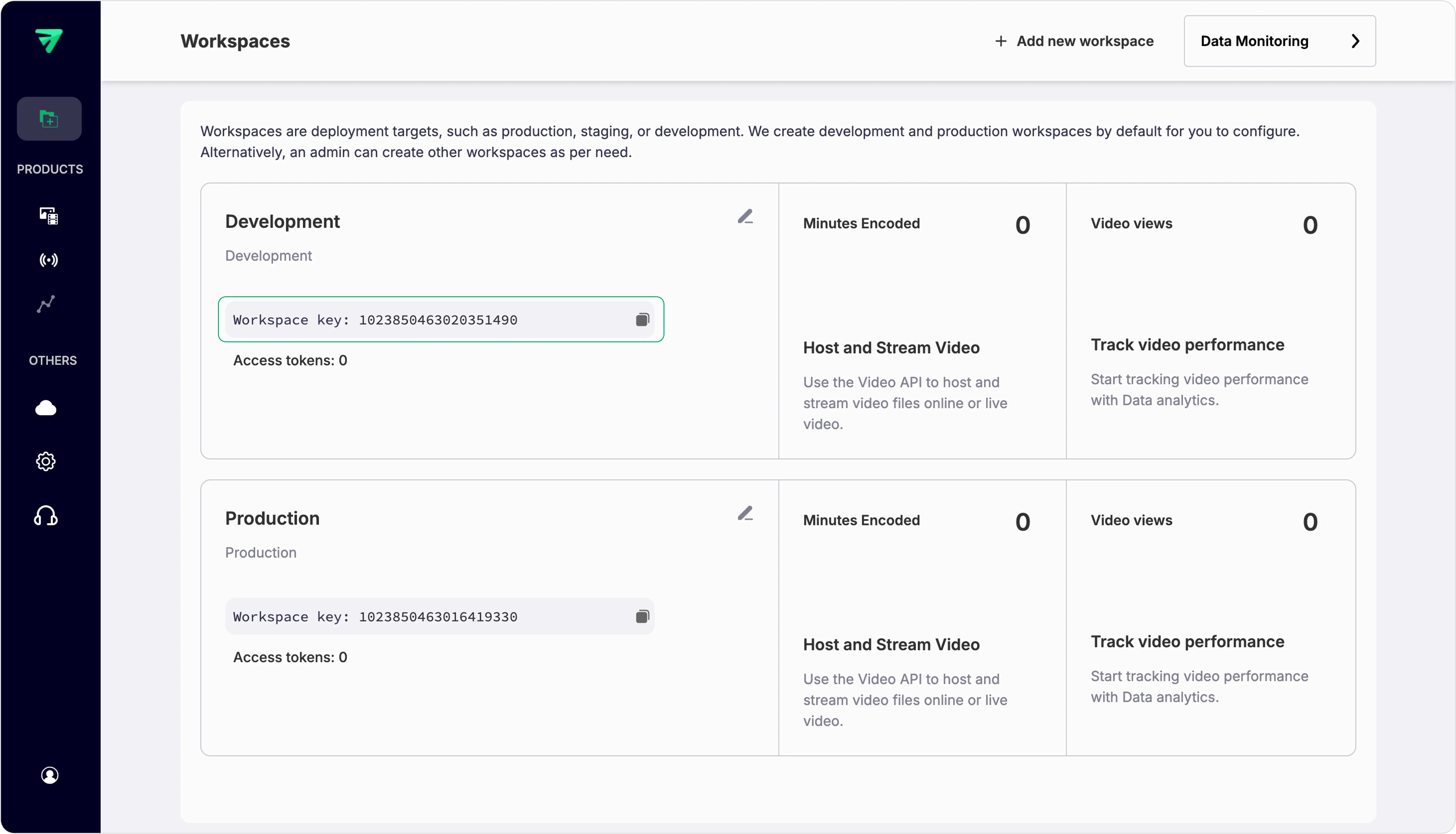

Workspace key


Step 1: Installation and setup

This package can be installed using npm, a CDN, or your preferred package manager.

View GitHub repo

Using npm:

npm
1npm install "@fastpix/videojs-monitor"

Using CDN:

cdn
<script src="https://cdn.jsdelivr.net/npm/@fastpix/videojs-monitor@latest"></script>

NOTE
Ensure that a package based on Video.js Player is installed or accessible via a CDN.


Step 2: Import the SDK

import
1import initVideoJsTracking from "@fastpix/videojs-monitor"

Step 3: Basic integration

The workspace_id is a required field and must be included. Start by installing the video.js package and linking it to your HTML5 video element. Then, pass the videojs function (imported from the video.js library) along with your custom metadata to the initVideoJsTracking function.

Once the player has loaded the URL and playback has started, the SDK will then begin tracking the analytics.


1// Import the Video.js library for video streaming
2
3import videojs from "video.js";
4import initVideoJsTracking from "@fastpix/videojs-monitor";
5
6// Reference to the video element
7const videoPlayerElement = document.getElementById("video-player");
8
9// Record the player initialization time
10const initializationTime = initVideoJsTracking.utilityMethods.now();
11
12// Create a new Video.js instance for the player
13const videojsInstance = videojs(videoPlayerElement);
14
15// Custom metadata for tracking purposes
16const trackingData = {
17 workspace_id: "WORKSPACE_KEY", // Unique key to identify your workspace (replace with your actual workspace key)
18 player_name: "PLAYER_NAME", // A custom name or identifier for this video player instance
19 player_init_time: initializationTime, // Timestamp of when the player was initialized (useful for performance tracking)
20 video_title: "VIDEO_TITLE", // Title of the video being played for analytics
21 video_id: "VIDEO_ID", // Unique identifier for the video
22 viewer_id: "VIEWER_ID", // Unique identifier for the viewer
23 // Add any additional metadata if needed
24};
25
26// Initialize video.js tracking with custom configuration
27initVideoJsTracking(videojsInstance, {
28 debug: false, // Set to true to enable debug logs in the console
29 videojs: videojs, // Pass the imported videojs function
30 data: trackingData, // Attach custom metadata for analytics and tracking
31});
32
33// Call this method to stop the monitoring.
34// videojsInstance.fp.destroy();

After successfully completing Step 3, you can track viewer metrics in the FastPix dashboard once playback ends. Steps 4, 5, and 6 are optional and can be utilized as needed to enhance your integration.


Step 4: Enhance your tracking with user passable metadata

Check out the user-passable metadata documentation to see the metadata supported by FastPix. You can use custom metadata fields like custom_1 to custom_10 for your business logic, giving you the flexibility to pass any required values. Named attributes, such as video_title and video_id, can be passed directly as they are.


1// Import the Video.js library for video streaming
2
3import videojs from "video.js";
4import initVideoJsTracking from "@fastpix/videojs-monitor";
5
6// Reference to the video element
7const videoPlayerElement = document.getElementById("video-player");
8
9// Record the player initialization time
10const initializationTime = initVideoJsTracking.utilityMethods.now();
11
12// Create a new Video.js instance for the player
13const videojsInstance = videojs(videoPlayerElement);
14
15// Custom metadata for tracking
16const trackingData = {
17 workspace_id: "WORKSPACE_KEY", // Unique key to identify your workspace (replace with your actual workspace key)
18 player_name: "PLAYER_NAME", // A custom name or identifier for this video player instance
19 player_init_time: initializationTime, // Timestamp of when the player was initialized (useful for tracking performance metrics)
20 video_title: "VIDEO_TITLE", // Title of the video being played (replace with the actual title of your video)
21 video_id: "VIDEO_ID", // A unique identifier for the video (replace with your actual video ID for tracking purposes)
22 viewer_id: "user12345", // A unique identifier for the viewer (e.g., user ID, session ID, or any other unique value)
23 video_content_type: "series", // Type of content being played (e.g., series, movie, etc.)
24 video_stream_type: "on-demand", // Type of streaming (e.g., live, on-demand)
25
26 // Custom fields for additional business logic
27 custom_1: "", // Use this field to pass any additional data needed for your specific business logic
28 custom_2: "", // Use this field to pass any additional data needed for your specific business logic
29 // Add any additional metadata
30};
31
32// Initialize video.js tracking with custom configuration
33initVideoJsTracking(videojsInstance, {
34 debug: false, // Set to true to enable debug logs in the console
35 videojs: videojs, // Pass the imported videojs function
36 data: trackingData, // Attach custom metadata for analytics and tracking
37});
38
39// Call this method to stop the monitoring.
40// videojsInstance.fp.destroy();

DEVELOPMENT TIP

Keep metadata consistent across different video loads to make comparison easier in your analytics dashboard.


Step 5: Advanced customization with FastPix Data SDK

Enhancing your video player with advanced options can significantly improve user experience and data tracking. Below are key configurations you can implement when using the FastPix SDK with your HLS.js player instance.


AttributeDescriptionTypeExample Usage
disableCookiesFastPix Data SDK uses cookies by default to track playback across page views and to identify unique viewers. If your application is not intended to collect cookies, set disableCookies: true. This ensures no cookies are set during the user’s session, enhancing privacy and compliance with user preferences.BooleandisableCookies: true
respectDoNotTrackSet to true to honor users’ privacy preferences regarding the ‘Do Not Track’ setting.BooleanrespectDoNotTrack: true
automaticErrorTrackingFastPix automatically tracks errors that occur during playback failures. To disable this feature, set automaticErrorTracking to false. This gives you control over which errors are considered fatal.BooleanautomaticErrorTracking: false
debugSet to true to enable debug logs in the console for troubleshooting purposes.Booleandebug: true

Example:

1// Import the Video.js library for video streaming
2
3import videojs from "video.js";
4import initVideoJsTracking from "@fastpix/videojs-monitor";
5
6// Reference to the video element
7const videoPlayerElement = document.getElementById("video-player");
8
9// Create a new Video.js instance for the player
10const videojsInstance = videojs(videoPlayerElement);
11
12const trackingData = {
13 debug: true, // Set to true to enable debug logs in the console
14 videojs: videojs,
15 disableCookies: true, // Set to true to disable cookies for tracking sessions and unique viewers
16 respectDoNotTrack: true, // Set to true to honor users' 'Do Not Track' preferences
17 automaticErrorTracking: false, // Set to false to disable automatic tracking of fatal errors
18 data: {
19 workspace_id: "WORKSPACE_KEY", // Replace with your actual workspace key
20 // ... add other metadata as needed
21 },
22};
23
24// Initialize video.js tracking with custom configuration
25initVideoJsTracking(videojsInstance, trackingData);

Step 6: Emit custom events

Advanced error reporting and contextual tracking

By default, FastPix tracks errors that occur during playback failures. However, you can also emit a custom error event for non-severe issues that arise outside of these failures, allowing you to provide additional context for tracking purposes.


1// Import the Video.js library for video streaming
2
3import videojs from "video.js";
4import initVideoJsTracking from "@fastpix/videojs-monitor";
5
6// Reference to the video element
7const videoPlayerElement = document.getElementById("video-player");
8
9// Create a new Video.js instance for the player
10const videojsInstance = videojs(videoPlayerElement);
11
12videojsInstance.fp.dispatch("error", {
13 player_error_code: 1024, // Custom error code
14 player_error_message: "Description of error", // Generalized error message
15 player_error_context: "Additional context for the error", // Instance-specific information
16});

TIP

Use custom error codes and messages that are meaningful for your debugging process to streamline troubleshooting.


Changing video streams

When playing multiple videos back-to-back, it’s important to notify the FastPix SDK whenever a new video starts to ensure accurate tracking. You should signal a new source in the following scenarios:

  • The player advances to the next video in a playlist.
  • The user selects a different video to play.

To inform the FastPix SDK of a new view, emit a videoChange event immediately after loading the new video source:


1// Import the Video.js library for video streaming
2
3import videojs from "video.js";
4import initVideoJsTracking from "@fastpix/videojs-monitor";
5
6// Reference to the video element
7const videoPlayerElement = document.getElementById("video-player");
8
9// Create a new Video.js instance for the player
10const videojsInstance = videojs(videoPlayerElement);
11
12videojsInstance.fp.dispatch("videoChange", {
13 video_id: "abc345", // Unique identifier for the new video
14 video_title: "My Other Great Video", // Title of the new video
15 video_series: "Weekly Great Videos", // Series name if applicable
16
17 // Additional metadata can be included here
18});

PLEASE NOTE

Always ensure that this event is dispatched right after the new source is loaded to maintain accurate tracking.


Example to configure Video.js with FastPix Data SDK

Here are platform-specific examples to help you integrate the FastPix Data SDK with your Video.js player. Use the following React or JavaScript or HTML code into your application:


React
1import React from "react";
2import videojs from "video.js";
3import initVideoJsTracking from "@fastpix/videojs-monitor";
4import "video.js/dist/video-js.css";
5
6// Initializes a Video.js player with analytics tracking from @fastpix/videojs-monitor
7export const VideoJS = () => {
8
9 // Refs for DOM element and Video.js player instance
10 const videoRef = React.useRef(null);
11 const playerRef = React.useRef(null);
12
13 // Video.js configuration options
14 const videoJsOptions = {
15 autoplay: true,
16 muted: true,
17 controls: true,
18 responsive: true,
19 fluid: true,
20 sources: [
21 {
22 src: "https://stream.fastpix.com/027a90e4-f5e2-433d-81e5-b99ee864c3f6.m3u8",
23 type: "application/x-mpegURL",
24 },
25 ],
26 };
27
28 // Initialize Video.js player on mount
29 React.useEffect(() => {
30
31 // Prevent re-initialization
32 if (!playerRef.current && videoRef.current) {
33
34 // Create <video-js> element and append it inside the wrapper
35 const videoElement = document.createElement("video-js");
36 videoElement.classList.add("vjs-big-play-centered");
37 videoRef.current.appendChild(videoElement);
38
39 // Initialize Video.js player
40 const videoPlayer = (playerRef.current = videojs(
41 videoElement,
42 videoJsOptions,
43 ));
44
45 // Initialize FastPix Video.js monitoring plugin
46
47 initVideoJsTracking(videoPlayer, {
48 videojs: videojs,
49 data: {
50 workspace_id: "WORKSPACE_KEY", // Mandatory field for FastPix integration, replace with your actual workspace key
51 video_title: "VIDEO_TITLE", // The title of the video being played (e.g., "My Amazing Video")
52 player_name: "PLAYER_NAME", // A unique identifier for this player instance (e.g., "MyVideoPlayer1")
53 player_init_time: initVideoJsTracking?.utilityMethods.now(), // The timestamp when the player was initialized, useful for analytics
54 video_id: "VIDEO_ID", // Unique identifier for the video (e.g., from your CMS or database)
55 viewer_id: "VIEWER_ID", // Unique identifier for the viewer
56
57 // Additional metadata
58 },
59 });
60 } else if (playerRef.current) {
61 playerRef.current.src(videoJsOptions.sources); // If already initialized, update the source
62 }
63 }, [videoJsOptions]);
64
65 // Cleanup on unmount
66
67 React.useEffect(() => {
68 return () => {
69 const player = playerRef.current;
70 if (player && !player.isDisposed()) {
71 player.dispose();
72 playerRef.current = null;
73 }
74 };
75 }, []);
76
77 return (
78 <div data-vjs-player>
79 {/* This is where the Video.js player will be mounted */}
80
81 <div ref={videoRef} />
82 </div>
83 );
84};
85
86export default VideoJS;
1// Import the Video.js library for video streaming
2
3import videojs from "video.js";
4import initVideoJsTracking from "@fastpix/videojs-monitor";
5
6// Reference to the video element
7const videoPlayerElement = document.getElementById("video-player");
8
9// Record the player initialization time
10const initializationTime = initVideoJsTracking.utilityMethods.now();
11
12// Create a new Video.js instance for the player
13const videojsInstance = videojs(videoPlayerElement);
14
15// Custom metadata for tracking
16const trackingData = {
17 workspace_id: "WORKSPACE_KEY", // Unique key to identify your workspace (replace with your actual workspace key)
18 player_name: "PLAYER_NAME", // A custom name or identifier for this video player instance
19 player_init_time: initializationTime, // Timestamp of when the player was initialized (useful for tracking performance metrics)
20 video_title: "VIDEO_TITLE", // Title of the video being played (replace with the actual title of your video)
21 video_id: "VIDEO_ID", // A unique identifier for the video (replace with your actual video ID for tracking purposes)
22 viewer_id: "user12345", // A unique identifier for the viewer (e.g., user ID, session ID, or any other unique value)
23 video_content_type: "series", // Type of content being played (e.g., series, movie, etc.)
24 video_stream_type: "on-demand", // Type of streaming (e.g., live, on-demand)
25
26 // Custom fields for additional business logic
27 custom_1: "", // Use this field to pass any additional data needed for your specific business logic
28 custom_2: "", // Use this field to pass any additional data needed for your specific business logic
29
30 // Add any additional metadata
31};
32
33// Initialize video.js tracking with custom configuration
34initVideoJsTracking(videojsInstance, {
35 debug: false, // Set to true to enable debug logs in the console
36 videojs: videojs, // Pass the imported videojs function
37 data: trackingData, // Attach custom metadata for analytics and tracking
38});
39
40// Call this method to stop the monitoring.
41// videojsInstance.fp.destroy();
1<!DOCTYPE html>
2<html lang="en">
3 <head>
4 <meta charset="UTF-8" />
5 <meta name="viewport" content="width=device-width, initial-scale=1.0" />
6 <title>FastPix Video Js Analytics</title>
7 <script src="https://vjs.zencdn.net/8.16.1/video.min.js"></script>
8
9 <!-- FastPix Video.js Monitoring Plugin -->
10 <script src="https://cdn.jsdelivr.net/npm/@fastpix/videojs-monitor@latest"></script>
11 <link href="https://vjs.zencdn.net/8.16.1/video-js.css" rel="stylesheet" />
12 </head>
13 <body>
14 <video id="my-player" height="300" width="800" class="video-js vjs-default-skin" autoplay controls>
15 <source src="https://stream.fastpix.com/027a90e4-f5e2-433d-81e5-b99ee864c3f6.m3u8" type="application/x-mpegURL" />
16 </video>
17 <script>
18
19 // Initialize the Video.js player
20 const player = videojs("my-player", {
21 autoplay: true,
22 controls: true,
23 responsive: true,
24 fluid: true,
25 preload: "auto",
26 });
27
28 // Initialize FastPix tracking plugin if available
29 if (window && window.initVideoJsTracking) {
30 window.initVideoJsTracking(player, {
31 videojs: videojs,
32 data: {
33 workspace_id: "WORKSPACE_KEY", // Mandatory field for FastPix integration, replace with your actual workspace key
34 video_title: "VIDEO_TITLE", // The title of the video being played (e.g., "My Amazing Video")
35 player_name: "PLAYER_NAME", // A unique identifier for this player instance (e.g., "MyVideoPlayer1")
36 player_init_time: initVideoJsTracking?.utilityMethods.now(), // The timestamp when the player was initialized, useful for analytics
37 video_id: "VIDEO_ID", // Unique identifier for the video (e.g., from your CMS or database)
38 viewer_id: "VIEWER_ID", // Unique identifier for the viewer
39
40 // Additional metadata
41 },
42 });
43 }
44 </script>
45 </body>
46</html>


Changelog

All notable changes to the Video.js Player Video Data SDK is documented below.


Current version

v1.0.6

Changed:

  • Applied code quality fixes for improved maintainability and reliability:
    • Replaced window references with globalThis.window for safer global access.
    • Used Number.parseInt instead of the global parseInt.
    • Hoisted nested helper functions (determinePreloadType, defaultOnReadyStateChange, dispatchRequestCompleted, dispatchRequestFailed, createCallback, createBeforeRequestCallback, handleOnRequestStateChange) to reduce function nesting depth.
    • Replaced Function type usages with explicit function signatures.
    • Added explanatory comments to intentionally empty catch blocks.
    • Simplified conditional checks using optional chaining.
  • Upgraded @fastpix/video-data-core (FastPix Data Core SDK) to ^1.0.8.

Previous versions

v1.0.5

Changed:

  • Upgraded @fastpix/video-data-core (FastPix Data Core SDK) to the latest version.

v1.0.4

Changed:

  • Updated npm authentication from Classic token to Granular token for improved security and fine-grained permissions.

v1.0.3

  • Updated package.json to include additional keywords related to video.js monitoring.

v1.0.2

  • Upgraded the Video Data Core SDK to the latest version.
  • Updated readme.md with a redirection link for supported dimension parameters.

v1.0.1

  • Bug fix to prevent calls to getPlayerState and getPlayheadTimeInMs after the player has been destroyed.

v1.0.0

Added:

  • Integrated FastPix Data SDK with Video.js for performance tracking.
  • Enables detailed insights into user engagement, playback quality, and real-time streaming diagnostics.
  • Implemented robust error detection and reporting for Video.js-specific playback issues.
  • Supports customizable behavior, such as disabling cookies, respecting Do Not Track settings, and configuring advanced error handling.
  • Added custom metadata support to allow users to pass optional fields (video_id, video_title, video_duration, etc.) for enhanced tracking and reporting.
  • Introduced event tracking for videoChange to handle metadata updates during playback transitions within Video.js.