For AI agents: a documentation index is available at the root level at /llms.txt and /llms-full.txt. Append /llms.txt to any URL for a page-level index, or .md for the markdown version of any page.
StatusSupportDiscussionsLog inSign Up
Docs HomeAPI ReferenceVideo on DemandAI FeaturesLive StreamingVideo PlayerVideo DataCloud PlayoutRecipes
  • Get started
    • Introduction
    • How Video Data works
  • Web players
    • Monitor the FastPix player
    • Monitor the Shaka player
    • Monitor HLS.js
    • Monitor Video.js
    • Monitor DASH.js
  • Android players
    • Monitor AndroidX Media3
    • Monitor ExoPlayer
    • Monitor Brightcove Player
    • Monitor Bitmovin Player
    • Monitor Kaltura Player
    • Monitor THEOPlayer
  • iOS and cross-platform players
    • Monitor AVPlayer (iOS)
    • Monitor React Native
    • Monitor Better Player (Flutter)
  • Smart TV players
    • Monitor Samsung Tizen
    • Monitor LG webOS
  • Concepts
    • Understand data definitions
    • What Video Data do we capture
    • Audience metrics
    • Quality of experience (QoE) metrics
    • Playback metrics
    • Video startup metrics
    • Stability metrics
    • Render quality metrics
  • Working with video data
    • Explore the dashboard
    • Build workflows with the API
    • Find out why viewers drop off
    • Identify top-performing content
    • Pass custom metadata to metrics
    • Use custom dimensions
    • Troubleshoot playback errors
LogoLogo
StatusSupportDiscussionsLog inSign Up
On this page
  • Using APIs to retrieve metrics
  • Step 1: Set up your API access
  • Step 2: Retrieve overall values for views
Concepts

Understand data definitions

Was this page helpful?
Previous

What Video Data do we capture

Complete reference of every dimension, playback event, and calculated metric captured by FastPix Video Data SDKs.
Next
Built with

This guide will help explore the six key metric groups we have defined to assess viewer engagement and QoE, helping you optimize content delivery and improve user satisfaction.
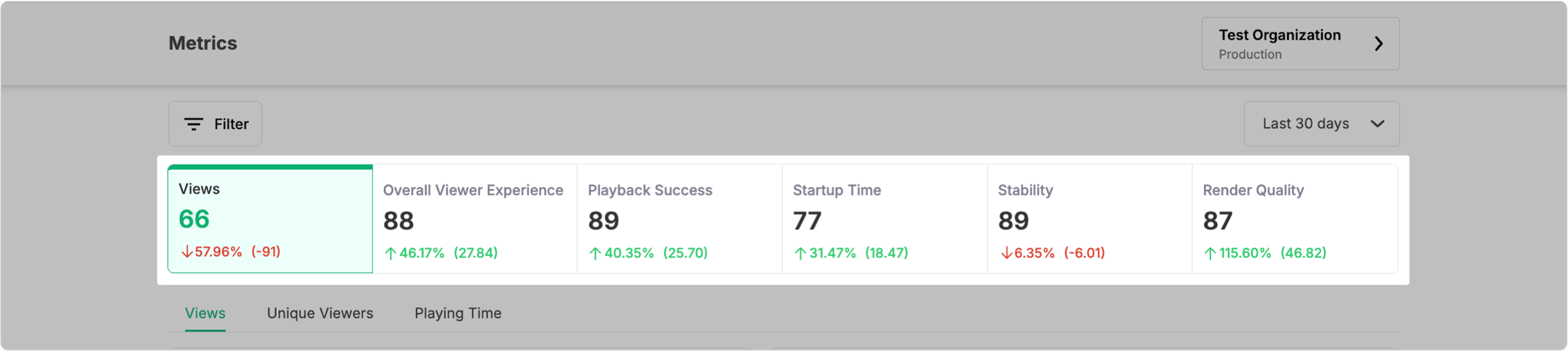
FastPix metric groups overview


Understanding views in video metrics

A “view” is defined as any attempt to play a video, regardless of whether the playback is successful. This includes instances where a viewer clicks the play button or when playback is initiated programmatically.

How views are counted:

  • Initiation of playback: A view is recorded as soon as a viewer attempts to start the video. This means that even if playback fails (for example, due to buffering issues or network interruption), it still counts as one view.
  • Session duration: Each view remains active until the video playback is either completed or interrupted — such as when the viewer navigates away from the page. Additionally, if playback stops but the viewer does not explicitly end it, the view will be counted for up to one hour.
  • Continuous viewing: If a viewer pauses and then resumes watching the same video, it is still counted as a single view. Similarly, if a video is looped or replayed during a single session, it will not increase the view count.
Implications for data collection

When analyzing metrics based on views, it’s essential to recognize that our measurements are derived from data collected during each unique viewing session. Therefore, if you notice an unexpectedly high number of views in your dashboard, it may be beneficial to review the implementation of your data tracking code to ensure that it initializes correctly for each playback attempt.


CategoryMetricDefinition
Audience MetricsViewsTotal number of times the video has been viewed.
Unique VisitorsThe number of distinct users who have viewed the video.
Playing TimeTotal time spent by viewers watching the video.
QoE MetricsOverall Experience ScoreA composite score reflecting the overall viewer satisfaction with the video playback experience.
Playback MetricsPlayback Success ScoreThe percentage of successful playback instances compared to total playback attempts.
Playback Failure PercentageThe percentage of playback attempts that resulted in failure.
Exits Before Video StartThe number of viewers who exited before the video started playing.
Video Startup Failure PercentageThe percentage of times the video failed to start after being requested.
Startup MetricsStartup Time ScoreA score quantifying viewer satisfaction based on how quickly the video starts playing after being requested.
Video Startup TimeThe time taken for the video to begin playback after initiation, measured in seconds.
Player Initialization TimeThe duration it takes for the player to initialize and be ready for playback commands after page load.
Page Load TimeThe time taken for the page containing the video to load fully before playback begins.
Total Startup TimeThe cumulative time from initiating playback until the video is ready to watch, including all delays.
Jump LatencyThe average duration viewers wait for a video to resume after jumping to a new timestamp within the content.
Stability MetricsStability ScoreA score reflecting the level of interruptions during video playback; higher scores indicate fewer disruptions.
Buffer RatioThe percentage of total viewing time spent buffering; lower ratios indicate a smoother viewing experience.
Buffer FrequencyThe frequency of rebuffering events during playback, measured in events per second; higher frequencies can indicate playback issues.
Buffer FillThe average duration (in seconds) that viewers experience rebuffering per video view.
Buffer CountThe total number of times buffering occurred during a video view; frequent buffering can negatively impact viewer satisfaction.
Render Quality MetricsRender Quality ScoreA score quantifying perceived visual quality based on the percentage of views rated at the highest quality level (100). Higher scores indicate better visual quality.
Upscale PercentageThe average percentage of time that the video player upscales the resolution during playback; frequent upscaling may affect perceived quality.
Downscale PercentageThe average percentage of time that the video player downscales the resolution during playback; this can indicate how well content matches viewer device capabilities.
Max UpscalingThe maximum percentage to which the video player upscales the video resolution to match the device’s screen resolution.
Max DownscalingThe maximum percentage to which the video player downscales the video resolution to fit the screen.
Average BitrateThe average number of bits per second delivered in the video stream, indicating data consumption and potential quality levels.
Live Stream LatencyThe delay between real-time events and their display on viewers’ screens during live streaming sessions; lower latency is preferable for real-time engagement.

Using APIs to retrieve metrics

To get audience metrics like Views across different timeframes and filter options, you can use the FastPix API endpoints. Below is a step-by-step guide to walk you through retrieving these metrics.


Step 1: Set up your API access

Before making requests to the FastPix API, ensure you have your Access Token ID and Secret Key ready for authentication. See the Basic Authentication Guide for details on retrieving these credentials.


Step 2: Retrieve overall values for views

To get the views metric across different timeframes, you can use the list overall values endpoint. Here’s how to make a request:

Example request:

$curl --request GET \
> --url 'https://api.fastpix.com/v1/data/metrics/views/overall?timespan[]=30:days' \
> --header 'accept: application/json' \
> --user '{Access_Token}:{Secret_Key}'

In the above request, you need to replace Access Token ID and Secret Key with your actual credentials. Also, adjust the timespan parameter as needed (for example, 7:days, 30:days, etc.).


Example response:

1{
2 "success": true,
3 "metadata": {
4 "aggregation": "view_end"
5 },
6 "data": {
7 "value": 118,
8 "totalWatchTime": 2643439,
9 "totalViews": 118,
10 "totalPlayTime": 1722574,
11 "uniqueViews": 15,
12 "globalValue": 0.5107432787924294
13 },
14 "timespan": [
15 1735117394,
16 1737709394
17 ]
18}

Please refer to our API reference for overall values to understand more about different parameters that you can apply to get the values for all other metrics.

Similarly, in order to visualize the value of a metric and number of views within a timeframe, you can use the Get timeseries data endpoint. The response includes an array of data points, each representing the metric’s value and view count at specific intervals. This can be used to create graphical representations.

Also, to understand how views are split across different dimensions like browser and device type, you can use List breakdown values. For instance, if you want to analyze how watch time varies across different device types, calling this endpoint for the playing_time metric and filtering by device_type shows how engagement differs between mobile, desktop, and tablet users. This data will guide optimization efforts for different platforms.