Monitor HLS.js

Explore how the FastPix Data SDK works with HLS.js to measure playback quality, bitrate, buffer events, and viewer behavior.

The FastPix Data SDK for HLS.js monitors and analyzes key HLS player metrics, providing actionable insights to optimize video streaming performance and deliver a smoother viewing experience.

Key features:

  • Track viewer engagement: Gain insights into how users interact with your videos.
  • Monitor playback quality: Ensure video streaming by monitoring real-time metrics, including bitrate, buffering, startup performance, render quality, and playback failure errors.
  • Error management: Identify and resolve playback failures quickly with detailed error reports.
  • Customizable analytics: Configure tracking attributes to meet your business requirements, providing flexibility and scalability.
  • Centralized dashboard: Visualize and compare metrics on the FastPix dashboard to make data-driven decisions.

Step 1

Installation and setup

Step 2

Import the SDK

Step 3

Basic integration

Step 4

Enhance tracking with metadata

Step 5

Advanced configurations

Step 6

Emit custom events


Step 1: Installation and setup

This package can be installed using npm, a CDN, or your preferred package manager.

View in GitHub.


using npm:

npm
$npm install "@fastpix/video-data-core"

Using CDN:

CDN
1<script src="https://cdn.jsdelivr.net/npm/@fastpix/video-data-core@latest"></script>

PLEASE NOTE

Ensure that a package based on HLS Player is installed or accessible via a CDN.


Initialize FastPix Data SDK

To start tracking and analyzing video performance using FastPix, you need to initialize the FastPix Data SDK with your unique Workspace key. Follow these steps:

  1. Log into your FastPix Dashboard and go to the Workspaces section.
  2. Once you’ve identified the correct workspace, copy the Workspace Key associated with it. This key is essential for client-side monitoring and should be included in the JavaScript code on every webpage where you want to track video performance and analytics.

Understand what is a Workspace.
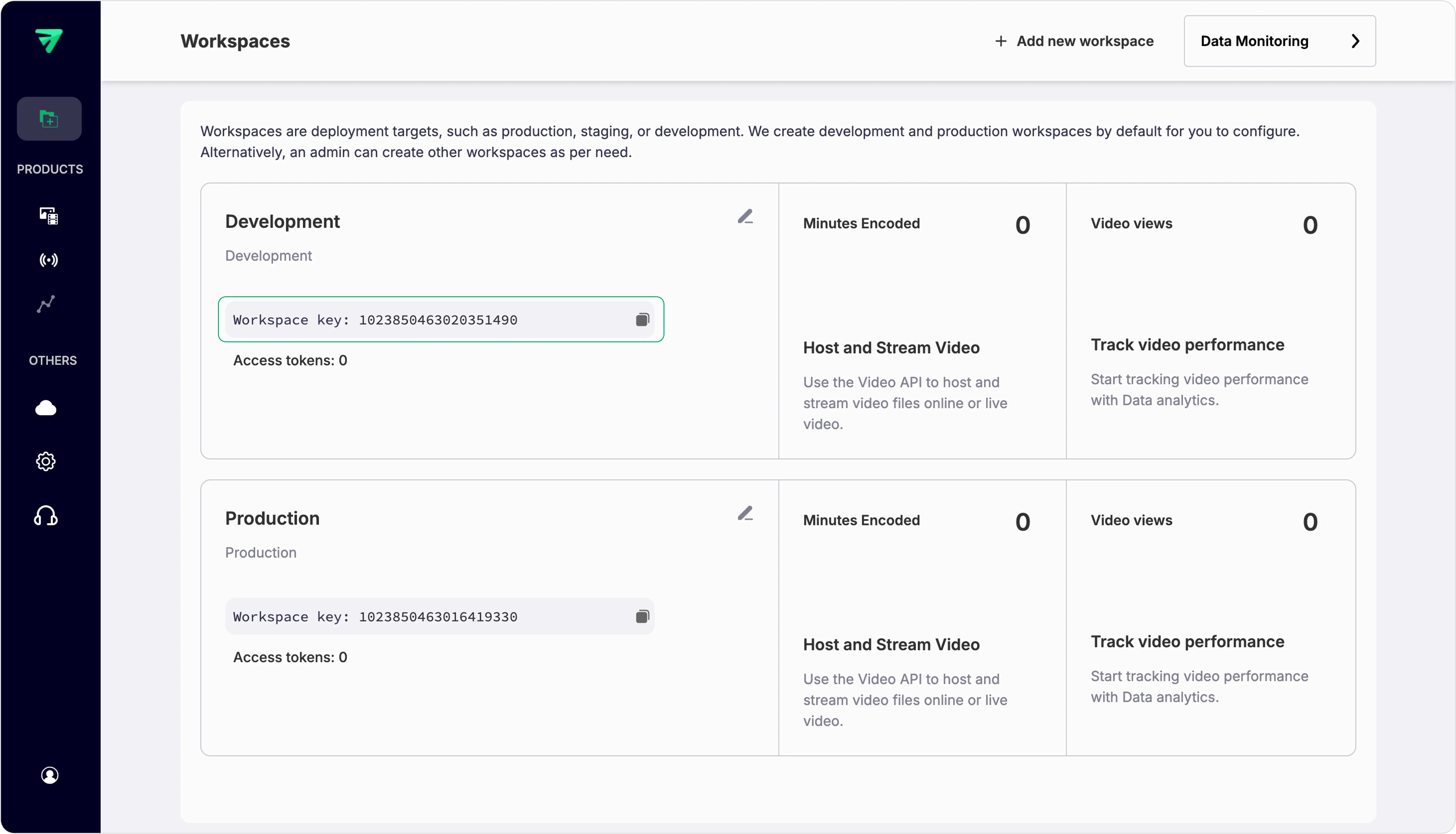

Workspace key


Step 2: Import the SDK

Import
1import fastpixMetrix from "@fastpix/video-data-core"

Step 3: Basic integration

The workspace_id is a mandatory field that must be provided. In addition, install the hls.js package, import the Hls instance, and attach it to the HTML5 video element. Pass both the Hls instance and the Hls constructor function, along with custom metadata, to the fastpixMetrix.tracker function.

Once the player has loaded the URL and playback has started, the SDK will then begin tracking the analytics.


1// Import HLS.js library for video streaming
2import Hls from "hls.js";
3import fastpixMetrix from "@fastpix/video-data-core";
4
5// Reference to the video element
6const videoPlayerElement = document.getElementById("video-player");
7const initializationTime = fastpixMetrix.utilityMethods.now();
8
9// Create a new HLS instance
10const hlsPlayerInstance = new Hls();
11hlsPlayerInstance.loadSource(""); // Load the video stream
12hlsPlayerInstance.attachMedia(videoPlayerElement);
13
14// Custom metadata for tracking
15const trackingData = {
16 workspace_id: "WORKSPACE_KEY", // Unique key to identify your workspace (replace with your actual workspace key)
17 player_name: "Main Video Player", // A custom name or identifier for this video player instance
18 player_init_time: initializationTime, // Timestamp of when the player was initialized (useful for tracking performance metrics)
19
20 // Add any additional metadata
21};
22
23// Pass both `hlsPlayerInstance` and `Hls` to the FastPix tracker for correct tracking
24fastpixMetrix.tracker(videoPlayerElement, {
25 debug: false, // Set to true to enable debug logs in the console
26 hlsjs: hlsPlayerInstance, // Pass the `hlsPlayerInstance` created above
27 Hls, // Pass the `Hls` constructor (imported)
28 data: trackingData, // Attach custom metadata for analytics and tracking
29});
30
31// To stop monitoring call when destroying the HLS player
32// videoPlayerElement.fp.destroy();

PLEASE NOTE

When configuring the SDK, include both the hls instance and the Hls constructor in the options.


After successfully completing Step 3, you can track viewer metrics in the FastPix dashboard once playback ends. Steps 4, 5, and 6 are optional and can be utilized as needed to enhance your integration.


Step 4: Enhance tracking with user passable metadata

Check out the user-passable metadata documentation to see the metadata supported by FastPix. You can use custom metadata fields like custom_1 to custom_10 for your business logic, giving you the flexibility to pass any required values. Named attributes, such as video_title and video_id, can be passed directly as they are.


1// Import HLS.js library for video streaming
2import Hls from "hls.js";
3import fastpixMetrix from "@fastpix/video-data-core";
4
5// Reference to the video element
6const videoPlayerElement = document.getElementById("video-player");
7const initializationTime = fastpixMetrix.utilityMethods.now(); // Get the current timestamp for player initialization
8
9// Create a new HLS instance
10const hlsPlayerInstance = new Hls();
11hlsPlayerInstance.loadSource(""); // Load the video stream
12hlsPlayerInstance.attachMedia(videoPlayerElement);
13
14// Custom metadata for tracking
15const trackingData = {
16 workspace_id: "WORKSPACE_KEY", // Unique key to identify your workspace (replace with your actual workspace key)
17 player_name: "Main Video Player", // A custom name or identifier for this video player instance
18 player_init_time: initializationTime, // Timestamp of when the player was initialized (useful for tracking performance metrics)
19 video_title: "Test Content", // Title of the video being played (replace with the actual title of your video)
20 video_id: "f01a98s76t90p88i67x", // A unique identifier for the video (replace with your actual video ID for tracking purposes)
21 viewer_id: "user12345", // A unique identifier for the viewer (e.g., user ID, session ID, or any other unique value)
22 video_content_type: "series", // Type of content being played (e.g., series, movie, etc.)
23 video_stream_type: "on-demand", // Type of streaming (e.g., live, on-demand)
24 // Custom fields for additional business logic
25 custom_1: "", // Use this field to pass any additional data needed for your specific business logic
26 custom_2: "", // Use this field to pass any additional data needed for your specific business logic
27
28 // Add any additional metadata here if needed
29};
30
31// Pass both `hlsPlayerInstance` and `Hls` to the FastPix tracker for correct tracking
32fastpixMetrix.tracker(videoPlayerElement, {
33 debug: false, // Set to true to enable debug logs in the console
34 hlsjs: hlsPlayerInstance, // Pass the `hlsPlayerInstance` created above
35 Hls, // Pass the `Hls` constructor (imported)
36 data: trackingData, // Attach custom metadata for analytics and tracking
37});

DEVELOPMENT TIP

Keep metadata consistent across different video loads to make comparison easier in your analytics dashboard.


Step 5: Advanced configurations with HLS.js

Enhancing your video player with advanced options can significantly improve user experience and data tracking. Below are key configurations you can implement when using the FastPix SDK with your HLS.js player instance.


AttributeDescriptionTypeExample usage
disableCookiesFastPix Data SDK uses cookies by default to track playback across page views and to identify unique viewers. If your application is not intended to collect cookies, you can disable this feature by setting disableCookies: true. This ensures that no cookies are set during the user’s session, enhancing privacy and compliance with user preferences.BooleandisableCookies: true
respectDoNotTrackSet to true to honor users’ privacy preferences regarding the ‘Do Not Track’ setting.BooleanrespectDoNotTrack: true
automaticErrorTrackingFastPix automatically tracks errors that occur during playback failures. To disable this feature, set automaticErrorTracking to false. This allows you to have more control over which errors are considered fatal and helps you manage error reporting according to your application’s needs.BooleanautomaticErrorTracking: false
debugSet to true to enable debug logs in the console for troubleshooting purposes.Booleandebug: true

Example:

1// Reference to the video element
2const videoPlayerElement = document.getElementById("video-player");
3
4// Configuration for FastPix tracker
5const trackingData = {
6 debug: true, // Set to true to enable debug logs in the console
7 hlsjs: hls, // Pass the HLS.js instance
8 Hls: Hls, // Pass the Hls constructor (imported)
9 disableCookies: true, // Set to true to disable cookies for tracking sessions and unique viewers
10 respectDoNotTrack: true, // Set to true to honor users' 'Do Not Track' preferences
11 automaticErrorTracking: false, // Set to false to disable automatic tracking of fatal errors
12 data: {
13 workspace_id: "WORKSPACE_KEY", // Replace with your actual workspace key
14 // ... add other metadata as needed
15 },
16};
17
18// Initialize the FastPix tracker with the configuration
19fastpixMetrix.tracker(videoPlayerElement, trackingData);

Step 6: Emit custom events


Advanced error reporting and contextual tracking

By default, FastPix tracks errors that occur during playback failures. However, you can also emit a custom error event for non-severe issues that arise outside of these failures, allowing you to provide additional context for tracking purposes.


1// videoPlayerElement is the HTML5 <video> element representing your video player.
2const videoPlayerElement = document.getElementById("video-player");
3
4videoPlayerElement.fp.dispatch("error", {
5 player_error_code: 1024, // Custom error code
6 player_error_message: "Description of error", // Generalized error message
7 player_error_context: "Additional context for the error", // Instance-specific information
8});

TIP

Use custom error codes and messages that are meaningful for your debugging process to streamline troubleshooting.


Changing video streams in player

Effective video view tracking is crucial to track multiple videos back-to-back in the same player in your application. You can reset tracking when loading a new source, such as in video series or episodic content or in cases where the user wants to play any other video.


Emitting avideoChange event:

To inform the FastPix SDK of a new view, emit a videoChange event immediately after loading the new video source. Include relevant metadata about the new video:

1// videoPlayerElement is the HTML5 <video> element representing your video player.
2const videoPlayerElement = document.getElementById("#my-player");
3
4videoPlayerElement.fp.dispatch("videoChange", {
5 video_id: "abc345", // Unique identifier for the new video
6 video_title: "My Other Great Video", // Title of the new video
7 video_series: "Weekly Great Videos", // Series name if applicable
8
9 // Additional metadata can be included here
10});

PLEASE NOTE

Always ensure that this event is dispatched right after the new source is loaded to maintain accurate tracking.


Example to configure HLS with FastPix Data SDK

Here are platform-specific examples to help you integrate the FastPix Data SDK with your HLS player. Use the following React or JavaScript or HTML code into your application:


React
1import React, { useEffect, useRef } from "react";
2
3import Hls from "hls.js"; // Import HLS.js library for video streaming
4import fastpixMetrix from "@fastpix/video-data-core";
5
6export default function VideoPlayer() {
7 const videoElementRef = useRef(null);
8
9 // Replace with your actual stream URL
10 const videoSourceUrl =
11 "https://stream.fastpix.com/1f3d3b7b-dfc2-4b29-a9ff-9e71c36acc64.m3u8"; // Your HLS stream URL
12
13 useEffect(() => {
14 let hlsInstance;
15
16 // Check if the videoElementRef.current is available before proceeding
17 if (videoElementRef.current) {
18 const videoElement = videoElementRef.current;
19 const playerInitTime = fastpixMetrix.utilityMethods.now(); // Get player initialization time
20
21 // Check if the video element can play HLS natively (Safari support)
22 if (videoElement.canPlayType("application/vnd.apple.mpegurl")) {
23 // For Safari, which has native HLS support
24 videoElement.src = videoSourceUrl;
25 } else if (Hls.isSupported()) {
26 // For other browsers, initialize Hls.js
27 hlsInstance = new Hls();
28 hlsInstance.loadSource(videoSourceUrl); // Load the video stream
29 hlsInstance.attachMedia(videoElement); // Attach the stream to the video element
30
31 // Custom metadata to be passed for tracking
32 const customData = {
33 workspace_id: "WORKSPACE_KEY", // Replace with your workspace key
34 player_name: "Main Player", // Identifier for the player instance
35 player_init_time: playerInitTime, // Player initialization time
36
37 // Add any additional metadata here
38 };
39
40 // pass both `hlsInstance` and `Hls` to the FastPix tracker for correct tracking
41 fastpixMetrix.tracker(videoElement, {
42 debug: false,
43 hlsjs: hlsInstance, // Pass the `hlsInstance` created above
44 Hls, // Pass the `Hls` constructor (imported)
45 data: customData,
46 });
47 }
48 }
49
50 // Cleanup on component unmount
51 return () => {
52 if (videoElementRef.current) {
53 videoElementRef.current.destroy(); // Clean up HLS.js instance when the component is unmounted
54 }
55 };
56 }, [videoElementRef]);
57
58 return (
59 <video
60 controls
61 ref={videoElementRef}
62 style={{ width: "100%", maxWidth: "500px" }}
63 />
64 );
65}
1import Hls from "hls.js";
2import fastpixMetrix from "@fastpix/video-data-core";
3
4const videoElement = document.getElementById("video-player"); // Video element reference
5const videoSourceUrl =
6 "https://stream.fastpix.com/1f3d3b7b-dfc2-4b29-a9ff-9e71c36acc64.m3u88"; // Your HLS stream URL
7
8// Ensure the video element is available
9if (videoElement) {
10 let hlsInstance;
11
12 const playerInitTime = fastpixMetrix.utilityMethods.now(); // Get player initialization time
13
14 // Check if the video element can play HLS natively (Safari support)
15 if (videoElement.canPlayType("application/vnd.apple.mpegurl")) {
16
17 // For Safari, which has native HLS support
18 videoElement.src = videoSourceUrl;
19 } else if (Hls.isSupported()) {
20
21 // For other browsers, initialize Hls.js
22 hlsInstance = new Hls();
23 hlsInstance.loadSource(videoSourceUrl); // Load the video stream
24 hlsInstance.attachMedia(videoElement); // Attach the stream to the video element
25
26 // Custom metadata to be passed for tracking
27 const customData = {
28 workspace_id: "WORKSPACE_KEY", // Replace with your workspace key
29 player_name: "Main Player", // Identifier for the player instance
30 player_init_time: playerInitTime, // Player initialization time
31
32 // Add any additional metadata here
33 };
34
35 // pass both `hlsInstance` and `Hls` to the FastPix tracker for correct tracking
36 fastpixMetrix.tracker(videoElement, {
37 debug: false,
38 hlsjs: hlsInstance, // Pass the `hlsInstance` created above
39 Hls, // Pass the `Hls` constructor (imported)
40 data: customData,
41 });
42 }
43}
1<!DOCTYPE html>
2<html lang="en">
3
4<head>
5 <meta charset="UTF-8">
6 <meta name="viewport" content="width=device-width, initial-scale=1.0">
7 <script src="https://cdn.jsdelivr.net/npm/@fastpix/video-data-core@latest"></script>
8 <script src="https://cdn.jsdelivr.net/npm/hls.js@latest"></script> <!-- Use the HLS CDN as preferred -->
9 <title>FastPix Hls Analytics</title>
10</head>
11
12<body>
13 <video id="video-player" controls width="660" height="380"></video>
14 <script>
15 // Get the video element reference
16 const videoElement = document.getElementById('video-player'); // Video element reference
17 const videoSourceUrl = "https://stream.fastpix.com/1f3d3b7b-dfc2-4b29-a9ff-9e71c36acc64.m3u8"; // Your HLS stream URL
18
19 // Ensure the video element is available
20 if (videoElement) {
21 let hlsInstance;
22 const playerInitTime = fastpixMetrix.utilityMethods.now(); // Get player initialization time
23
24 // Check if the video element can play HLS natively (Safari support)
25 if (videoElement.canPlayType("application/vnd.apple.mpegurl")) {
26
27 // For Safari, which has native HLS support
28 videoElement.src = videoSourceUrl;
29 } else if (Hls.isSupported()) {
30
31 // For other browsers, initialize Hls.js
32 hlsInstance = new Hls();
33 hlsInstance.loadSource(videoSourceUrl); // Load the video stream
34 hlsInstance.attachMedia(videoElement); // Attach the stream to the video element
35
36 // Custom metadata to be passed for tracking
37 const customData = {
38 workspace_id: "WORKSPACE_KEY", // Replace with your workspace key
39 player_name: "Main Player", // Identifier for the player instance
40 player_init_time: playerInitTime, // Player initialization time
41 // Add any additional metadata here
42 };
43
44 // Pass both `hlsInstance` and `Hls` to the FastPix tracker for correct tracking
45 fastpixMetrix.tracker(videoElement, {
46 debug: false,
47 hlsjs: hlsInstance, // Pass the `hlsInstance` created above
48 Hls, // Pass the `Hls` constructor (imported)
49 data: customData,
50 });
51 }
52 }
53 </script>
54</body>
55
56</html>


Changelog

All notable changes to the HLS Player Video Data SDK is documented below.


Current version

v1.0.8

Changed:

  • Switched to native crypto APIs for random number and UUID generation, removing the external uuid dependency and reducing bundle size.
  • Updated the default metrics collection endpoint domain.
  • Added local test pages for HLS and DASH player integration.
  • General code sanitization and hygiene improvements across the SDK internals to enhance reliability and long-term maintainability.

Previous versions

v1.0.7

Changed:

  • Updated the SDK’s default metrics collection domain to improve endpoint reliability and alignment with current infrastructure.
  • Explicitly configured custom domains continue to be respected.

v1.0.6

Changed:

  • Updated npm authentication from Classic token to Granular token for improved security and fine-grained permissions.

v1.0.5

  • Added support for accepting user-provided player_software_name and player_software_version via user-passable data.

v1.0.4

  • Added request_url to capture each video chunk URL in hls and dash players.
  • Implemented strict checks for document and window objects to ensure execution only in browser environments.
  • Fixed bug where destroyHlsMonitoring could throw a runtime error.
  • Updated UUID generation method to work seamlessly across both web and mobile applications.

v1.0.3

  • Updated package.json to include additional keywords related to video analytics, HLS, and DASH players.

v1.0.2

  • Added support for DASH.js video player monitoring
  • Enhanced analytics collection for DASH streams
  • Improved error tracking for DASH.js players

v1.0.1

  • Resolved proper cleanup of HLS streams upon the viewComplete event.
  • Enhanced stream handling logic: when a new player instance is initialized while another is in progress, the SDK now correctly destroys the previous player’s data monitoring and seamlessly switches to capture analytics for the incoming player.

v1.0.0

Added:

  • Integration with HLS:
    • Enabled video performance tracking using FastPix Data SDK, supporting HLS streams with user engagement metrics, playback quality monitoring, and real-time streaming diagnostics.
    • Provides robust error management and reporting capabilities for HLS video performance tracking.
    • Allows customizable behavior, including options to disable cookies, respect Do Not Track settings, and configure advanced error tracking and automatic error handling.
    • Includes support for custom metadata, enabling users to pass optional fields such as video_id, video_title, video_duration, and more.
    • Introduced event tracking for videoChange to handle metadata updates during playback transitions.