

Run a moderation job
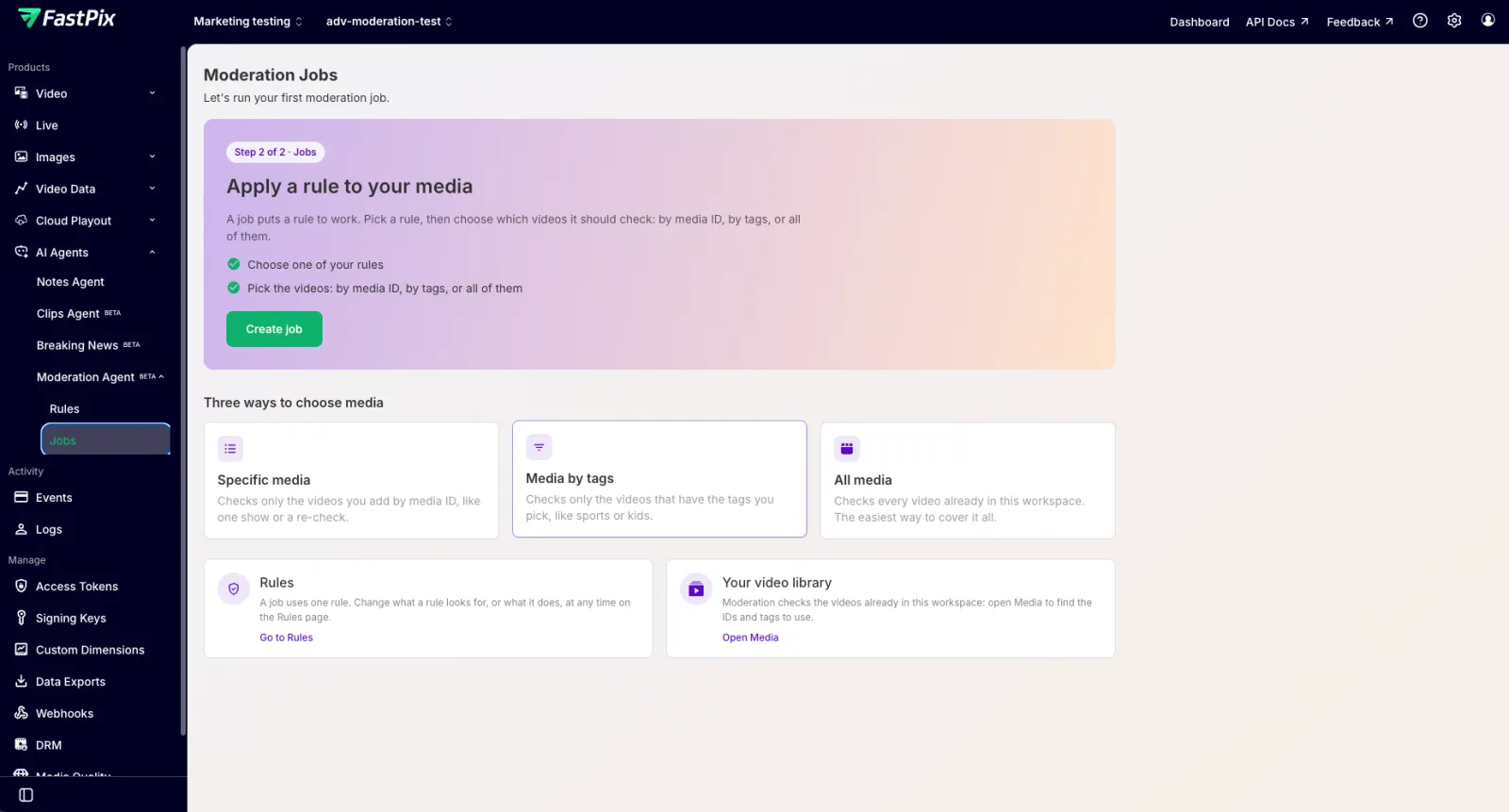
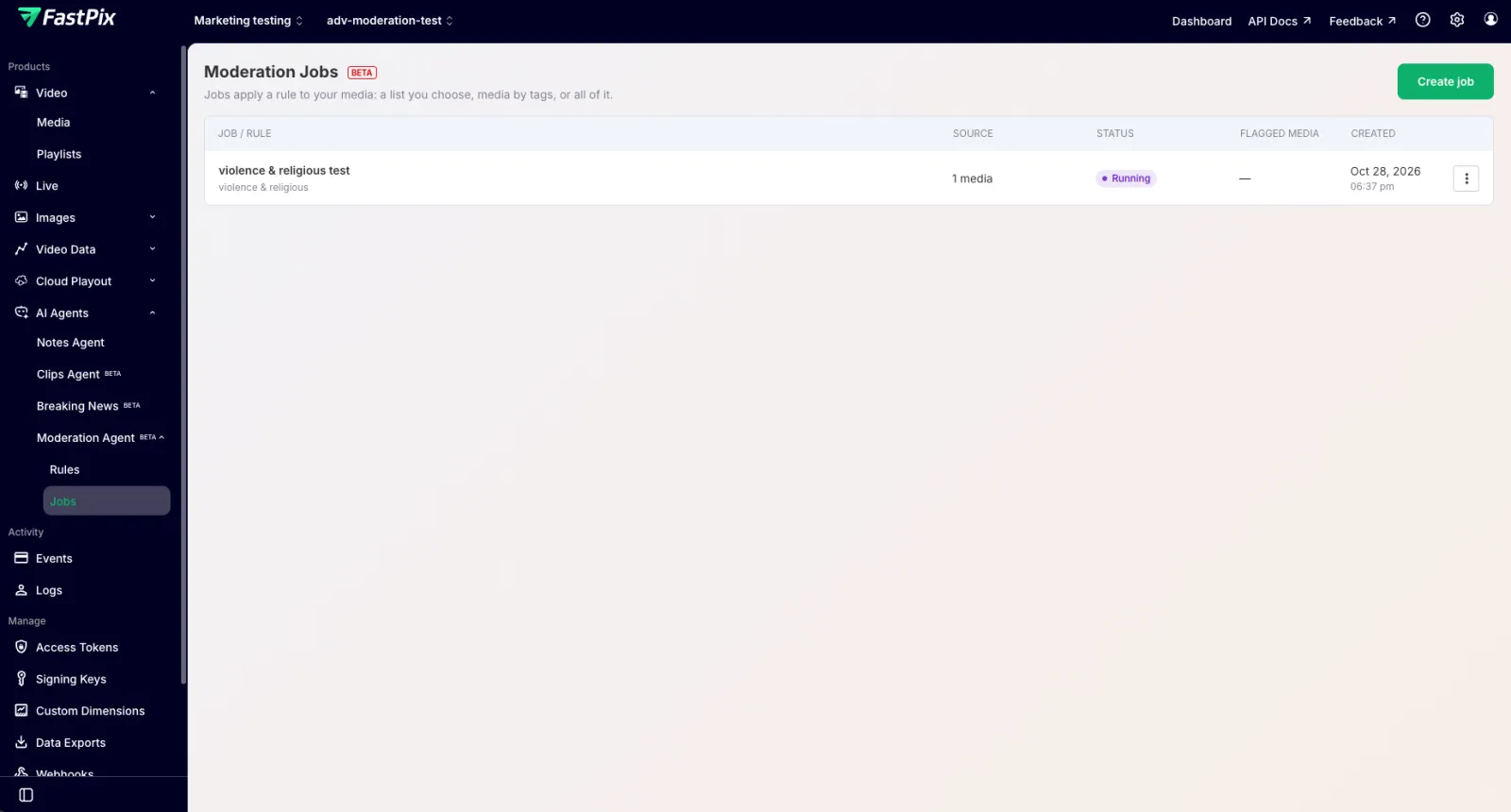
A job puts a rule to work. You pick one rule, then choose which videos it checks: specific media, media by tags, or all media in the workspace. You run jobs in the dashboard under AI Agents > Moderation Agent > Jobs.
Before you begin, create a rule. See Create a moderation rule.
Create a job
- In the dashboard, go to AI Agents > Moderation Agent > Jobs, then click Create job.
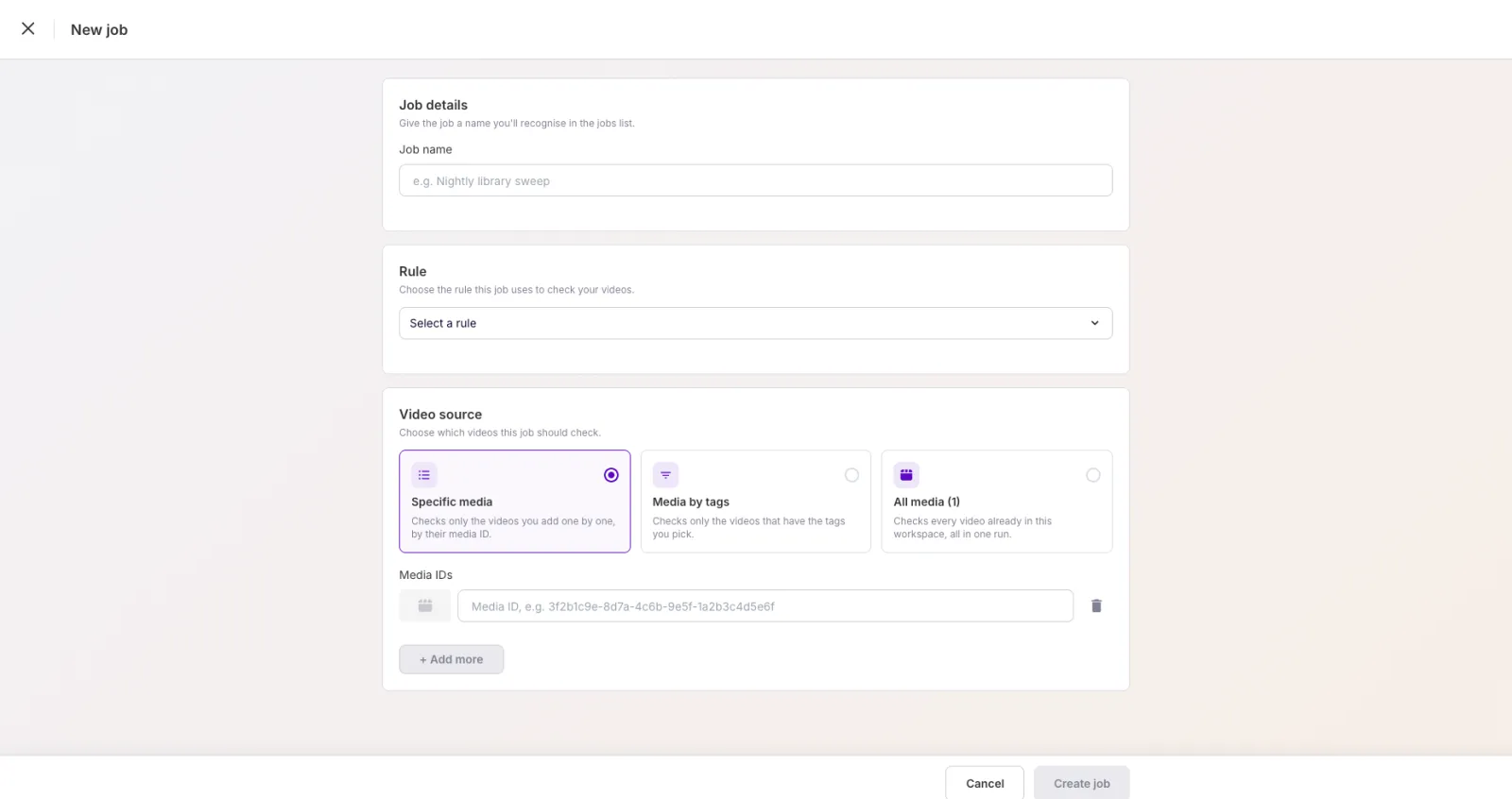
- Under Job details, enter a Job name you will recognize in the jobs list, for example
Nightly library sweep. - Under Rule, select the rule this job uses. A job uses one rule.
-
Under Video source, choose which videos to check:
- Specific media: check only the videos you add by media ID.
- Media by tags: check only the videos that have the tags you pick.
NOTE: The All media source is not available yet.
Moderate specific media
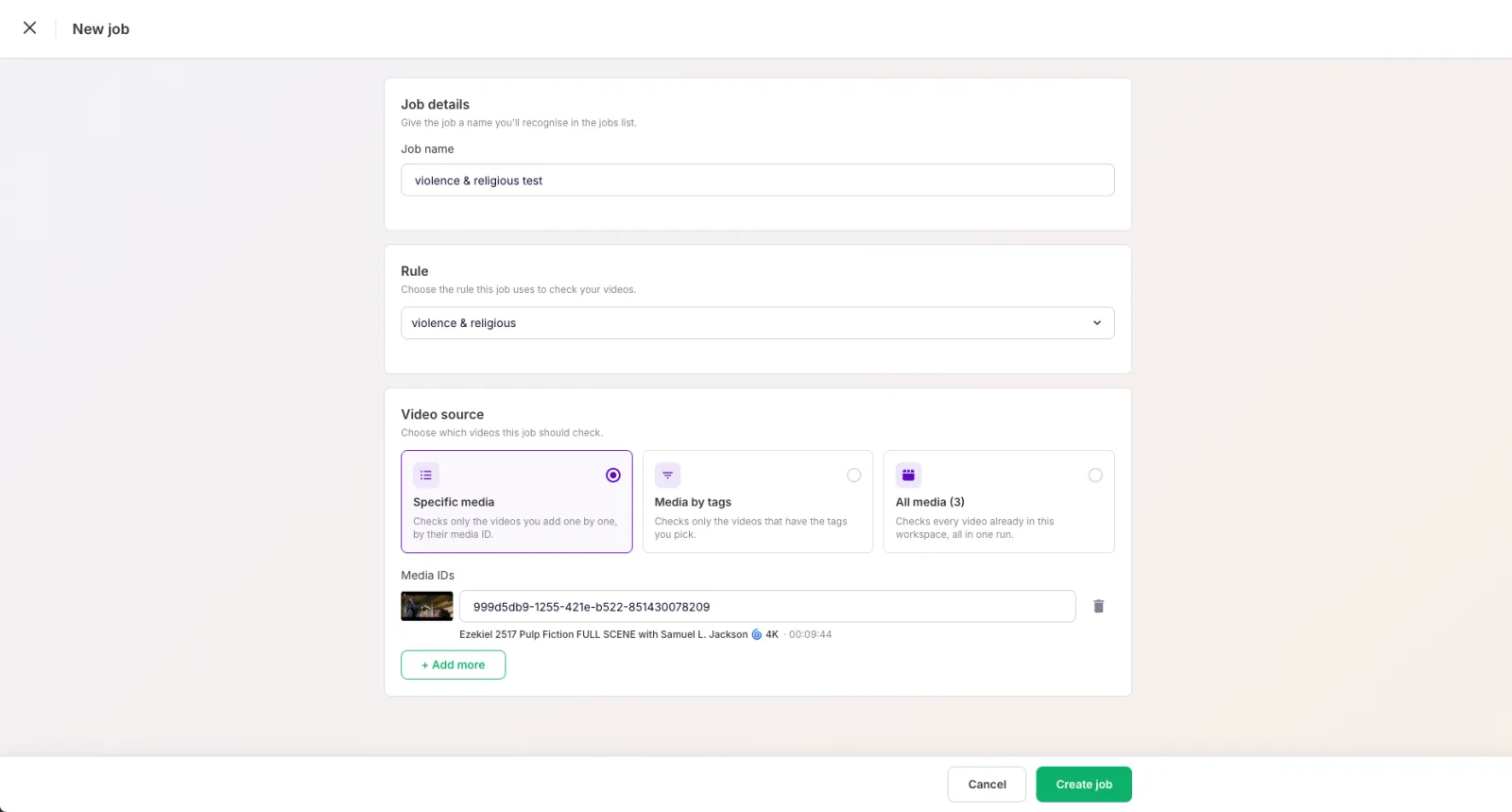
Choose Specific media, then paste each video’s media ID into the Media IDs field. To add more than one video, click + Add more.
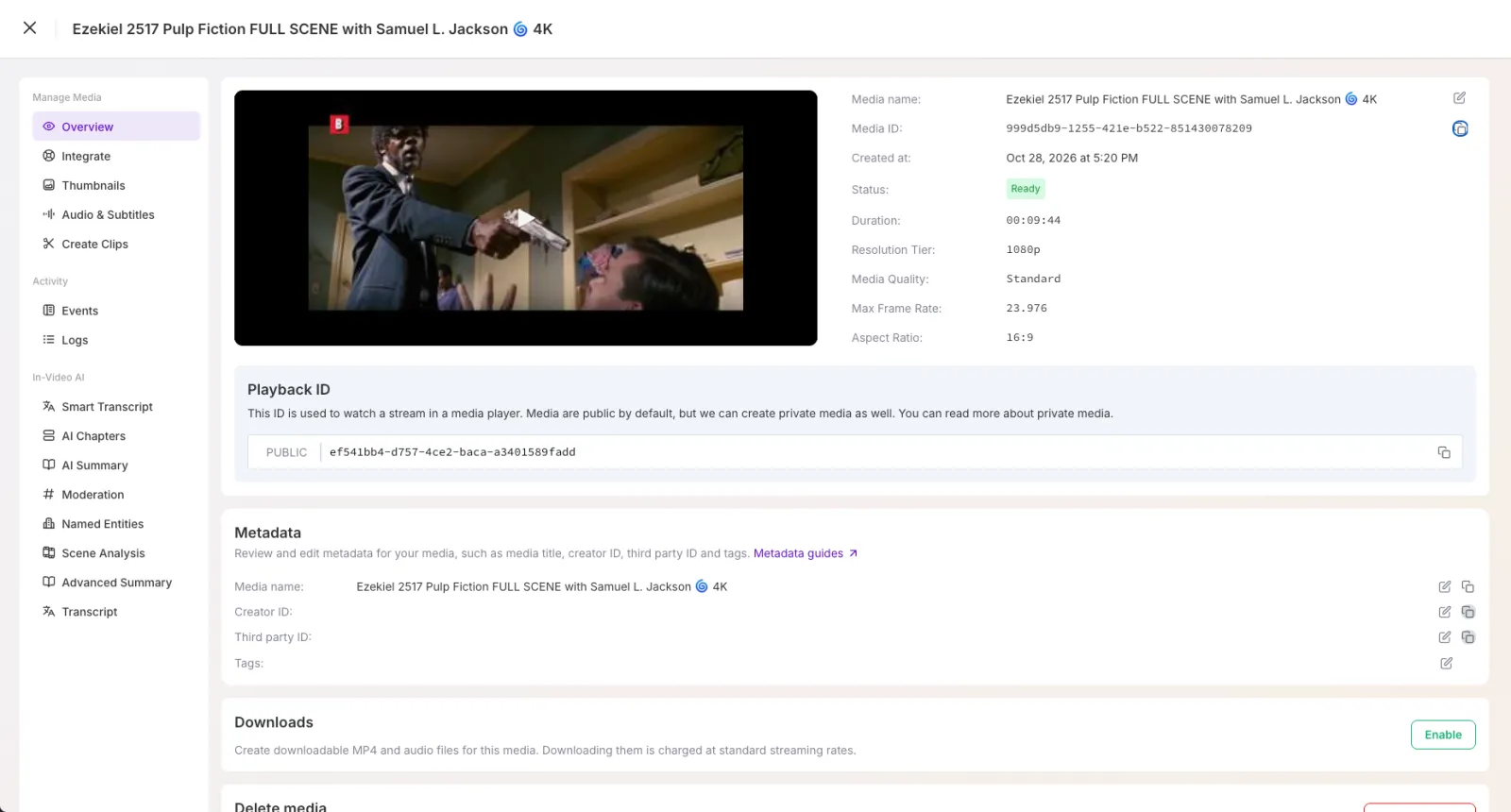
To find a media ID, open the video in Video > Media and copy the Media ID from its Overview page.
Once you paste a valid ID, FastPix shows the matching video so you can confirm it is the right one.
Moderate media by tags
Choose Media by tags to check every video that carries the tags you select. This is useful for moderating a group of videos, such as everything tagged sports or kids, without listing each one.
In the Tags field, search for and select one or more tags. You must select at least one tag.
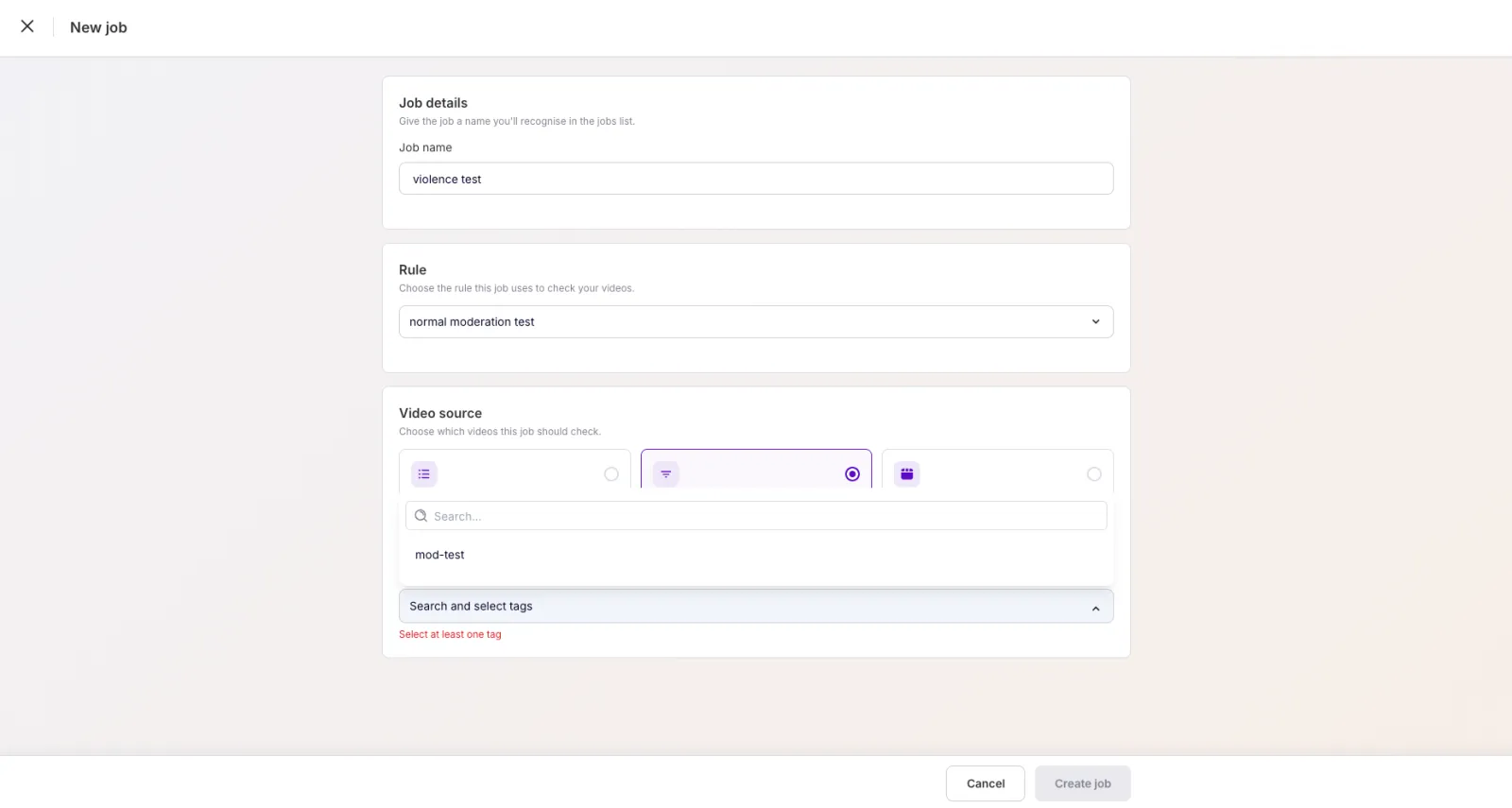
FastPix runs the job on every video that has the tags you picked.
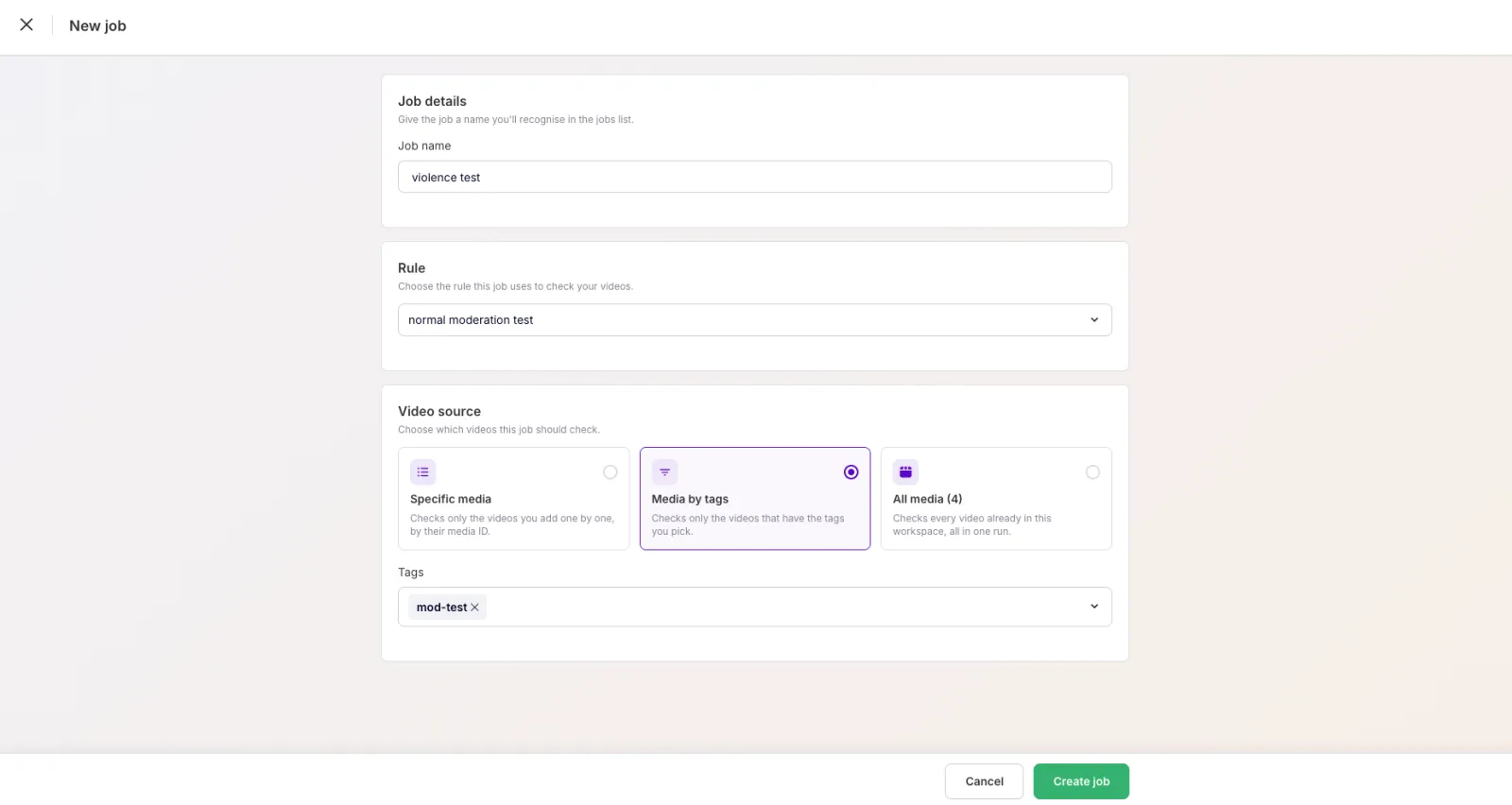
- Click Create job. The job starts and appears in the Jobs list with its source, status, and flagged-media count.
NOTE: A job uses one rule. To change what a job looks for or what it does, edit the rule on the Rules page, or create a new rule and run another job.
What’s next
- Review moderated media to track the job and see the results.
- Create a moderation rule to set up another rule.