

Generate video chapters
Long videos lose viewers who cannot skip to the section they care about, and search engines cannot index topics buried inside a single timeline. FastPix solves this by generating chapter markers automatically through its in-video AI pipeline, giving each chapter a title, summary, and precise start/end timecodes. You can generate chapters from the FastPix dashboard or with the In-Video AI API.
Note: You can generate AI features only for existing media. Upload and process your video first, then generate chapters on the ready media.
Prerequisites
- A FastPix account with an active workspace (Activate your account)
- A ready video asset in your workspace
How FastPix generates chapters
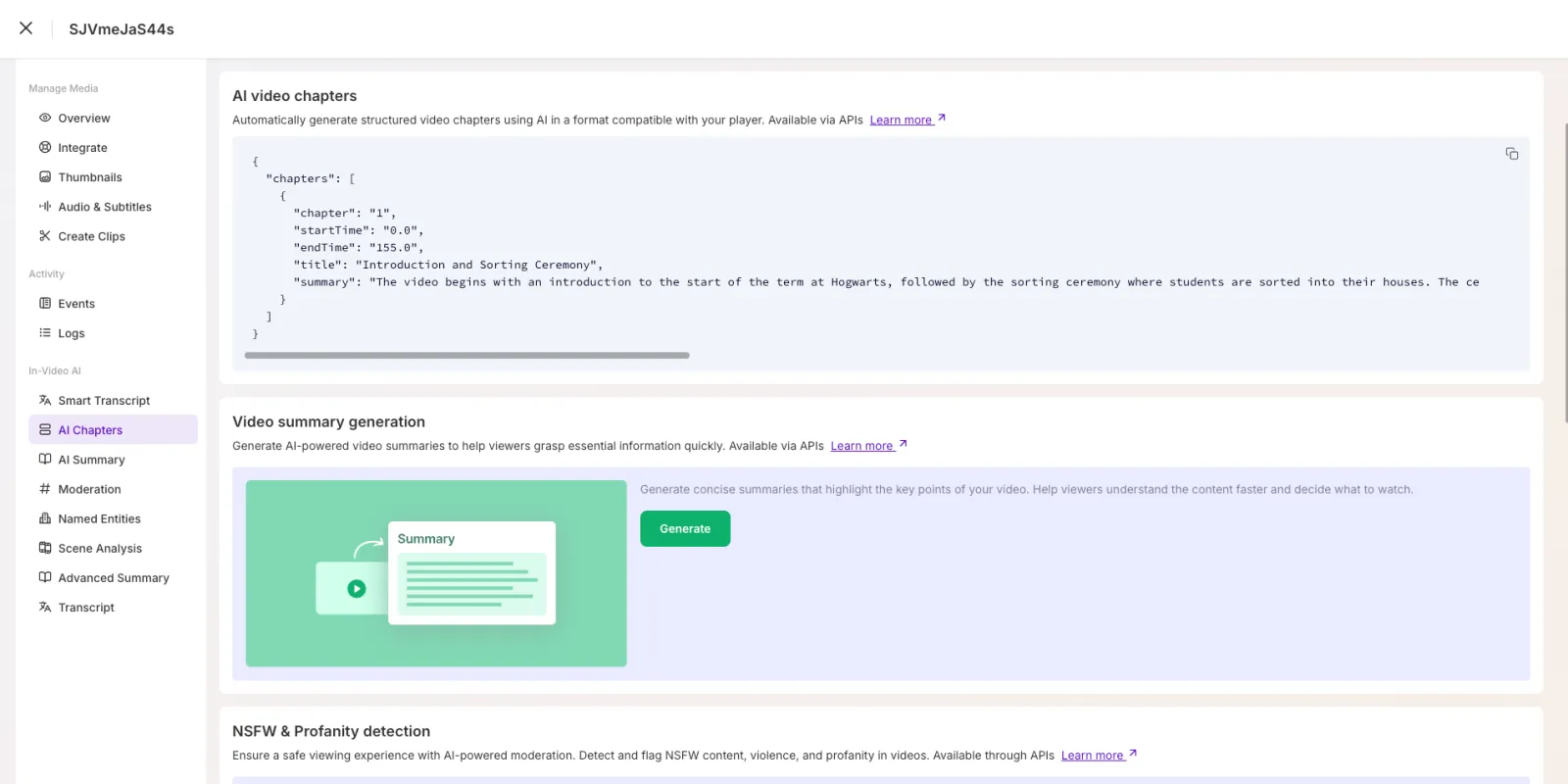
When you generate chapters for a media, FastPix runs multimodal indexing across the visual and auditory tracks, detects topic and scene transitions, and attaches chapter markers to the media. Each chapter includes a sequence number, start and end timecodes, a title, and a short summary.
Generate video chapters from the dashboard
- In the FastPix dashboard, open Video > Media and select the video you want to chapter.
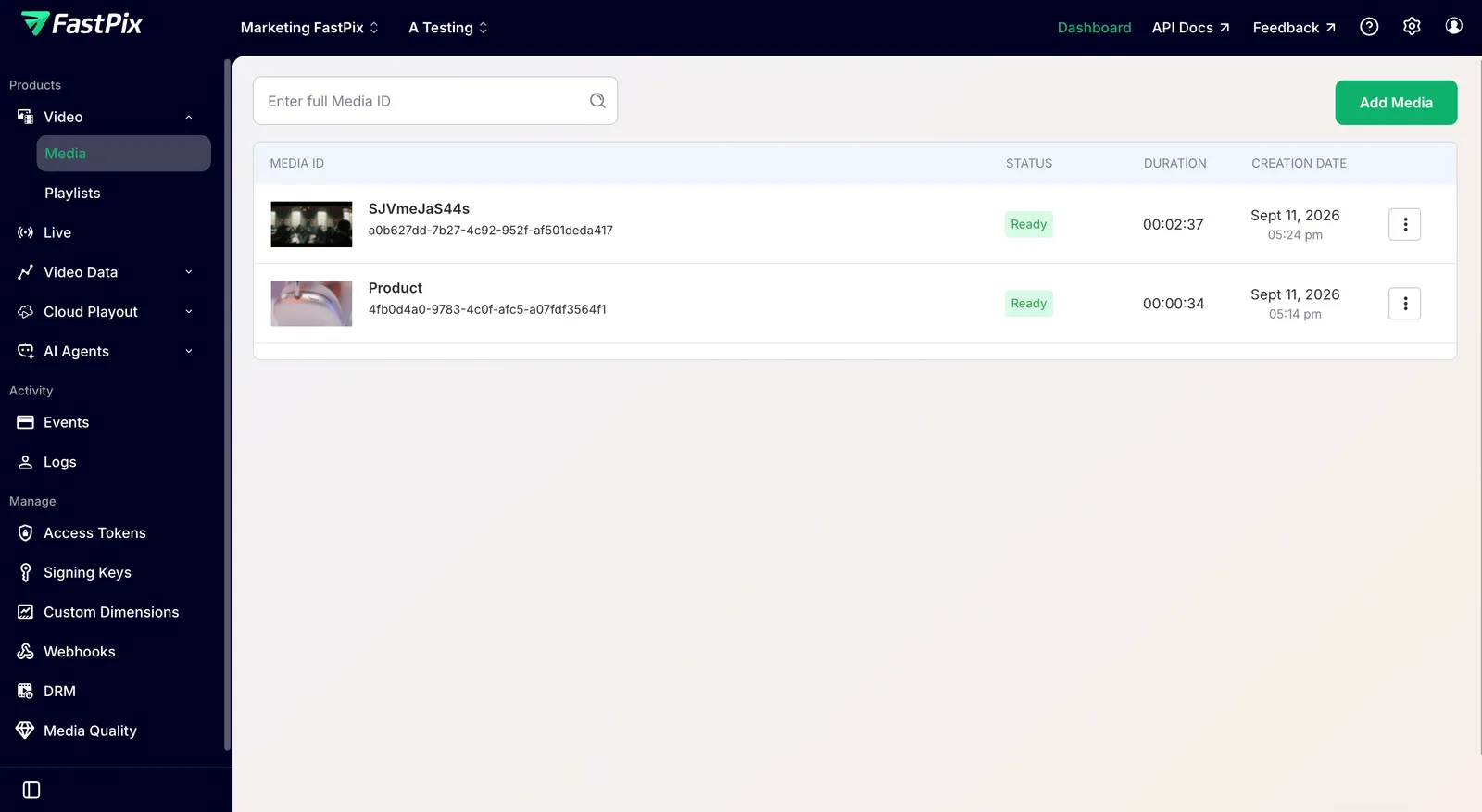
- On the Media Details page, under In-Video AI, click AI Chapters.
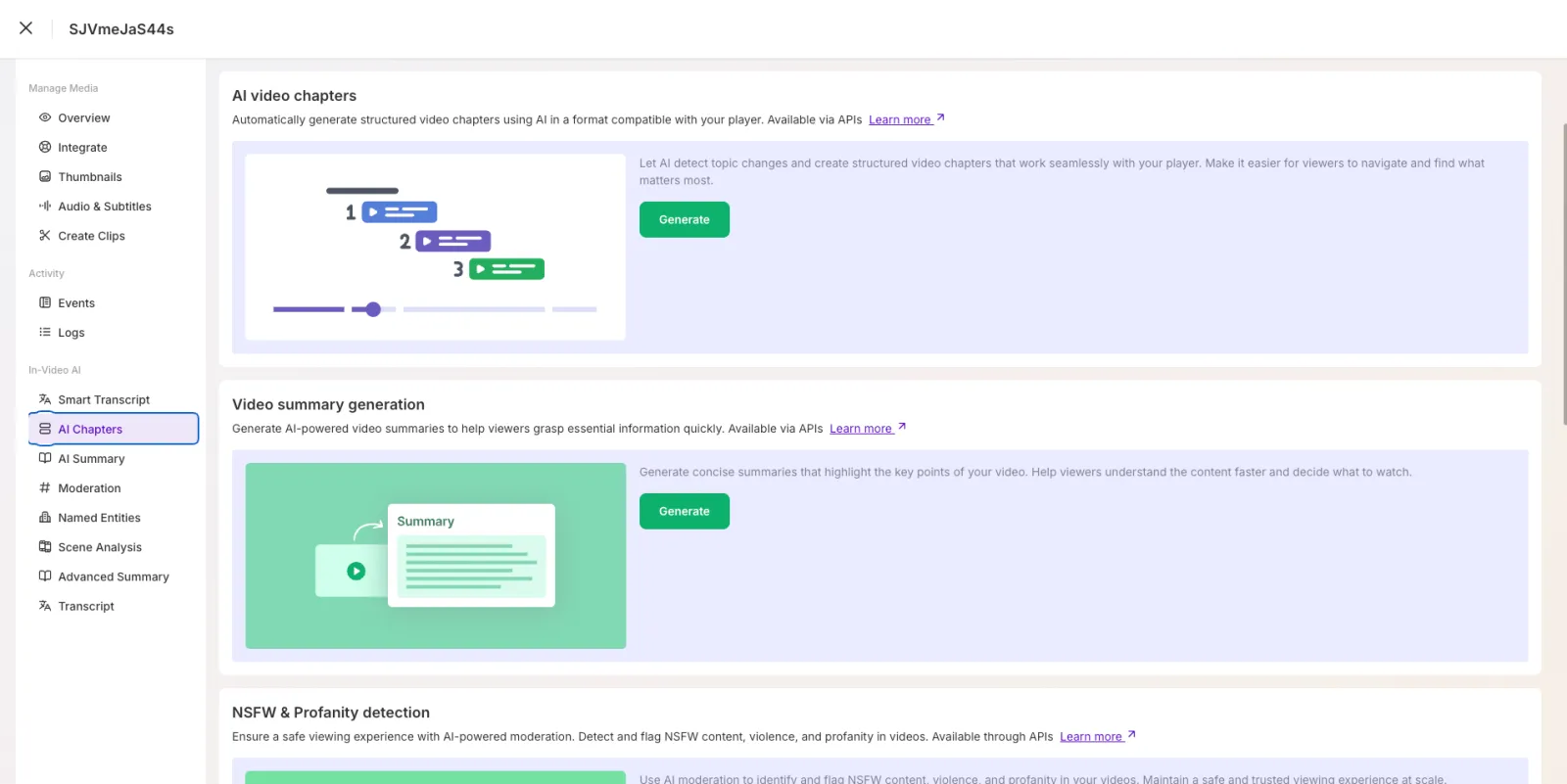
- Click Generate to start the analysis.
FastPix analyzes your video and creates chapter markers based on scene and topic changes. When generation completes, review the chapter titles and timecodes in the Chapters panel.
Generate chapters with the API
You can also generate chapters and fetch the results programmatically with the In-Video AI API. For the endpoints, request and response schemas, and the video.media.ai.chapters.ready webhook, see the API reference: Generate video chapters and Get video chapters.
Limits and considerations
- Generated chapters are timestamped to the second, so they map directly onto the media timeline for in-player navigation.
- Auto-generated titles and timecodes can be edited from the InVideo AI tab in the dashboard before you surface them to viewers.
Frequently asked questions
Can I edit or override the auto-generated chapters?
Yes. After FastPix generates chapters, open the InVideo AI tab for the media in the dashboard and edit the title, summary, or timecodes for any chapter.
How long does FastPix take to generate chapters?
Chapter generation runs after transcoding completes and scales with the media duration and audio complexity. The dashboard shows a Processing state until the chapters are ready.
How do I render chapter markers in a video player?
Once chapters are generated, map each start time onto the player’s timeline. Most HLS-compatible players accept custom cue points or a WebVTT chapter track that you can build from the start time, end time, and title of each chapter.
Can I generate chapters for audio-only media?
Yes. FastPix runs speech-to-text and topic detection on the audio track to produce the same chapter structure as a video.
What happens if I generate chapters on a media that already has them?
Regenerating chapters for a media replaces the previous chapter set with the new one.