

Review moderated media
After a moderation job runs, review what it flagged and compare the moderated copy with your original. You track jobs and open their results in the dashboard under AI Agents > Moderation Agent > Jobs.
Track job progress
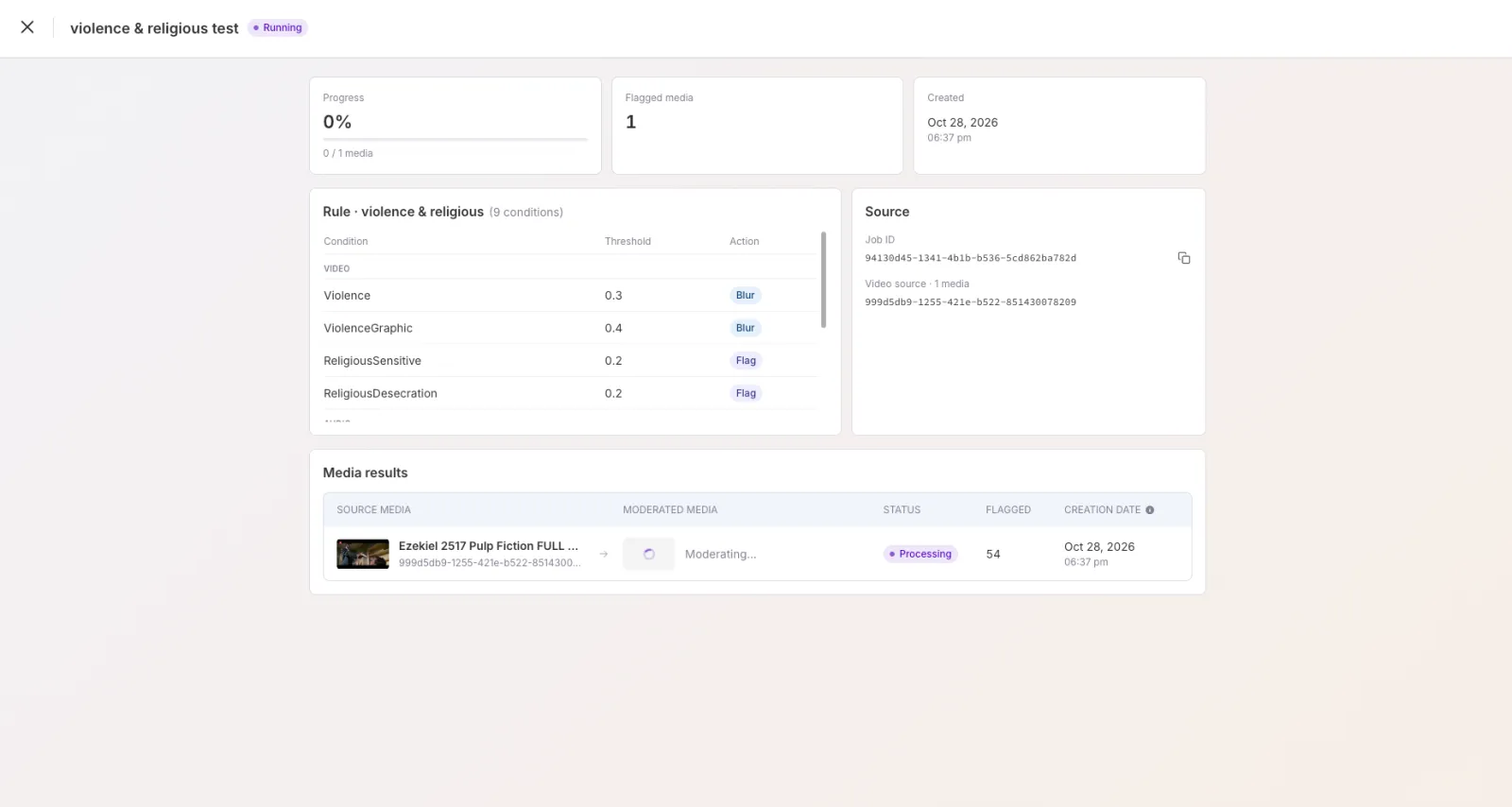
Open the job from the Jobs list. The job page shows:
- Progress and how many videos have been scanned.
- Flagged media, the number of videos with at least one flagged moment.
- Created, when the job started.
- Rule, the rule this job uses, with each condition’s threshold and action.
- Source, the job ID and the media being checked.
While the job runs, the Media results table shows each video as Moderating or Processing with a running flagged count.
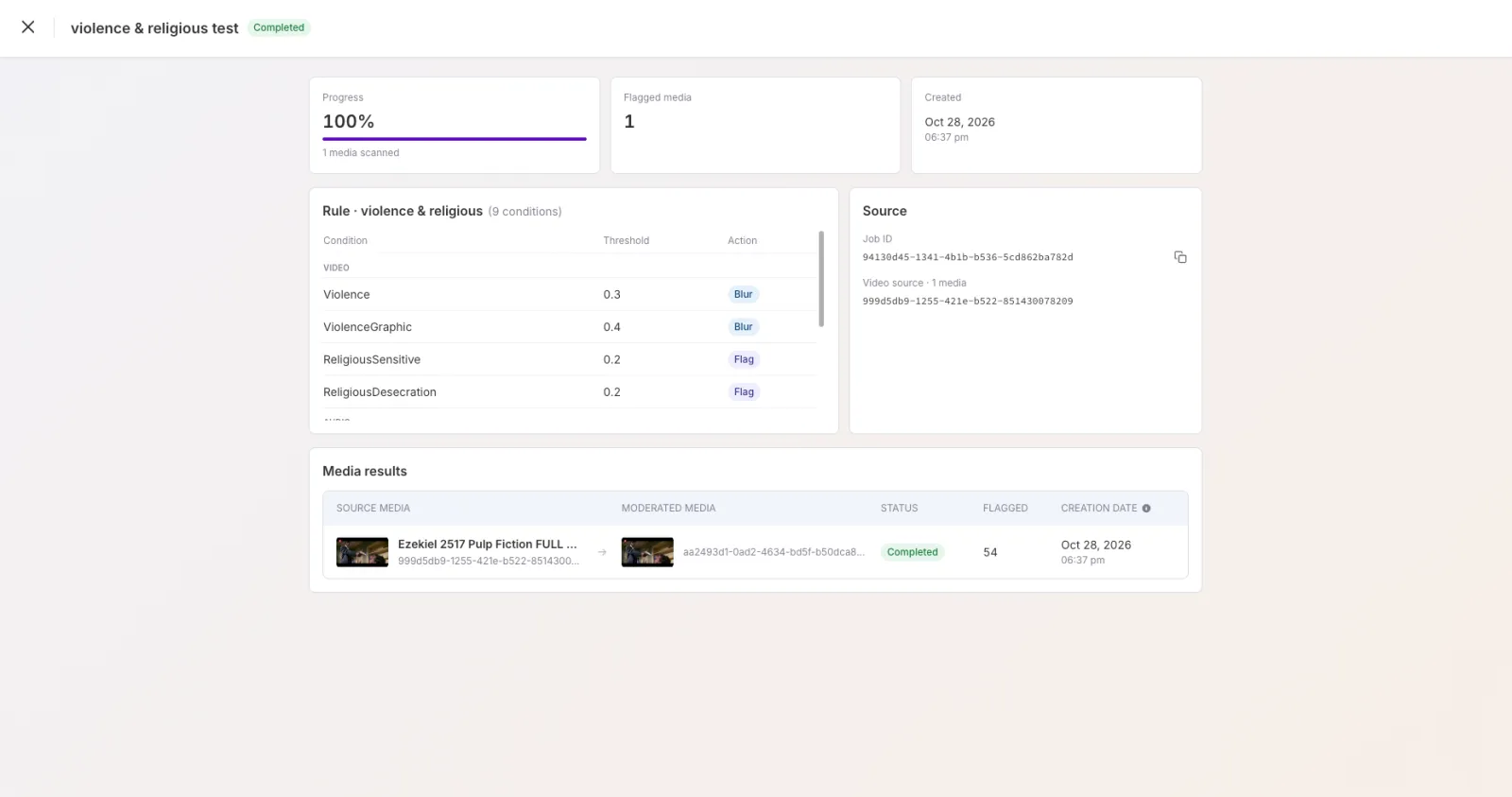
When the job finishes, its status is Completed and a moderated copy of each video is produced. The Media results table lists the Source media, the Moderated media, the Status, the number of Flagged moments, and the Creation date.
A new media asset is created
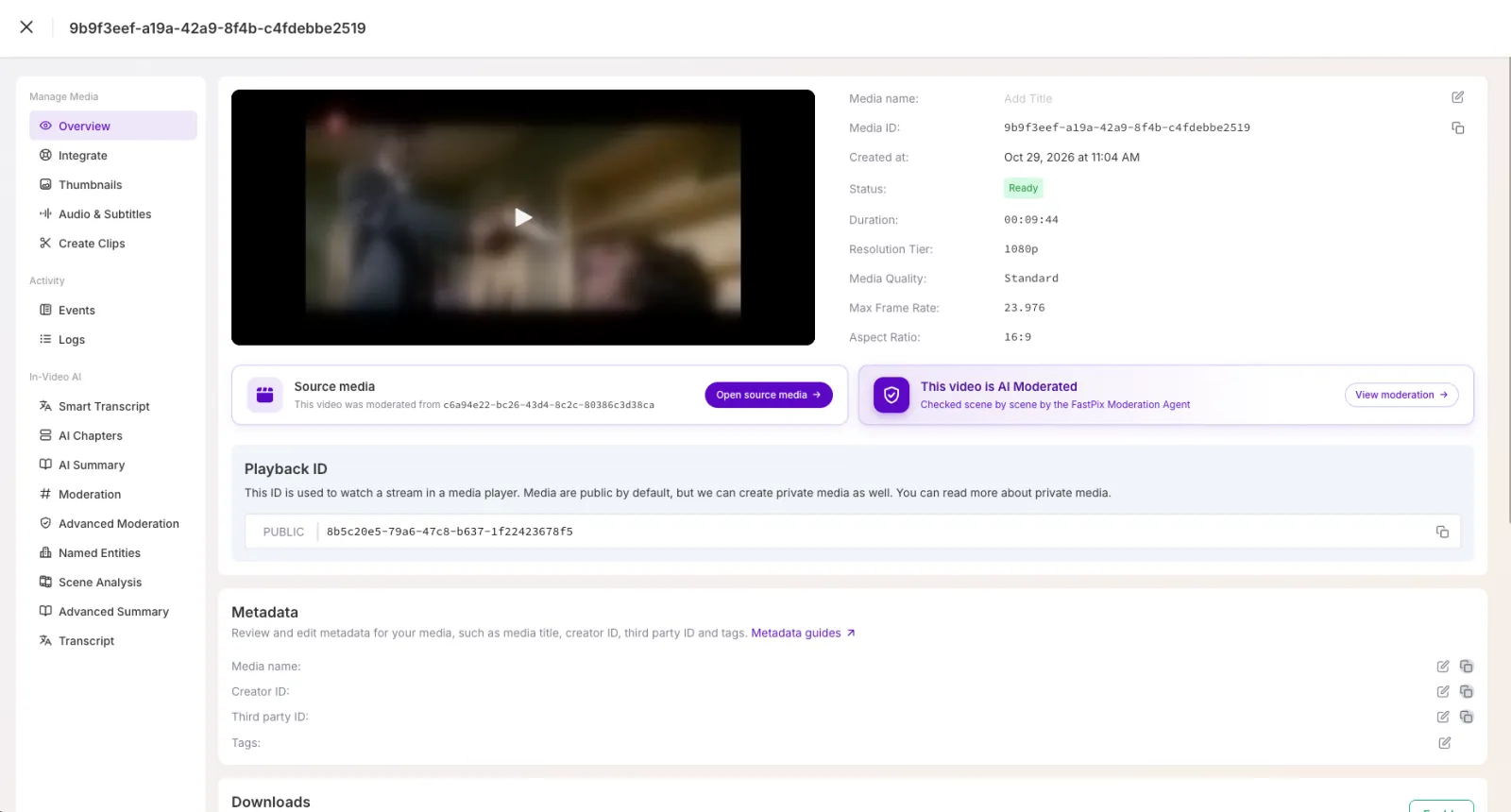
Each moderated video is saved as a new media asset in your library, separate from the original. You can find it under Video > Media and play, share, or manage it like any other media. Open it to see its Overview, where it is marked This video is AI Moderated and links back to the original:
- Open source media takes you to the original, unmoderated video.
- View moderation opens the scene-by-scene review described below.
Review the moderated media
Open the moderated media from the job’s Media results table, or from Video > Media, then select View moderation. The review screen has three parts.
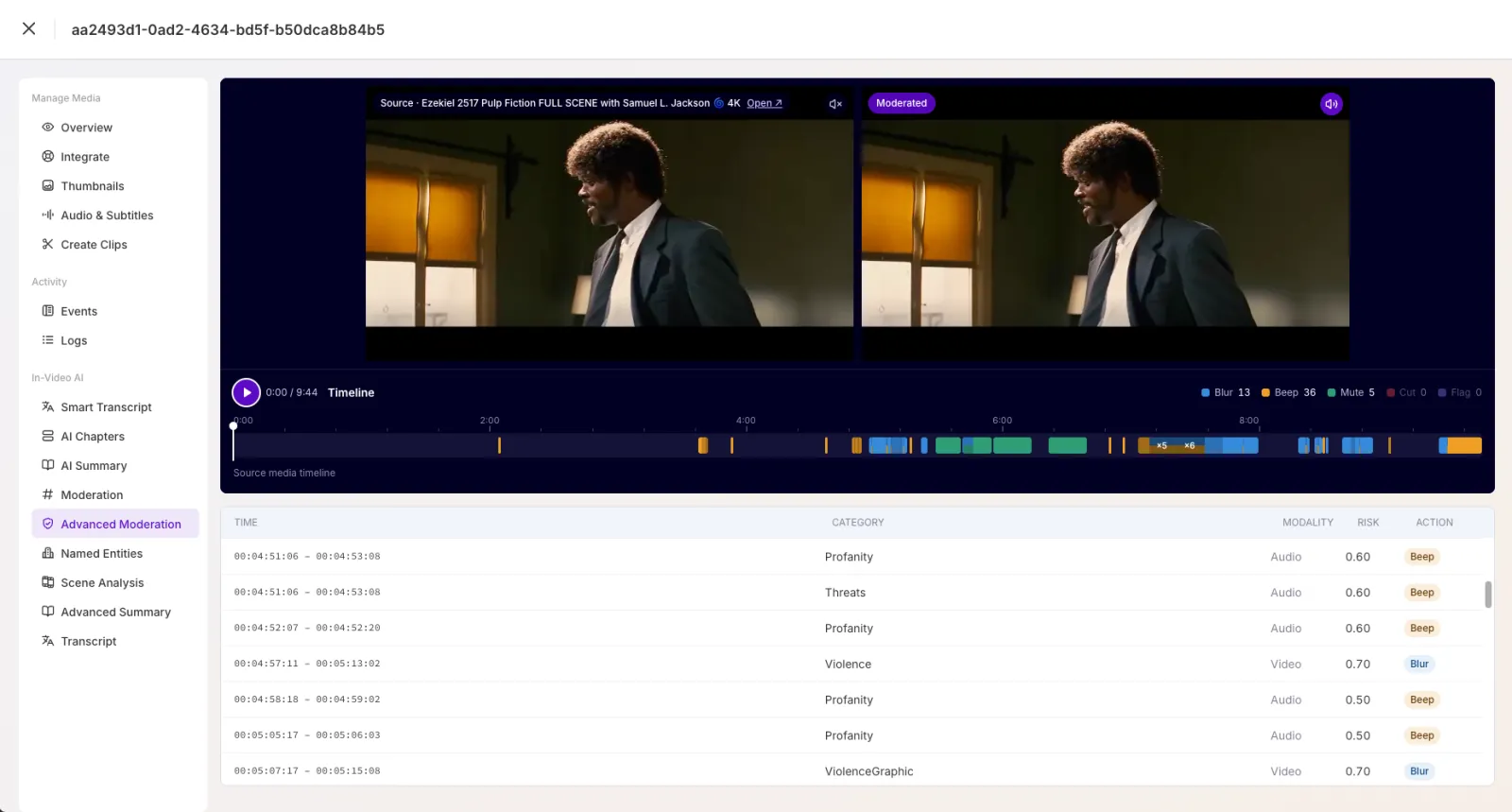
Two players at the top. The left player is your source media and the right player is the moderated media. Where a rule applies a visual action such as Blur, you see the effect on the right while the source stays untouched on the left.
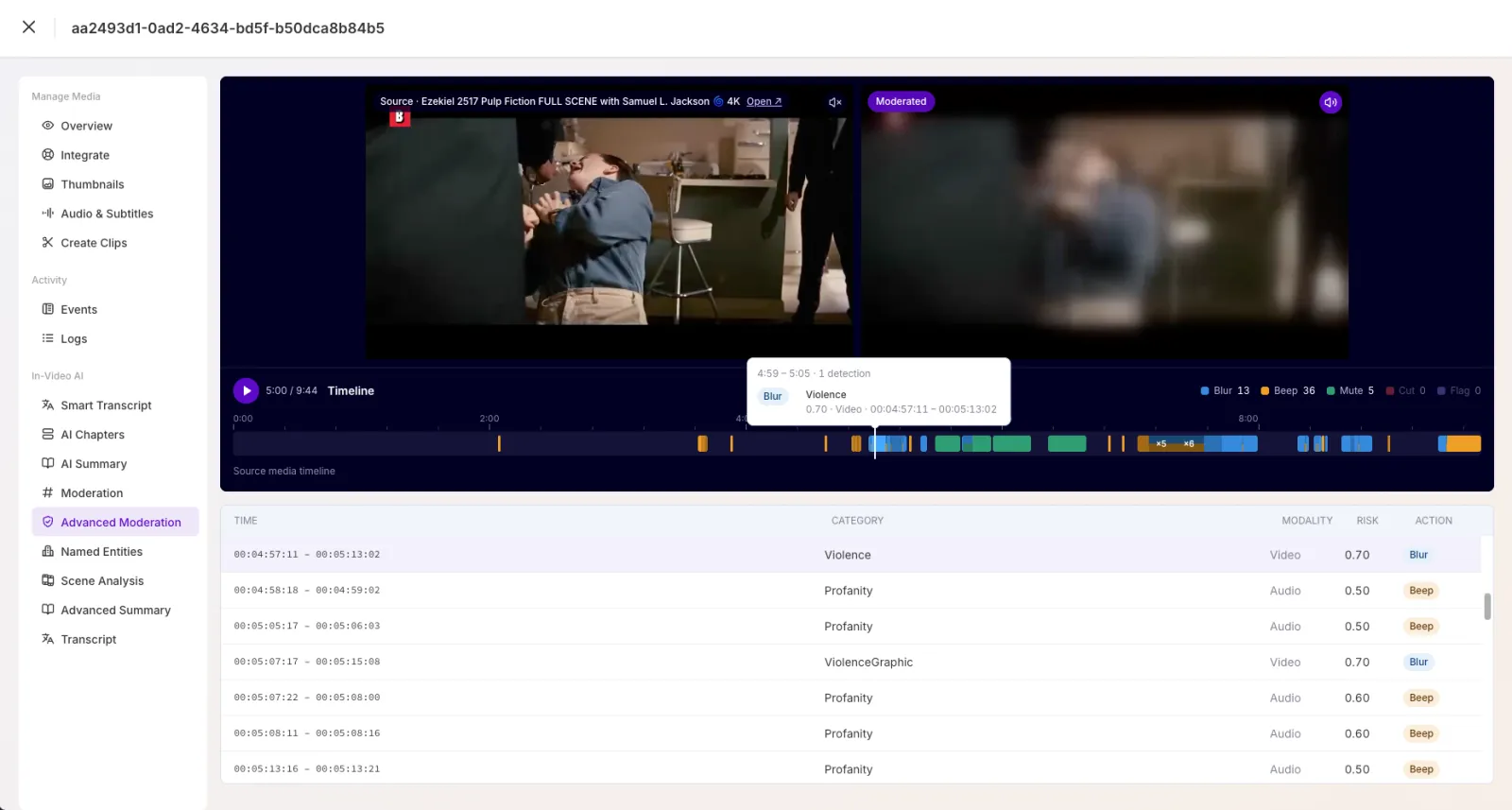
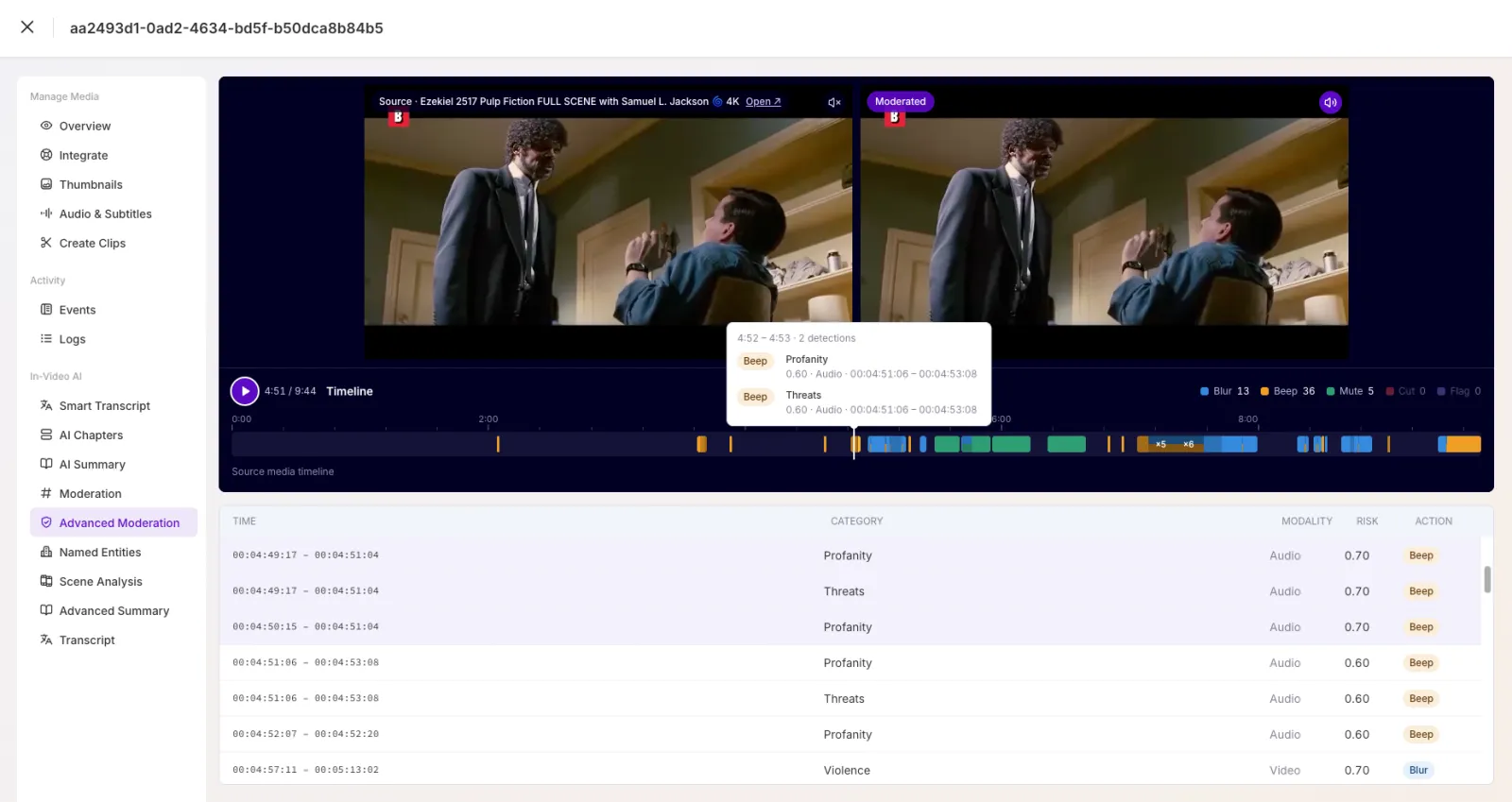
A timeline marks every flagged moment on the seek bar, color-coded by action, with a count for each action (Blur, Beep, Mute, Cut, Flag). Hover a marker to see the detection, its category, modality, risk score, and time range.
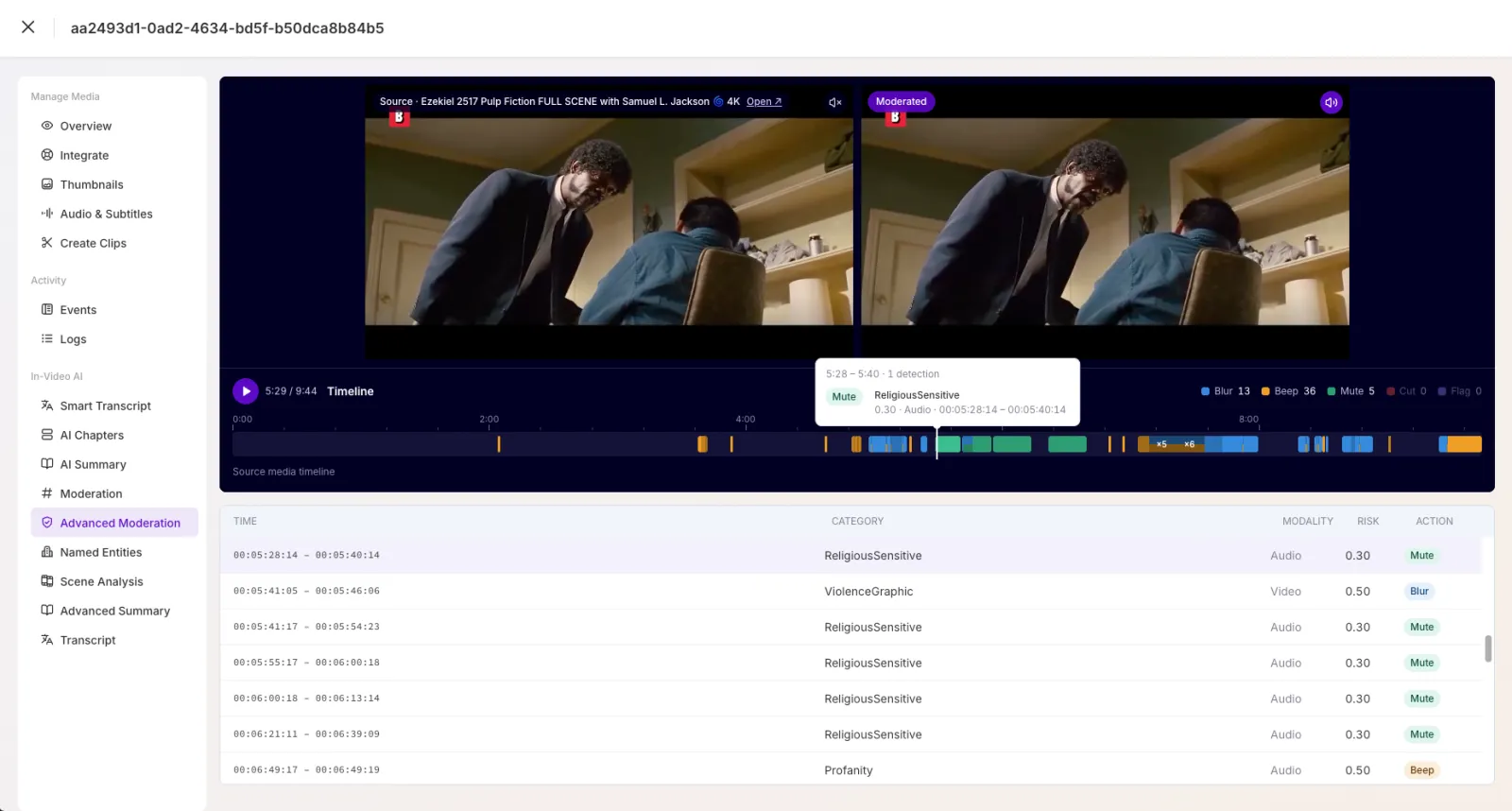
A table of flagged moments below the players lists every detection:
- Time: the start and end of the flagged moment.
- Category: what was detected, for example Violence or Profanity.
- Modality: whether it was found in the Video or the Audio.
- Risk: the detected risk score for that moment.
- Action: what FastPix did, based on your rule.
NOTE: A visual action such as Blur only appears on the moderated video if you set it in the rule. If a condition’s action is Flag, the moment is marked in the results but the video is left unchanged.
What’s next
- Create a moderation rule to adjust what you detect and how you act on it.
- Run a moderation job to moderate more videos.