

Create a moderation rule
A rule is where you set your moderation policy: what Advanced Moderation looks for in the video and audio, how strict to be, and what to do when it finds a match. You encode a use case in a rule, such as a family-safe library, brand-safe ads, or screening user-generated uploads, then reuse it across jobs. For the bigger picture, see the Advanced Moderation overview.
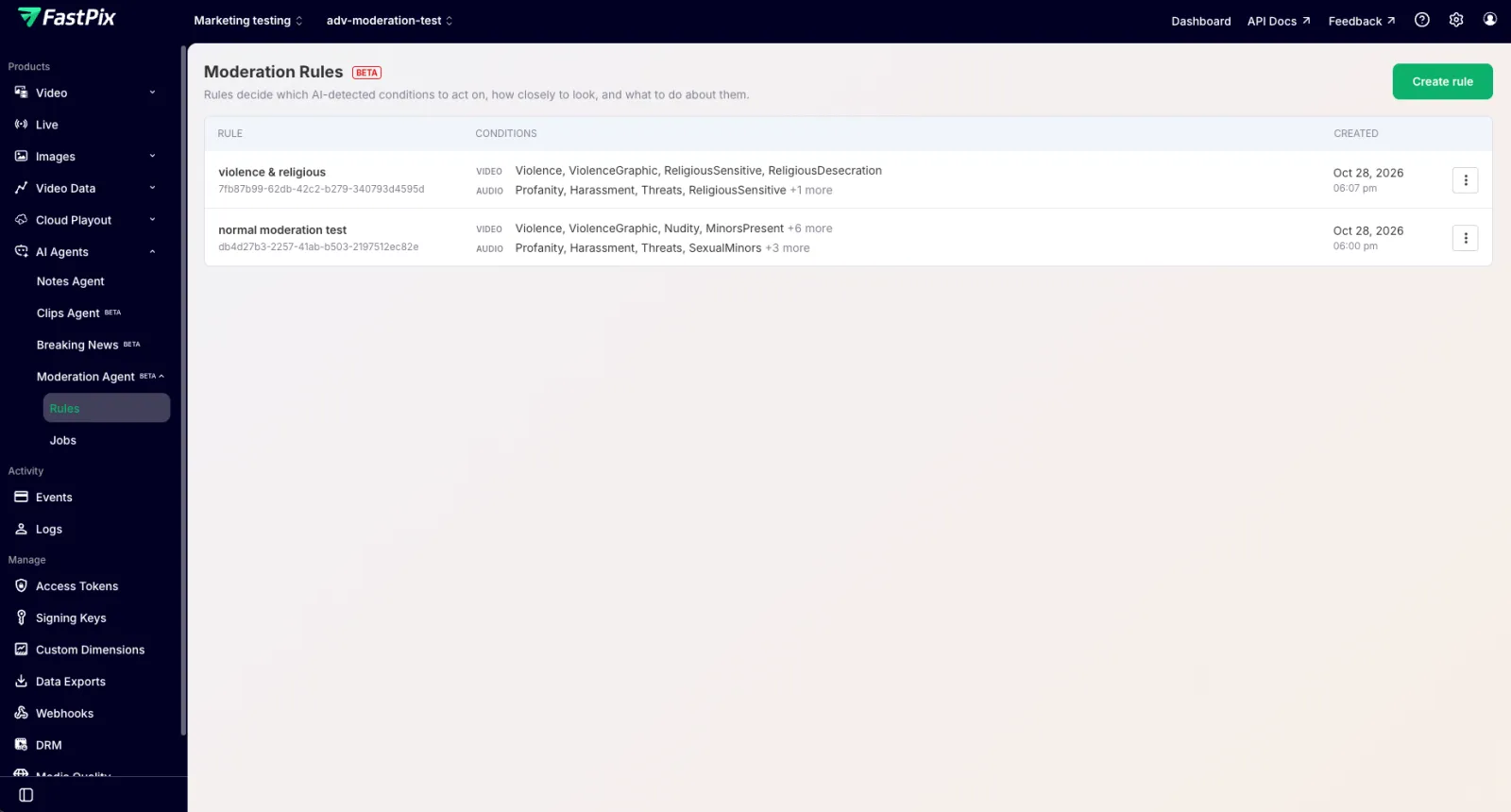
You create and manage rules in the dashboard under AI Agents > Moderation Agent > Rules.
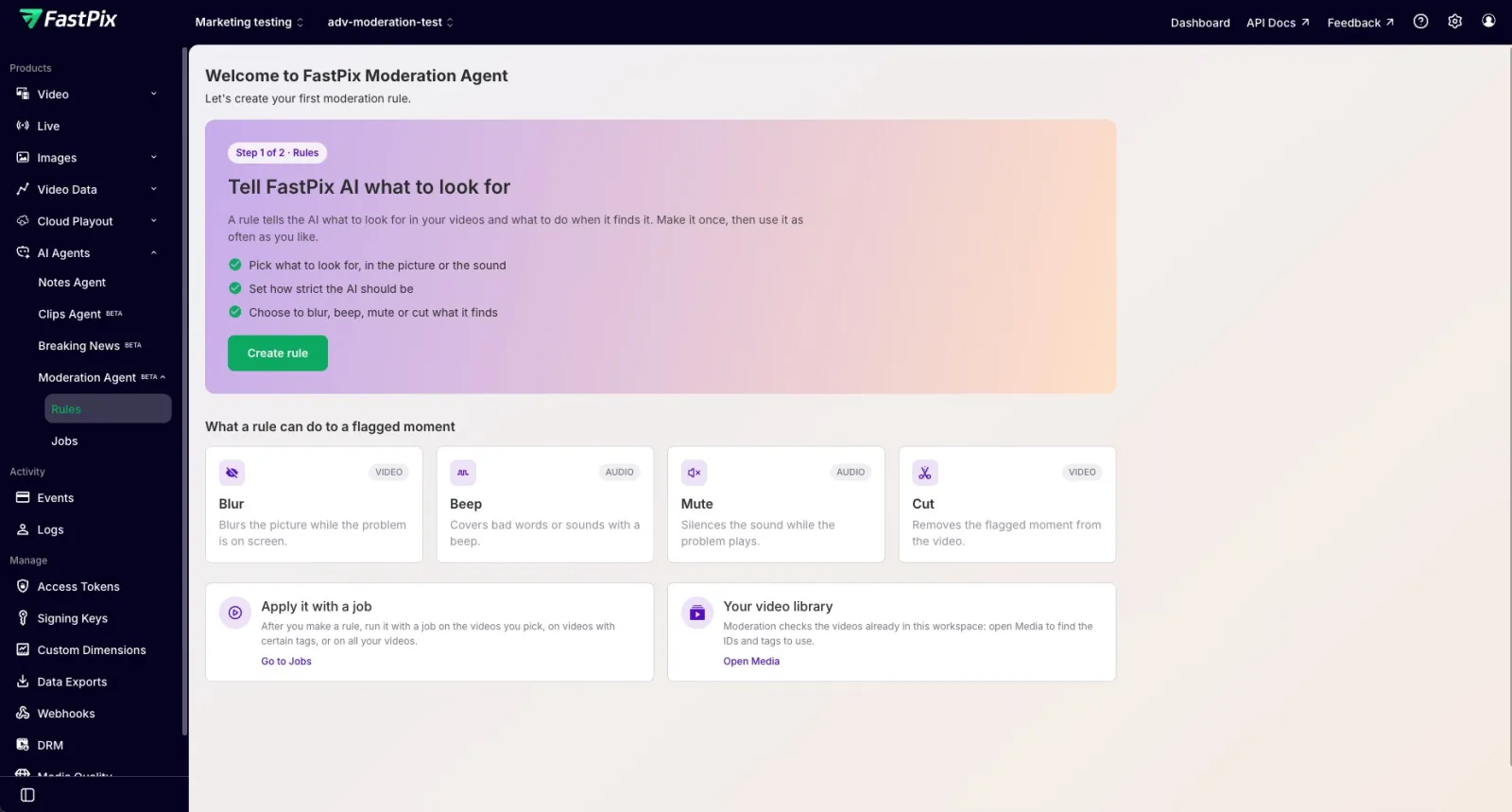
Create a rule
- In the dashboard, go to AI Agents > Moderation Agent > Rules, then click Create rule.
- Under Rule details, enter a Rule name you will recognize when you pick it for a job, for example
Family-safe library.
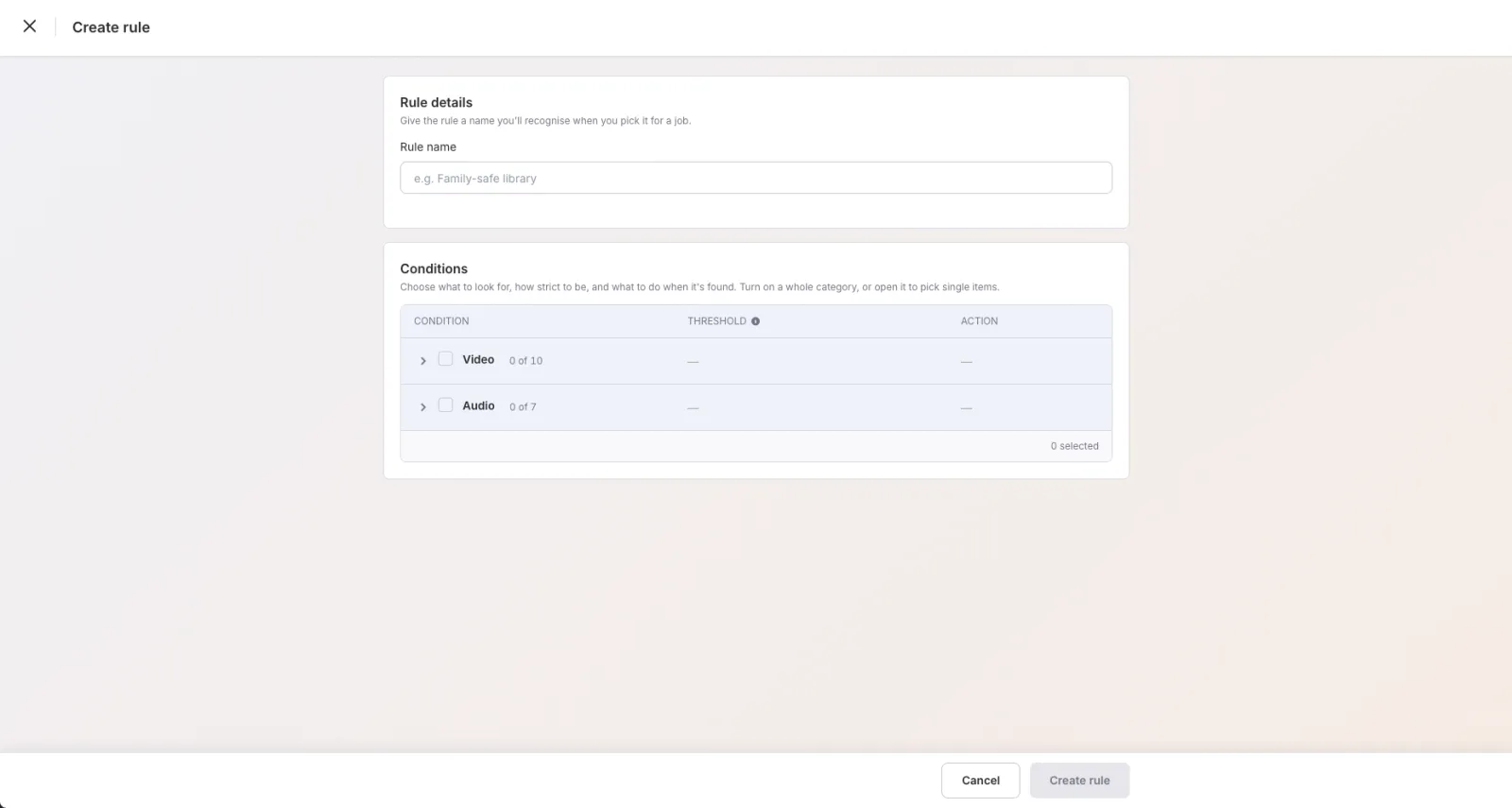
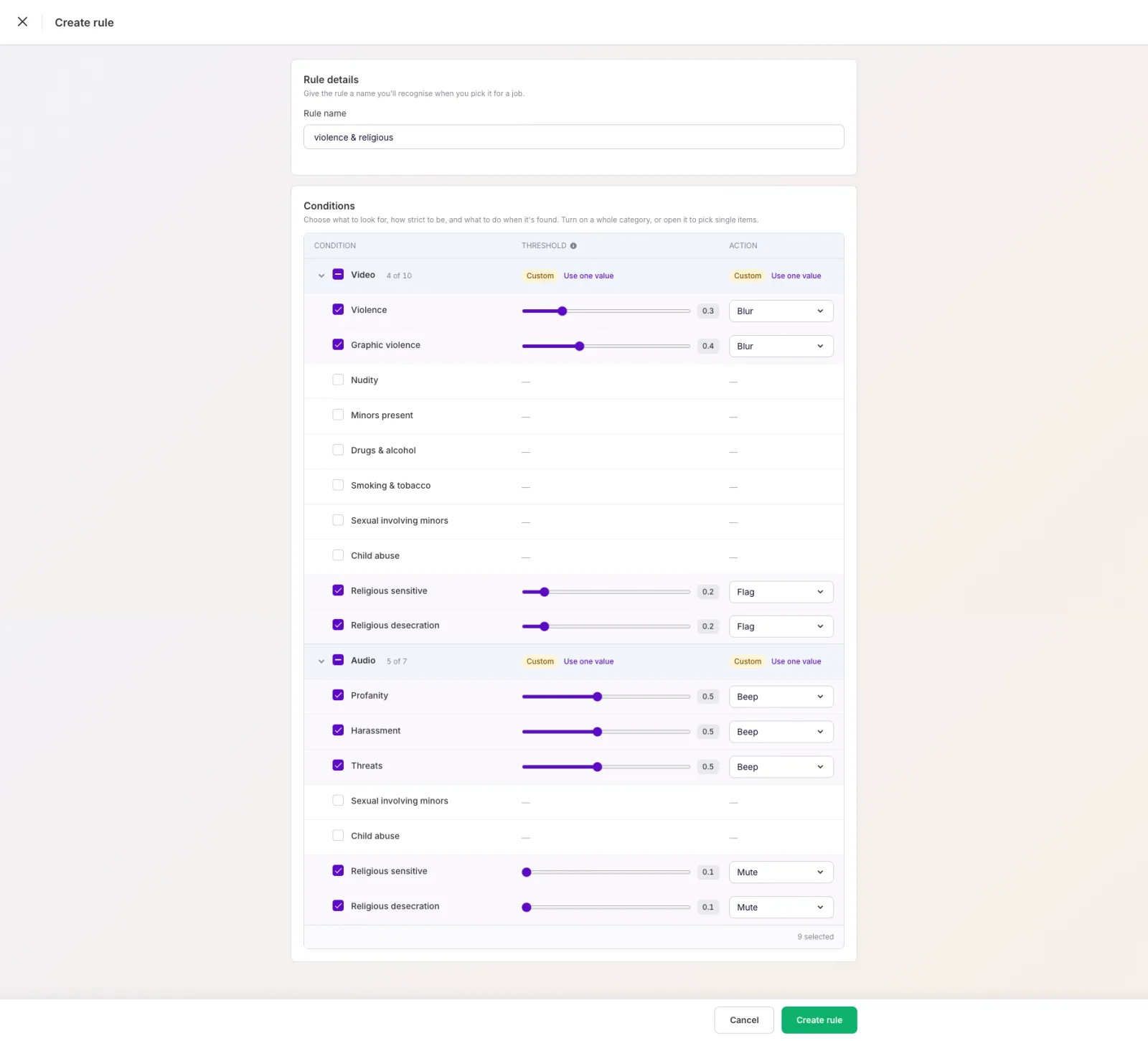
- Under Conditions, choose what to look for. Turn on a whole category, or expand it to pick individual items. Each condition has a threshold and an action.
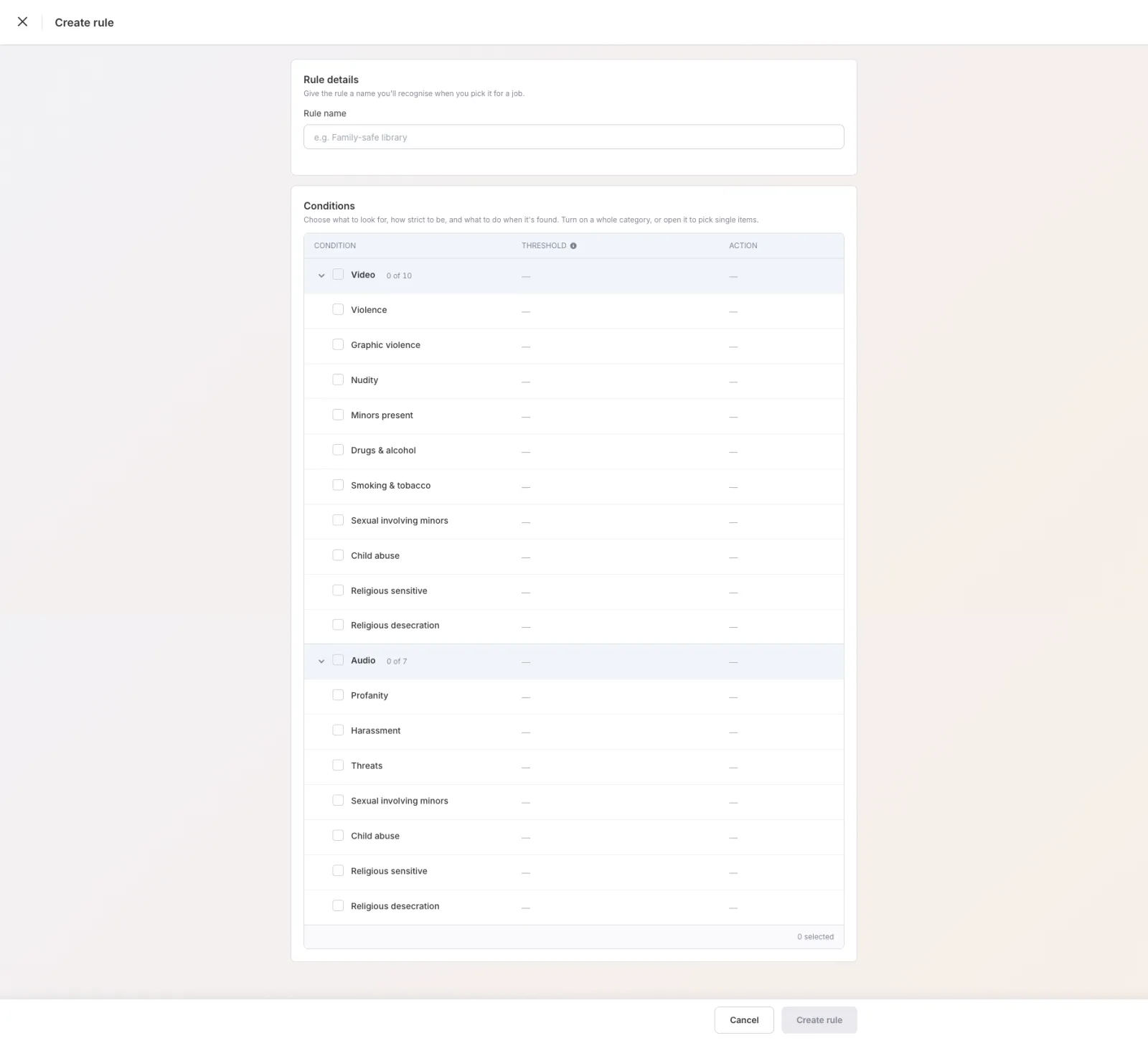
What you can detect
FastPix moderates two kinds of content:
- Video conditions: Violence, Graphic violence, Nudity, Minors present, Drugs & alcohol, Smoking & tobacco, Sexual involving minors, Child abuse, Religious sensitive, Religious desecration.
- Audio conditions: Profanity, Harassment, Threats, Sexual involving minors, Child abuse, Religious sensitive, Religious desecration.
Set the threshold
Each condition has a threshold from 0.1 to 1.0 that controls how sensitive the detection is. FastPix acts on a moment when its risk score reaches the threshold, so a lower value flags more moments (more sensitive) and a higher value flags only higher-risk, clear-cut moments. Tune it per condition to balance catching everything against false positives. You can set one value for a whole category, or a different value for each item.
Choose an action
For each condition, choose what FastPix does when it finds a match:
- Blur (video): blurs the picture while the flagged moment is on screen.
- Beep (audio): covers the flagged words or sounds with a beep.
- Mute (audio): silences the audio while the flagged moment plays.
- Cut (video): removes the flagged moment from the video.
- Flag: marks the moment in the results without changing the video.
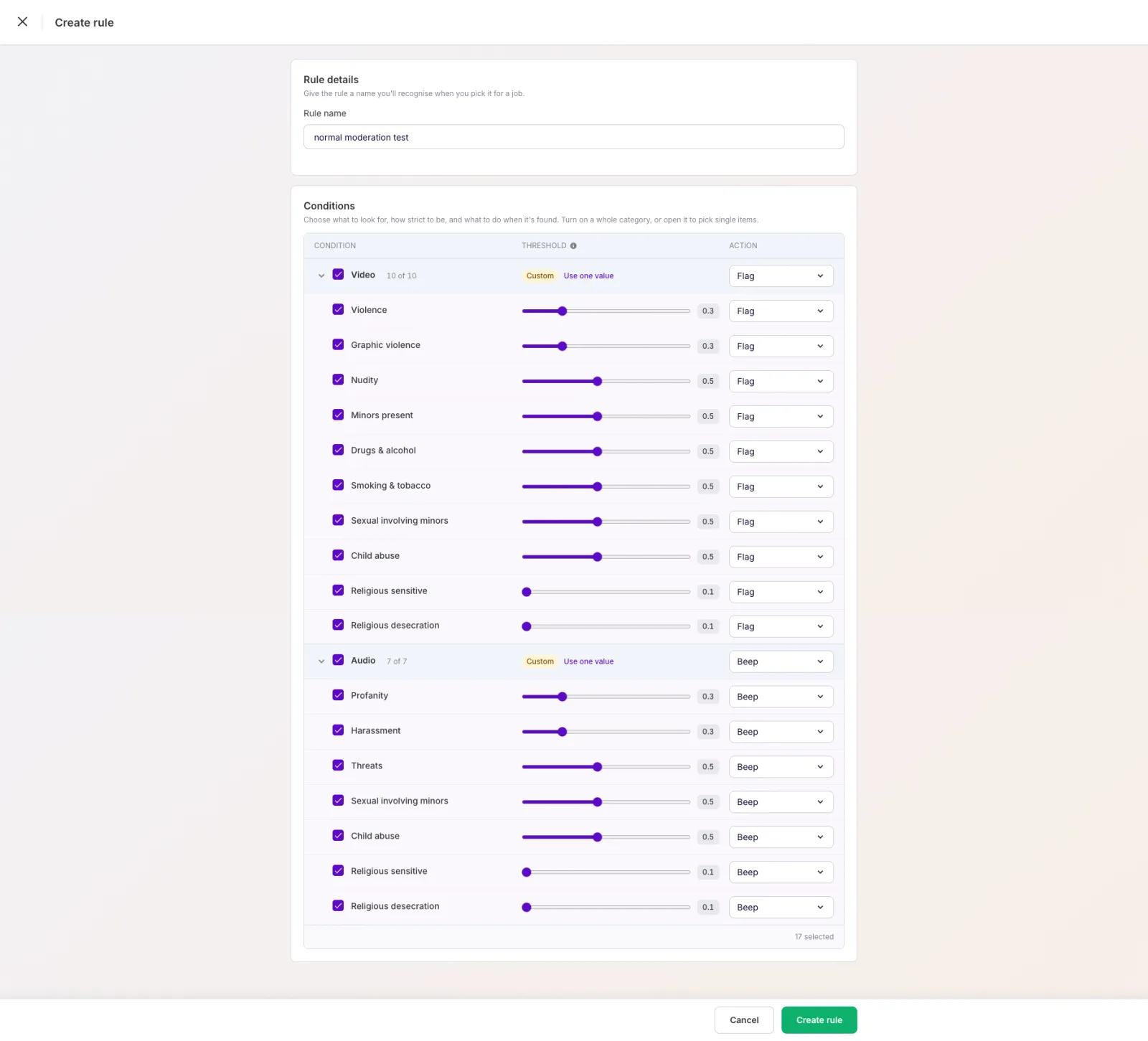
- Click Create rule. Your rule appears in the Rules list, ready to use in a job.
NOTE: You can create multiple rules for different needs. For example, one rule that blurs violence and mutes religious-sensitive audio, and another that beeps all profanity. You pick which rule to apply when you create a job.
Frequently asked questions
What is the difference between Advanced Moderation and content moderation?
Content moderation detects and flags sensitive content so you can decide what to do with it. Advanced Moderation goes further: it acts on the flagged moments automatically, blurring the video, beeping or muting the audio, or cutting the moment out, and produces a moderated copy of the video alongside the original.
What does the threshold do?
The threshold (0.1 to 1.0) sets how sensitive a condition is. FastPix acts on a moment when its risk score reaches the threshold, so a lower value flags more moments and a higher value flags only the most clear-cut ones.
Can one rule handle both video and audio?
Yes. A single rule can include video conditions (such as violence or nudity) and audio conditions (such as profanity or threats), each with its own threshold and action.
What’s next
- Run a moderation job to apply this rule to your videos.
- Review moderated media to see what was flagged and compare the moderated copy with your original.