

AI scene analysis
Detect scenes and shot changes in a video with FastPix Scene Analysis. Generate timecoded scene segments with AI-written descriptions from the dashboard or the In-Video AI API.
Scene Analysis is a FastPix In-Video AI feature that parses a video into its individual shots and scene transitions. It returns a chronological breakdown of the video’s visual composition, with the start time, end time, and an AI-written description of each distinct scene.
Use Scene Analysis to:
- Build interactive video navigation and chapter overlays based on visual changes.
- Generate a video index so search systems can jump directly to a specific scene.
- Analyze video structure for editing, auditing, and content classification.
Note: You can generate AI features only for existing media. Upload and process your video first, then generate scene analysis on the ready media.
Before you begin
Make sure you have the following:
- A FastPix account with an active workspace. See Activate your account.
- A ready video asset in your workspace.
- To use the API, your Access Token ID and Secret Key, the media’s
mediaId, and a webhook endpoint if you plan to consume thevideo.media.ai.scene_analysis.readyevent. See get your Access Token ID and Secret Key and Set up webhooks.
How scene analysis works
Scene analysis runs asynchronously on a ready video. You can start it from the FastPix dashboard or with the API. When it finishes, the dashboard shows the scenes on a timeline and as shot descriptions, and the API delivers them through a webhook and a GET request.
Generate scene analysis from the dashboard
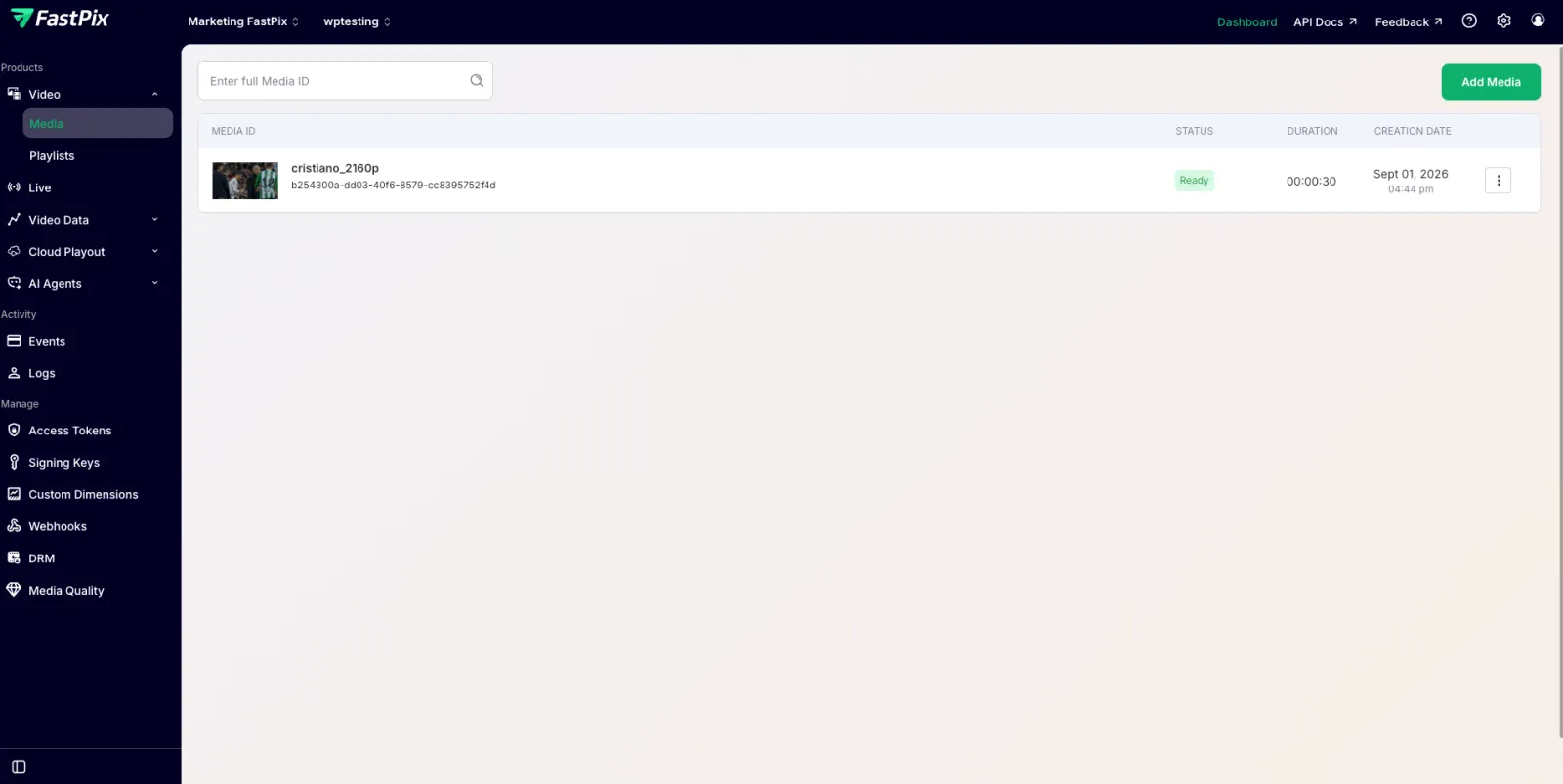
- In the FastPix dashboard, open Video > Media and select the video you want to analyze.
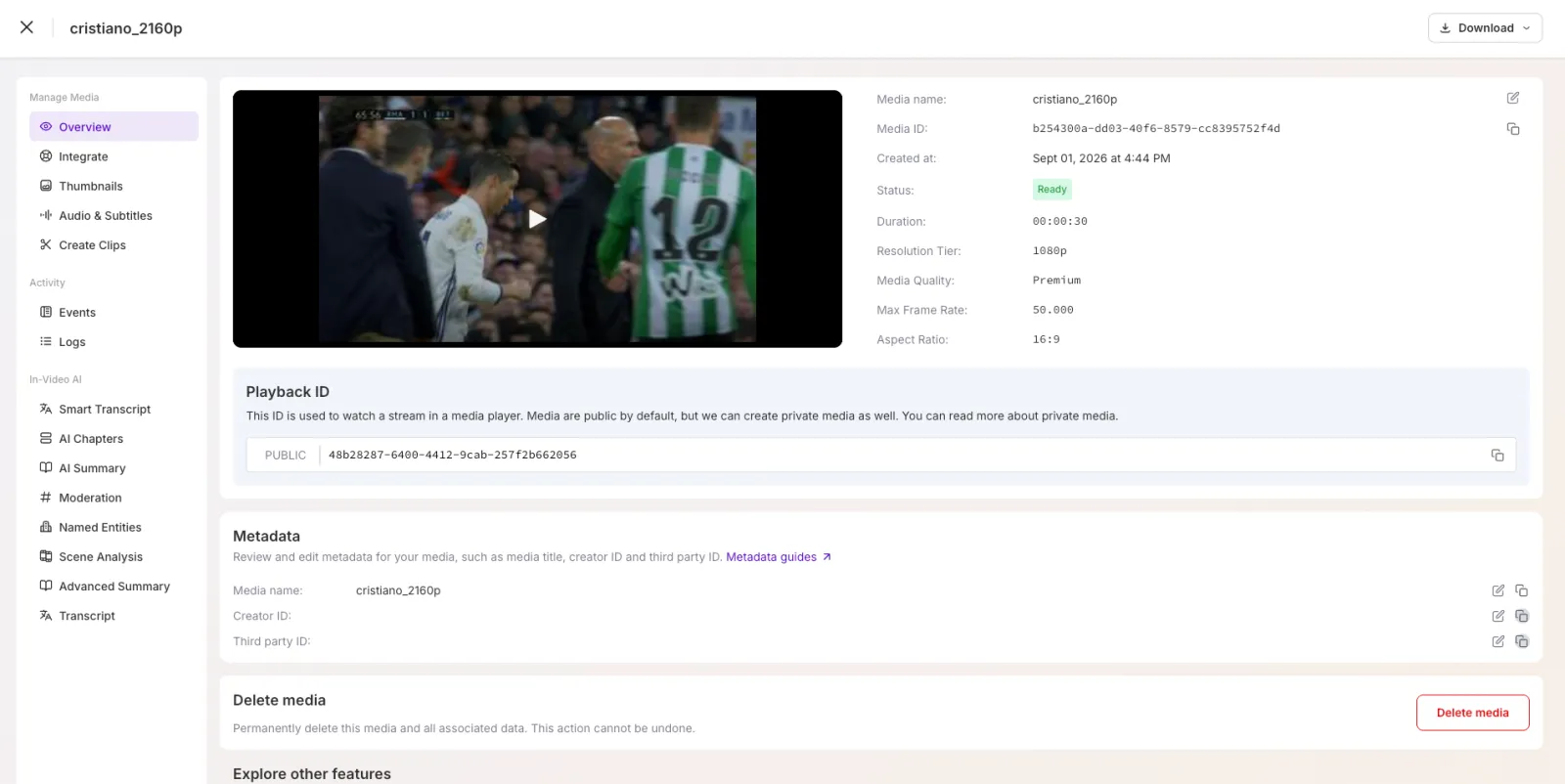
- In the media’s left navigation, under In-Video AI, select Scene Analysis.
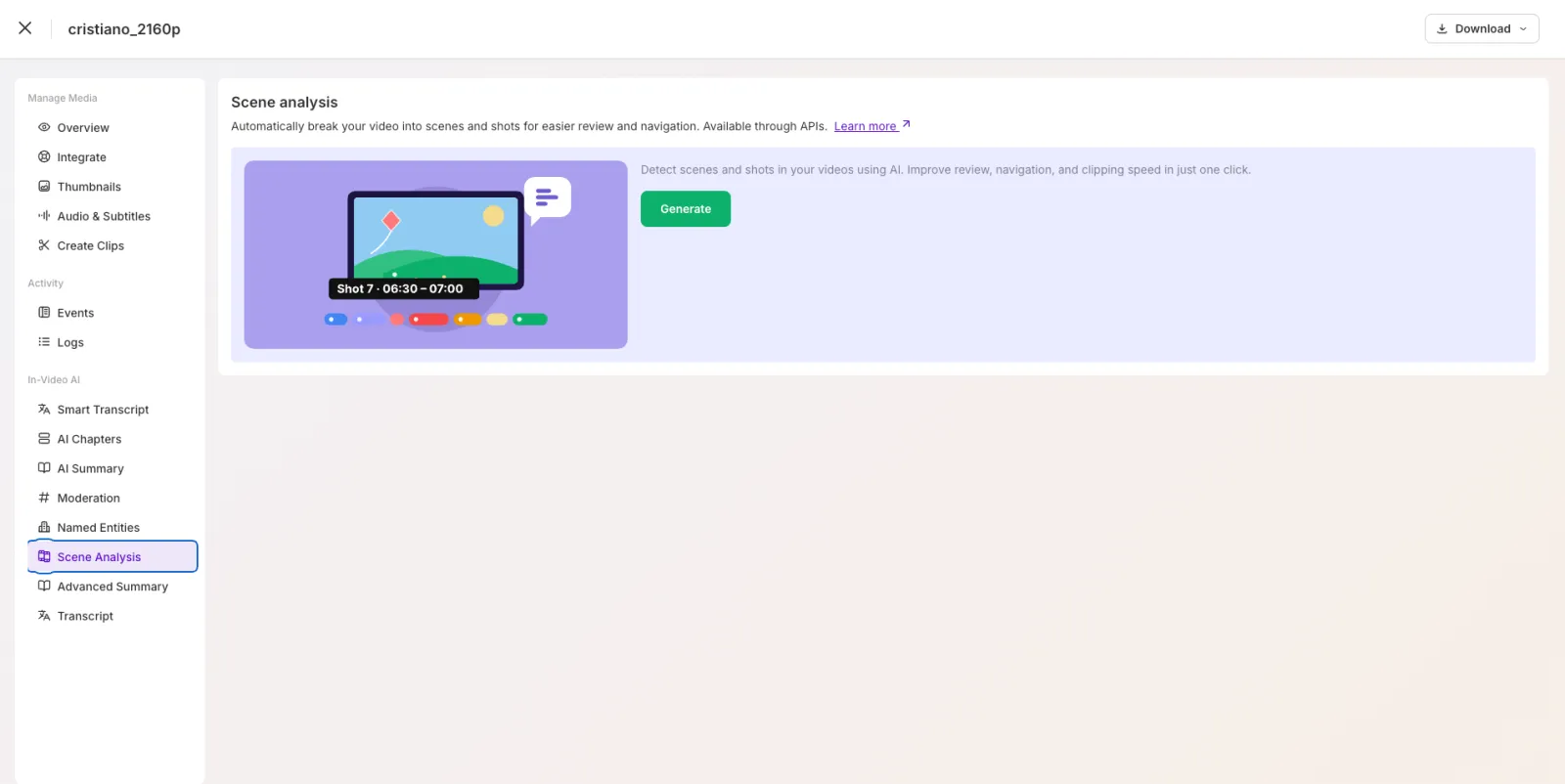
- Select Generate.
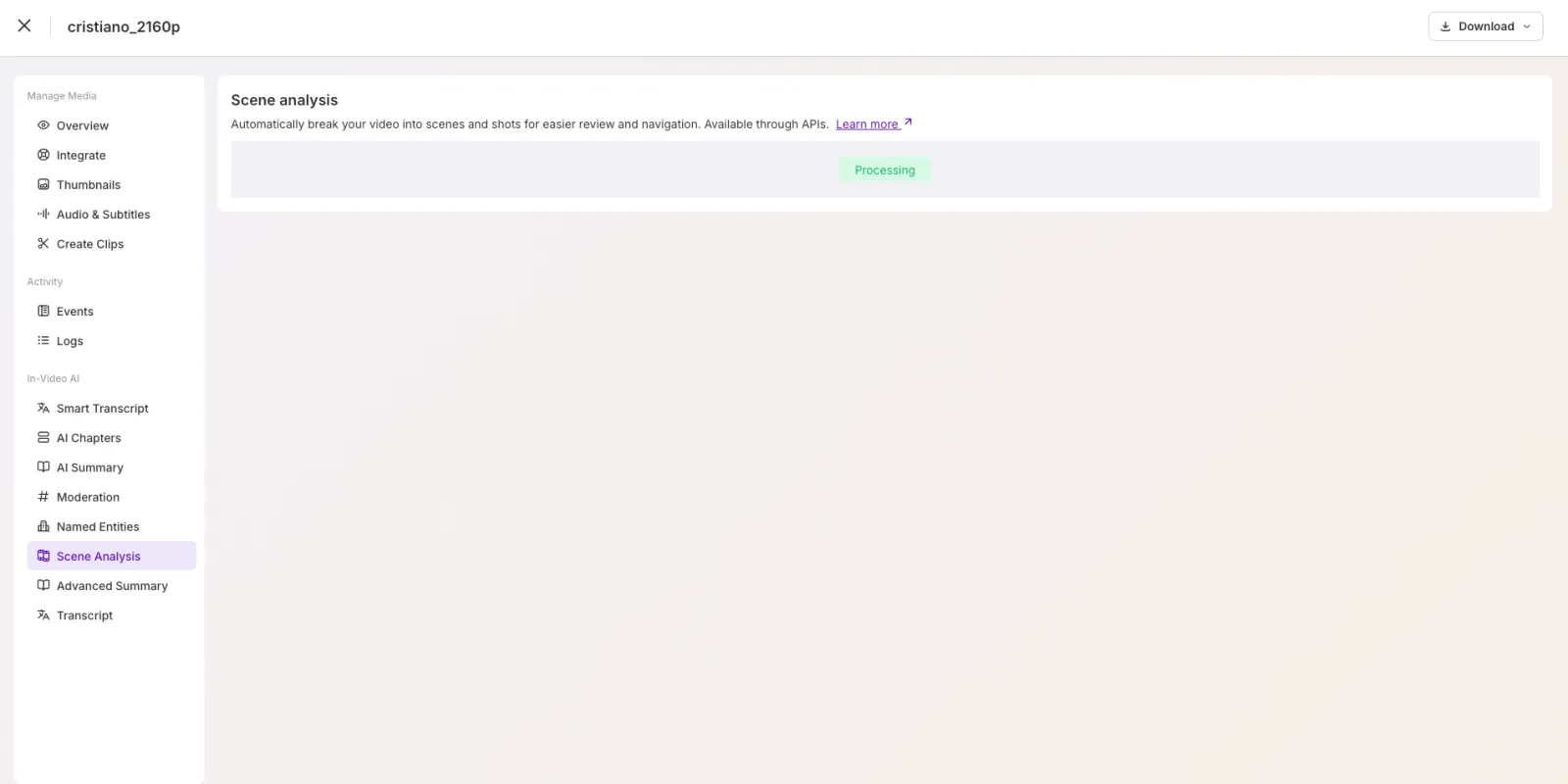
The status shows Processing while FastPix analyzes the video. When it’s done, the results appear on the same page.
View the results
The results have two tabs:
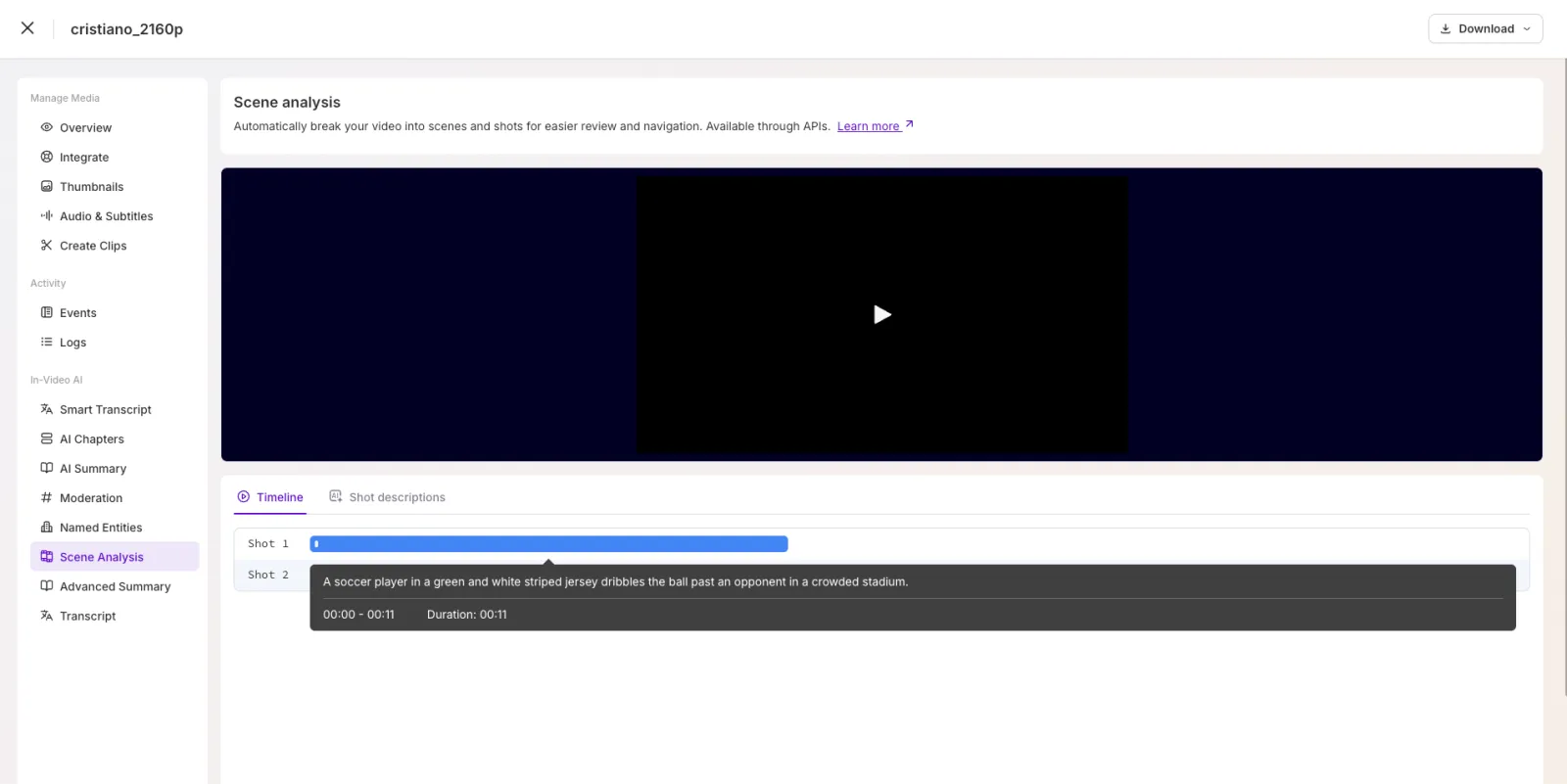
- Timeline: plays the video above a timeline of detected shots (Shot 1, Shot 2, and so on). Hover a shot to see its description, time range, and duration.
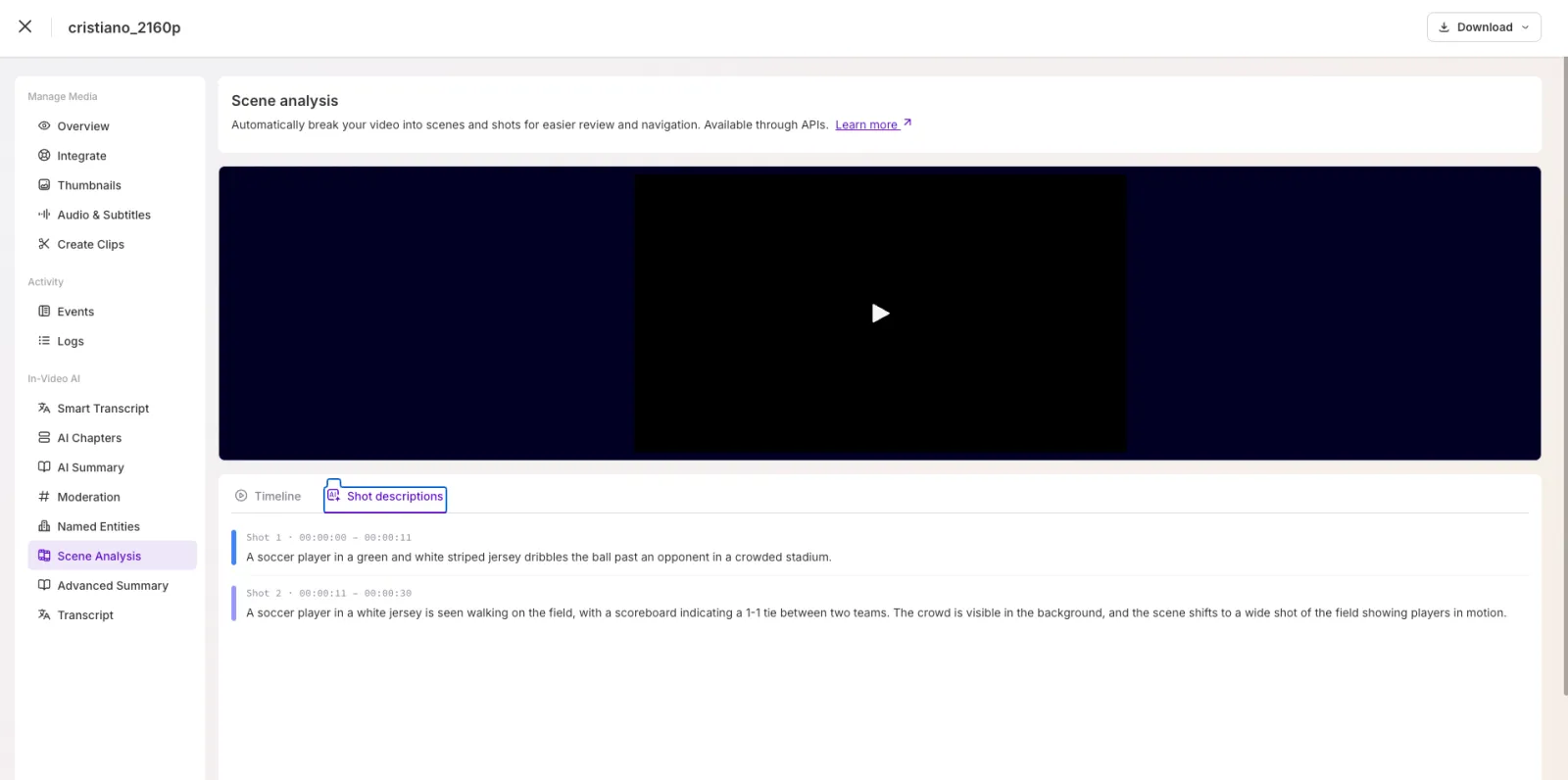
- Shot descriptions: lists each shot with its time range and AI-written description, for example “Shot 1 · 00:00:00 to 00:00:11”.
Generate scene analysis with the API
You can also trigger scene analysis and retrieve the detected scenes programmatically with the In-Video AI API. For the endpoints, request and response schemas, and the video.media.ai.scene_analysis.ready webhook, see the API reference: Generate AI scene analysis and Get scene analysis.
Frequently asked questions
What is scene analysis?
Scene analysis (scene detection) parses a video into its individual shots and scene transitions. For each scene, FastPix returns the start time, end time, and an AI-written description of what’s on screen.
Do I need to write code to run scene analysis?
No. You can generate scene analysis from the dashboard under In-Video AI > Scene Analysis for any ready video, and view the shots on a timeline. The API is there when you want to automate the same workflow.
How do I know when scene analysis is finished?
Scene analysis runs asynchronously. In the dashboard, the status moves from Processing to the results view. With the API, FastPix sends the video.media.ai.scene_analysis.ready webhook when the job completes. See Get scene analysis for details.
What does a scene segment contain?
Each segment has a startTime and endTime in seconds and a description. The times let you place chapter markers or seek directly to a scene, and the description supports search and classification.
What job statuses can scene analysis return?
A job is PENDING, PROCESSING, COMPLETED, or FAILED. The result.scenes list is present only when the status is COMPLETED.
What's the difference between scene analysis and video chapters?
Scene analysis detects visual shot changes and describes each one, which is useful for indexing and structural analysis. Chapters group a video into titled, navigable sections for viewers. See Generate video chapters.
What’s next
- Generate video chapters to turn a video into titled, navigable sections.
- Generate a video summary for a concise text abstract of a video.
- In-Video AI overview for the full set of AI features.