

Generate a video summary
Use FastPix to generate AI-powered summaries that produce concise abstracts and key insights from new or existing videos.
Viewers skip videos when they cannot tell what the content covers, and search engines struggle to rank pages with no text description of the media. FastPix solves this by generating an AI-written summary through its multimodal in-video AI pipeline, producing a concise abstract that improves discoverability and helps viewers decide whether to watch. You can generate a summary from the FastPix dashboard or with the In-Video AI API.
Note: You can generate AI features only for existing media. Upload and process your video first, then generate a summary on the ready media.
Prerequisites
- A FastPix account with an active workspace (Activate your account)
- A ready video asset in your workspace
Key concepts
- A
mediaIdis the unique identifier FastPix assigns to every uploaded asset. - FastPix runs summarization asynchronously on a ready media and signals completion rather than blocking the request.
Generate a summary from the dashboard
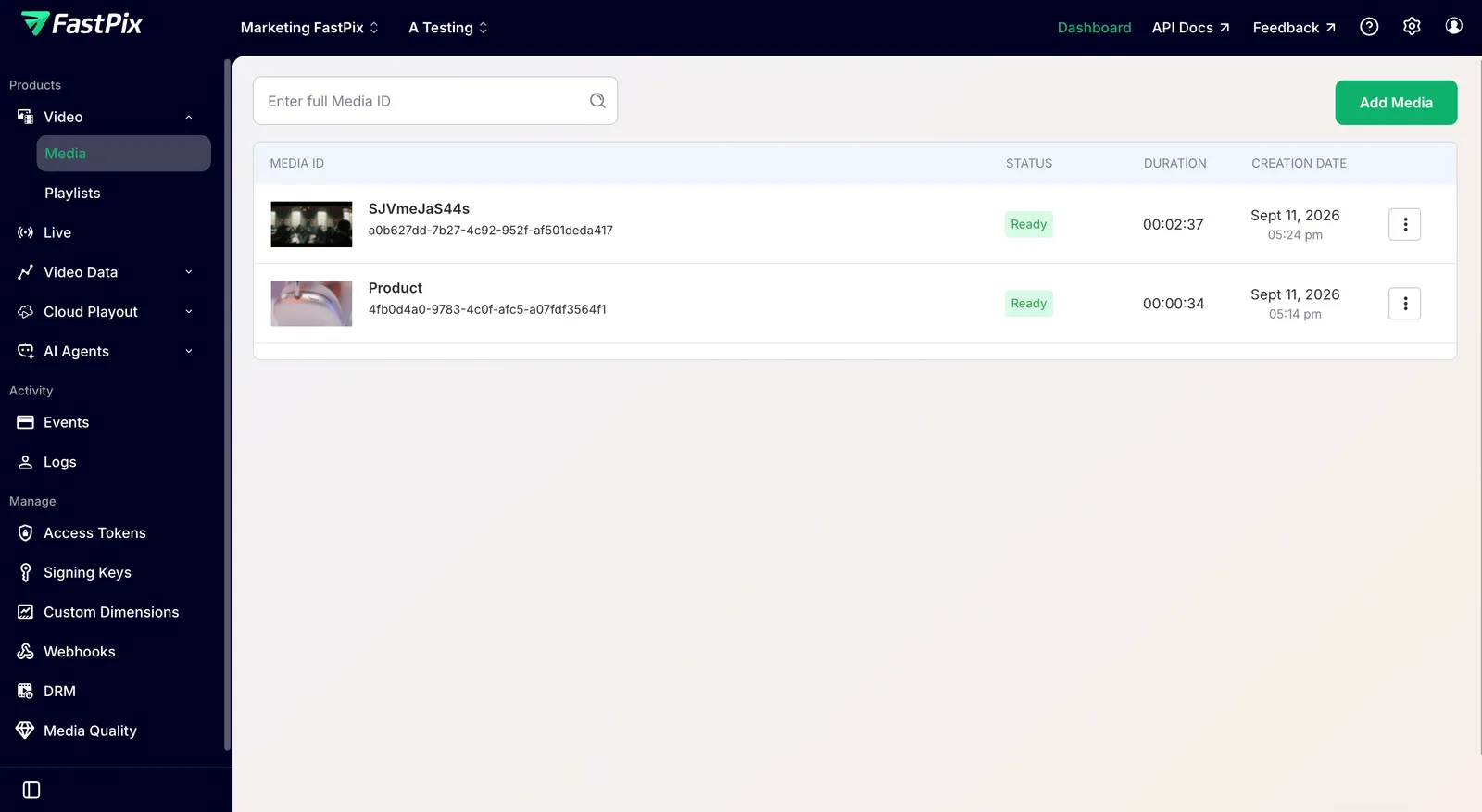
- In the FastPix dashboard, go to Video > Media and select the video you want to summarize.
- On the Media details page, open the InVideo AI tab and click AI Summary.
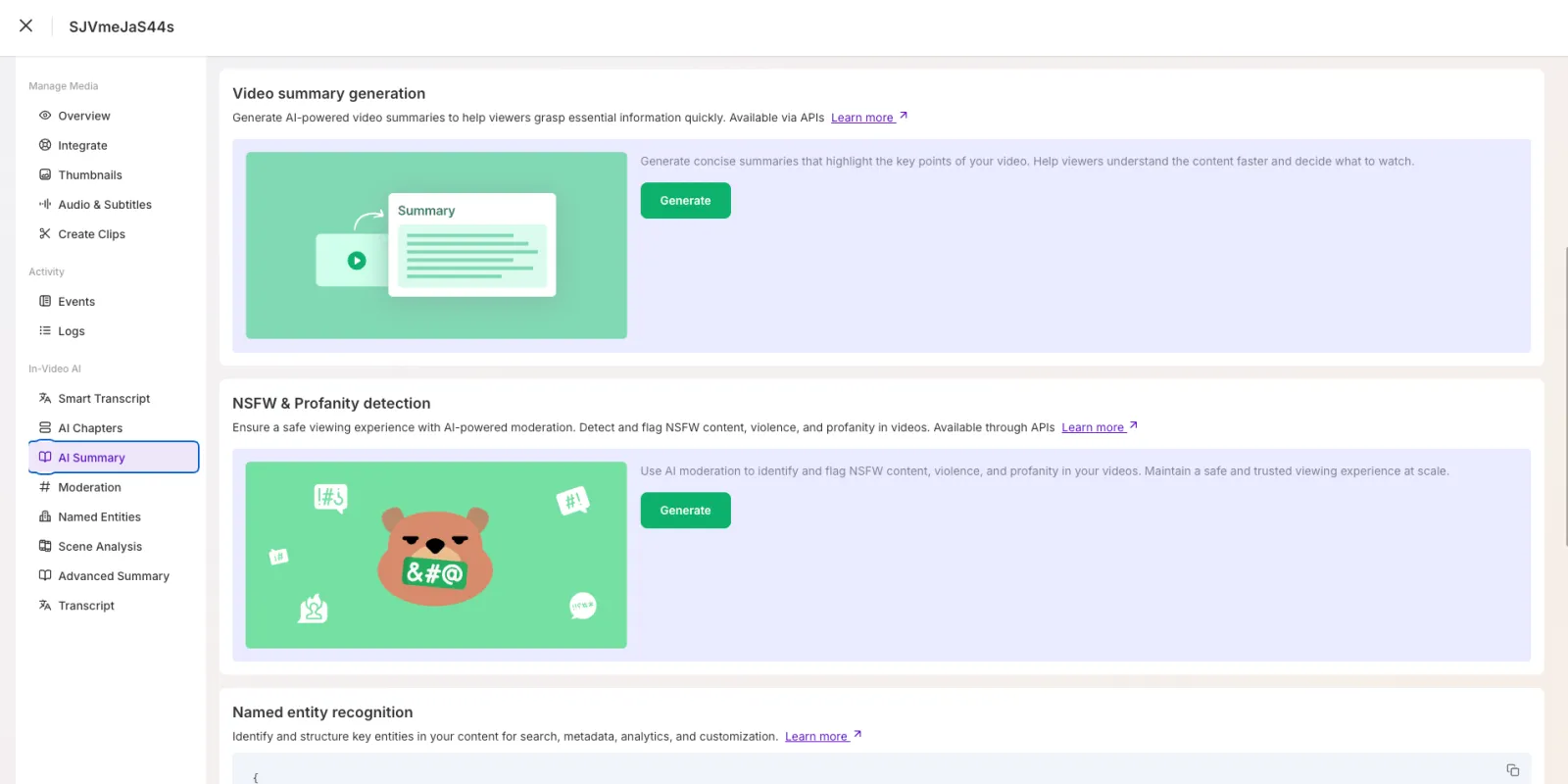
- Click Generate to start the analysis.
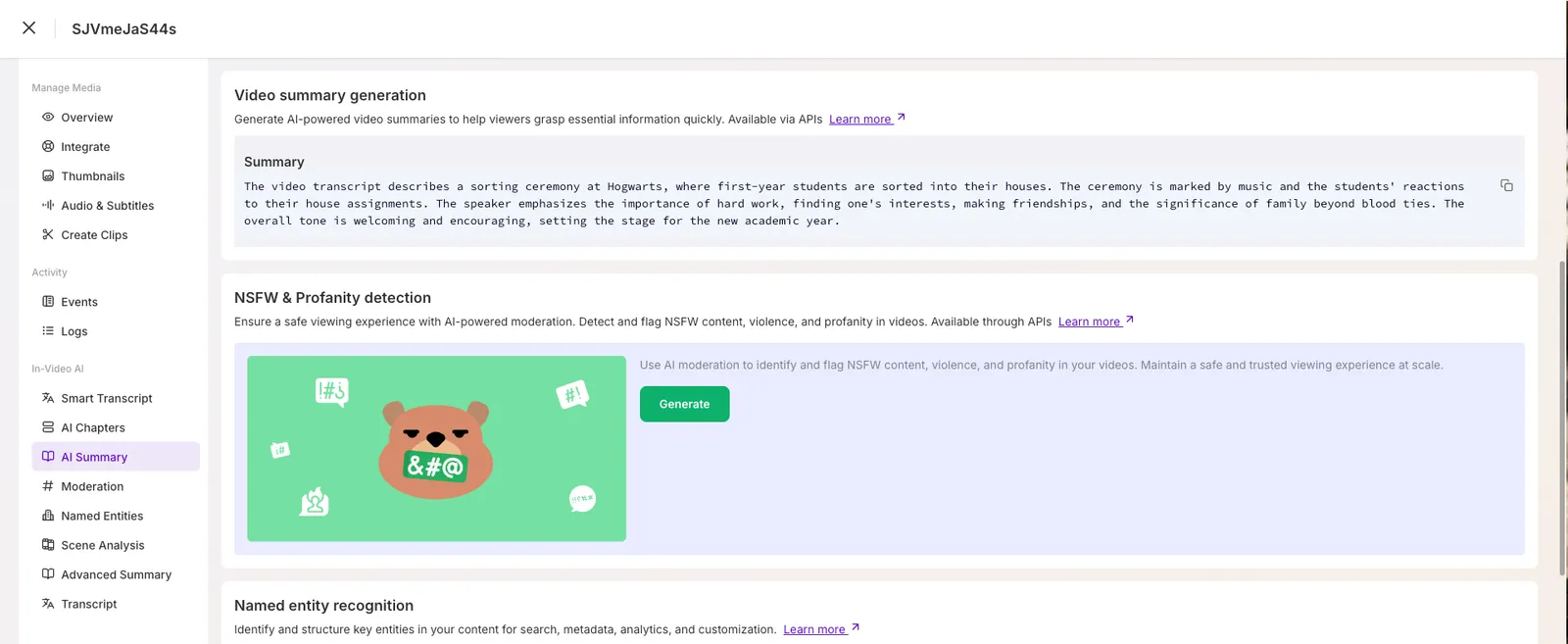
FastPix analyzes your video and creates a summary based on its content. When the summary is ready, you can view it in the Summary section of the dashboard.
Generate a summary with the API
You can also generate a summary and fetch the abstract programmatically with the In-Video AI API. For the endpoints, request and response schemas, and the video.media.ai.summary.ready webhook, see the API reference: Generate video summary and Get video summary.
Limits and considerations
- Summary generation runs on a ready video, so wait until the media has finished processing before you generate a summary.
- The summary is generated in the dominant spoken language detected in the source audio. If a video has no intelligible speech, the abstract may be empty or generic.
Use cases for video summaries
- E-learning platforms: generate overviews of course modules.
- Corporate training: capture key takeaways from training sessions.
- Marketing teams: extract highlights from webinars and product demos.
- Content review: assess the value of user-generated content at a glance.
Frequently asked questions
How long does FastPix take to generate a video summary?
Summarization runs after transcoding completes, so total time depends on source duration and processing load. The dashboard shows a Processing state until the summary is ready.
Can I regenerate the summary on an existing asset?
Yes. Open the media in the dashboard, go to AI Summary under In-Video AI, and click Generate again to produce a fresh abstract.
Does FastPix support timestamped summaries or chapter markers?
The summary is a single prose abstract. For timestamped segmentation, use the video chapters feature, which produces chapter boundaries with titles and timecodes.
What language does the generated summary use?
FastPix generates the summary in the dominant spoken language detected in the source audio. If your asset mixes languages, the abstract follows the language with the most speaking time.