

Getting started with moderation
This guide covers both ways to moderate a ready media asset, in the FastPix dashboard and with the API, and how to read the response so you can allow, review, or block the content. For what moderation detects and how the scores work, see Content moderation.
Note: You can generate AI features only for existing media. Upload and process your video first, then run moderation on the ready media.
Prerequisites
- A FastPix account with an active workspace (Activate your account)
- A ready video asset in your workspace
- Your Access Token ID and Secret Key if you use the API
Run content moderation from the FastPix dashboard
To run moderation without calling the API:
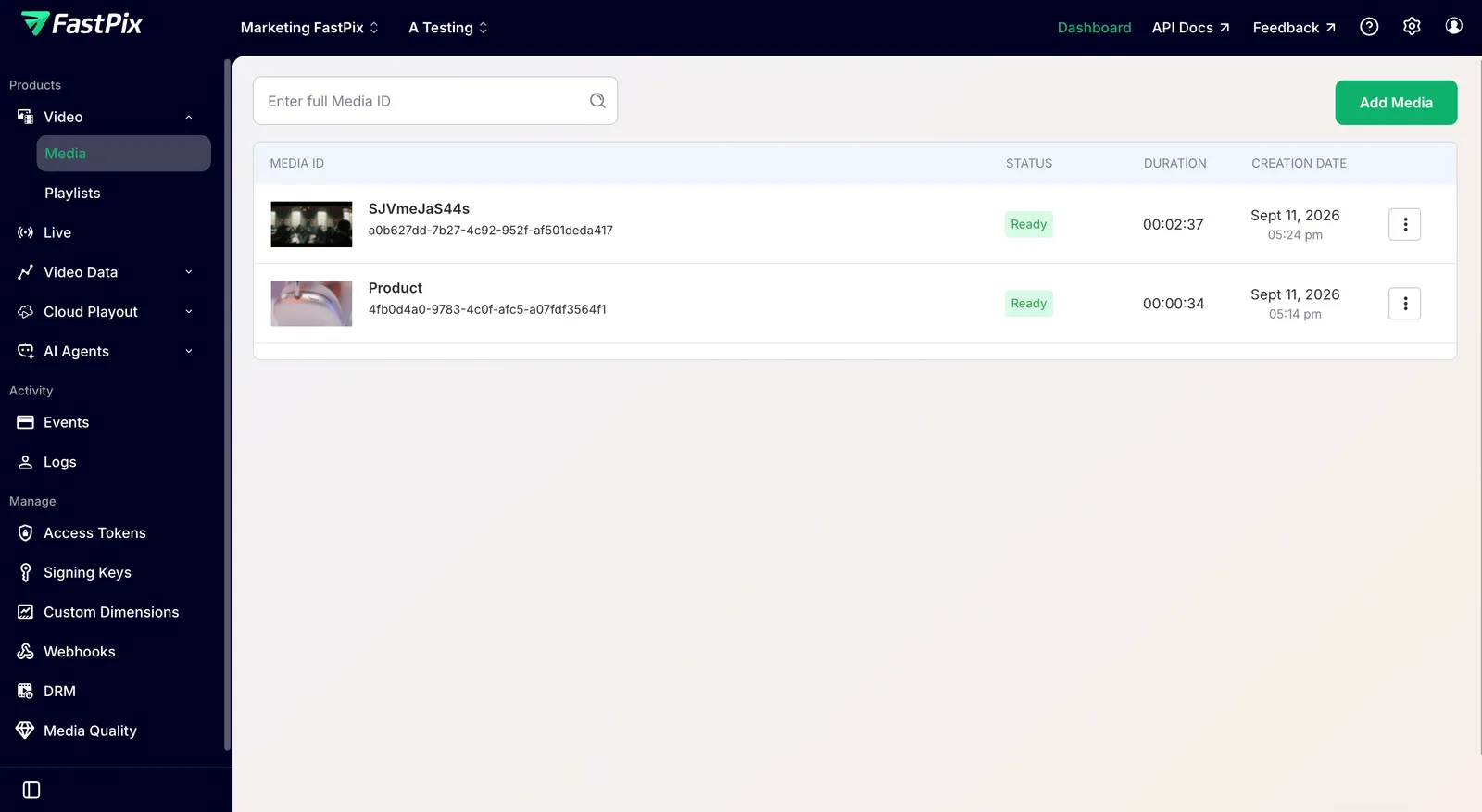
- Open the media item: From the FastPix dashboard, go to Media > [your media item] and open the Media Details page.
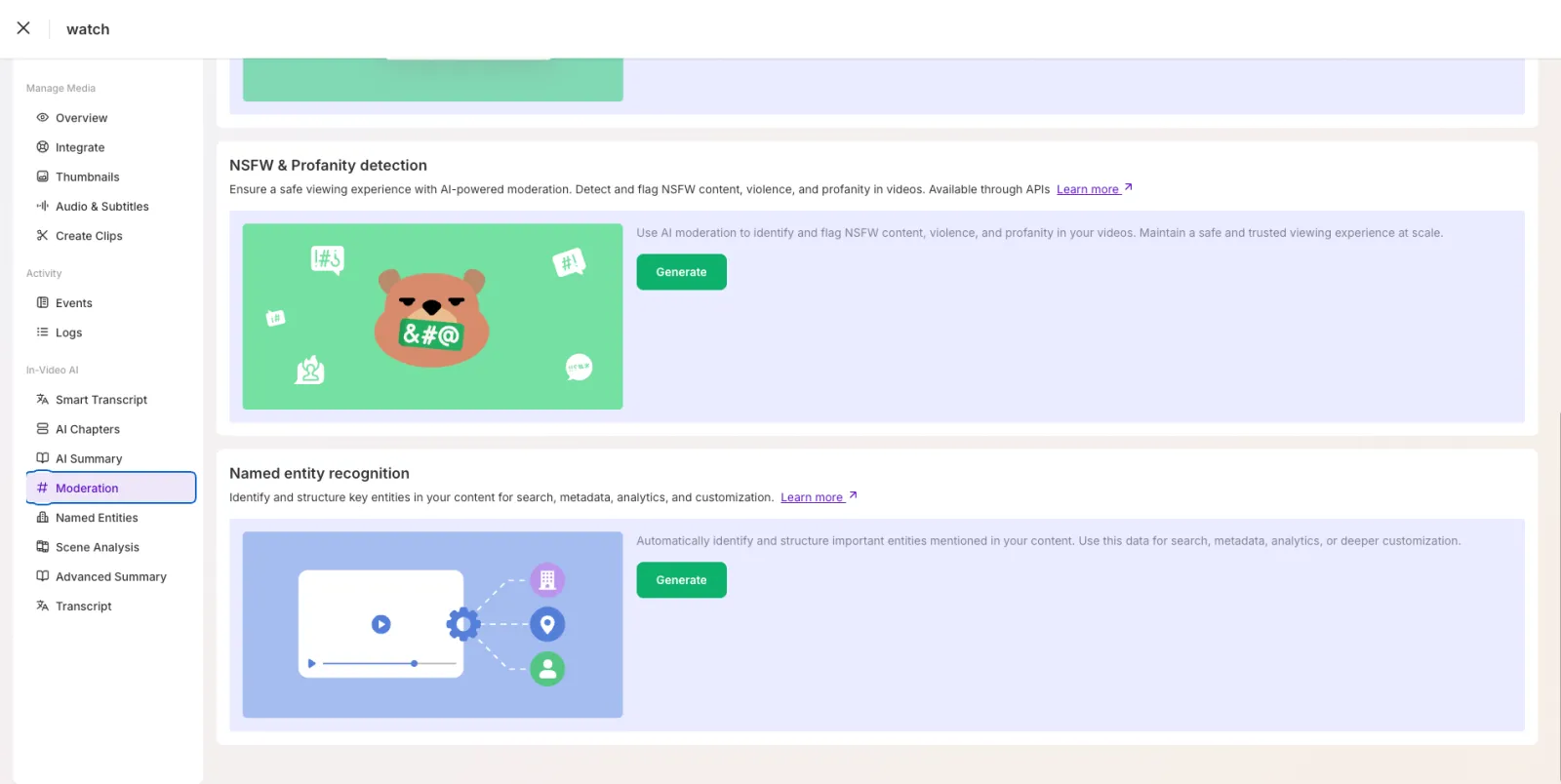
- Open the moderation tab: On the Media Details page, click the Moderation tab to view the moderation controls and history.
-
Run the check: Click Generate to start moderation on the media.
-
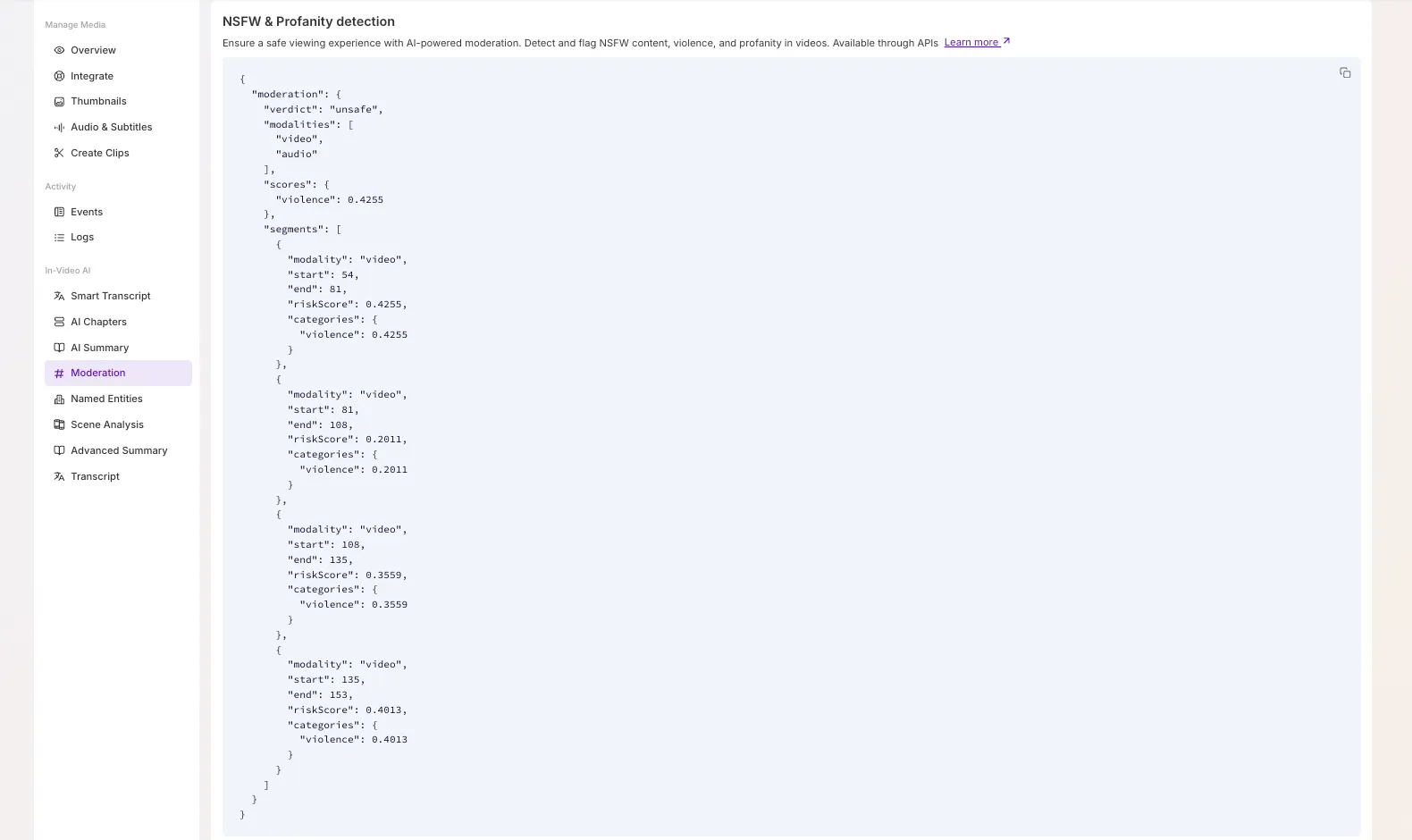
View the results: When moderation completes, the detected categories and their confidence scores appear in the tab.
- Take action: To block playback automatically, update the media
accessPolicyor playback rules when a high-confidence detection appears. For manual review, forward the flagged categories to your review queue or ticketing system.
Run content moderation with the API
Run moderation and fetch the results programmatically with the In-Video AI API. The video moderation API is asynchronous, so you trigger it, wait for the webhook or poll, then read the result. Both endpoints use Basic authentication with your Access Token ID and Secret Key.
Trigger moderation
Send a POST to the Moderate video content and detect profanity endpoint with the mediaId of a ready asset.
The response confirms that the job started:
Moderation configuration
The moderation API accepts an optional JSON configuration body for controlling audio and video moderation. Send it as the request body on the trigger POST.
Parameters
Supported categories
For the categories moderation can flag and what each one covers, see Moderation categories.
Behavior
When both modalities are selected:
- Video moderation analyzes sampled video frames.
- Audio moderation transcribes the audio in the original language.
- Audio timestamps are mapped back to the source transcript.
- Video and audio results are combined into a single moderation response.
The configuration body is optional. If you omit it, the API applies these defaults:
- Modalities: detected automatically from the media. A video that has an audio track is moderated on both tracks, an audio-only asset on audio, and a video-only asset on video.
- Categories: all supported categories.
- Language code: detected automatically from the audio.
- Sampling interval: 3 seconds.
Wait for the result
Moderation runs in the background. Subscribe to the video.media.ai.moderation.ready webhook to be notified when the analysis completes, or poll the get-results endpoint.
Get the moderation result
Send a GET to the Get video moderation results endpoint.
Understand the moderation response
The response contains a moderation object that summarizes the analysis and lists every flagged segment with its time range. A sample response for an unsafe video:
All scores are numbers from 0 to 1, where a higher value means stronger confidence that the category is present, not that the content is more severe.
Read the response at two levels:
- Top level, for a quick decision.
verdictandscoressummarize the whole media. In this example,violencereaches 0.8661, so the media is markedunsafe. The top-levelscoresreflect the strongest finding for each category across all segments. - Segment level, to act precisely. Each entry in
segmentsgives the exactstartandend(in seconds) of a flagged moment, itsmodality, and thecategoriesthat triggered it. Use the timestamps to review, redact, or clip just that moment instead of the whole file.
Compare scores and each segment’s riskScore against the thresholds you set, then apply your content policy. For more context, see the blog post AI content moderation using NSFW and profanity filters.
Act on the result
Map the scores to an action that matches your content policy:
- Below your review threshold: allow the content to publish.
- In your review band: set the media to private and send it to a human review queue.
- Above your automatic-action threshold: restrict playback by updating the media
accessPolicy, and alert your trust and safety team.
Because each segment includes its start and end time, you can target a fix at the exact moment instead of the whole video, for example beep out profanity by replacing the audio track or cut a flagged moment by removing unwanted video segments.
To wire these decisions into an end-to-end flow, see Gate uploads before publishing.
Limits and considerations
- Moderation runs on a ready video, so wait until the media has finished processing before you run it.
- Sampling produces the strongest results on short-form video. Evaluate accuracy on your own content before relying on it for long videos.
- Set a confidence threshold that matches your platform’s tolerance, and sample your own catalog before fixing the values.
- Audio moderation, including profanity, runs on the transcript, so it is limited to the supported audio moderation languages.
Frequently asked questions
How do you moderate video content with an API?
Call the FastPix In-Video AI moderation endpoint with the mediaId of a ready asset. Because moderation is asynchronous, wait for the video.media.ai.moderation.ready webhook or poll the get-results endpoint, then read the returned categories and confidence scores.
What does the moderation response contain?
A moderation object with an overall verdict, the modalities analyzed, the top scores per category, and a segments array. Each segment gives its modality, the start and end time in seconds, a riskScore, and the categories flagged. All scores are numbers from 0 to 1, and an empty segments array means nothing was flagged. See the API reference for the full schema.
How do I choose a confidence threshold?
Start with a lower band for review and a higher band for automatic action, and use separate thresholds for video and audio. Sample your own catalog before fixing the values, since thresholds that work for short-form UGC may be too loose for kids or education platforms.
How do I block a video automatically when moderation flags it?
On the video.media.ai.moderation.ready webhook, if a category exceeds your threshold, update the media accessPolicy to restrict playback. Route borderline scores to a human review queue instead of blocking outright.
What’s next
Once moderation returns a finding, act on the flagged content:
- Beep out or replace profane audio: Replace a video’s audio track or Overlay audio on a video timeline.
- Cut a flagged moment: Clip and trim videos or Remove unwanted video segments.
- Rebuild a clean version: Merge and stitch videos.