

Monitor playback in real time
Real-Time Monitoring answers one question, continuously: is playback working right now, and for which viewers? Your Metrics page tells you what happened over hours and days. This page tells you what is happening this minute, and who is affected, so you can act during an incident rather than explain it afterwards. The page refreshes every 15 seconds.
Open the Video Data dashboard here.
Before you begin
- A player integrated with a FastPix Video Data SDK and sending data. If data is already flowing into Video Data, this page works with nothing extra to configure.
- Real-Time Monitoring enabled on your workspace plan. See What your plan includes.
When to open this page
Reach for Real-Time Monitoring when you need to find out, in under a minute, not just that something is wrong but who it is wrong for.
- A delivery provider starts failing. Playback Failure Percentage climbs. You open the card, switch the breakdown to CDN, and one provider is responsible. You fail over before support tickets arrive.
- One video is broken. Everything looks healthy in aggregate, but switch the breakdown to Title and a single asset is erroring on every attempt, a bad encode or a bad token.
- A region goes quiet. The map shows viewers draining from one country while the rest hold steady. That is a delivery problem in one place, not a platform problem.
- A live event or launch is underway. Watch concurrent viewers and the five quality metrics together, so you catch a quality dip while the audience is still there.
- You are verifying a new integration. After wiring up a player, press play and confirm the view, and its quality figures, appear on the page.
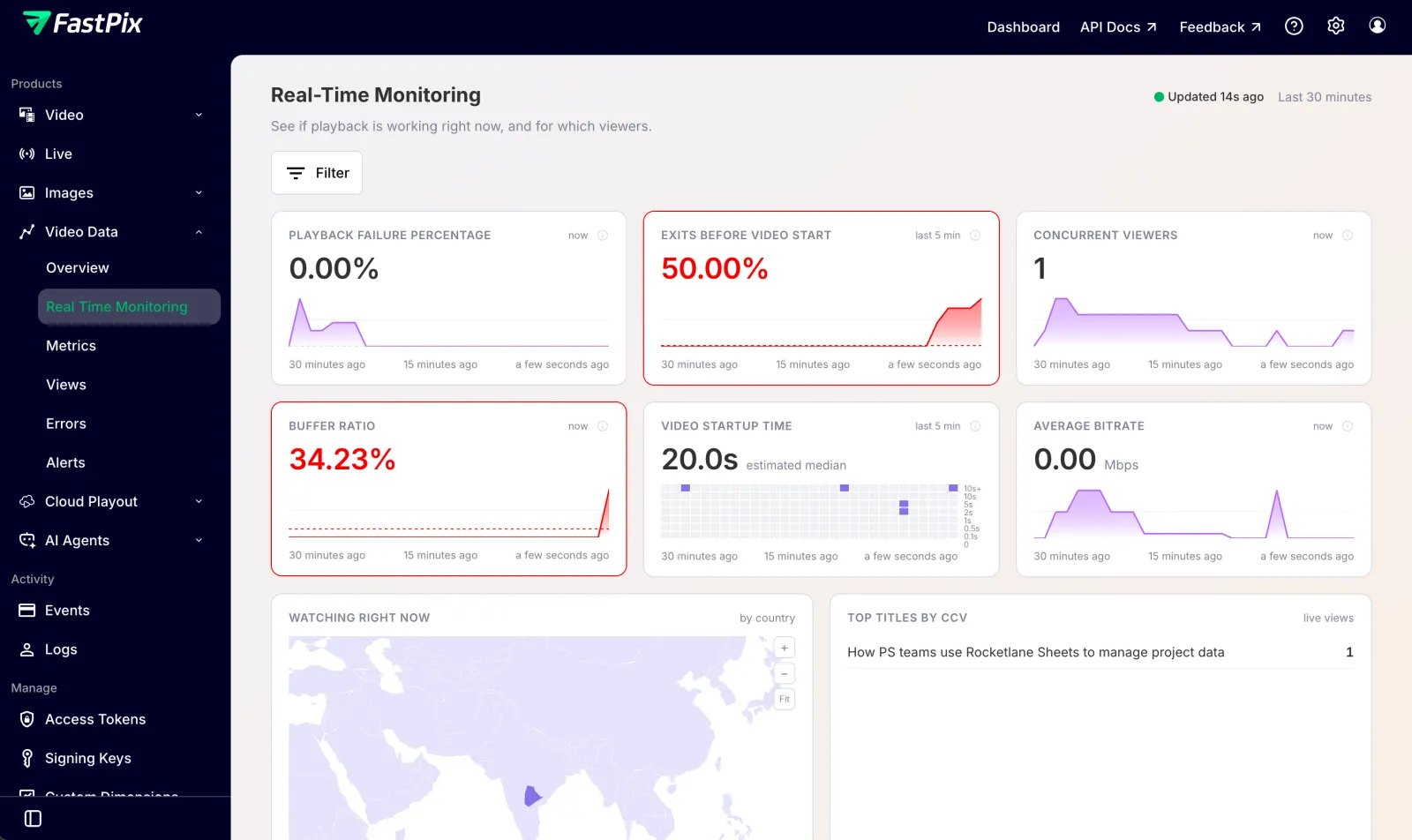
What the page adds over historical reporting is time to detection, a cause rather than a symptom (every figure breaks down by CDN, title, player, country and more), and evidence you can check (every metric shows its own formula and the numbers behind it). If your player is already sending data to FastPix, there is nothing to switch on.
How current the data is
Real-Time Monitoring is near-live, not instant.
The Updated _n_s ago indicator beside the page title tells you when the figures were last refreshed, so you always know how current the view is.
Every view is measured. Nothing is sampled, and no figure on this page is extrapolated from a subset of your traffic. If you are testing with your own playback, expect a short wait after you press play before anything appears. A blank page for the first minute is normal, not a fault.
Open the page
- Open the Video Data dashboard and select the workspace you want to watch.
- Open the Real-Time Monitoring view.
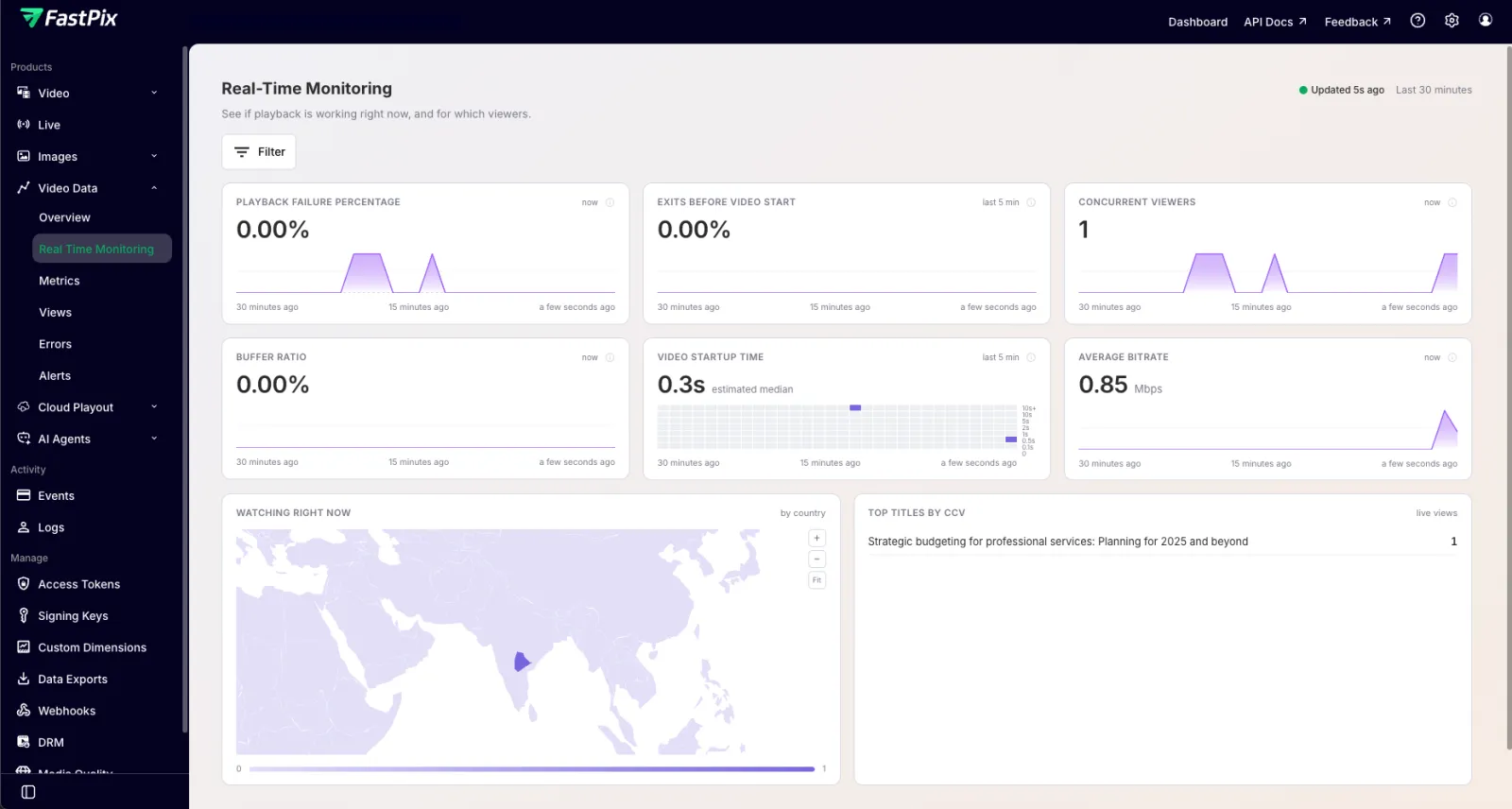
- The page loads the six metric cards, the Watching right now map, and Top titles by CCV, and begins refreshing every 15 seconds. The Updated _n_s ago indicator beside the title shows how fresh the figures are.
Read the cards, map, and Top Titles
- Six metric cards across the top. Each shows a figure, a 30-minute trend, and a small label saying which period it covers,
noworlast 5 min. - Watching right now, a world map shaded by where your viewers are. Zoom in and it resolves to states and regions. Darker means more viewers.
- Top titles by CCV, which videos are being watched at this moment.
Three cards have a ceiling, the threshold above which the figure is a problem: Playback Failure Percentage and Exits Before Video Start at 1%, and Buffer Ratio at 6%. When a figure crosses its ceiling, the card turns red and shows an Above ceiling badge, so a problem is visible at a glance.
Investigate a problem
When a card is flagged or a figure looks wrong, open it to find the cause.
- Click the flagged card. You get a larger chart and the breakdown panel.
- Switch the breakdown to the dimension you suspect. The Where it is happening panel names the biggest contributor, so the most likely culprit is called out before you read any rows. Every metric breaks down by nine dimensions:
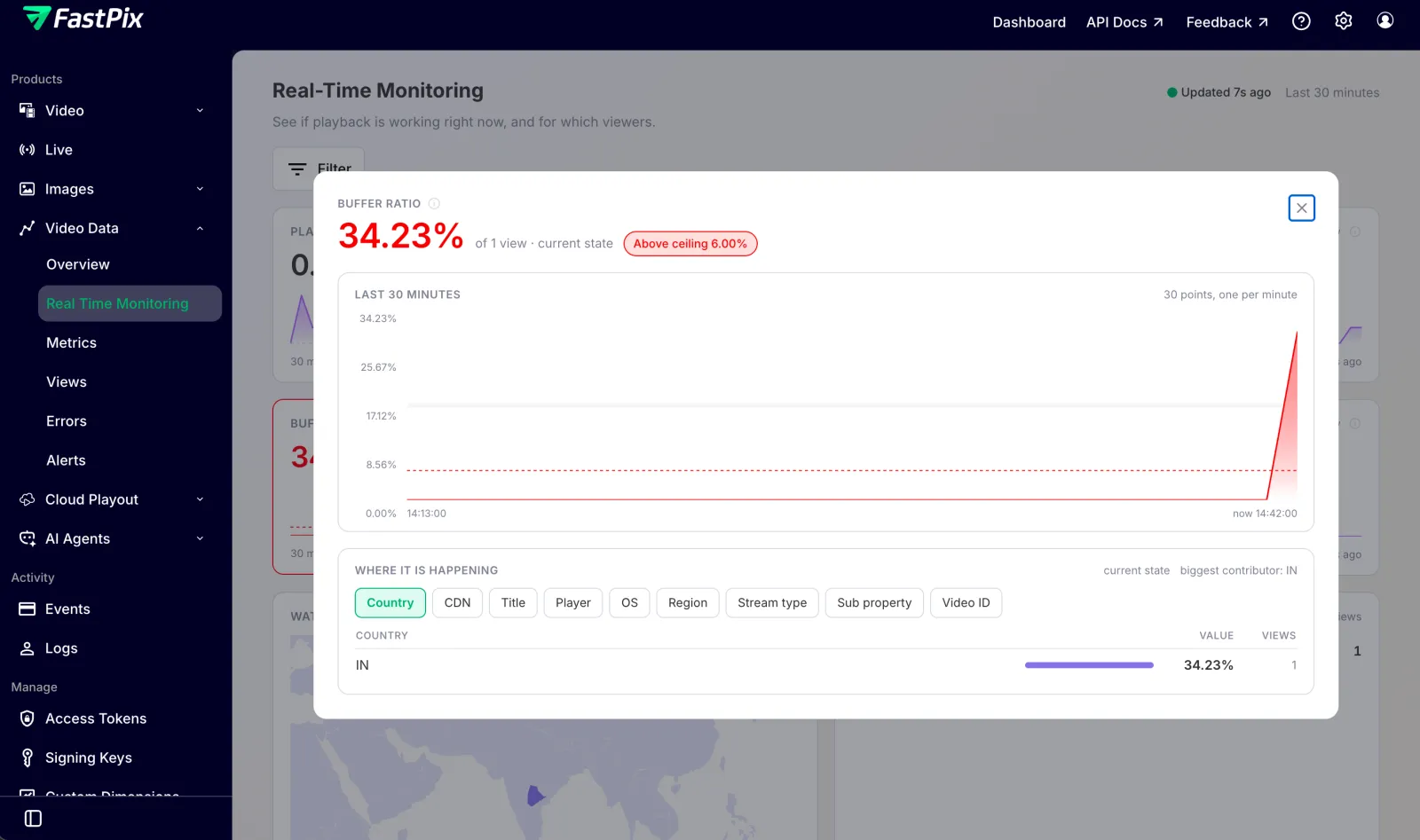
The opened card looks the same for every metric: the figure with the population it covers, a 30-minute trend, and the breakdown below.
- Read the header to check the figure. The card header shows the value, the population it was computed from (for example,
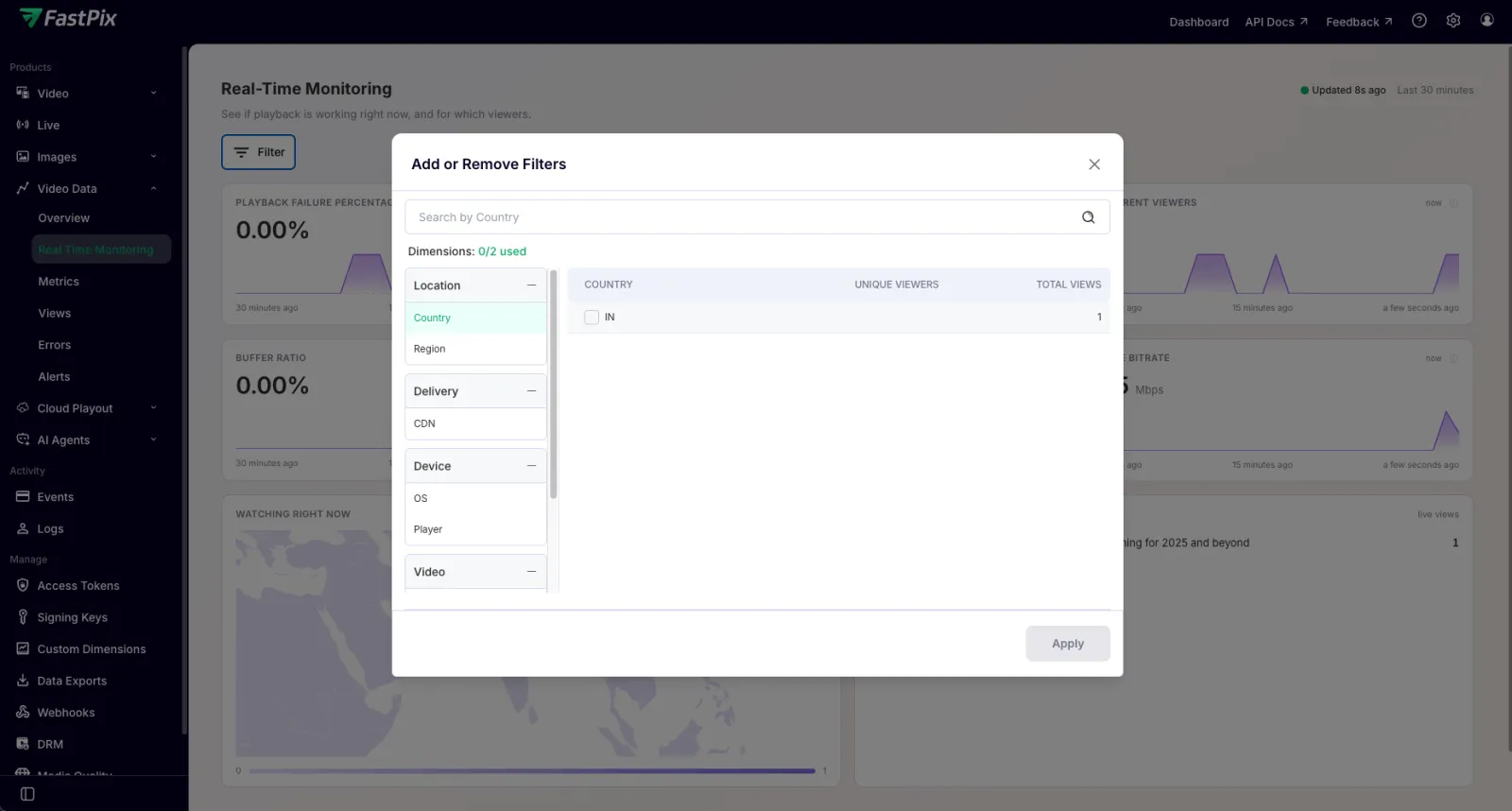
of 1 view), and the window it covers (current statefor a now metric,trailing 5 minfor a last-5-min metric). A figure over its ceiling also carries the Above ceiling badge here. To check how a figure was computed, see Check a figure yourself. - Narrow the page with a filter. The Filter button opens the Add or Remove Filters dialog, where dimensions are grouped by Location, Delivery, Device, and Video. Pick up to two, then Apply. The whole page, every card, the map, and the panels, narrows to that subset, for questions like “how is Akamai performing for viewers in Germany?”
The six metrics
Playback Failure Percentage
Are people watching right now hitting errors? Shows the share of current viewers in an errored state. Window: now, this minute. Ceiling: 1%.
If this spikes, open it and switch the breakdown to CDN or Title. Errors are rarely spread evenly; they usually belong to one delivery path or one asset.
Formula: errored_ccv / ccv × 100, errored live viewers over all live viewers.
Exits Before Video Start
Are people giving up before the video starts? Shows the share of recent views abandoned before the first frame appeared. Window: last 5 minutes. Ceiling: 1%.
Read this next to Video Startup Time. Slow startups cause abandonment, so the two move together, and the fix is usually in startup, not in the player.
Formula: ebvs / startup_attempts × 100, exits before start over views that began in the window.
Concurrent Viewers
How many people are watching? Shows live views this minute. Window: now, this minute.
This is the denominator for most of the other cards, and the figure the map and Top Titles are built from.
Formula: ccv, a straight count of live views. Nothing is divided.
Buffer Ratio
Is playback actually smooth? Shows time spent buffering as a share of total watch time, across current viewers. Window: now, this minute. Ceiling: 6%.
A viewer who is technically playing but buffering a tenth of the time is having a bad experience that no error count will show you.
Formula: rebuffer_ms / watch_ms × 100, both totals taken across current viewers, so the ratio describes them and not the whole range.
Video Startup Time
How long until video starts? Shows the estimated median startup time for views that began recently. Window: last 5 minutes.
The chart is a heat map: time along the bottom, duration up the side. A dark band near the top is a run of slow startups, and you can see exactly when it began.
This is an estimate, not an exact percentile. Startup times are counted into seven duration bands rather than stored per view, and the median is interpolated from those counts, so with few views it moves in steps rather than smoothly. The bands are 0 to 100 ms, 100 to 500 ms, 500 ms to 1 s, 1 to 2 s, 2 to 5 s, 5 to 10 s, and 10 s and over. Hover any cell for the minute, the band, and the number of views in it.
Average Bitrate
What quality are viewers actually getting? Shows the average source bitrate across current viewers, in Mbps. Window: now, this minute.
Formula: bitrate_sum / bitrate_n ÷ 1,000,000, the total reported bitrate over the number of views that reported one, converted from bits per second to Mbps. It is averaged over the views that reported a bitrate, not over every live view. Some players do not report one, and including them would drag the average down with zeroes.
Check a figure yourself
Open any card and its header shows the value, the population it was computed from, and the window it covers, for example 0.00% of 1 view · current state, or 50.00% of 4 views · trailing 5 min. A figure over its ceiling also carries an Above ceiling badge.
For Playback Failure Percentage and Exits Before Video Start, that population is the formula’s denominator, so the arithmetic works out directly. If Exits Before Video Start reads 50.00% of 4 views, four views began in the last five minutes and two of them were abandoned before the first frame.
Buffer Ratio and Average Bitrate work differently. Buffer Ratio divides rebuffered milliseconds by watched milliseconds, and Average Bitrate divides total reported bitrate by the number of views that reported one. Neither divides by the view count shown beside it. The population there tells you how many viewers the figure describes, not what it was divided by. Open the card’s Details panel to see the actual operands.
One more number worth separating: the Views column in a breakdown counts who is watching right now, while the population counts views that began in the window. For a metric covering the last five minutes, those are different figures, and a row can legitimately show a value with no live viewers at all.
Understand the numbers
This is the section worth reading once properly. Most questions about this page come from these four things.
Two different time windows
The cards do not all describe the same moment, and each one says which it uses.
So Concurrent Viewers can read 0 while Exits Before Video Start shows a figure. That is not a contradiction: nobody is watching now, and some people gave up in the last five minutes. Both are true. Trends underneath every card always cover the last 30 minutes, one point per minute.
A dash is not a zero
— means nothing was measured. 0.00% means measured, and it was zero.
If no views started in the last five minutes, Exits Before Video Start has nothing to divide and shows —. Showing 0.00% would claim everything was fine, which is not something the page knows. The same applies to the Views count beside a breakdown row.
What counts as a view
One view is one playback session, counted once no matter how long it lasts or how many updates it sends.
A view is created when your player initialises, not when someone presses play. If your page mounts a player for each tile in a grid, each of those is a view. That is why you may see a title you did not deliberately watch.
Live figures only live while playback does
Because most of these metrics describe viewers right now, a viewer who leaves stops counting almost immediately, including one who left because of an error.
A view that fails before the first frame ends within about a minute, so it appears in Playback Failure Percentage while it is happening rather than afterwards. For the history of failures over hours or days, use the Metrics page. This page is for catching things as they occur.
What your plan includes
This page requires Real-Time Monitoring. The six metric cards, the map, and Top Titles are all part of it.
Without it, the page shows your current concurrent-viewer count with a short trend, alongside a summary of what Monitoring would add. The five quality metrics (Playback Failure Percentage, Exits Before Video Start, Buffer Ratio, Video Startup Time, and Average Bitrate) are not blurred or locked. They are not measured at all for that workspace, so nothing is being withheld.
Upgrading starts measurement immediately. Figures appear a minute or two after your next view. Concurrent viewers and their breakdowns remain available on every plan from the Overview page. What Monitoring adds is the quality side, whether those viewers are having a good experience, and the ability to break that down rather than just the headcount.
Frequently asked questions
My Overview page shows a viewer but Monitoring shows zero. Which is right?
Both. Overview counts views seen in the last 30 minutes. Concurrent Viewers counts who is watching this minute. Someone who stopped twenty minutes ago is in one and not the other.
A video I never played is showing up.
A view is created when a player initialises, not when someone presses play. Autoplay previews, carousels, and grid tiles all create views. Check their watch time, which usually shows close to zero.
A card shows a dash while people are clearly watching.
That metric covers the last five minutes and nothing new started in them. Your viewers began earlier and are still watching, so they count towards Concurrent Viewers but not towards a metric about views that recently began.
An error appeared and then vanished a minute later.
Playback Failure Percentage describes viewers right now. A view that errors and ends is no longer a current viewer, so it leaves the figure. The error is still recorded; the Metrics page keeps the history.
The breakdown shows a title with a value but zero views.
The value covers views that began in the window; the Views column shows who is watching now. A video someone opened and closed has a value but no live viewers.
Related
- Explore the dashboard, the Metrics page and historical trends for the same measurements over hours and days.
- Troubleshoot playback errors, work through the errors a failure spike points you to.
- Understand data definitions, the full set of playback measurements and how each is calculated.