

Set up exception alerts
FastPix exception alerts watch the errors in your playback data and notify you when a specific error starts affecting viewers, so you can act before it spreads. Alerts run automatically on the Video Data that FastPix already collects. When an error code reaches the configured threshold, FastPix opens an incident, tracks its impact and severity while it’s active, and emails you once when it opens and once when it resolves.
Before you begin
Before you configure exception alerts, make sure you have the following:
- A FastPix workspace with Video Data enabled and collecting playback data. If you haven’t set up monitoring yet, see the Video Data guide.
- A valid email address where you want to receive exception alert notifications.
How exception alerts work
FastPix continuously evaluates playback errors as views accumulate. When an error code reaches the configured threshold, FastPix opens an incident for that error code.
Scopes
FastPix evaluates alerts at two scopes. Within each scope, incidents are tracked separately for each error code.
-
Workspace + error code: Tracks each error code across all videos in the workspace. When an error rate reaches the configured threshold, FastPix opens an incident for that error code and sends an email notification to all configured notification channels.
-
Video title + error code: Tracks each error code for an individual video. When an error rate reaches the configured threshold for that video, FastPix opens an incident for that error code and sends an email notification to all configured notification channels.
Because each error code is evaluated independently, a workspace or video can have multiple incidents open at the same time, one for each affected error code.
When an incident opens
FastPix opens an incident when an error rate reaches the configured threshold for its scope.
Static thresholds:
An incident opens on the first complete evaluation window that reaches the threshold. FastPix evaluates a workspace after every 1,000 views and a video title after every 100 views. This ensures each incident is based on a complete evaluation window instead of a temporary spike.
Severity
FastPix sets a severity from the highest error rate seen during the incident, and updates it while the incident is open.
Video title severity:
Workspace severity:
Impact
While an incident is open, FastPix tracks its cumulative impact so you can see how many viewers it affected:
- Impacted views: views that hit the error since the incident opened.
- Error percentage: impacted views divided by total views.
When an incident closes
An incident doesn’t close the moment errors improve. It closes only after three consecutive recovery windows, where the error rate stays below the recovery threshold (half the open threshold). If errors spike again before the third recovery window, the count resets.
After an incident closes, a 30-minute cooldown prevents it from reopening immediately. Together, these rules mean you get exactly one “opened” email and one “resolved” email per genuine incident, with no flapping.
Set up email notifications
You receive alert emails through notification channels. Each channel is an email address in your workspace that receives the “opened” and “resolved” emails for every incident.
Add a notification channel in the dashboard
- Sign in to the FastPix dashboard.
- Open your workspace in the FastPix Dashboard.
- From the left navigation menu, select Video Data.
- Click on the Alerts tab.
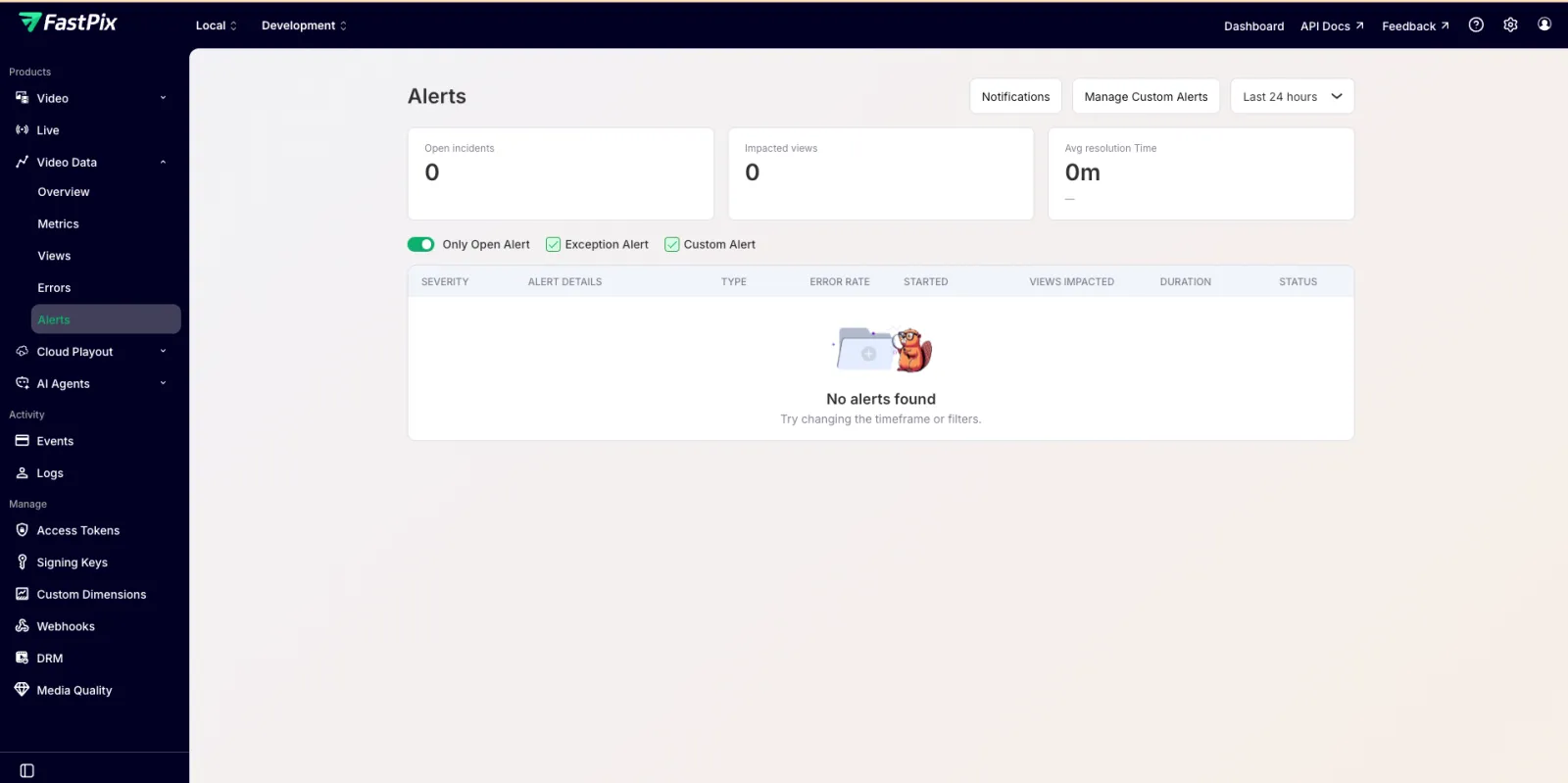
- On the Alerts page, click the Notifications button in the top-right corner.
- In the Notifications page, click + Add Channel.
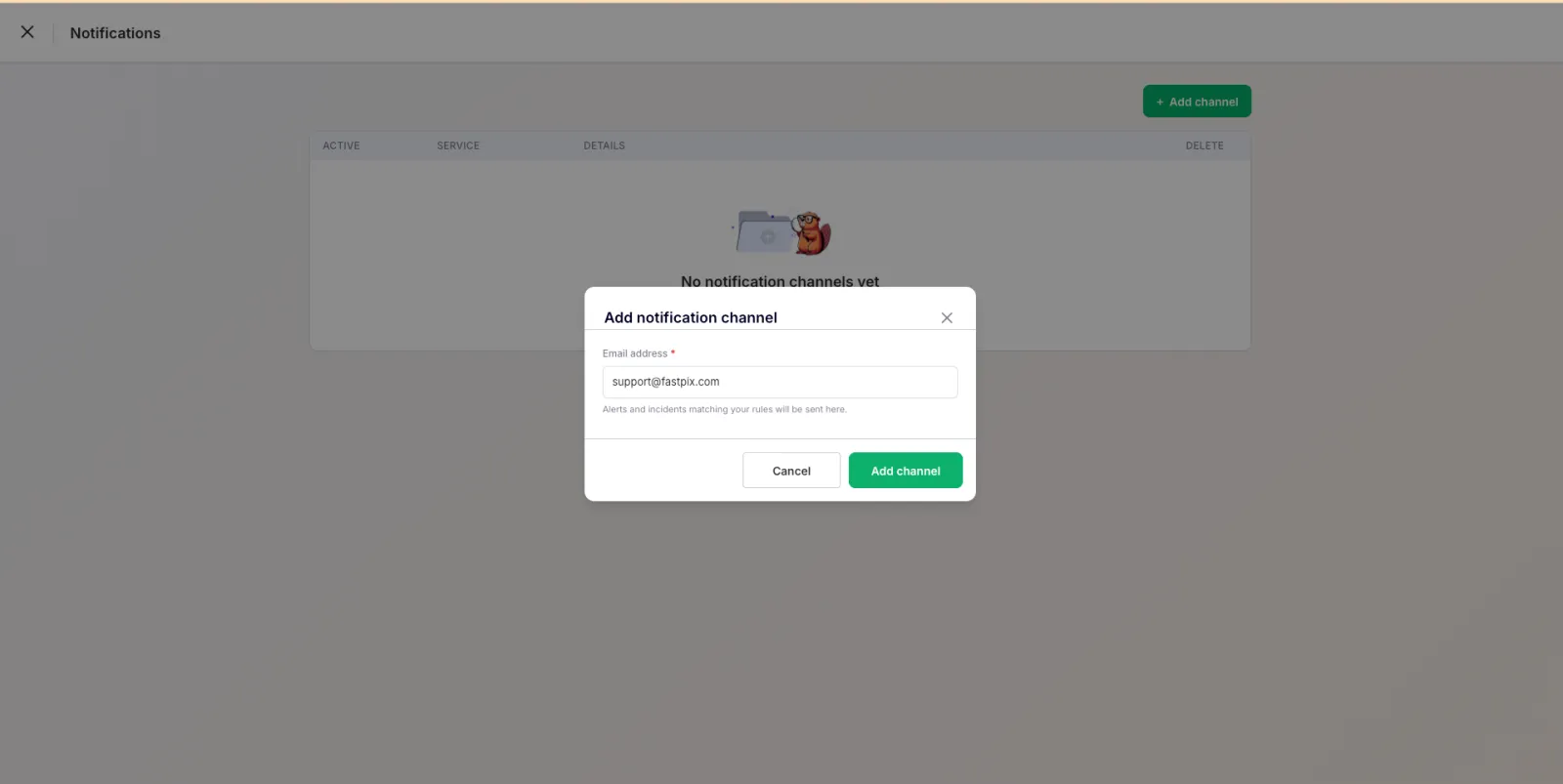
- Enter the email address where you want to receive alert notifications.
- Click Add Channel to save the email notification channel.
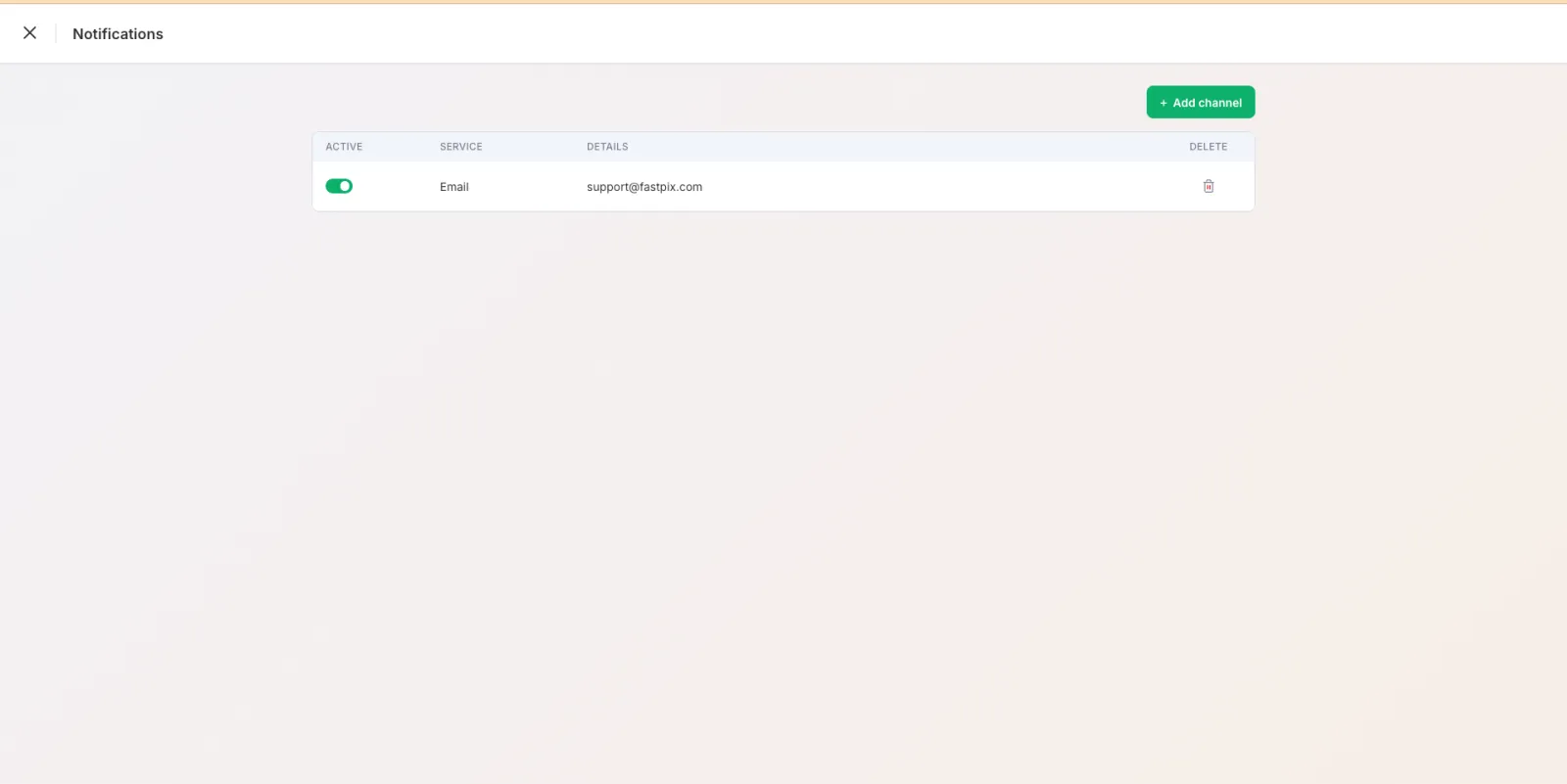
- Ensure the channel is enabled (Active) using the toggle switch.
The channel appears in your list of channels and starts receiving alert emails on the next incident. To pause a channel without deleting it, turn off its Active toggle. To remove it, delete it.
Delete a notification channel
- In the Notifications page, select the Delete icon for the notification channel you want to remove.
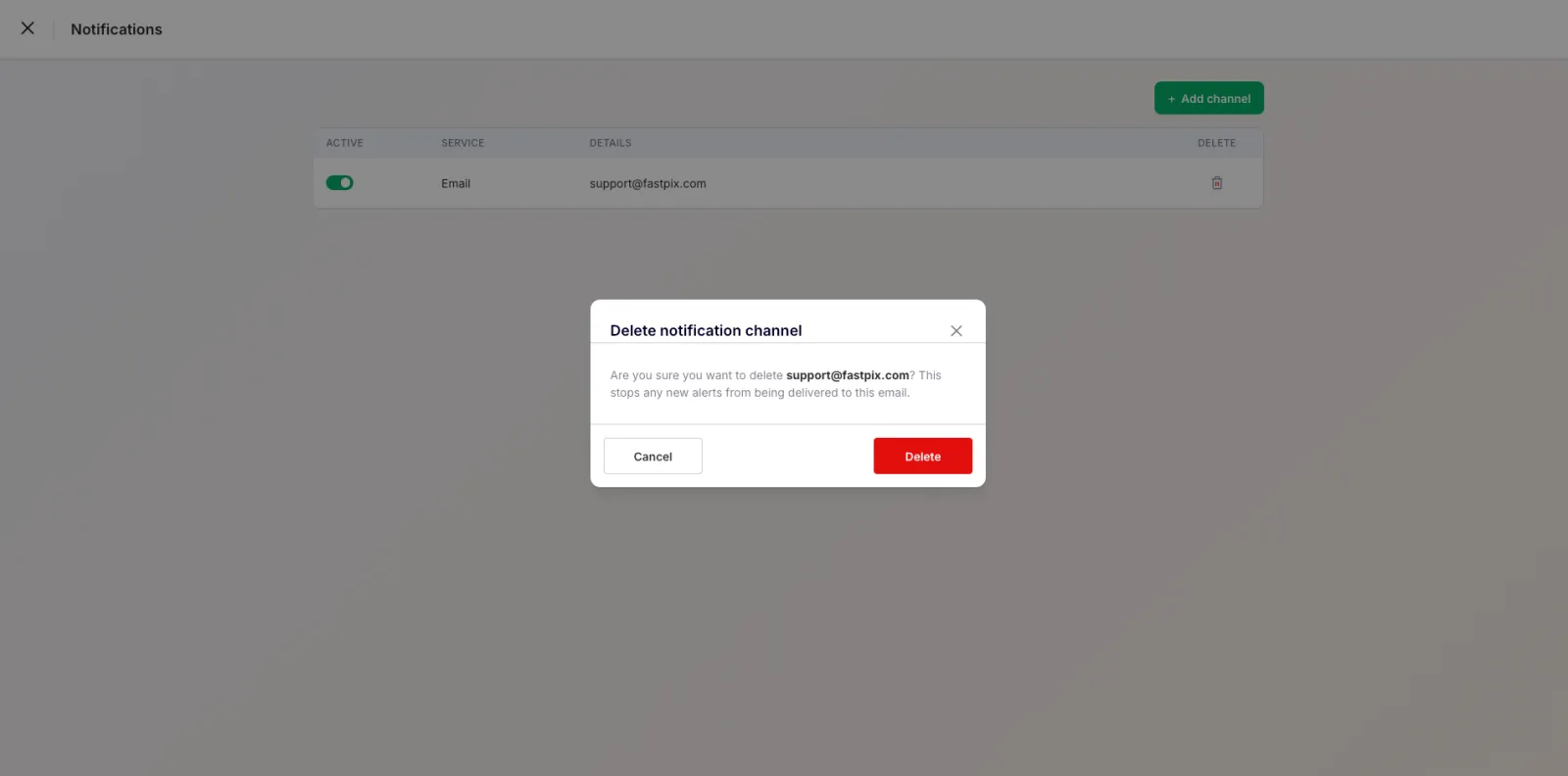
- Select Delete to confirm.
NOTE:
Alert emails currently do not include the organization name or workspace name. Support for including this information will be available in a future release.