

Clip moments from a live stream
Learn how to generate instant video highlights from live streams by defining start and end times for real-time clipping.
What is live clipping?
Live clipping is the process of capturing and creating short video clips from a live stream as it happens. This feature lets broadcasters instantly extract key moments, turning them into highlights, social media content, or on-demand clips. It eliminates the need to wait for the live stream to finish, making it perfect for sharing engaging moments in real time.
NOTE
When you create a live clip using the stream URL, the clip is automatically converted into an on-demand media file. This means that your extracted clip remains accessible even after the live stream ends, making it available for further viewing or sharing.
You can also specify the access policy for the on-demand media that is generated by providing a query parameter (
clipAccess). If no custom policy is set, the access policy for the generated clip will default to the livestream’s access policy.
If you prefer hands-on instructions, the Instant Live Clipping recipe walks you through the entire process.
Set up a live stream
Both clipping methods need an active live stream to work from. You can create one in the FastPix dashboard or with the Create new live stream API.
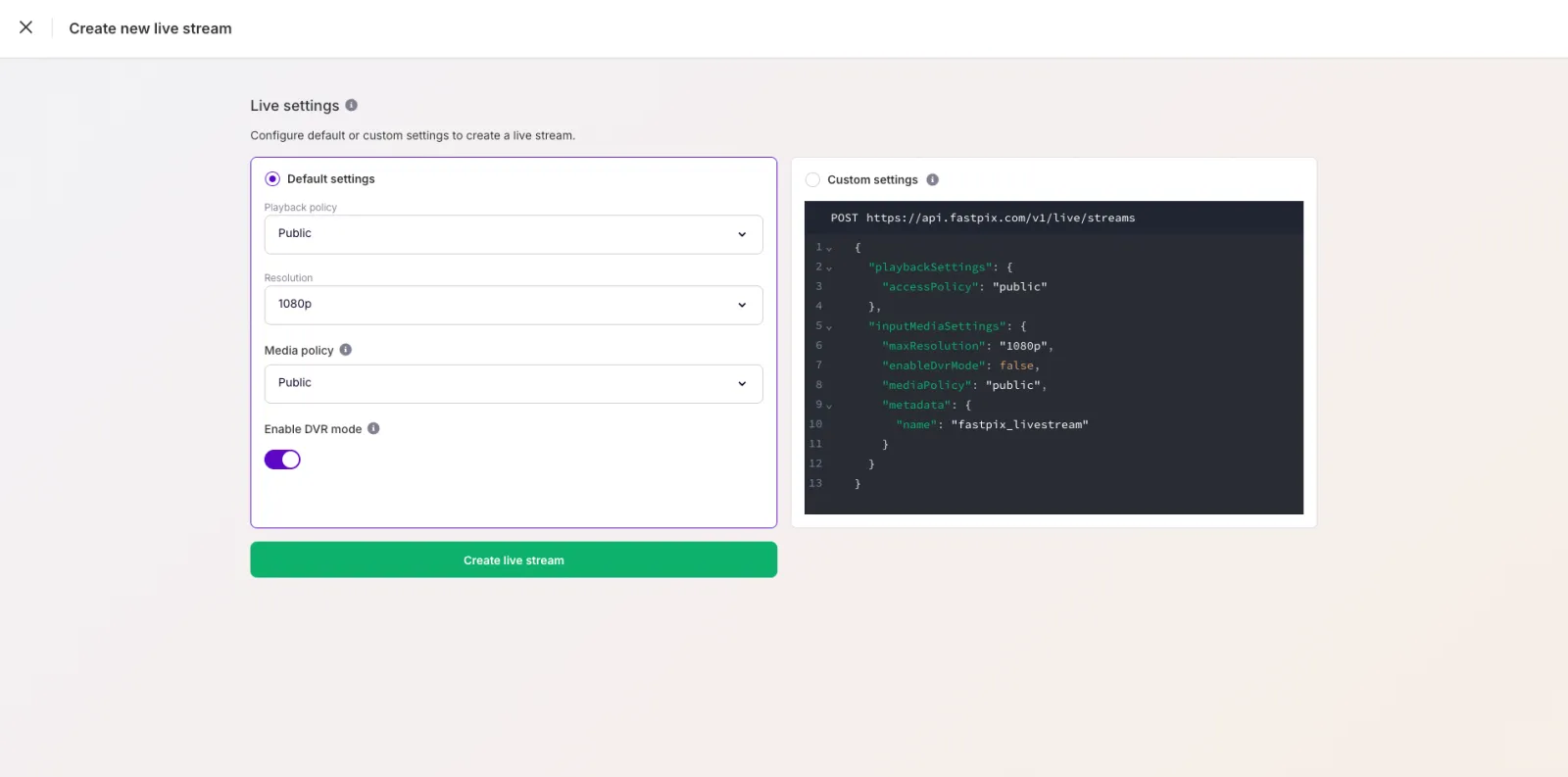
- In the FastPix dashboard, open Live and create a live stream with either Default settings or Custom settings, then select Create live stream. To let viewers seek back through the stream while it’s still live, turn on Enable DVR mode.
- Open the new stream and go to Overview. Copy the RTMPS URL and Stream key, then enter them in your broadcasting software, such as OBS, vMix, or Wirecast.
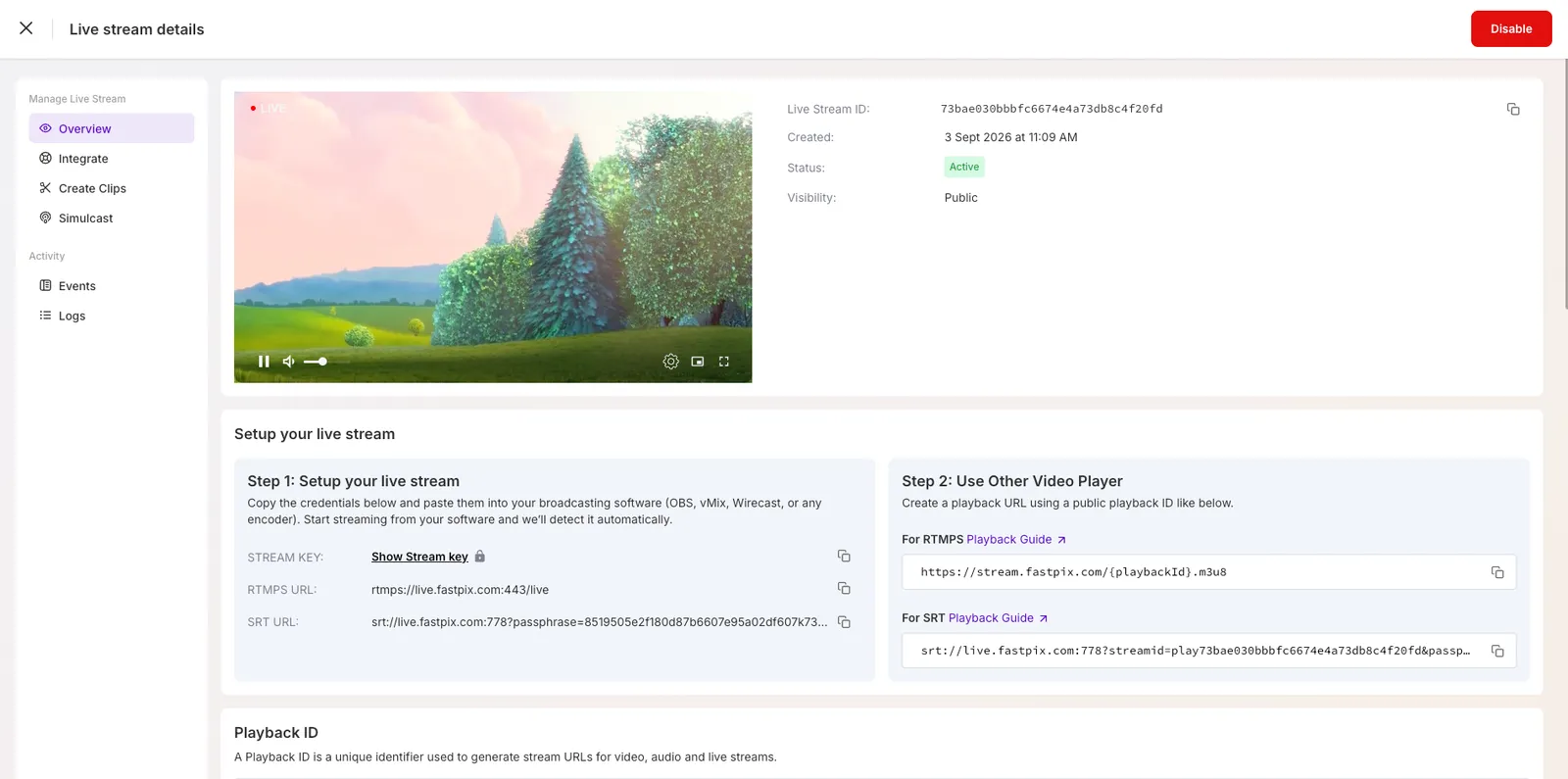
- Start streaming from your software. FastPix detects the feed automatically, and the stream’s status changes to Active.
For the stream-URL clipping method, you also need the stream’s Stream URL, which you build from the stream’s playback ID. It works in any HLS-compatible player and is the basis for generating clips with query parameters:
Create clips from the dashboard
After your stream is Active, you can create clips visually from the dashboard while the stream is live. Each clip is saved as a separate on-demand media asset with its own playback ID.
Create a clip
- Open your live stream and select Create Clips. Let the stream run for at least 20 seconds. The clip controls stay disabled until the stream reaches this minimum duration.
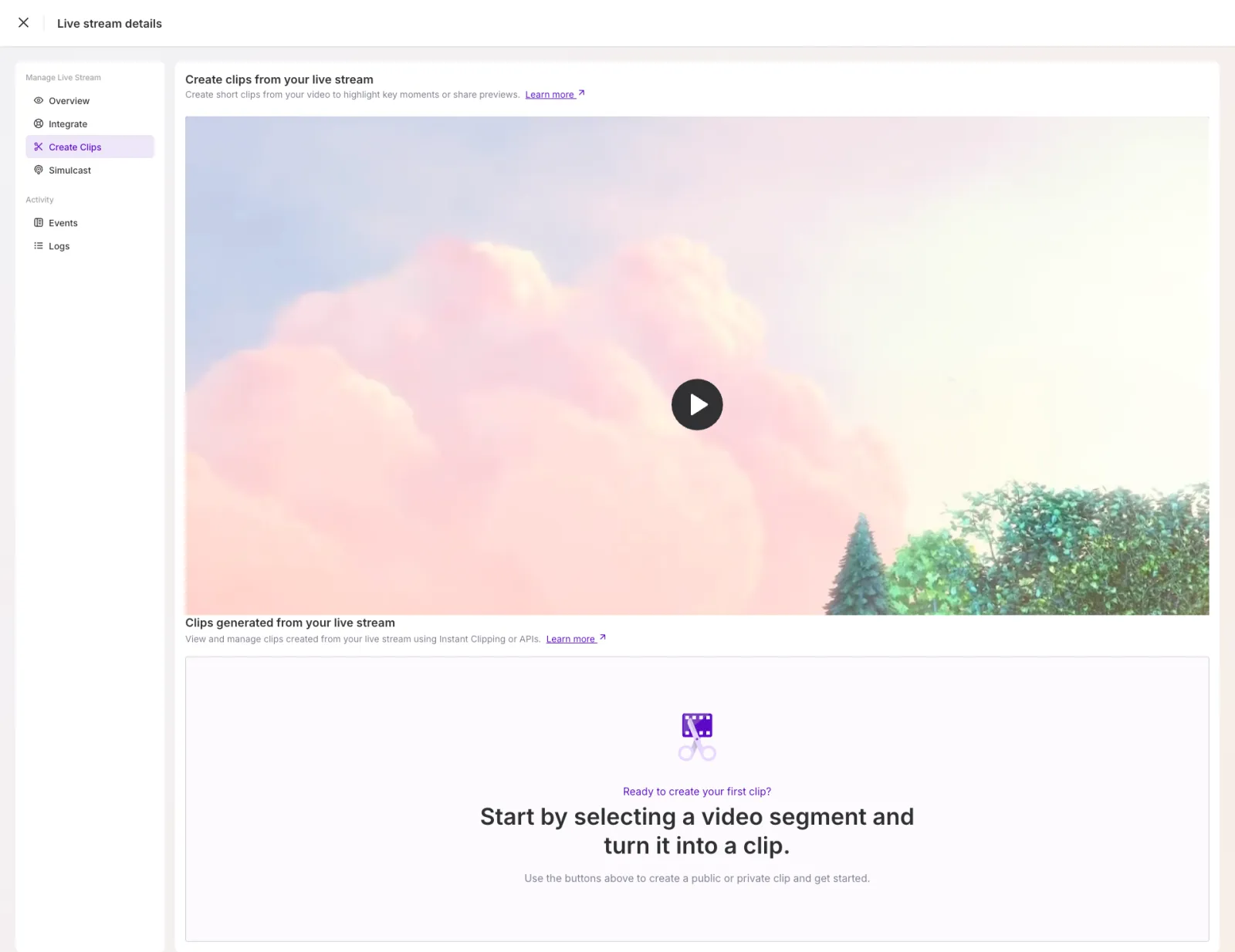
- In the player, pause at the moment you want to clip. You can create a clip only while the video is paused.
- Set the clip’s Start time and End time, either by entering timecodes or by dragging the handles on the timeline. To check your selection before you save, select Preview Clip.
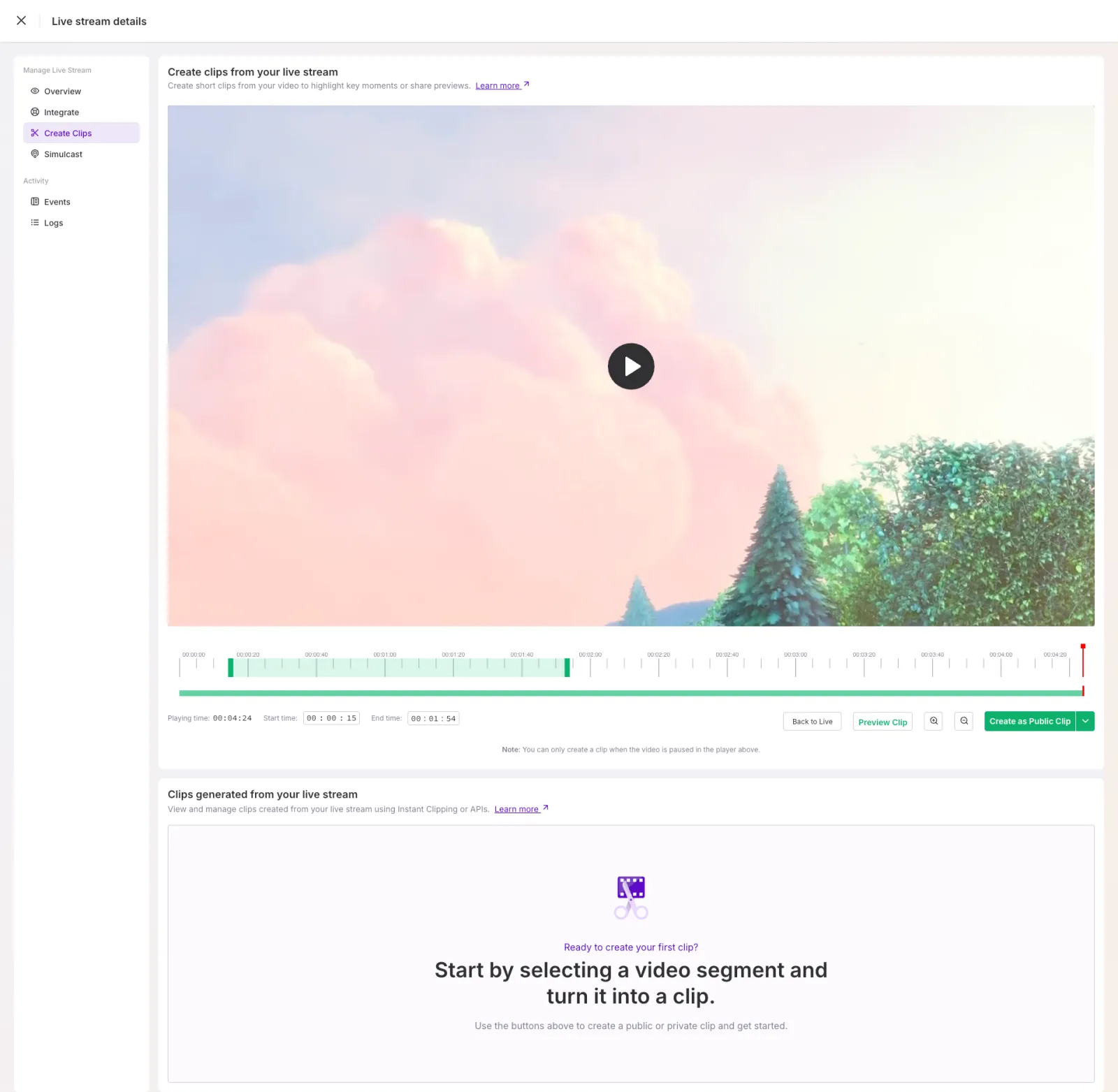
- Open the Create as Public Clip menu and choose an access policy:
- Create as Public Clip: anyone with the link can play the clip.
- Create as Private Clip: playback is restricted and requires a signed token. See Secure playback with JWTs.
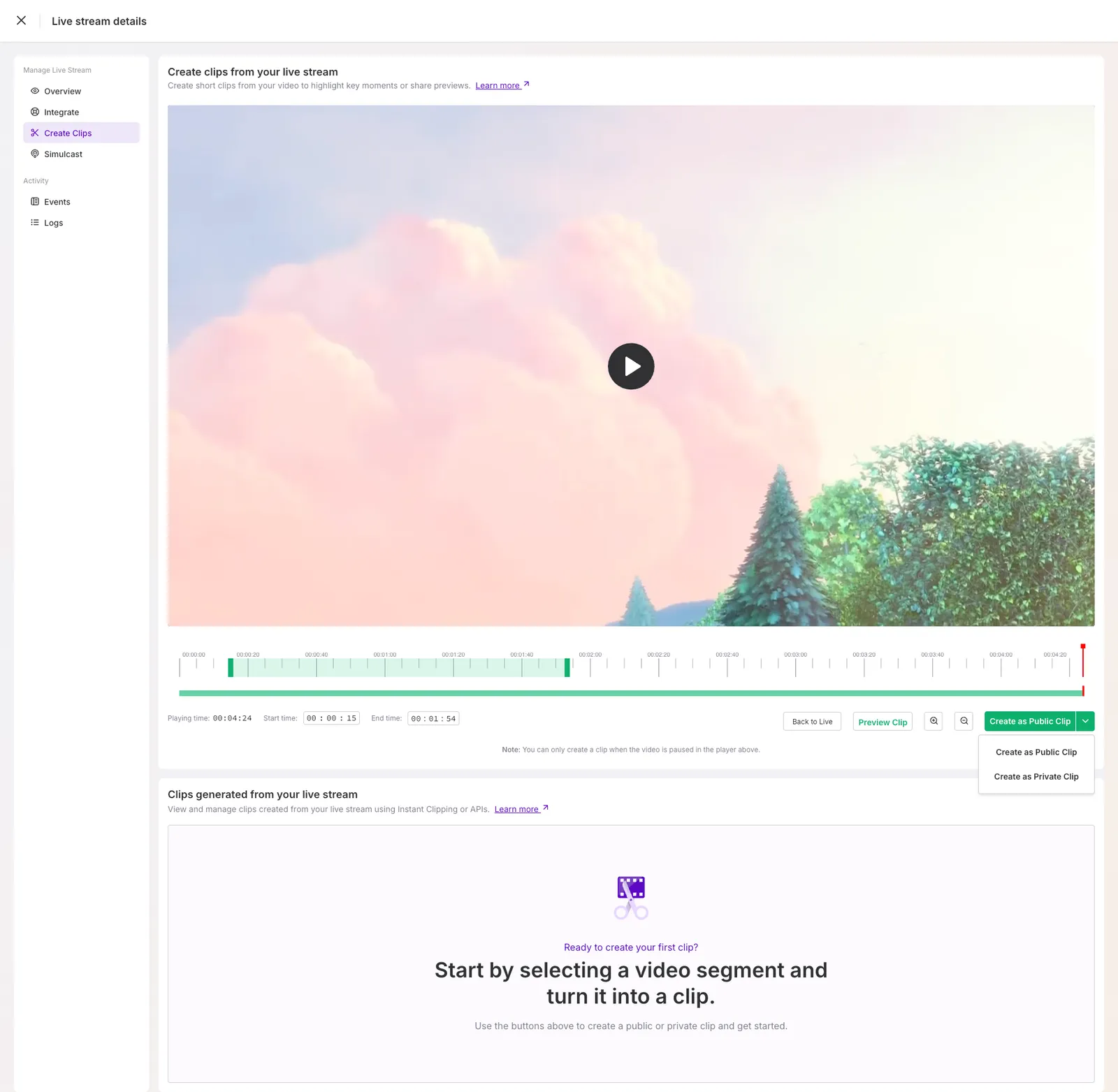
Find your clips
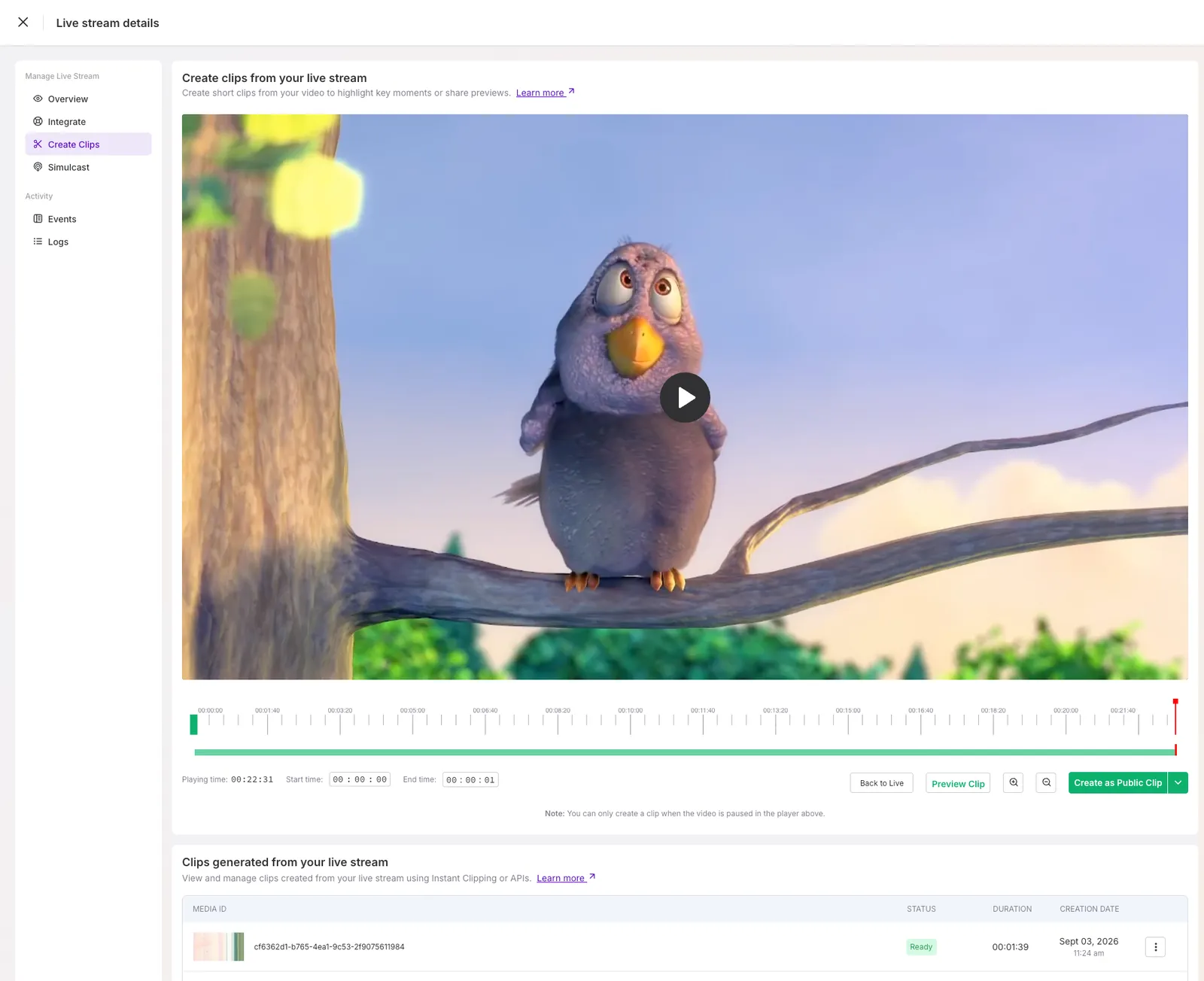
Your clips appear under Clips generated from your live stream, with a media ID, status, duration, and creation date. A clip shows Processing while FastPix generates it and Ready once it’s available to play.
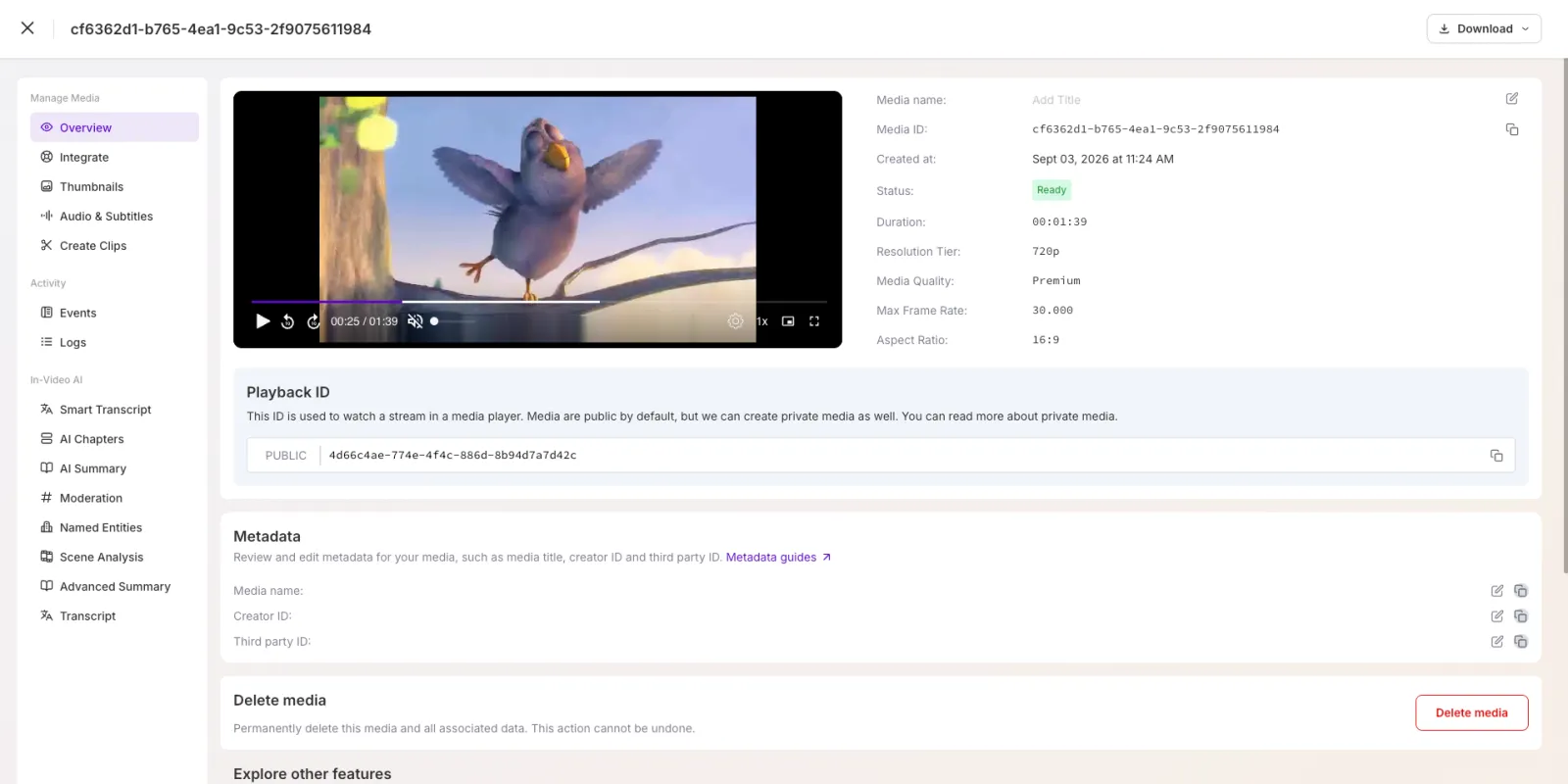
Select a Ready clip to open it as a standalone on-demand media asset, where you can find its Media ID and Playback ID, generate thumbnails, add subtitles, and run In-Video AI features.
To create clips programmatically instead, use the stream-URL method.
Generate clips from the stream URL
Creating a live clip involves defining the clip’s duration by appending query parameters to the Stream URL. FastPix simplifies this process by using start and end times in seconds.
NOTE
When you generate a live clip using the Stream URL, the clip is automatically converted into an on-demand media file. This ensures that the clip remains accessible even after the live stream ends.
Use the Stream URL with query parameters
You can generate a live clip by adding start and end parameters to your Stream URL. These parameters define the beginning and end of your clip.
Example:
This URL extracts a 60-second clip starting from the 10-second mark to the 70-second mark.
NOTE
The maximum duration for a clip is 20 minutes. If the start and end parameters exceed this limit, the clip will be automatically trimmed to 20 minutes.
Access policy for clips
You can also control the access policy of the generated on-demand media by specifying a clipAccess query parameter.
NOTE
Using the
clipAccessparameter separately will result in another on-demand clip. It’s better to combinestart,end,clipAccessparameters all at once depending on your requirement.
- If
clipAccess=private, the generated clip will be restricted to authorized users. To control who can access private clips, use secure playback with JWTs. See Secure playback with JWTs for details.
- If
clipAccess=public, the generated clip will be accessible to anyone with the link.
- If no
clipAccessparameter is provided, the access policy of the generated clip will default to the access policy of the livestream.
Retrieve clip and playback
If you want to later retrieve the generated clip (stored as on-demand media) - use the get all clips from live stream API by passing the streamId of the actual live stream. The response will give you a list of all clipped media IDs along with other details related to the clipped media.
To initialize playback of the media, take the underlying playbackId from the specific clipped media and insert it in the stream URL below.
You can use this URL (with .m3u8 extension) in other video players as per your use case.
Otherwise, to directly stream your clipped media on a browser, you can also use the playback stream URL which is sharable. Simply preview your video by putting the playbackId on the stream URL.
Guidelines for start and end times
To ensure your live clips are generated correctly, follow these guidelines:
- Use positive values only: Both
startandendtimes must be positive integers, representing seconds in the livestream. Negative values are not allowed and will result in an error.
- Start time must be earlier than end time: The
starttime must always precede theendtime. Providing an end time that is less than the start time is invalid and will prevent the clip from being generated.
- Valid time range: Ensure the
startand end times fall within the duration of the live stream. For example, if the live stream has only reached 20 seconds, specifyingend=30swill result in an error.
What’s next
A live clip is saved as an on-demand asset, so you can keep working with it like any other video:
- Upload videos from device to add more source videos.
To edit and transform videos, see: