

Add live captions to a stream
Add automatic closed captions to RTMP live streams for accessibility, generated in real time from the stream audio with no third-party tools.
Closed captions display a live stream’s spoken audio as on-screen text in real time, making your broadcasts more accessible and inclusive. With FastPix, you turn on captions natively when you create a live stream, with no extra tools or third-party integrations. Captions are especially valuable for lectures, news broadcasts, live shows, and sports, where accessibility and clarity matter as much as low latency and playback quality.
FastPix generates captions automatically using speech recognition. It detects the spoken language from the audio, so you don’t need to configure a language.
Closed captions are available only for RTMP-based live streams. RTMP pushes captions into the HLS manifest used for playback. Other protocols, such as SRT, use a different data path and don’t support captions in this workflow.
Before you begin
Make sure you have the following:
- A FastPix account with an active workspace. See Activate your account.
- An RTMP encoder, such as OBS Studio, Wirecast, vMix, or ffmpeg. Captions work with RTMP only, not SRT.
How live captions work
When you enable captions on a live stream, FastPix transcribes the incoming audio in real time and adds a caption track to the HLS manifest it generates for playback. Any HLS player that supports subtitle tracks can then show the captions through its built-in CC control. Because captions are written into the HLS manifest, they work only with RTMP ingest.
Create a live stream with captions
You can create a live stream with captions from the FastPix dashboard or with the Create new live stream API.
To enable captions, add closedCaptions: true to inputMediaSettings when you create the stream. In the FastPix dashboard, select Custom settings and set this field in the request body; with the API, include it in your create-stream request. Either way, FastPix inserts a caption track into the HLS manifest generated for playback.
Example request
NOTE
If you don’t setclosedCaptions: true, no caption track is generated. You can’t add captions after the stream has started.
Start broadcasting with RTMP
After you create the live stream, FastPix gives you a dedicated RTMP ingest URL and stream key. Use your encoder, such as OBS Studio, Wirecast, vMix, or ffmpeg, to publish your video to the RTMP endpoint.
Captions propagate into the HLS playback stream automatically. Expect a short warm-up: captions typically begin appearing 5 to 10 seconds after the broadcast starts, while the transcoding pipeline produces its first segments. This is normal.
TIP
Captions are generated per video segment, so your encoder’s keyframe interval controls how quickly they appear. A 4-second keyframe interval is a good default. Shorter intervals reduce the delay slightly, but give speech recognition less context per segment, which lowers accuracy.
Verify captions in playback
After you go live, confirm that captions are rendering.
- In the FastPix dashboard, open the stream preview player. If captions are enabled, a CC button appears in the player controls.
- Select the CC button and choose the Auto captions track.
- To hide captions, toggle the CC button off.
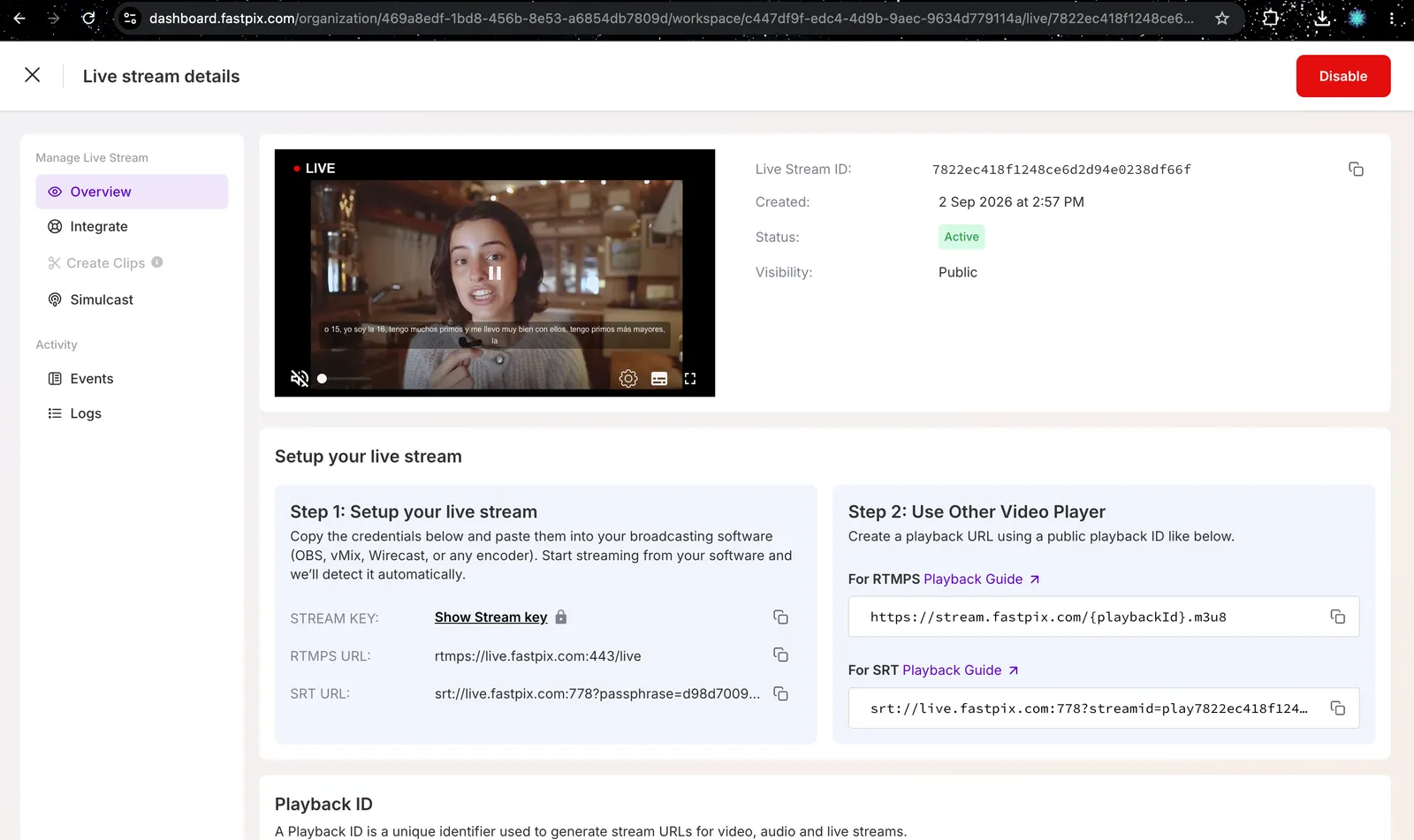
You can also copy the HLS playback URL from the dashboard, and open it in any compatible player.
Compatible players: captions use the standard HLS EXT-X-MEDIA subtitle track and work in most modern players and frameworks, including Safari (native HLS), hls.js, JWPlayer, Video.js, and Shaka Player. In each case, look for the Closed Captions (CC) control.
NOTE
If DVR is enabled on a live stream with closed captions, captions are available for the live portion of the stream only. Caption segments are generated in real time and retained for the current playback window, not for the full DVR history, so seeking back to earlier parts of the stream plays without captions.
Supported languages
FastPix detects the spoken language automatically from the audio, so no configuration is needed.
Captions are optimized for English. These languages also transcribe reliably:
The underlying speech recognition model recognizes around 99 languages in total. See the full list of supported languages. Languages outside the list above may still produce captions, but accuracy varies with the language, audio quality, and speaking style, so test with your own content before relying on them.
Caption accuracy
Captions are produced by automatic speech recognition, so accuracy varies with audio quality, accents, background noise, and speaking pace. Two things to keep in mind:
- Segments with no speech produce no captions. FastPix leaves music, silence, and ambient noise blank rather than filling them with placeholder text.
- Clear audio matters more than anything else. A good microphone and low background noise improve results in every language.
Limitations and considerations
Frequently asked questions
How do I add closed captions to a live stream?
Enable captions when you create the stream. In the FastPix dashboard, turn on captions during setup, or with the API set closedCaptions: true inside inputMediaSettings. Captions are available for RTMP streams only and can’t be added after the stream has started.
Which streaming protocols support live captions?
RTMP only. Captions are written into the HLS manifest that FastPix generates for playback, and RTMP is the protocol that pushes them there. SRT and other protocols use a different data path and don’t support captions in this workflow.
Why do captions take a few seconds to appear?
There’s a short warm-up of about 5 to 10 seconds while the transcoding pipeline produces its first segments. Your encoder’s keyframe interval also affects timing: captions are generated per segment, so a shorter interval makes them appear sooner.
What languages do live captions support?
FastPix detects the spoken language automatically, so no configuration is needed. Captions are optimized for English, and around 99 languages are recognized by the underlying speech recognition model. Accuracy varies with the language, audio quality, and speaking style.
Can I turn captions on or off after the stream starts?
No. Captions are set when you create the live stream and can’t be enabled or disabled mid-stream. To stream without captions, create a new live stream without closedCaptions: true.
Are captions available when viewers seek back with DVR?
No. With DVR enabled, captions cover the live portion of the stream only. Caption segments aren’t retained for the full DVR history, so seeking back to earlier parts of the stream plays without captions.