

Create a scheduled channel
Learn to schedule precise time-based content in FastPix with media, playlists, live events, and bumpers.
A Scheduled Channel in FastPix lets you run video programming exactly how a traditional TV channel works - content starts and ends at specific times, media plays in a set order, and you have full control over how the schedule looks across the day.
PLEASE NOTE
If you’re coming here directly and haven’t created a Scheduled Channel yet, you can follow this guide on creating a Scheduled Channel before proceeding. Once the channel exists, you can then program it.
We will walk through the complete process of programming the channel - adding videos, playlists, live events, bumpers, and creating segments.
Step 1: Open your channel
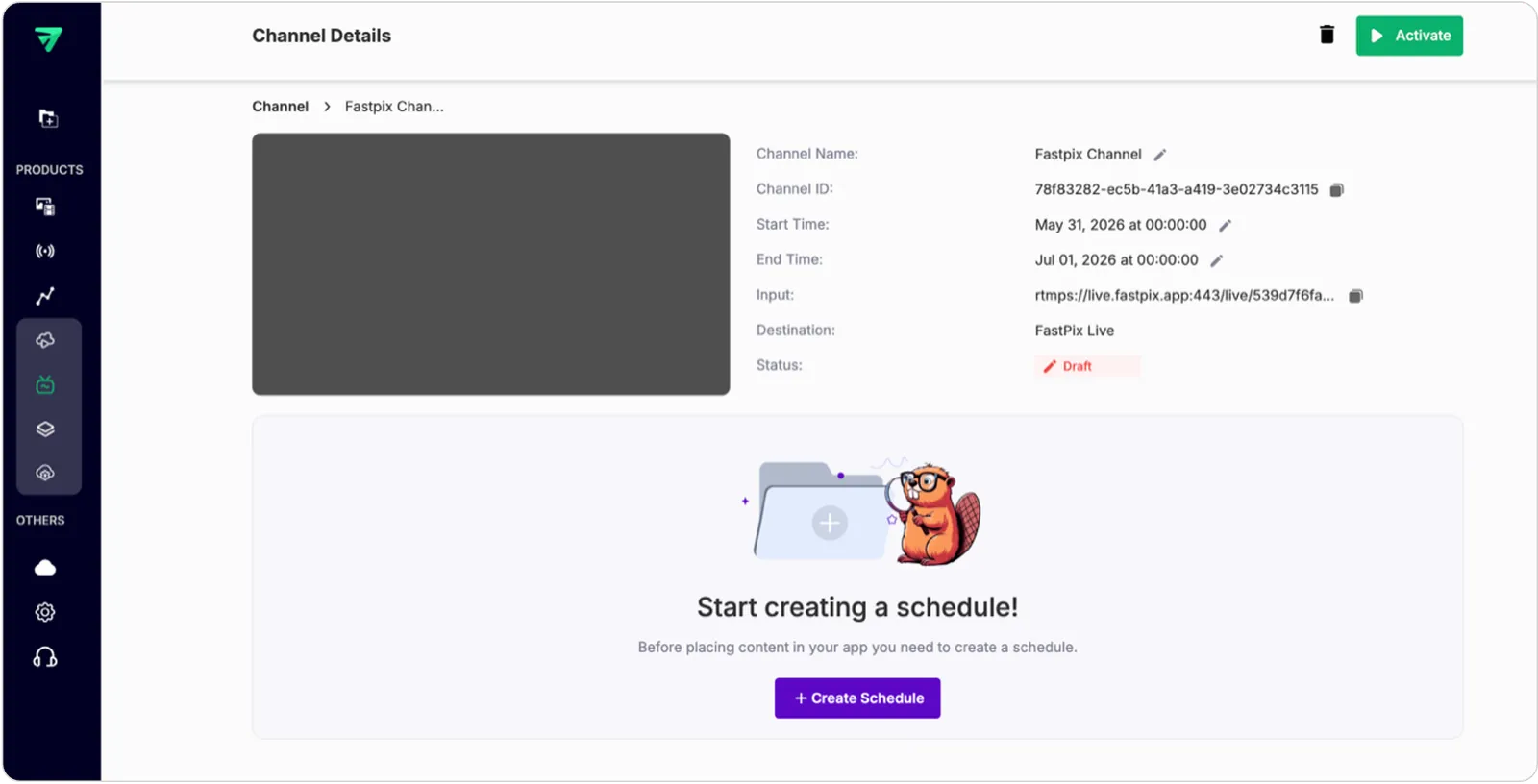
Head to Cloud Playout → Channels in the sidebar, select Scheduled Channel from the dropdown, and click on the channel you just created. You’ll be taken to the programming view - a calendar-based interface where all your media will appear.

You’ll also see your channel’s RTMP input URL, which you’ll need later if you’re streaming live events into the schedule.
Step 2: Insert content
Click Create Schedule to start adding your first block of content.
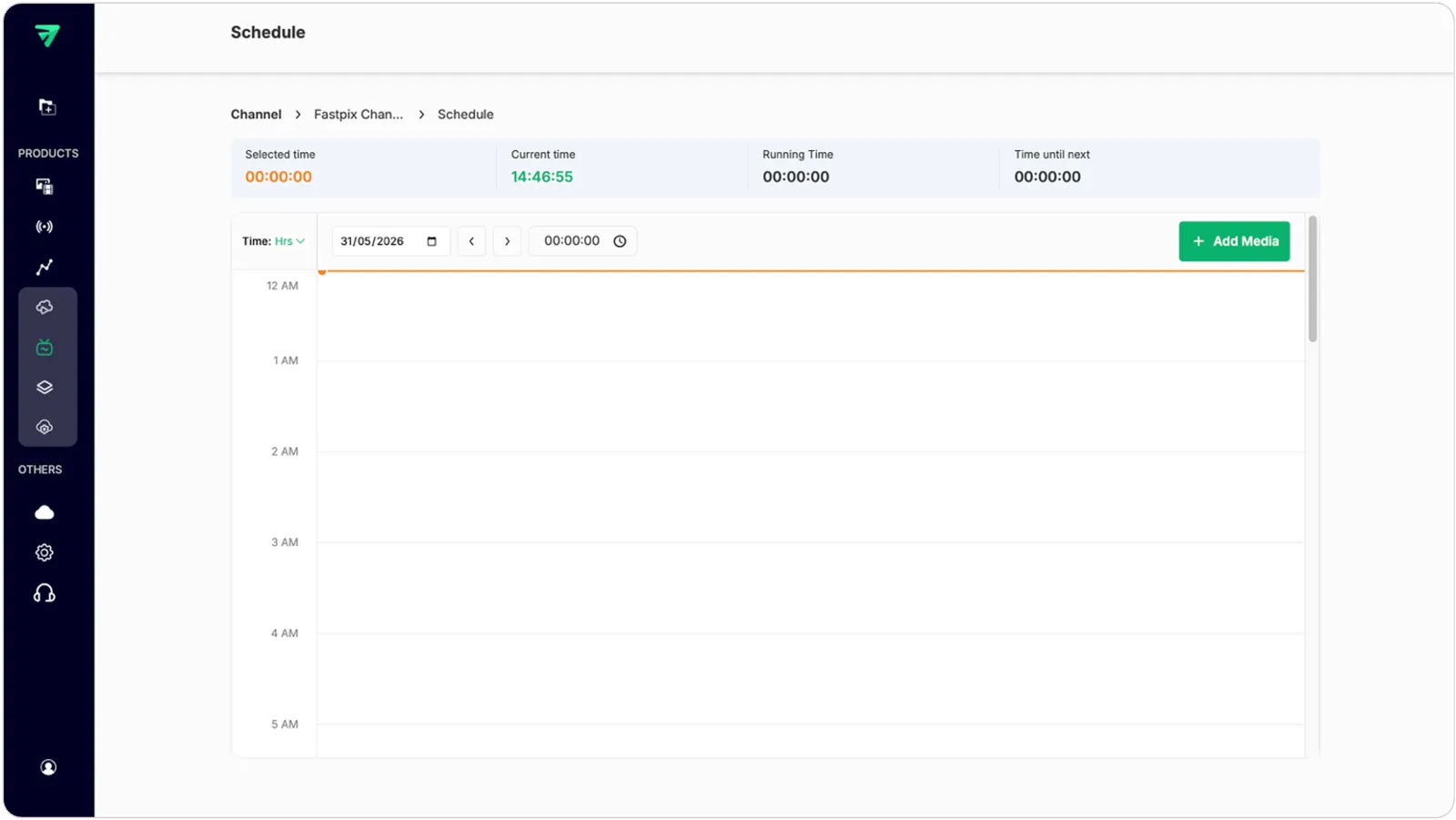
You can insert three types of events:
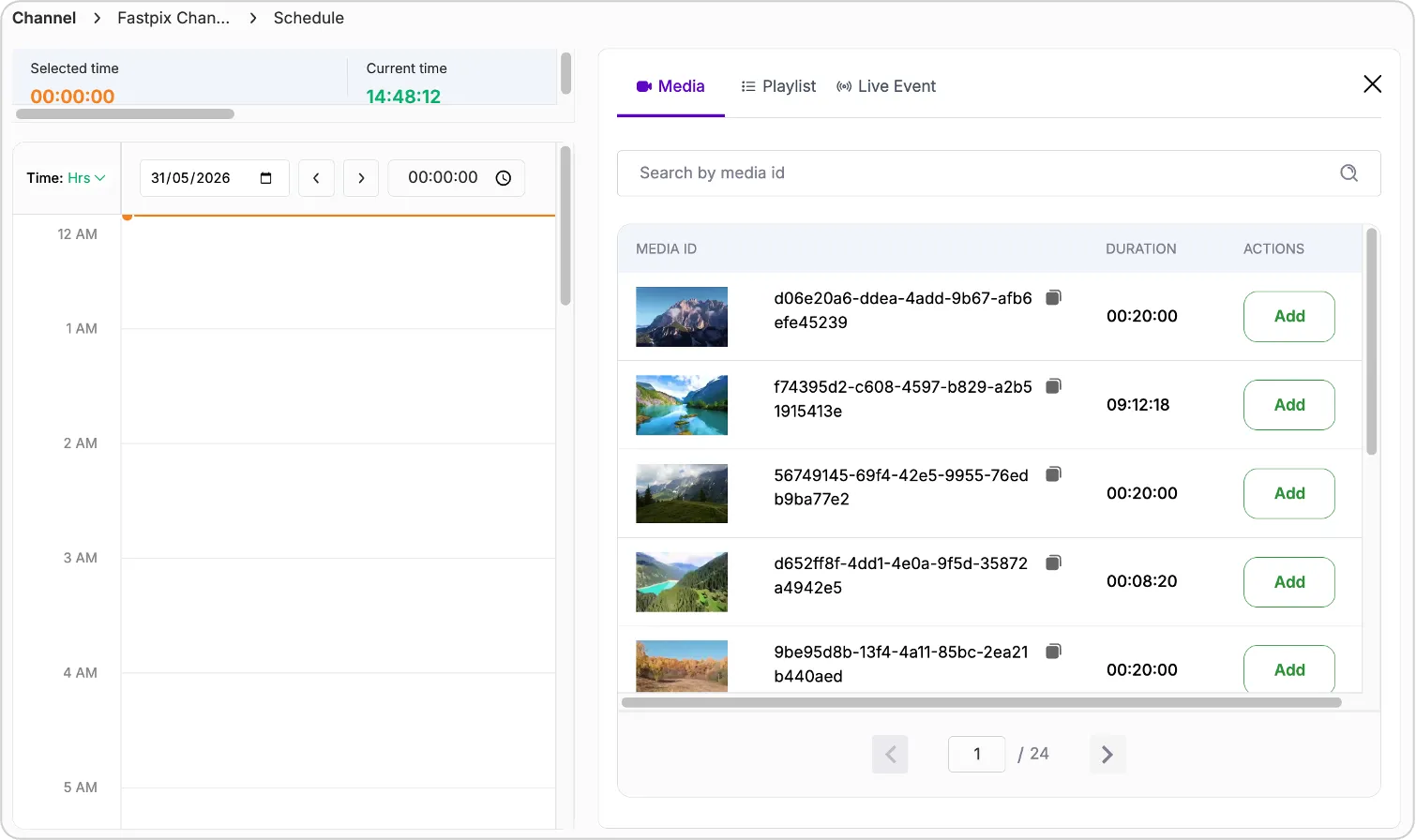
- Media – search and add individual video files
- Playlist – import an existing playlist (gets unpacked into individual media)
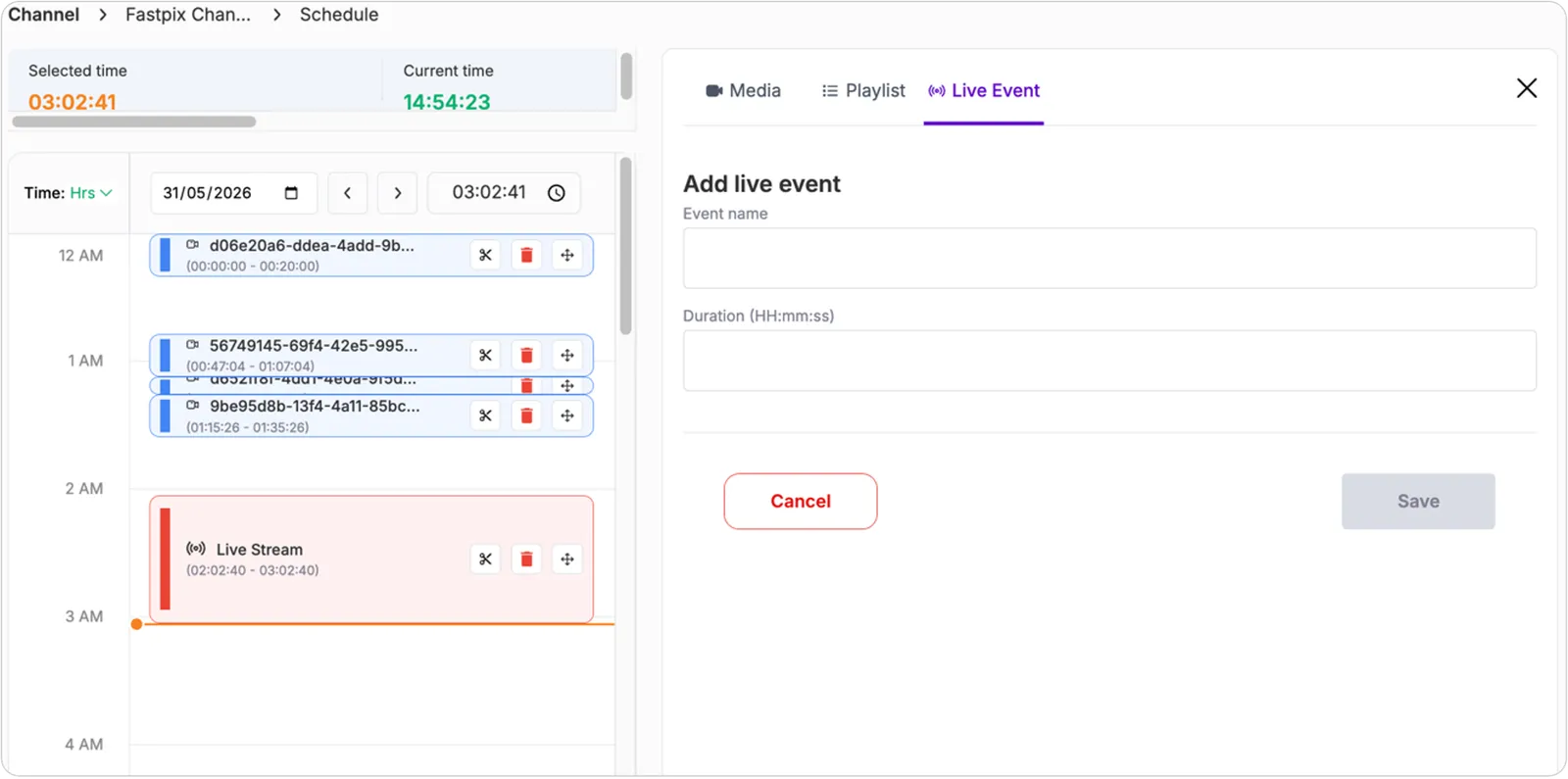
- Live Event – define a duration block for live streaming
PLEASE NOTE
Use the orange pointer on the timeline to set your insertion point. Everything you add will be placed starting from that position.
Step 3: Organize the schedule
Once content is added, you can:
- Drag to shift the start time and adjust the position.
- Delete items with the trash icon
- Zoom in using the time precision dropdown (switch from “Hours” to “Minutes” for shorter items)
Imported playlists will show each media item individually on the timeline, giving you granular control.
Step 4: Add bumpers (Pre-roll or Post-roll)
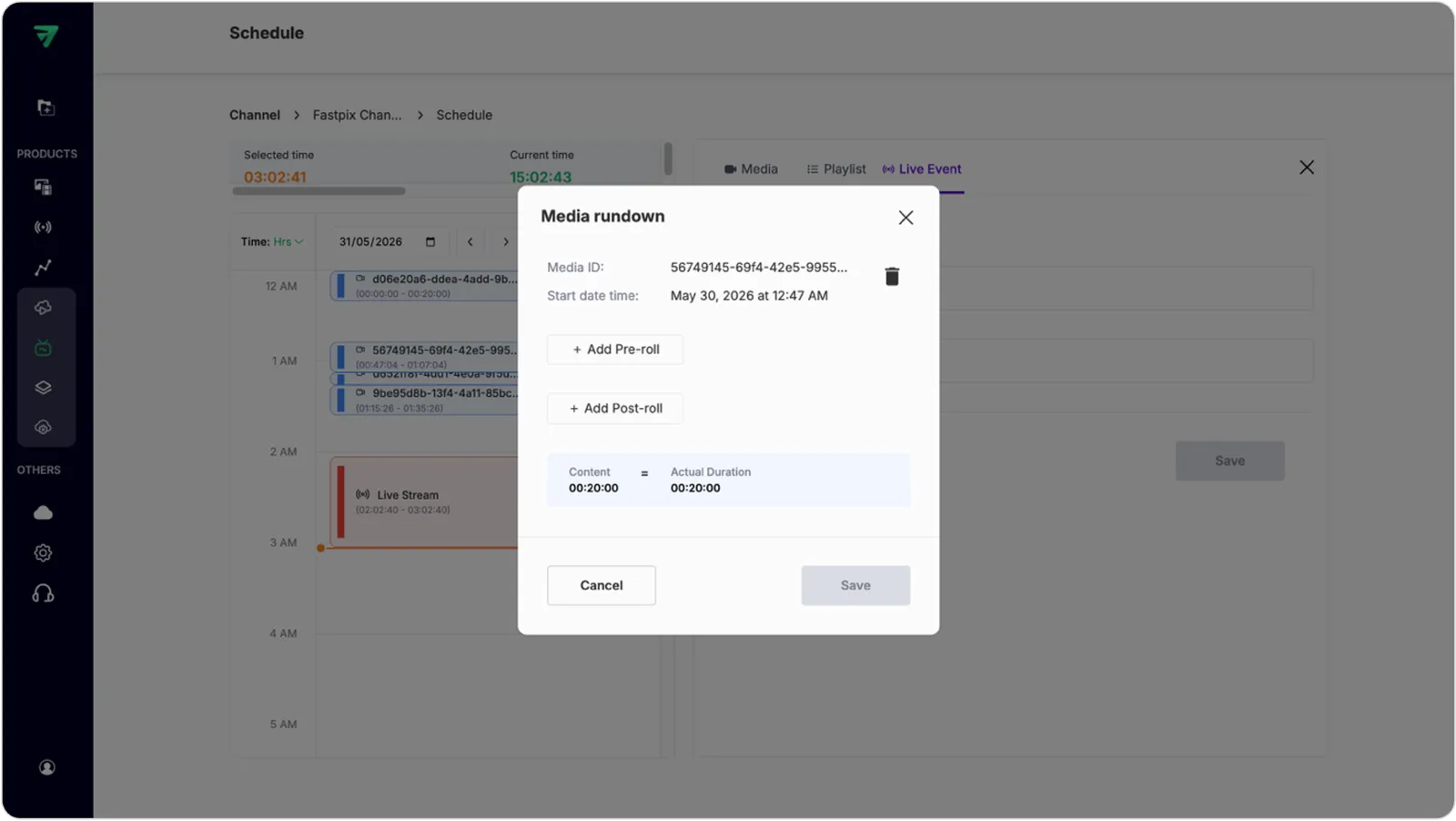
If you want to add an intro clip, ad, or transition, you can insert bumpers before or after any media.
To add a bumper:
- Click the media block on the calendar
- Click Add Pre-roll or Add Post-roll
- Select a bumper from your library
- Click Insert
- Hit Save
Bumper duration is added to the total event time. Make sure there’s a gap between events to insert a bumper. Otherwise, it won’t be added.
You can remove bumpers later by clicking the X next to them and saving.
Step 5: Segment a media (for Mid-roll Ads)
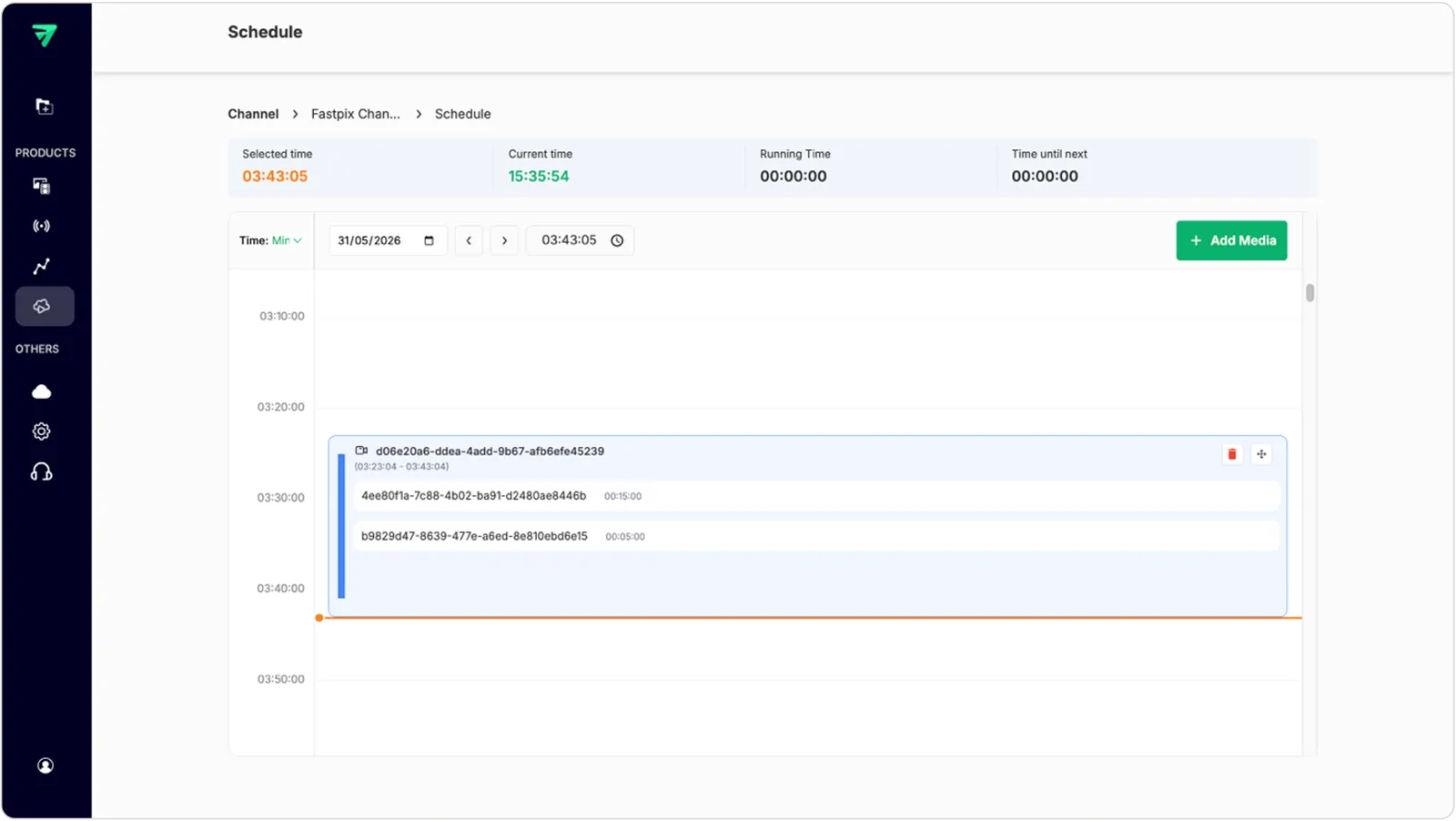
Segments let you split a longer media file into smaller parts - perfect for inserting mid-roll bumpers.
To create segments:
- Click the scissor icon on a media event.
- Add the start time of the segment (0 = beginning of video)
- Set the segment duration.
FastPix will automatically create the rest of the segments based on your input. Once added, segments will appear under the media item.
SEGMENT RULES
- Media must be at least 15 minutes long
- You can create up to 10 segments
- Segments can only be created if:
- Channel is in running state, and segment time is at least 30 mins ahead of current media
- Or, channel is in draft state, and media is at least 30 mins away from start time
- Media must not have bumpers already attached
Step 6: Add bumpers to segments
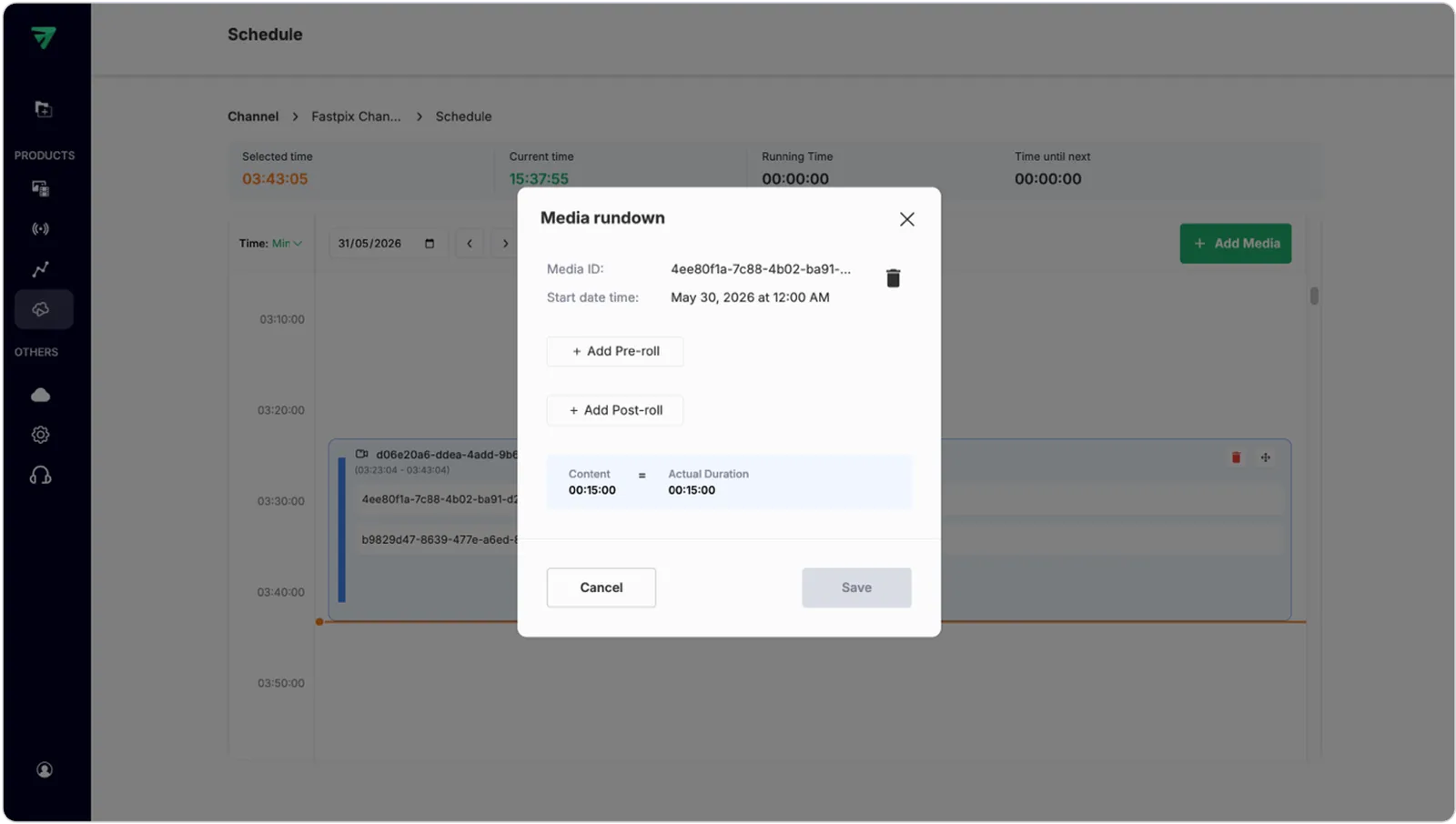
Segments can have pre-roll and post-roll bumpers just like regular media.
To insert bumpers into a segment:
- Click the segment
- Choose Pre-roll or Post-roll
- Select a bumper and click Insert
- Click Save
You can remove these the same way you do with media bumpers.
Step 7: Finalize the schedule
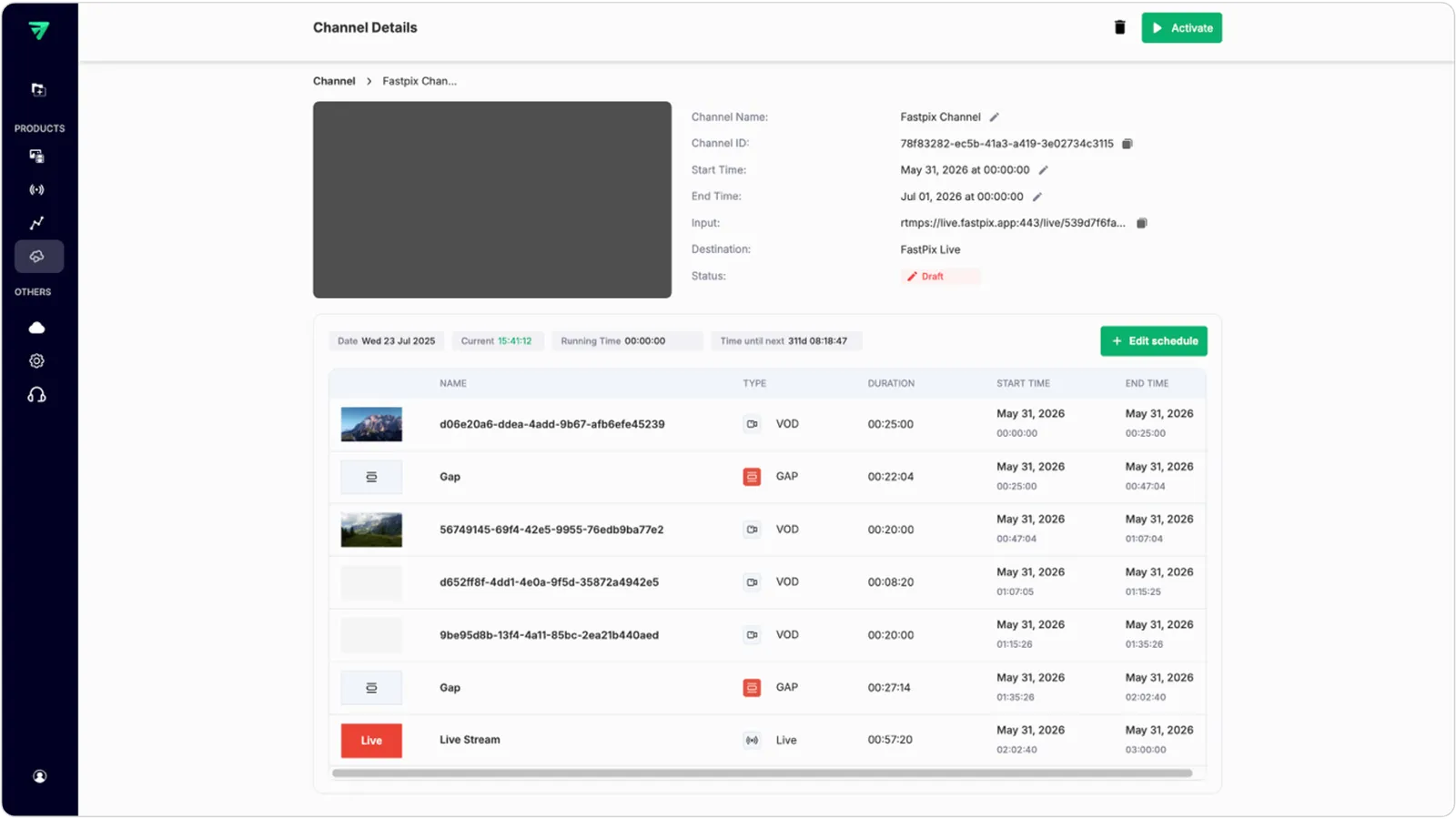
With the above steps, you’re almost done.
Your programmed calendar will now show a clean timeline of media, playlists, live events, bumpers, and segments - all organized by time.
Notes:
- Your channel must contain at least one media item
- You must click Activate at least 10 minutes before the channel start time
- You’ll only see scheduled content for the next 3 hours from now (if the channel is running) or from the channel’s start time (if not yet active).
- If a media item is still being transcoded, you’ll see the parent video placeholder instead of the segments - this updates automatically once processing finishes.
Next, If you want to monitor the channel or check what’s playing now - head to the Channel Monitoring tab once your channel is live.
Things to watch out for
FastPix enforces some smart rules to ensure nothing breaks mid-stream:
- You can’t add, delete, or reorder events that are scheduled to start in the next 10 minutes
- You can’t add bumpers to media that’s starting within 10 minutes
- Segmenting is blocked if a media item already has bumpers
These rules are in place to prevent accidental scheduling conflicts during live operation.