

Configure playout elements and ad breaks
Before you jump into creating a channel, there’s one important step: setting up the media elements that make your stream feel polished, branded, and reliable.
In FastPix Cloud Playout, you can configure the following playout elements:
- Bumpers: Play ads or transition clips between content.
- Slates: Play fallback content when a live input is unavailable.
- Overlays: Display logos, Aston graphics, or L-band graphics on top of your stream.
Let’s walk through how each one works and how to configure them inside the dashboard.
1. Add a Bumper
Bumpers are short video clips that play before, after, or between your content. You can use them for advertisements, branded transitions, promotional videos, or other bridging content.
Common uses include:
- Advertisements before or after a program
- Branded transition clips
- Promotional videos
- “We’ll be right back” messages
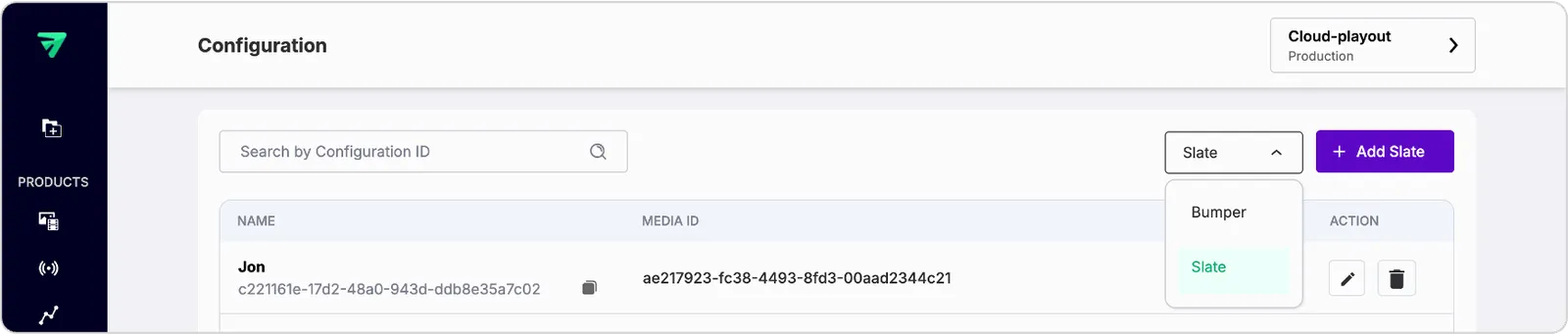
To create a bumper:
- In the FastPix dashboard, go to Cloud Playout → Configuration
- Click Add Bumper
- Next, fill out the details like Bumper name and Media ID (paste the ID of a video you’ve already uploaded)
- Click Create
After you create the bumper, it appears in the Bumpers tab and is available when configuring your channel.
2. Create a Slate
Slates are fallback videos that play when a live input is unavailable or fails. They prevent your channel from going offline by displaying fallback content until the live stream resumes.
You’ve probably seen them before:
- “We’ll be right back” messages
- “Technical difficulties” slates
- Static screens showing program start times or channel branding
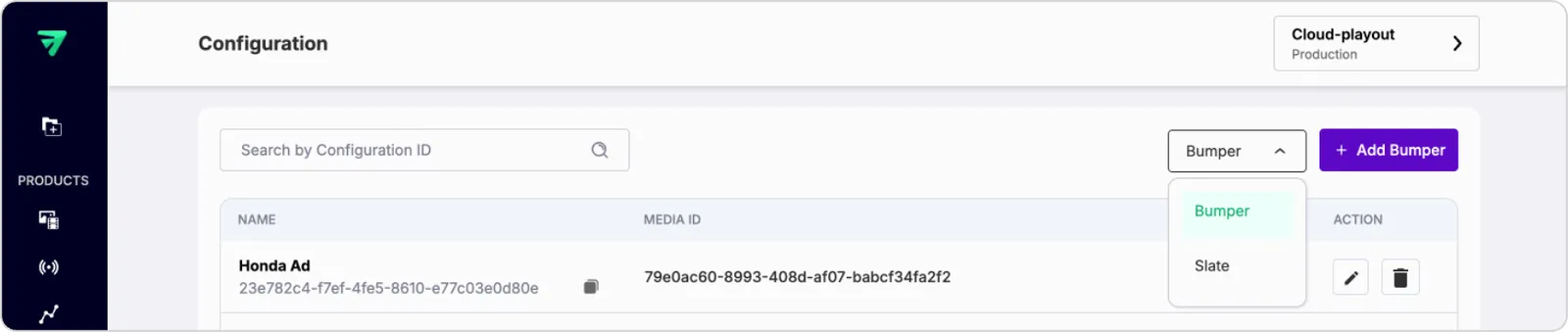
To create a slate:
- In the same Cloud Playout → Configuration tab
- Select the Slate tab
- Click Add Slate
- Enter a name for the slate along with the media ID of the uploaded fallback video.
- Hit Create
FastPix includes a default slate that you can use without creating your own. Create a custom slate only if you want to display your own fallback video.
If your channel uses a live input, you must select either the default slate or a custom slate before activating the channel.
After you create a bumper, it appears in the Bumpers tab. After you create a slate, it appears in the Slates tab.
3. Create an Overlay
Overlays are graphics that appear on top of your video stream. Use them to display branding or other visual information during playback.
FastPix supports two types of overlays:
- Static overlay - an image (PNG) displayed during playback.
- Dynamic overlay - programmatic overlays for more advanced workflows.
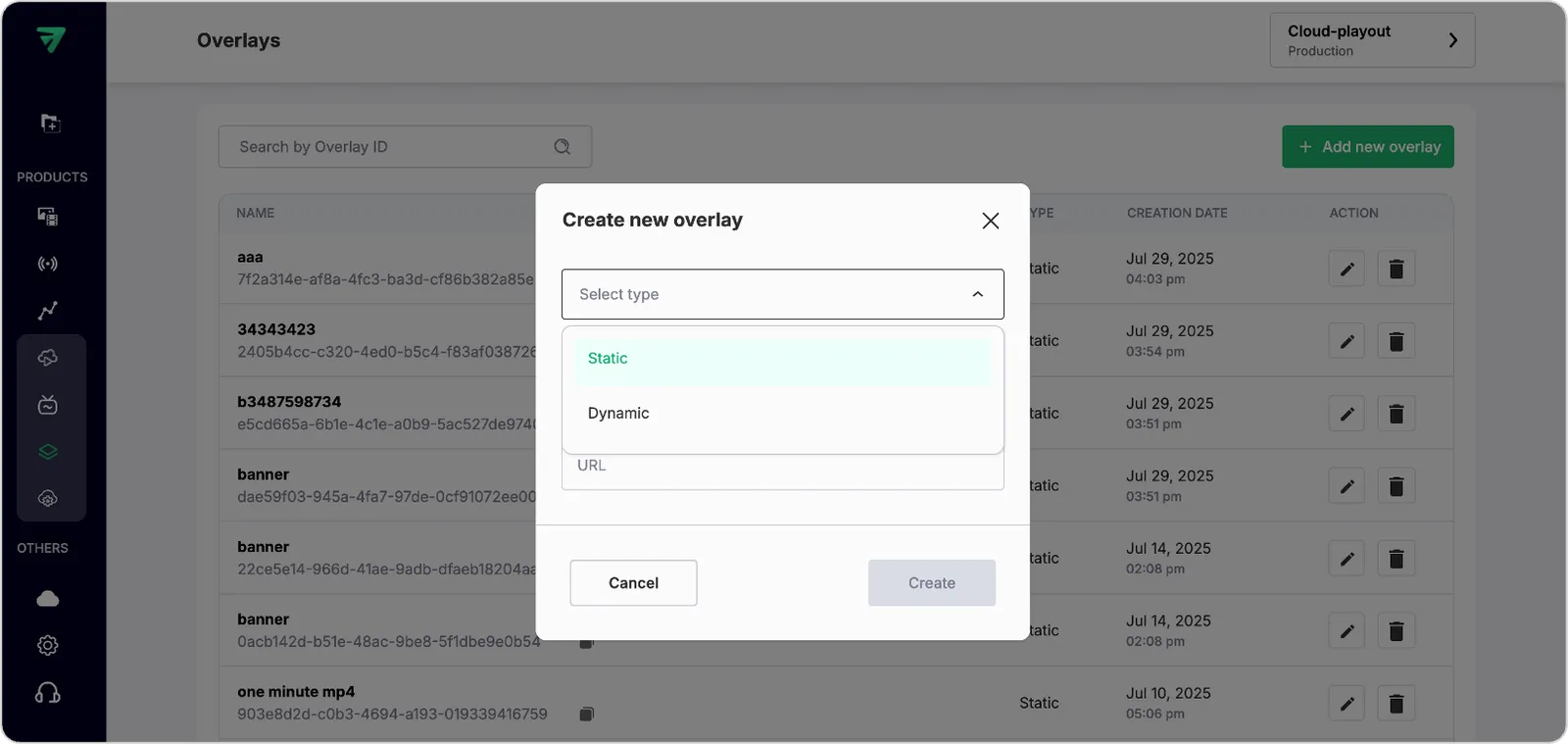
To create a static overlay:
- Go to Cloud Playout > Overlays and click + Add new overlay.
- Select Static as the Type, then enter the Overlay name.
- Select the Channel type, either Loop or Schedule.
- If you select Schedule, enter the Media ID of the media where you want to display the overlay.
- Select the Overlay type: Logo, Aston, or L-Band.
- Select the Upload method:
- Pull to provide a URL.
- Push to upload an image from your device.
- If you select Pull, enter the media URL in the Media URL field. The URL must start with
https://and point to a PNG. - Click Create. FastPix validates the link and saves your overlay.
After you save the overlay, you can add it to any channel when configuring your playout schedule.
To create a dynamic overlay
- Go to Cloud Playout > Overlays and click + Add new overlay.
- Select Dynamic as the Type, then enter the Overlay name.
- Select the Channel type, either Loop or Schedule.
- Select the Upload method:
- Pull to provide a URL.
- Push to upload an image from your device.
- If you select Pull, enter the media URL in the Media URL field. The URL must start with
https://and point to a PNG. - Click Create. FastPix validates the configuration and saves your overlay.
After you save the overlay, you can add it to any channel when configuring your playout schedule.
TIP
Use overlays to:
- Show your logo throughout the stream
- Add a campaign-specific banner during a segment
- Display countdowns, sale promos, or informational graphics