

Simulcast to multiple platforms
Learn to configure OBS for broadcast, and manage simulcast webhook to live stream on third-party platforms such as YouTube, Facebook, and Twitch.
Simulcasting allows you to broadcast a live video feed to multiple 3rd party social platforms or channels at the same time. This can include platforms like YouTube, Facebook Live, Twitch, and others.
Simulcast targets
How to simulcast your live stream
Simulcast for YouTube Live
Simulcast for Facebook Live
Simulcast for Twitch
Configure OBS for broadcasting
Simulcast webhook events
You have two options when setting up simulcasts for a livestream:
- Create simulcasts first, then start the livestream
- Start the livestream first, then add simulcasts
Option 1: Create simulcasts first, then start the livestream
This approach is useful when you already know all the platforms (like YouTube, Facebook, or Twitch) where you want to broadcast. It ensures that the stream reaches every destination from the moment it goes live.
Example: Let’s say you’re hosting a product launch and want your audience across YouTube, Facebook, and LinkedIn to watch it simultaneously. You’d configure all three simulcasts in advance, and once everything is set up, you start the livestream. The broadcast begins on all platforms at the same time.
Best for:
- Scheduled or planned events
- Maximum reach from the very beginning
- Avoiding mid-stream configuration
Option 2: Start the livestream first, then add simulcasts
This is helpful when you’re unsure where you want to stream initially or want to test things out privately before going public on other platforms.
Example: You might start a livestream and test it privately or only on YouTube. Once you’re confident everything is working well, you add Facebook and Twitch as simulcasts mid-stream.
Best for:
- Last-minute changes
- Gradual rollout across platforms
- Testing before going fully live
For details on the full API definition, request parameters, and response structure, see the Create simulcast of stream API reference.
Simulcast targets
Live simulcasting can be used with any RTMP server. Presently, FastPix supports simulcast targets from the following platforms. All of these platforms supports the RTMP protocol.
📘 NOTE
We’re constantly upscaling our APIs and adding more simulcast targets from other popular platforms. Reach out to us if you have any other specific requirements.
How to simulcast your live stream
Take reference from the create a simulcast API endpoint to add simulcasting to the FastPix live stream.
After you add the simulcast target to your request, the live stream event will be set up for simulcasting. The targets can be added before or after the live stream event creation.
📘 NOTE
Simulcast targets can only be added when the live stream object status is
idlethat is when it’s not active.
Request body parameters
url
- It works like an address that tells your live stream where to connect when sending video to a third-party streaming service.
- It lets your live stream know where to go and how to reach its destination online.
streamKey:
- When you want to share a live video on a specific platform, they provide you with a unique address called the RTMPS
url, and astreamKey. You combine these two pieces of information, to create a connection. - This connection allows your live video to be sent to and displayed on that platform. Each platform has its own unique RTMPS URL and stream key, acting as the special code to broadcast on that platform.
metadata:
- Stores additional details about the live stream, such as its title, category, or any other relevant information.
Request example to create a simulcast:
Here’s what you will get in response:
As a next step, you need to configure your broadcasting software (like OBS studio) to start the live streaming while also sharing the stream to 3rd party social platforms.
You can find below examples of different streaming platforms along with their RTMP URL and stream key:
Simulcast for YouTube Live
- Use Live Stream ID to set up a simulcast on YouTube.
- Get the RTMP URL and stream key for YouTube.
- Create a simulcast API by setting up a POST request for YouTube.
📘 NOTE
The streamKey is intended for a single use on each platform; once the stream concludes, it becomes inactive. It is advisable to regularly reset the streamKey for optimal functionality.
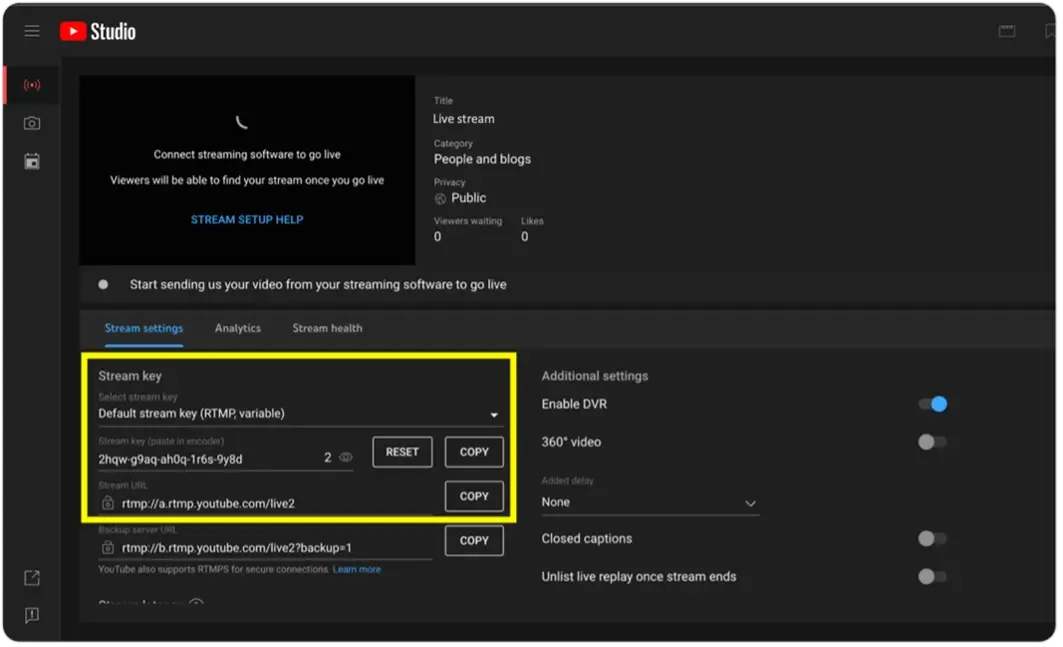
- RTMP URL: rtmp://a.rtmp.youtube.com/live2
- Stream Key: 2hqw-g9aq-ah0q-1r6s-9y8d
Next step: Configure broadcasting software
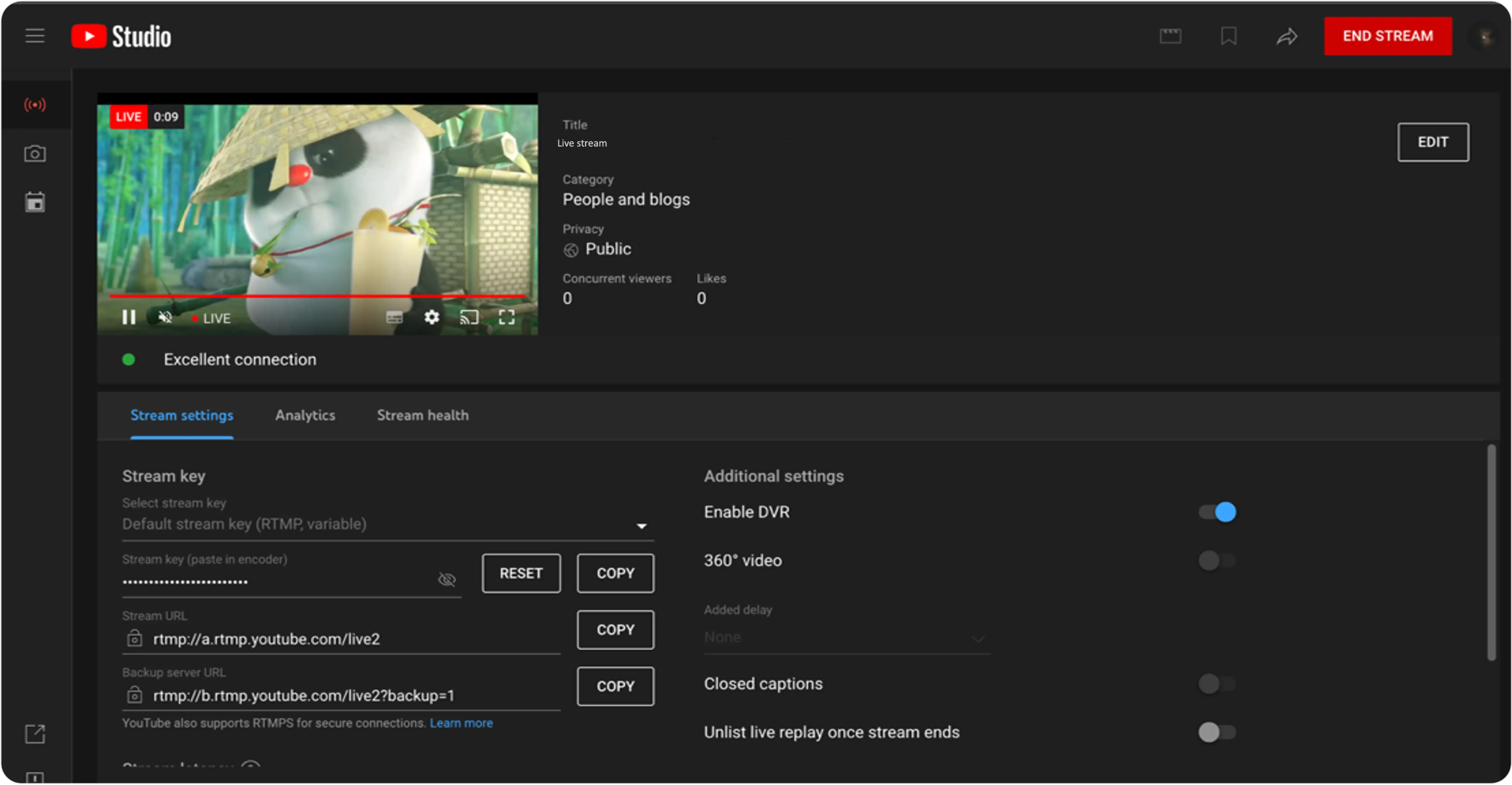
Example: Live streaming in YouTube
Simulcast for Facebook Live
- Use Live Stream ID to set up a simulcast on Facebook live (If you want more simulcast).
- Get the RTMP URL and stream key for Facebook.
- Create a simulcast by setting up a POST request for Facebook.
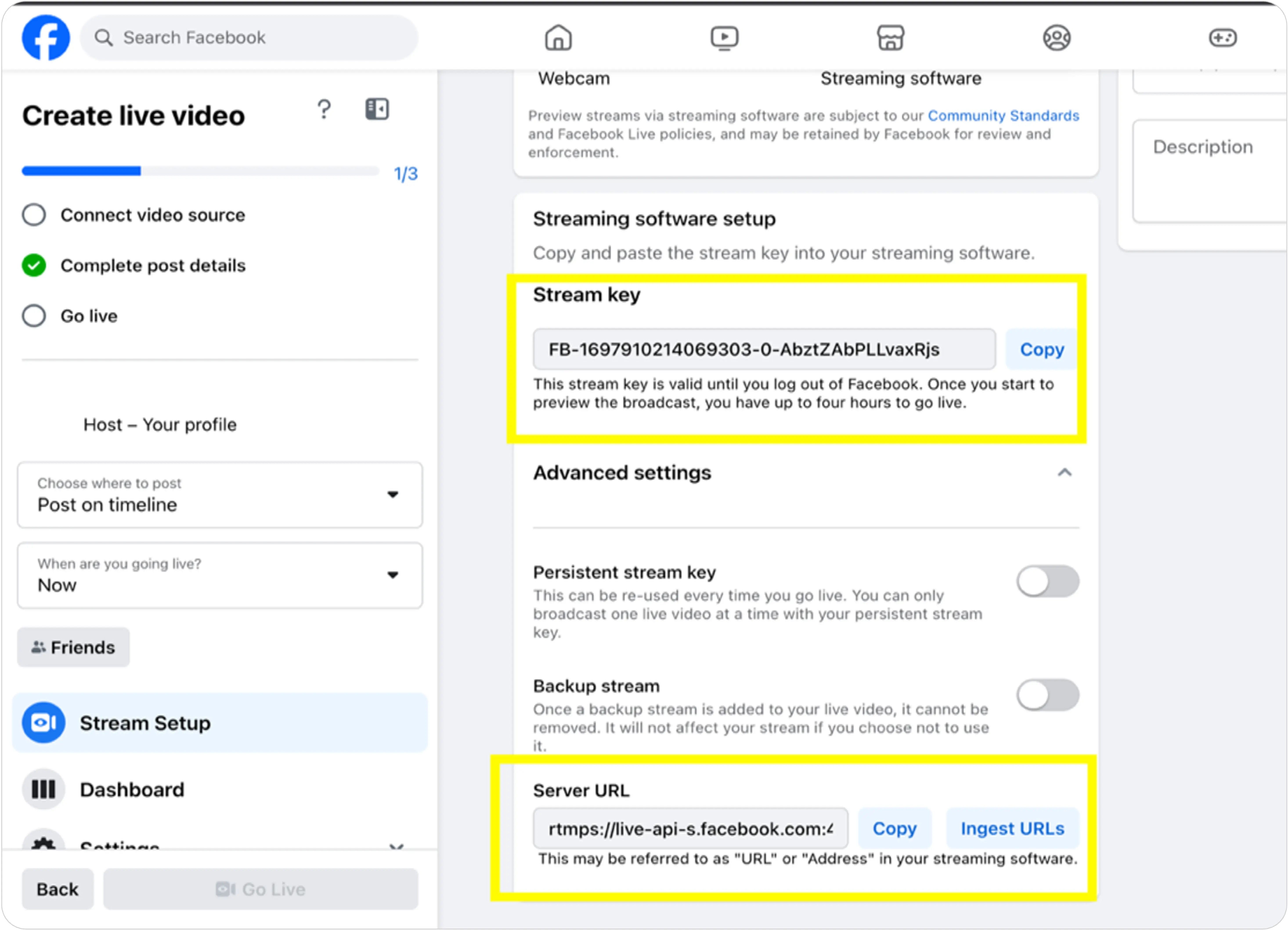
- RTMP URL: rtmps://live-api-s.facebook.com:443/rtmp/
- Stream Key: FB-1697910214069303-0-AbztZAbPLLvaxRjs
Next step: Configure broadcasting software
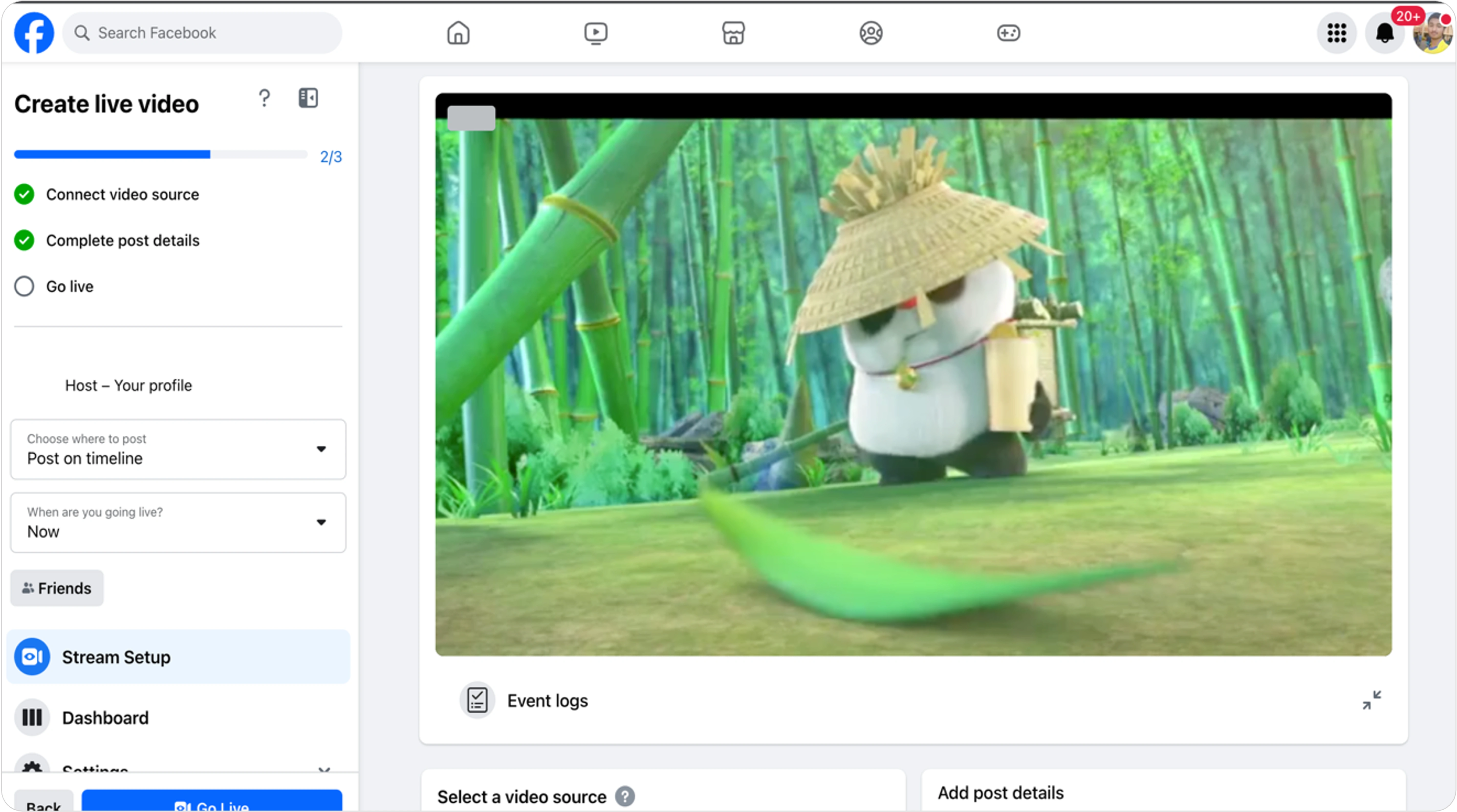
Example: Live streaming in Facebook
Simulcast for Twitch
- Use Live Stream ID to set up a simulcast on Twitch (If you want more simulcast)
- Get the RTMP URL and stream key for Twitch.
- Create a simulcast by setting up a POST request for Twitch.
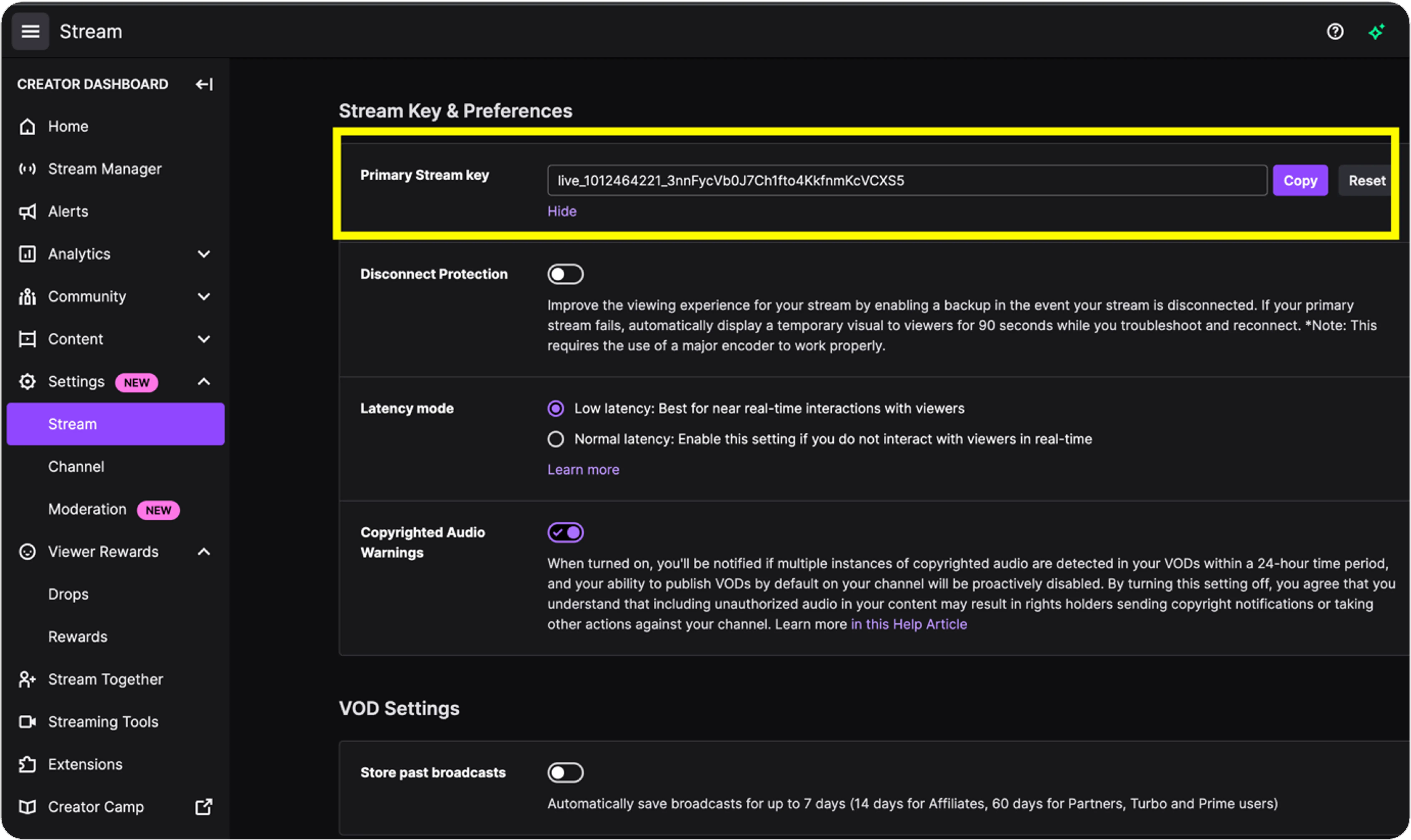
- RTMP URL: rtmps://live.twitch.tv/app
- Stream Key: live_1012464221_3nnFycVb0J7Ch1fto4KkfnmKcVCXS5
Next step: Configure broadcasting software
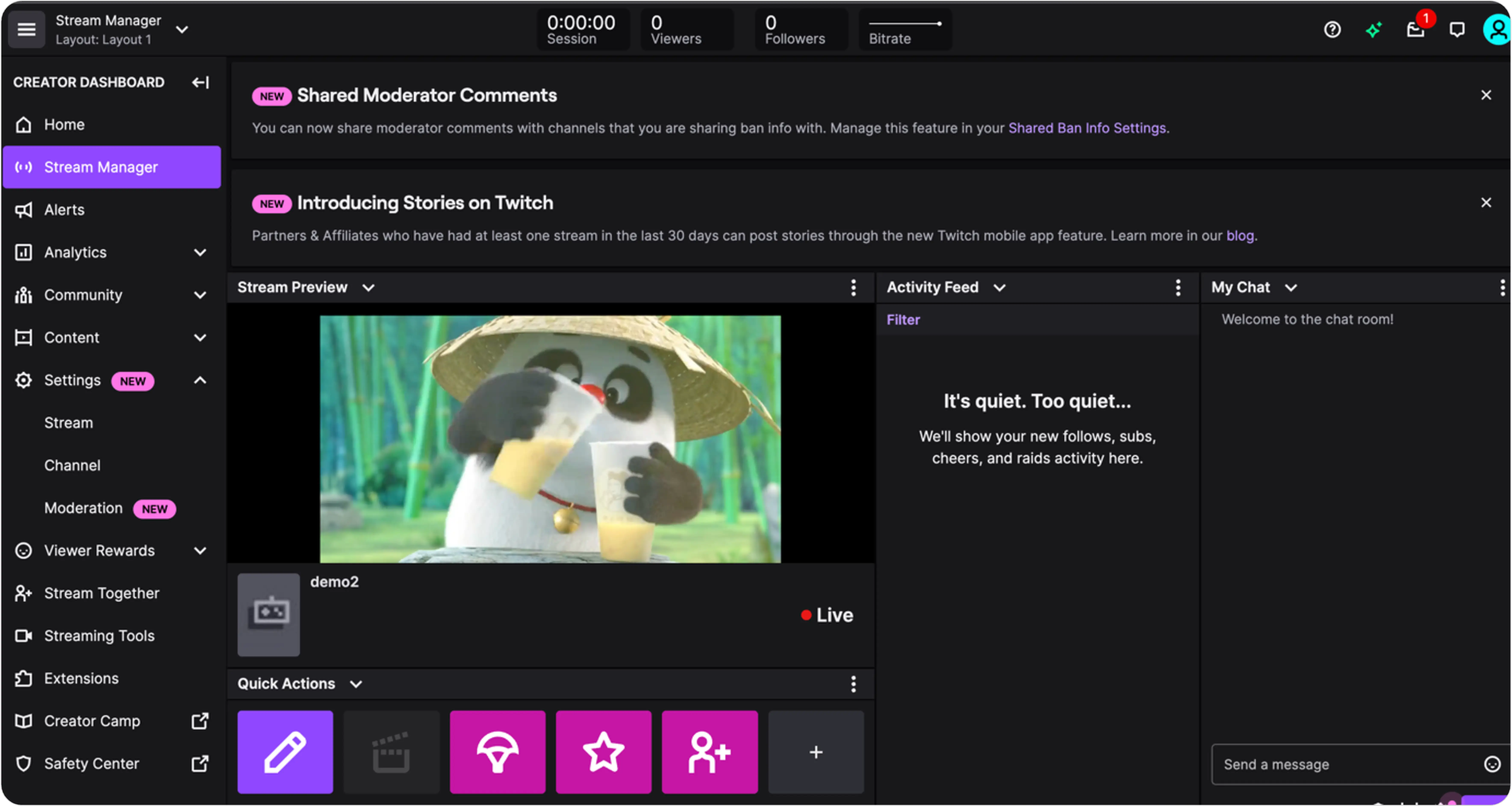
Example: Live streaming in Twitch
Configure OBS for broadcasting
After you are done setting up your simulcasting targets, you would need to configure the OBS (Open Broadcaster Software) or any broadcasting software that you prefer to finally start the live streaming while also sharing the stream to 3rd party social platforms.
Here are the steps you need to follow:
- Open OBS on your system
- Go to “Settings” and click on “Stream”.
- Enter our RTMP URL (rtmps://live.fastpix.io:443/live) and streamKey (The one that got generated when you created the live stream).
- Set up your video and audio sources (input that you want to stream).
- Start streaming: Click on “Start Streaming” in OBS. The stream will get started in all platforms simultaneously.
- To stop streaming: Click “Stop Streaming” in OBS. The stream ends on all platforms simultaneously.
Simulcast events to know status
Utilizing simulcast target events is crucial for developing a user interfacxe that provides users with real-time information on the status of their set third-party endpoints. This becomes especially beneficial when designing a UI to present the current state of each simulcast target and to monitor any updates in their status as they happen.