> For clean Markdown of any page, append .md to the page URL.
> For a complete documentation index, see https://fastpix.com/docs/llms.txt.
> For AI client integration (Claude Code, Cursor, etc.), connect to the MCP server at https://fastpix.com/docs/_mcp/server.
# Set the branding color
> FastPix color attributes let you set accent-color, primary-color, and secondary-color to brand your player interface.
FastPix color attributes let you set accent-color, primary-color, and secondary-color to brand your player interface.
The `fastpix-player` element can be customized to suit your application's design and functionality requirements. This guide covers various customization options of colour attributes to maintain branding consistency and enhance user interface elements.
* **accent-color**: Sets the branding color of the player.
* **primary-color**: Changes the color of icons and primary elements.
* **secondary-color**: Adjusts background color of the icons and secondary elements.
\
## Accent color
The accent color in the `fastpix-player` element serves as the branding color, allowing you to customize the player's appearance to match your brand identity. By default, the accent color is set to **#5D09C7**, but you can easily replace it with your preferred theme color.
This accent color is used for highlighting elements such as progress bars, button hovers, and other interactive elements within the player interface.
\
**To customize the accent color**:
You can set a custom accent color by updating the `accent-color` attribute of the `fastpix-player` element with your chosen hexadecimal color code.
```jsx
```
\
The player looks like this with the `accent-color` set to **#5D09C7**:
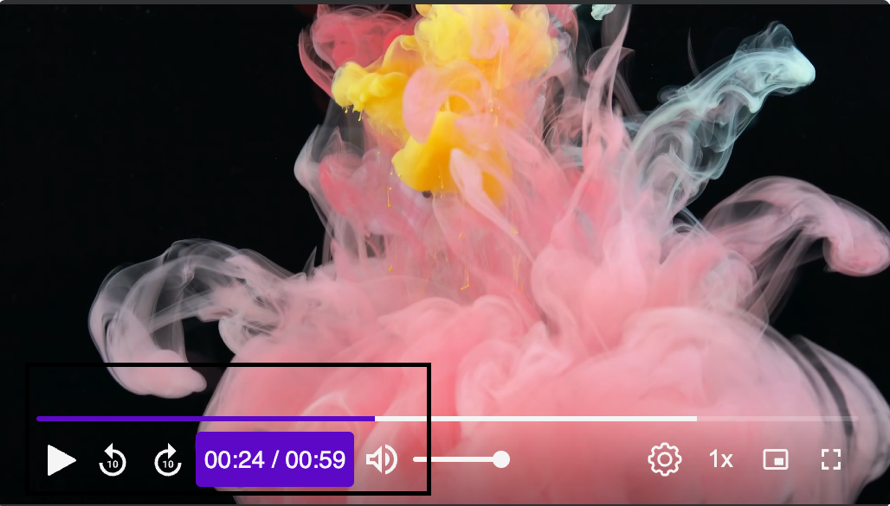
You can replace **#5D09C7** with your desired accent color by updating the attributes associated with the `fastpix-player` to reflect the new accent color across the player interface. This helps to maintain consistency with your overall brand aesthetics.
\
## Primary color
The `primary-color` attribute in player allows customization of icon colors and primary interactive elements. This color should align with your brand's visual identity. Changing this affects elements like play/pause buttons, icons, and buffered progress. The default color is **#F5F5F5**, providing a neutral base that can be customized to fit your theme. Here’s how you can set it:
\
**Example**
To customize the primary color to match your brand's color scheme, update the `primary-color` attribute with your desired hexadecimal color code or color name:
```jsx
```
\
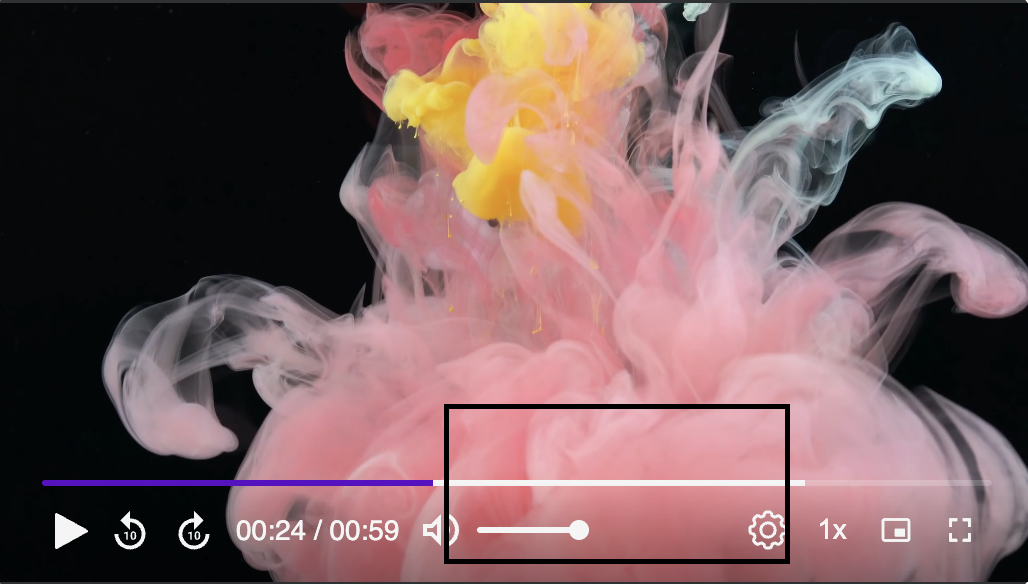
The player looks like this with the `primary-color` set to **#F5F5F5**:
\
## Secondary color
The `secondary-color` attribute adjusts the background colors of control panels and other secondary elements within the player interface.
By default, `fastpix-player` uses `#000` (black) as the secondary color for backgrounds. You can customize this to match your brand’s color scheme, providing visual cohesion.
**Example**
To customize the secondary color, update the `secondary-color` attribute to your preferred color code.
```jsx
```
\
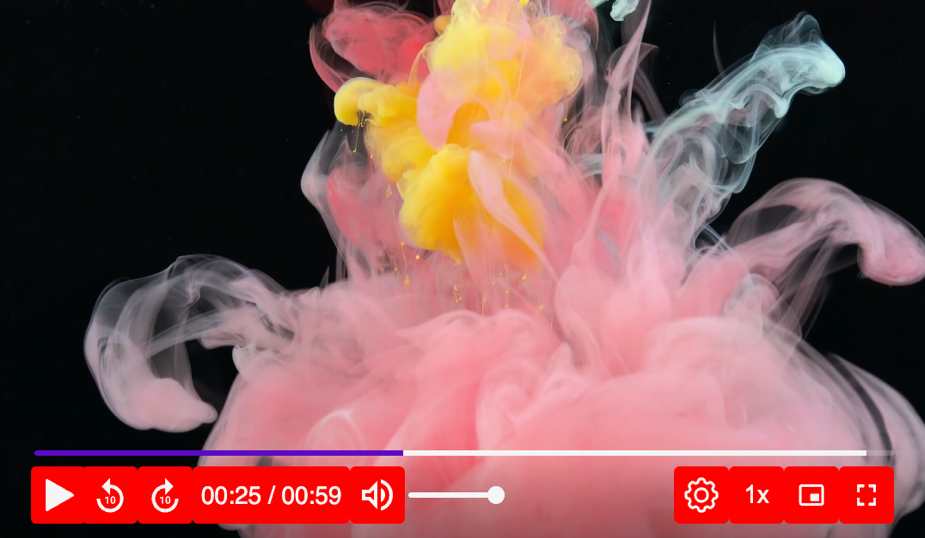
The player looks like this with the `secondary-color` set to “red”: